
The Events Calendar includes a built-in RSS feed that delivers upcoming events to subscribers in any compatible feed reader. This article covers everything about the events RSS feed: where to find it, how it differs from WordPress’s default post feed, how visitors can subscribe, and how to customize it with code.
You can access your calendar’s RSS feed by adding /feed to the end of your main calendar page URL. For example, if your calendar is at https://yoursite.com/events/, the feed is at https://yoursite.com/events/feed.
Clicking the feed URL directly may display a mass of unformatted XML code — that’s normal. RSS feeds are not designed to be human-readable in a browser. They’re parsed by a compatible RSS reader application, which presents the content with proper formatting.
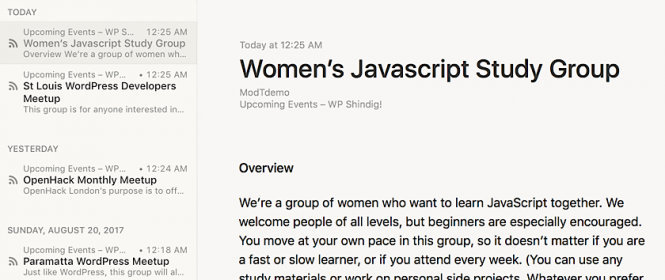
How Events Are Ordered
The Events Calendar’s RSS feed shows the next 10 upcoming events starting from the current day, ordered by event start date. This is different from a standard WordPress post feed, which orders content by publication date.
The reason for this difference is that we typically think of an event’s start date when we think about when an event is happening. To illustrate:
- Event A: Published January 1 — starts January 10
- Event B: Published January 2 — starts January 9
In the default WordPress RSS feed, Event B would appear first because it was published later. In the Events Calendar RSS feed, Event A appears first because it starts later. The calendar ordering is almost always what you want for events.
Keep this distinction in mind if you decide to combine events and posts into a single feed — merged events will be ordered by publication date, not start date. See the Customizing the Feed section below for the relevant snippet.
Subscribing to Your Events Feed
Any RSS reader application can subscribe to your events feed. If you’re just getting started, Feedly is a free, straightforward web-based option. Many other RSS readers exist in web-based, desktop, and mobile formats.
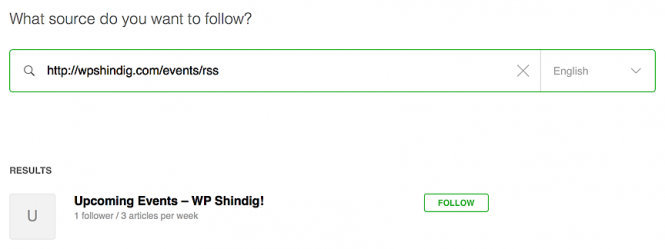
To subscribe in Feedly: click Add Content, select Publications & Blogs, and enter your feed URL (ending in /feed). After a moment the results pane updates with your calendar feed title. Click Follow, select a category, and you’re done. When new events are added to the site, they’ll appear immediately in your feed, with a link to click through to the original event post.
Adding a Subscribe Link or Button to Your Site
To make it easy for visitors to subscribe, add a direct link to your feed URL in an accessible location near your main calendar view. Users with a compatible RSS application who click the link will have the feed automatically opened in their reader with the option to subscribe.
For a Feedly-specific button, use Feedly’s button generator: select a button style, enter your feed URL, and copy the generated code. You can add it to a theme template, a Custom HTML widget, or anywhere else on your site.
Category and Tag Feeds
Just as The Events Calendar supports category-specific calendar views, you can generate RSS feeds for specific event categories and tags. Simply append /feed to the end of any category or tag archive URL.
For example, if a “Fitness” category is at https://yoursite.com/events/category/fitness/, the category feed is at https://yoursite.com/events/category/fitness/feed.
This is especially useful for community calendars with a wide variety of event types — visitors can subscribe only to the categories they care about.
Note on tag feeds: Unlike event categories, tags are shared between events and standard WordPress posts. If other post types use the same tags, those posts will appear on the tag feed alongside your events.
Email Subscriptions
For visitors who prefer email notifications over a feed reader, several third-party services convert RSS feeds to email digests:
If you use Mailchimp for email promotions, its RSS-to-email feature can push your calendar feed directly to subscribers automatically. Connect your RSS feed to a new RSS-driven campaign and new event posts will be converted into a newsletter-friendly format and sent on your chosen schedule.
Events are a custom post type and will not be included in your site’s main WordPress RSS feed by default. The snippets below cover the most common customizations. Add them to your (child) theme’s functions.php file, or wherever you usually put custom code.
Note: If changes don’t seem to take effect after adding a snippet, try flushing your permalinks by clicking Save under Settings → Permalinks. Also be aware that your site has more than one type of RSS feed — see the WordPress Codex on feeds for an overview.
Customizing the RSS Feed
Add Events to the Main WordPress RSS Feed
This snippet merges events into your site’s main post RSS feed. After adding it, events will appear in https://yoursite.com/feed alongside regular posts, ordered by publication date.
<?php
// Add Events to RSS Feed
function add_events_to_rss_feed( $args ) {
    if ( isset( $args['feed'] ) && !isset( $args['post_type'] ) ) {
        $args['post_type'] = array( 'post', 'tribe_events' );
    }
    return $args;
}

add_filter( 'request', 'add_events_to_rss_feed' );
Add Event Start and End Dates to the Feed
By default, the RSS feed does not include event start and end dates as dedicated fields. This snippet taps into WordPress feed hooks to add them.
💡 RSS feeds do not offer native support for event-specific fields like start and end times, and likely never will. The fields added below are based on a draft RSS event spec that was last updated in 2002. The draft appears abandoned, and even the purl.org namespace now 404s. Given the age of RSS and that it is widely being replaced by newer formats, it is likely that no official event namespace will ever come to RSS. These fields have limited utility and will not be viewable or useful in many RSS readers.
<?php
// Add Tribe Event Namespace
add_action( 'rss2_ns', 'events_rss2_namespace' );

function events_rss2_namespace() {
    echo 'xmlns:ev="http://purl.org/rss/2.0/modules/event/"'."\n";
}

// Add Event Dates to RSS Feed
add_action( 'rss_item', 'tribe_rss_feed_add_eventdate' );
add_action( 'rss2_item', 'tribe_rss_feed_add_eventdate' );
add_action( 'commentsrss2_item', 'tribe_rss_feed_add_eventdate' );

function tribe_rss_feed_add_eventdate() {
    if ( ! tribe_is_event() ) {
        return;
    }
    ?>
    <ev:tribe_event_meta xmlns:ev="Event">
    <?php if ( tribe_get_start_date() !== tribe_get_end_date() ) { ?>

        <ev:startdate><?php echo tribe_get_start_date(); ?></ev:startdate>
        <ev:enddate><?php echo tribe_get_end_date(); ?></ev:enddate>

    <?php } else { ?>

        <ev:startdate><?php echo tribe_get_start_date(); ?></ev:startdate>

    <?php } ?>
    </ev:tribe_event_meta>

<?php }
Order Events by Publication Date in the Feed
By default, TEC orders events in the RSS feed by start date. If you want events to appear in publication date order instead — for example, after merging events into the main post feed — this snippet removes TEC’s ordering filter when the current query is a feed:
add_action( 'pre_get_posts', 'custom_teardown_tribe_order_filter', 60 );

function custom_teardown_tribe_order_filter() {
    if ( is_feed() ) {
        remove_filter( 'posts_orderby', array( 'Tribe__Events__Query', 'posts_orderby' ), 10, 2 );
    }
}
Use the Publication Date as the RSS pubDate
By default, TEC sets the <pubDate> value in the RSS feed to the event’s start date, so events appear in feed readers at the time they occur rather than when they were published. If you need the <pubDate> to reflect when the event was actually published on your site instead, add this single line:
remove_filter( 'get_post_time', array( 'Tribe__Events__Templates', 'event_date_to_pubDate', 10 ) );
Adjust the Number of Events in the Feed
By default, WordPress uses the value set under Settings → Reading → Syndication feeds show the most recent to control the number of items in any RSS feed. The following snippet overrides that setting specifically for the events feed. Replace 10 with your desired count:
add_filter( 'pre_option_posts_per_rss', 'tribe_events_feed_count' );

function tribe_events_feed_count( $count ) {
    if ( tribe_is_event() || tribe_is_event_query() ) {
        return 10; // Change this number to your desired feed count
    }
    return $count;
}
For more ways to customize WordPress RSS feeds, see this Digging Into WordPress article on feed customization, or browse the WordPress Codex on feeds.