
There are several ways to remove events from your WordPress site, depending on whether you want to delete a batch of events right now or set up automatic cleanup for old events over time. This article covers all of them: manual bulk deletion tools, the built-in automatic trashing feature, and a few customizations for the automatic cleanup.
💡 Important Notice: Before proceeding with any of these methods, we strongly recommend creating a full site backup or testing on a staging site first. Deleting content is irreversible without a backup.
Manual Bulk Deletion
If your site has a large number of events and you want to delete them in bulk, there are three methods to choose from — ranging from beginner-friendly to advanced.
Option 1: WordPress’s Built-In Bulk Delete Tool
WordPress includes a built-in bulk action to delete posts, including events:
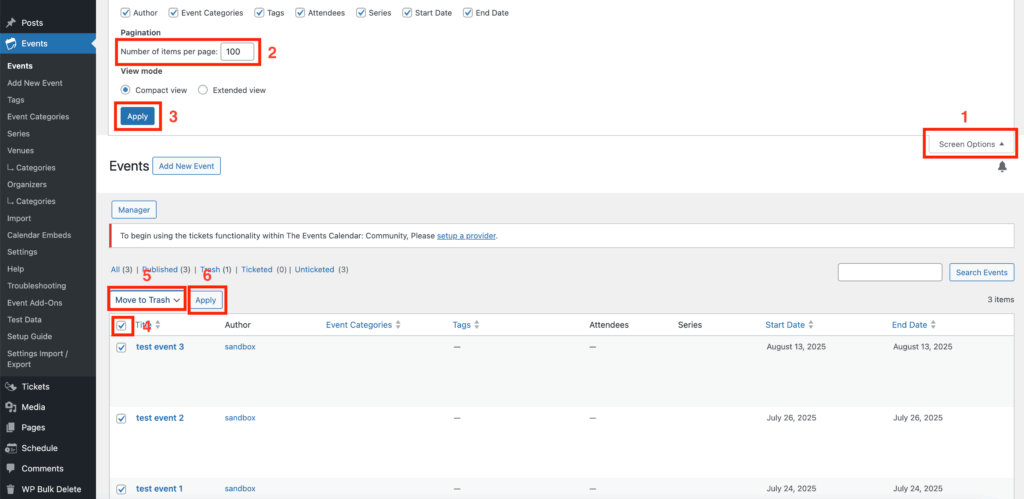
- From your WordPress dashboard, go to Events → All Events.
- At the top right of the screen, click Screen Options and increase Number of items per page to your preferred amount (e.g. 100).
- ⚠️ Higher numbers may take longer to load or cause timeouts on slower servers.
- Click Apply.
- Use the checkbox at the top of the event list to select all events on the page.
- From the Bulk Actions dropdown, select Move to Trash and click Apply.
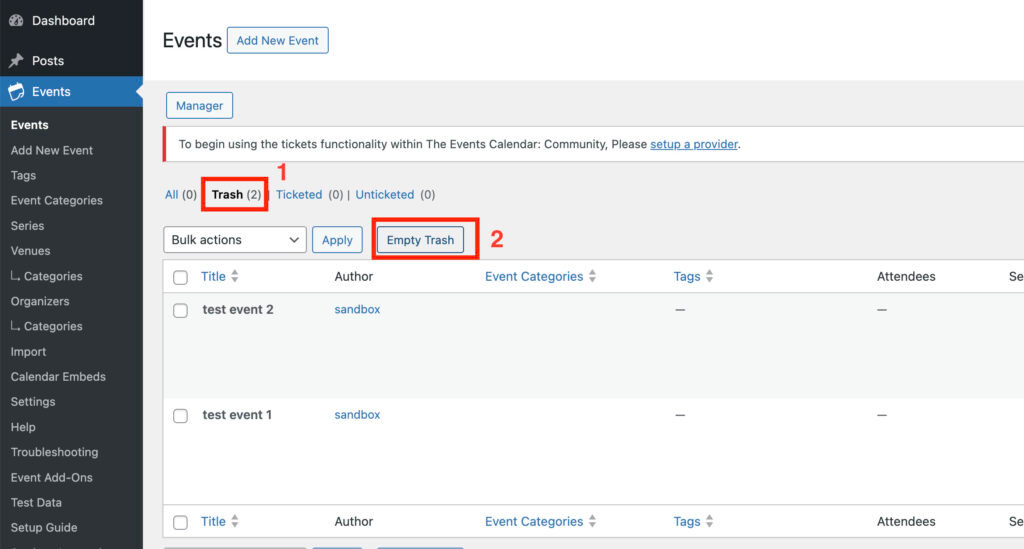
To permanently delete events from the Trash, go to the Trash tab and click Empty Trash. This fully removes those events from your site.
Option 2: Use a Plugin
For more advanced filtering and control, you can use a plugin such as WP Bulk Delete:
- Install and activate WP Bulk Delete.
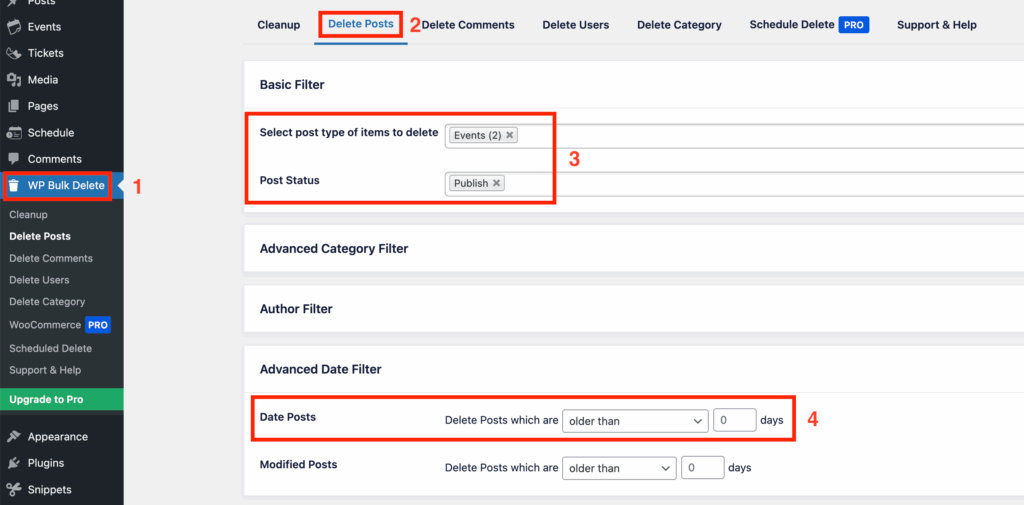
- Go to WP Bulk Delete → Delete Posts.
- Under Basic Filter, choose Events as the post type.
- ⚠️ Make sure only “Events” is selected to avoid deleting other content types.
- Use the additional filters to refine which events to delete:
- Post Status: Published, Draft, Pending, etc.
- Date Filter: Delete events created within a specific date range.
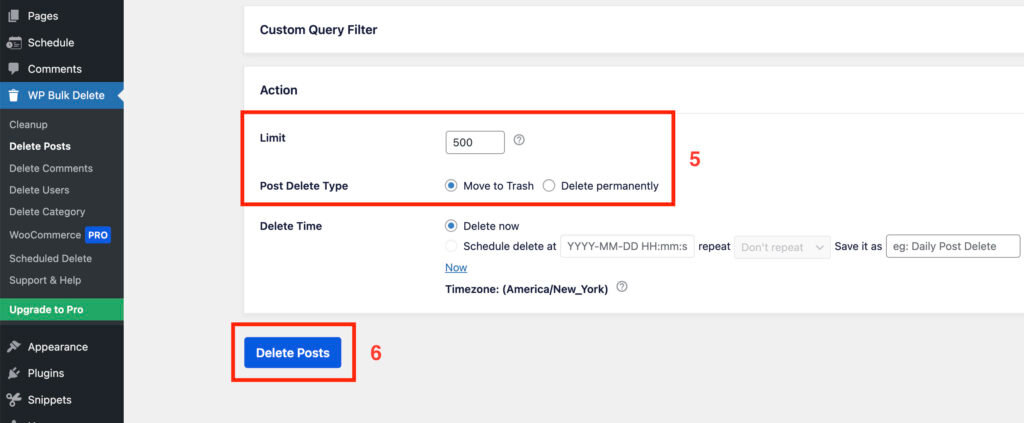
- In the Action section:
- Set a limit on how many events to delete at once to reduce server load.
- Choose whether to Move to Trash or Delete Permanently.
- Click Delete to begin the cleanup process.
Option 3: Direct SQL Query (Advanced)
⚠️ Warning: This method permanently deletes all events from your database. Use with caution and only after creating a backup.
If you’re comfortable working with your database, you can run the following SQL query to delete all events, including their metadata:
DELETE p, pm
FROM wp_posts p
LEFT JOIN wp_postmeta pm ON pm.post_id = p.ID
WHERE p.post_type = 'tribe_events';- This command removes all events, regardless of status (published, draft, pending, etc.).
- It also deletes any custom fields and meta data linked to those events.
You can run this SQL query directly from your hosting control panel (e.g., phpMyAdmin), or use a plugin like WP phpMyAdmin Extension.
Automatic Trashing of Old Events
Rather than cleaning up events manually on a schedule, you can have The Events Calendar automatically move old events to the Trash based on their end date. This is configured at Events → Settings → General → Maintenance via the Move to trash events older than option.
How It Works
The automatic event trashing process is intentionally designed to be gentle on your server. By default, WP-Cron handles the removal of past events:
- Runs twice a day
- Deletes 15 events per run (30 events per day total)
This cautious approach helps protect websites — particularly those on shared or resource-limited hosting — from becoming slow or crashing due to heavy background processes. For enhanced reliability, you can configure a real cron job.
Why Are There Limitations on Event Trashing?
Servers, especially shared ones, can become overwhelmed if too many processes happen at once. Deleting 100+ events every few minutes, alongside normal WordPress tasks and other plugin activities, could bog down your site — or even take multiple sites offline.
The default behavior balances performance and maintenance, ensuring your site stays healthy while keeping your event database clean.
What Happens If I Recently Enabled Auto-Trashing?
If you just turned on automatic trashing but already have hundreds of past events, the system needs time to catch up. With the default settings (30 events/day), clearing a large backlog can take several days or longer — depending on how many events you have.
Customizing Automatic Trashing
Adjusting How Many Events Get Trashed
If you want to speed up the process, you can increase the number of events deleted per run and run the trashing more frequently by adding the following filters:
// Increase the number of past events trashed automatically.
add_filter( 'tribe_events_delete_old_events_sql_args', function ( $args ) {
    $args['limit'] = 100; // Change the number as needed.
    return $args;
} );

// Increase the frequency of the auto-trashing. (Default is 'twicedaily'.)
add_filter( 'tec_events_event_cleaner_trash_cron_frequency', function( $frequency ) {
    return 'hourly'; // Options include 'hourly', 'twicedaily', and 'daily'.
} );
Our recommendation is to increase the frequency rather than the number of events trashed per run. With an hourly setting, 660 events are trashed per day.
Should you always use higher limits? No — only temporarily. Increase the limits if you’re trying to quickly clean up a large backlog of past events. Once the backlog is cleared and your events are being regularly maintained, switch back to the defaults to avoid putting unnecessary load on your server.
Excluding Drafts from Automatic Trashing
By default, the automatic trashing process can affect event drafts alongside published events. If you want to preserve drafts and only let the cleanup run against published events, use this snippet:
add_filter( 'tribe_events_delete_old_events_sql', function( $sql ) {
    // Change the condition to exclude draft posts from cleanup.
    $sql = str_replace(
        "post_status NOT IN ( 'trash', 'tribe-ignored' )",
        "post_status NOT IN ( 'trash', 'tribe-ignored', 'draft' )",
        $sql
    );

    return $sql;
}, 10, 1 );
Add this snippet to your theme’s functions.php file, or use your preferred method for integrating snippets into your WordPress site — such as the free Code Snippets plugin. See Best Practices for Implementing Custom Code Snippets for guidance.
Understanding Trashed vs Ignored Events
If you’ve noticed that some old events end up in the Trash while others are marked as Ignored, that’s because the two statuses serve different purposes depending on where the event came from.
Why Are Some Events Set to “Ignored” Instead of “Trashed”?
When events are imported using Event Aggregator, they’re handled differently. If you move an imported event to the Trash, Event Aggregator automatically places it on the Ignore list instead.
This prevents the same event from being re-imported later. If trashed events were deleted permanently in the usual way, Event Aggregator would see them as missing from your calendar and simply re-import them on the next scheduled run. Marking an event as Ignored tells the system: “Don’t import this event again.”
For more on managing ignored events, see Managing Imported Events.
How Are Old Events Actually Deleted?
The Move to trash events older than feature in The Events Calendar only moves events to Trash — it doesn’t delete them permanently. That part is handled by WordPress itself.
By default, WordPress automatically deletes any post (including events) after it’s been in the Trash for more than 30 days. This grace period gives you a window to restore events that were trashed by mistake before they’re gone for good.
🔔 Note: Events on the Ignored list are not automatically deleted by WordPress. If you want to remove ignored events, you’ll need to do that manually.
Ensuring All Old Events Are Fully Deleted
For trashed events, WordPress automatically and permanently deletes them after 30 days. To change this timeframe, see the WordPress codex on the EMPTY_TRASH_DAYS option.
For ignored events, there’s no automatic deletion. If you want to clear them out faster, you can use this snippet, which adds a Permanently Delete All button (similar to Empty Trash) to the Ignored archive for one-click cleanup.