
▶️Note: This video may refer to products and features that have since been merged or changed. For the most up-to-date information, please refer to the content of this article.
Creating Zaps is easy using the built-in features of Events Calendar Pro and Event Tickets Plus.
But what if you need to customize your automation to match your specific workflow?
We’ve got you covered with two specialized Zapier Apps:
- The Events Calendar Zapier App
- Event Tickets Zapier App
Let’s explore what each app offers to enhance your automation experience.
The Events Calendar Zapier App
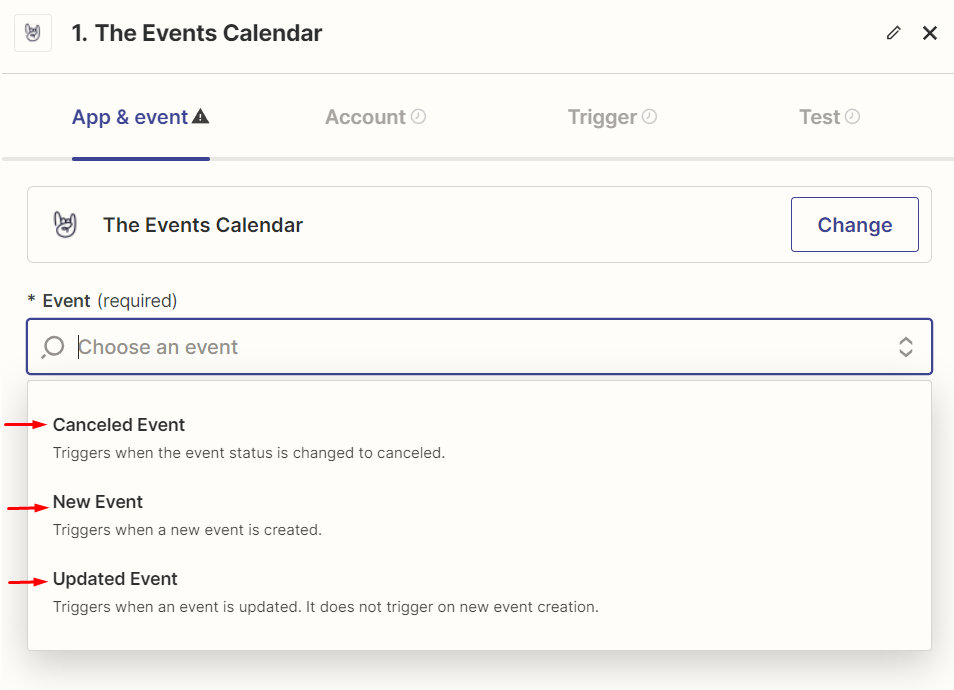
Event Triggers:
- New Event: Triggers when a new event is created
- Updated Event: Triggers when an event is updated – does not trigger on new event creation
- Canceled Event: Triggers when the status of an event is changed to canceled
Event Actions:
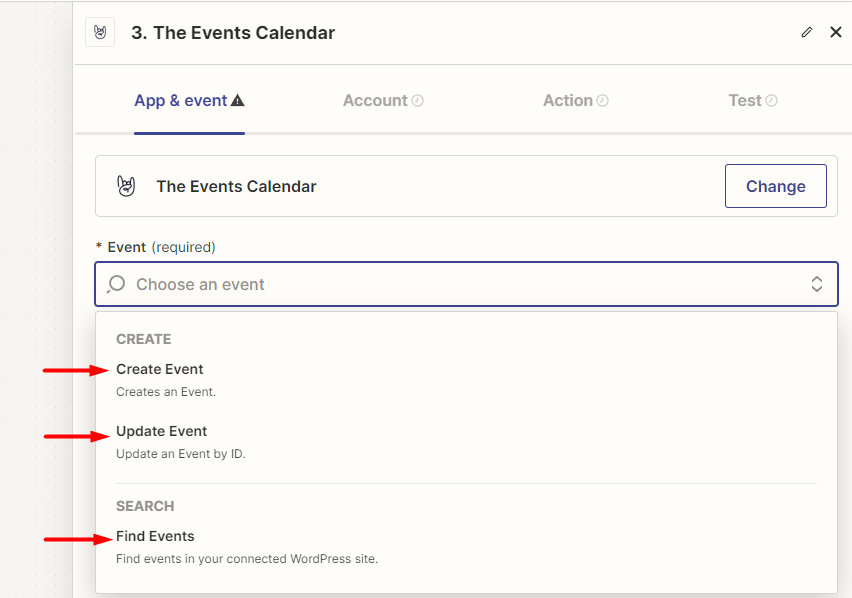
Create
- Create Event: This action allows you to create a new event in The Events Calendar directly from your trigger event in Zapier.
Search
- Find Event: This action is a ‘Search’ type action, which means it allows you to search for existing events in The Events Calendar based on specified criteria.
Zap Templates
Check out the Zap Templates (aka recipes) for Event triggers to get a head start!
You can tweak those to your liking or simply use them as inspiration to create your own Zaps.
Available fields for ‘New and Updated Event’ triggers:
| Field | Data type |
|---|---|
id | integer |
title | string |
description | string |
excerpt | string |
permalink | URL |
event_status | string |
featured | boolean |
sticky | boolean |
featured_image_url | URL |
category | array |
tag | array |
website_url | URL |
cost | string |
has_ticket | boolean |
has_rsvp | boolean |
in_date_range | boolean |
sold_out | boolean |
tickets_tickets | array |
tickets_rsvp | array |
start_date | date and time |
end_date | date and time |
timezone | string |
timezone_abbr | string |
all_day | boolean |
multi_day | boolean |
is_past | boolean |
duration | integer |
recurring | boolean |
Virtual | boolean |
Virtual URL | URL |
Virtual Button Text | string |
Organizers (comma separated) | |
id | integer |
description | string |
title | string |
excerpt | string |
permalink | URL |
featured_image_url | URL |
phone | phone |
website | URL |
email | email |
Venue | |
id | integer |
description | HTML |
title | string |
excerpt | string |
permalink | URL |
address | string |
country | string |
city | string |
state_province | string |
state | string |
province | string |
zip | string |
phone | phone number |
directions_link | URL |
website | URL |
geolocation | |
overwrite_coordinates | boolean |
latitude | numeric |
longitude | numeric |
address | string |
distance | boolean |
Event Tickets Zapier App
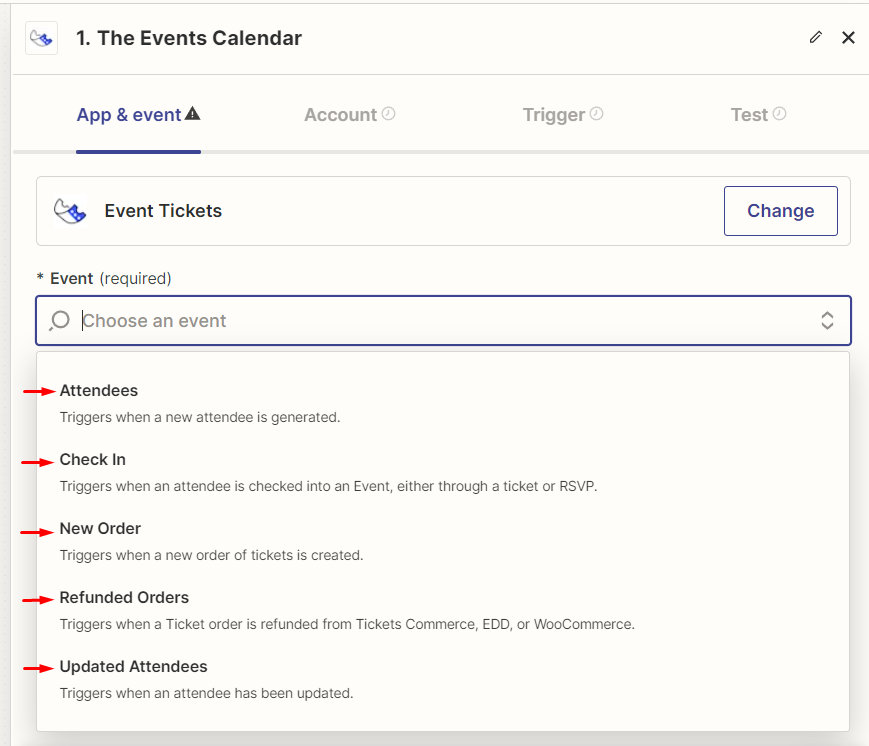
Tickets Triggers:
- Attendees: When a new attendee is generated
- Updated Attendees: When an attendee has been updated
- Check-in: When an attendee is checked into an event via ticket or RSVP
- New Order: When a new order of tickets is created
- Refunded Orders: When a ticket order is refunded from Tickets Commerce, EDD, or WooCommerce
Tickets Actions
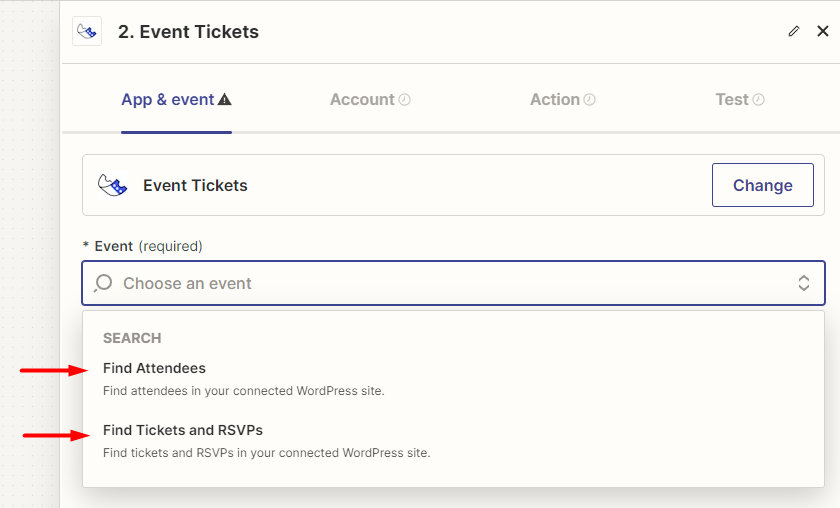
Search
- Find Attendees: Find attendees in your connected WordPress site
- Find Tickets / RSVP: Find tickets / RSVP in your connected WordPress site
Zap Templates
Take a look at the Zap Templates (aka recipes) we have created for Tickets triggers to give you a sense of the possibilities.
Best of all, you can customize the templates to match your workflow!
Available fields for ‘Attendee’ and ‘Check-In’ triggers:
| Field | Data type |
|---|---|
id | integer |
holder_name | string |
holder_email | email |
ticket_id | string |
security_code | string |
attendee_meta | string |
slug (for each attendee information field) | string |
label (for each attendee information field) | string |
value (for each attendee information field) | string |
check_in | |
optout | boolean |
user_id | integer |
is_subscribed | boolean |
is_purchaser | boolean |
purchaser_name | string |
purchaser_email | email |
provider (woo, edd, rsvp – string) | string |
ticket | string |
ticket_product_id | integer |
order_id | integer |
order_status | slug |
event_id | integer |
event_title | string |
NOTE: For WooCommerce orders, the customer_email field is the logged-in user email instead of the customer email entered during checkout, so anonymous users always get an empty customer email for WooCommerce orders.
Available fields for ‘New Order’ trigger:
| Field | Data type |
|---|---|
id | integer |
order_id | integer |
order_number | integer |
order_date | date and time |
status | string |
shipping_total | numeric |
shipping_tax_total | numeric |
tax_total | numeric |
discount_total | numeric |
order_total | numeric |
order_currency | string |
payment_method | string |
shipping_method | string |
customer_id | integer |
customer_user | integer |
customer_email | email |
billing_first_name | string |
billing_last_name | string |
billing_company | string |
billing_email | email |
billing_phone | phone |
billing_address_1 | string |
billing_address_2 | string |
billing_postcode | string |
billing_city | string |
billing_state | string |
billing_country | string |
shipping_first_name | string |
shipping_last_name | string |
shipping_company | string |
shipping_email | email |
shipping_address_1 | string |
shipping_address_2 | string |
shipping_postcode | string |
shipping_city | string |
shipping_state | string |
shipping_country | string |
customer_note | string |
items (comma separated) | string |
id | integer |
key | string |
value | string |
variation_id | integer |
tax | numeric |
tax_class | string |
tax_status | string |
Adding custom fields to your Zaps
If you’re seeking to expand the fields available for your zaps, consider utilizing the following filters:
tec_automator_map_tickets_commerce_order_detailstec_automator_map_edd_order_detailstec_automator_map_woo_order_detailstec_automator_map_attendee_details
A code example:
Imagine you’ve added some custom fields to your attendee info and want them accessible in Zapier for automation. You can use the tec_automator_map_attendee_details filter. Here’s a snippet to kickstart things for you.
function tec_automator_attendee_custom_fields( $attendee_data, $attendee ) {
	$attendee_id = $attendee[ 'attendee_id' ];

	// Get the serialized array from the postmeta table
	$serialized_data = get_post_meta( $attendee_id, '_tec_tickets_commerce_attendee_fields', true );
	if ( empty( $serialized_data ) ) {
		return $attendee_data;
	}

	// Define custom fields to include
	$fields_to_include = [ 'field1', 'field2' ];
	$meta_fields       = [];

	// Loop through serialized data and extract selected fields
	foreach ( $serialized_data as $field_name => $field_value ) {
		foreach ( $fields_to_include as $label ) {
			if ( strpos( $field_name, $label ) !== false ) {
				$meta_fields[ $label ] = $field_value;
			}
		}
	}

	// Merge the selected fields into the attendee data
	$attendee_data[ 'attendee_metadata' ] = $meta_fields;

	return $attendee_data;
}

add_filter( 'tec_automator_map_attendee_details', 'tec_automator_attendee_custom_fields', 10, 2 );
Some notes
Where do the field1 and field2 come from? – you might ask. A fair question.
When a ticket which has attendee information is purchased, then all the data will be saved with the attendee. The attendee information will be saved in the wp_postmeta table with the _tec_tickets_commerce_attendee_fields meta key. The meta value will be the attendee information in serialized form. For example:
a:3:{s:10:"first-name";s:4:"John";s:9:"last-name";s:3:"Doe";s:13:"email-address";s:18:"[email protected]";}
This would come from attendee field with the labels “First Name”, “Last Name”, and “Email address”. The labels are transformed into lowercase, and the spaces are replaced with a -. These will be the labels in the snippet.
So line 11 could look like this:
$fields_to_include = [ 'first-name', 'last-name', 'email-address' ];