
The Community Events submission form gives your users a way to add events to your calendar, but its default setup won’t suit every site. This article covers how to adjust what the form asks for and how it behaves — from changing which fields appear to shaping the submission experience around your own workflow.
See also:
Customizations for The Events Calendar are usually implemented via code snippets or template overrides. Add snippets to your child theme’s functions.php file or use the Code Snippets plugin. Template overrides should go in a child theme. If either approach is new to you, start with Using Code Snippets to Customize The Events Calendar and Customizing The Events Calendar Templates for a walkthrough of each.
Adding a Submit Event Button
If you want visitors to easily find the Community Events submission form from your main calendar page, you can add a button or link using the built-in settings — no code required.
- In your WordPress Dashboard, navigate to Events → Settings → Display → Additional Content Settings.
- In the Add HTML before calendar field, insert the following HTML:
<div class="eventSubmitButton">
    <a href="https://yourwebsite.com/events/community/add/" class="tribe-common-c-btn">Submit Event</a>
</div>- Replace
https://yourwebsite.com/events/community/add/with the actual URL of your Community Events submission form. - Scroll down and click Save Changes.
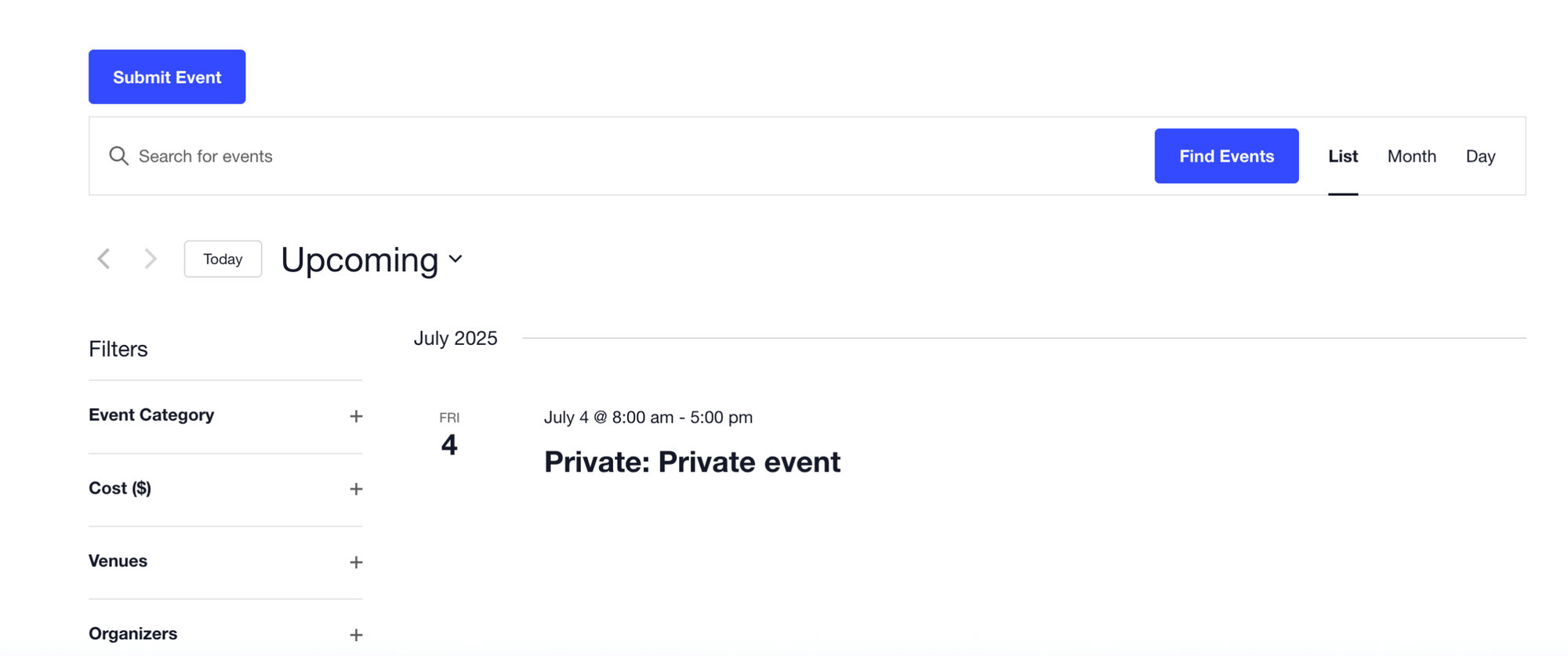
This displays a “Submit Event” button above your main calendar view. You can style the button further with custom CSS if needed. Community Events must be installed and active for the destination link to work.
Auto-Categorizing Submissions
You may want to automatically assign a specific category — say, “Community Event” — to every event submitted through the form, without letting users choose it themselves. By default, the plugin doesn’t have a setting for this, but a small filter handles it cleanly.
<?php

add_filter( 'tec_events_community_alter_submission_mapping', function( $submission ) {
    // IDs of categories you want to always add
    $required_category_ids = [ 4 ];

    $existing = [];
    if ( isset( $submission['tax_input']['tribe_events_cat'] ) ) {
        $existing = (array) $submission['tax_input']['tribe_events_cat'];
    }

    $merged = array_values( array_unique( array_map( 'intval', array_merge( $existing, $required_category_ids ) ) ) );

    $submission['tax_input']['tribe_events_cat'] = $merged;

    return $submission;
} );
Replace the 4 with the ID of your desired category. You can find the category ID by hovering over or editing the category in your WordPress dashboard — the ID appears in the URL.

You may also want to hide certain categories from the submission form so users can’t pick them.
Auto-Publishing for Logged-In Users
Under Events → Settings → Community, you can set a default status for submitted events (Draft, Pending Review, or Published). But sometimes you want more nuance — for instance, auto-publishing events from trusted logged-in users while still holding anonymous submissions for review.
This snippet auto-publishes any event submitted by a registered, logged-in user. Anything submitted by an anonymous user falls back to whatever your default status is set to.
<?php
/**
 * Community Events (CE): If user is logged in, set post status to Published, else fallback to CE settings' default.
 *
 * Irrelevant if default post status in CE settings is Published or Anonymous Submissions are not allowed.
 */
function set_community_events_publication_status( $option, $default, $optionName ) {
    if (
        ! class_exists( 'Tribe__Events__Community__Main' )
        || 'defaultStatus' !== $optionName
        || ! is_user_logged_in()
    ) {
        return $option;
    }

    return 'publish';
}

add_filter( 'tribe_get_single_option', 'set_community_events_publication_status', 10, 3 );
This snippet has no effect if your default post status is already Published, or if anonymous submissions are disabled.
Redirecting After Submission
After a user submits an event, they’re taken to a default success page. You may want to redirect them somewhere more specific instead — a thank-you page, a pending-review explanation, or your calendar’s main view.
<?php //Do not copy this line

add_action( 'tribe_community_event_save_updated', function ( $event_id ) {
	if ( tribe_is_event( $event_id ) ) {
		$url = home_url( '/sample-page/' );

		// JS redirect allows server processing to complete
		echo '<script>window.location.href = "' . esc_url( $url ) . '";</script>';
	}
} );
In the snippet, replace /sample-page/ with the URL of the page you want users to be redirected to after submission.
For Developers
Functions and references used by this customization:
tribe_community_event_save_updated— the action that fires after a Community Events submission is savedtribe_is_event()— check whether a given post is an eventwindow.location.href— JavaScript location API, for client-side redirects
Notifying Submitters on Publish
By default, submitted events are saved as drafts until an administrator publishes them — but the original submitter isn’t notified when that happens. This snippet sends the submitter an email once their event goes live.
Unlike the other snippets in this article, the original guidance for this one is to install it as a tiny single-file plugin rather than dropping it into functions.php. Either approach works — you can also use the Code Snippets plugin if you prefer. If you want to follow the file-based approach, create a new PHP file called events-community-notify-submitter.php in your wp-content/plugins/ directory and paste the snippet in:
<?php
/*
Plugin Name: Tribe Snippet: Send email notification when the event is approved
Requires PHP: 5.6
Version: 0.1
 */

add_action( 'transition_post_status', function ( $new_status, $old_status, $post ) {
    // Early bail: We are looking for published posts only
    if ( $new_status != 'publish' ) {
        return;
    }

    // Early bail: Unexpected value
    if ( ! $post instanceof WP_Post ) {
        return;
    }

    // Early bail: We need the "tribe" function to be loaded
    if ( ! function_exists( 'tribe' ) ) {
        return;
    }

    $main = tribe( 'community.main' );

    // Early bail: We could not get the desired class from the Container
    if ( ! $main instanceof Tribe__Events__Community__Main ) {
        return;
    }

    $default_status = $main->getOption( 'defaultStatus' );

    // Early bail: Old status is not the default status
    if ( $old_status != $default_status ) {
        return;
    }

    // Early bail: We are just interested in Events
    if ( $post->post_type != 'tribe_events' ) {
        return;
    }

    $author = get_user_by( 'id', $post->post_author );

    // Early bail: Author not available (eg: Anonymous submission)
    if ( ! $author instanceof WP_User ) {
        return;
    }

    $email = $author->user_email;

    // Early bail: Invalid email
    if ( ! filter_var( $email, FILTER_VALIDATE_EMAIL ) ) {
        return;
    }

    $subject = sprintf( 'Congratulations! %s was published!', $post->post_title );
    $message = sprintf( 'Congratulations, your event was published! Click <a href="%s">here</a> to view it!', esc_url( get_post_permalink( $post ) ) );

    wp_mail(
        $email,
        esc_html__( $subject, 'tribe-events-community' ),
        __( wp_kses_post_deep( $message ), 'tribe-events-community' ),
        [ 'Content-Type: text/html; charset=UTF-8' ]
    );

}, 10, 3 );
If you used the file-based approach, activate the plugin from the WordPress dashboard — it appears in the plugin list as “Tribe Snippet: Send email notification when the event is approved.”
Frequently Asked Questions
How do I customize the subject of the email?
Edit the $subject line of the snippet.
How do I customize the body of the email?
Edit the $message line of the snippet.
Does it send notifications for anonymous submissions?
No. If you have “Allow anonymous submissions” enabled (Events → Settings → Community) and a user submits an event without being logged in, the snippet can’t identify an email address for that user and will not send a notification.
Does it send a notification if events are set to be published without review?
No. If the “Default status for submitted events” (Events → Settings → Community) is set to “Published”, this snippet will not send any emails.