
Event Automator allows you to use Zapier to integrate The Events Calendar and Event Tickets with your favorite third-party apps and tools.
This is done by creating a “Zap” in Zapier. A zap is the simple “recipe” (instructions) that powers the automation of any of your workflows.
Before reading further, make sure you have installed and configured Event Automator as explained here.
The Events Calendar as a Trigger: Add Event Information to Google Sheets
In this example, we’ll show you how to create a Zap that creates a new Google Sheets row when a new event is added to The Events Calendar on your WordPress site. Please note that the same principles apply to creating a Zap for Event Tickets.
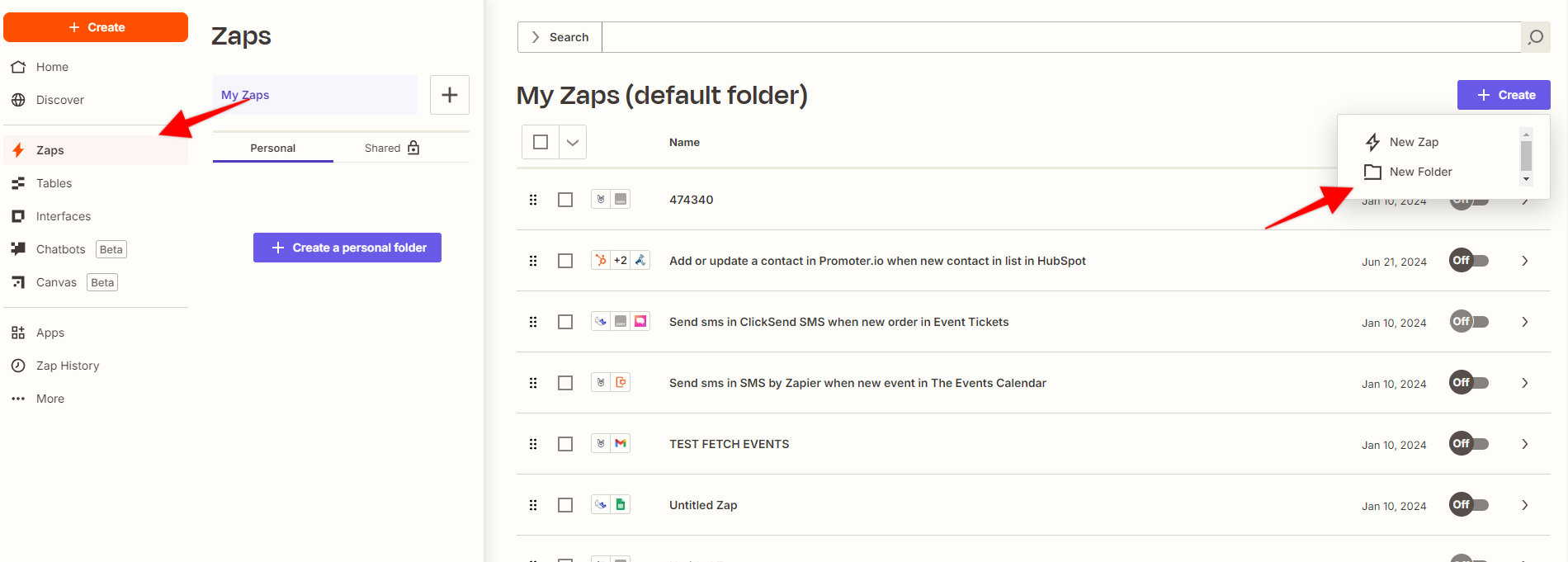
- In Zapier, click on the Zaps on the left side panel, then the + Create button.
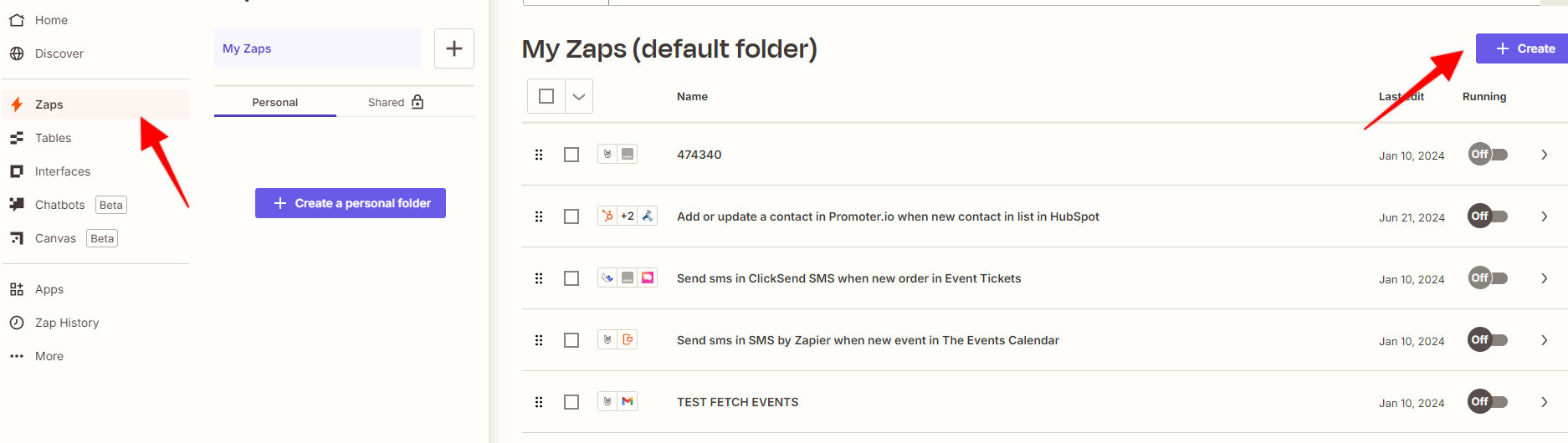
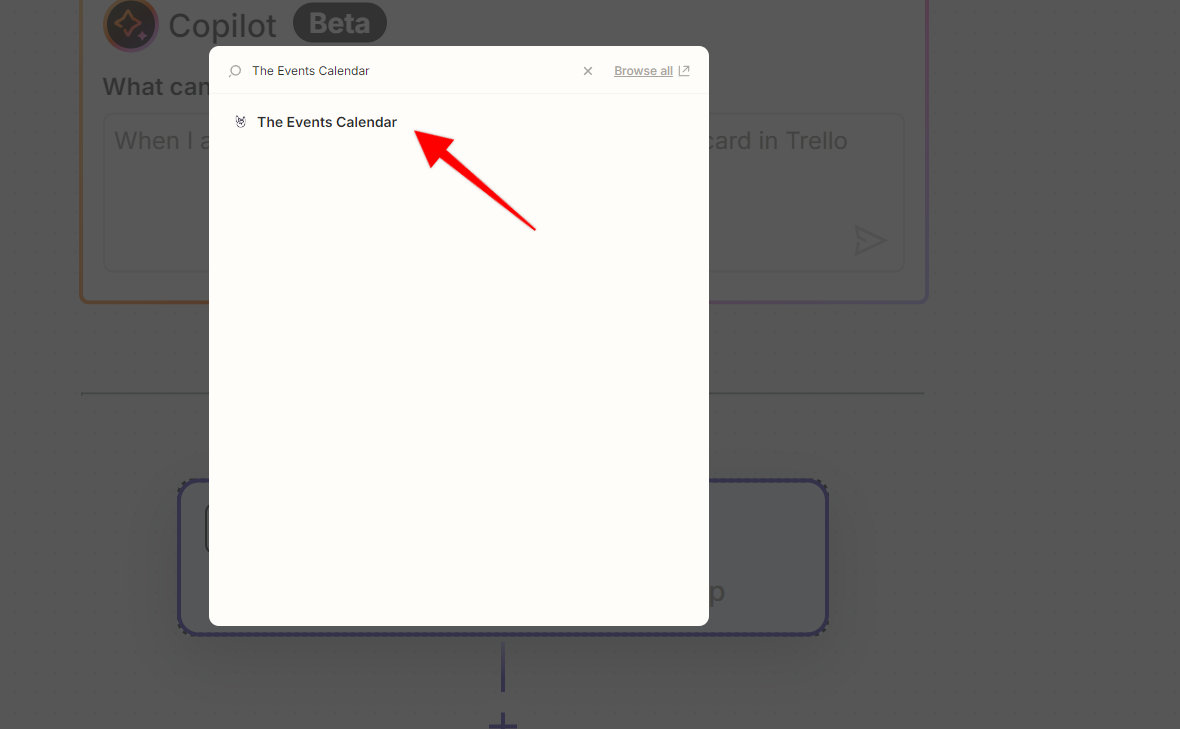
- Select The Events Calendar as a trigger.
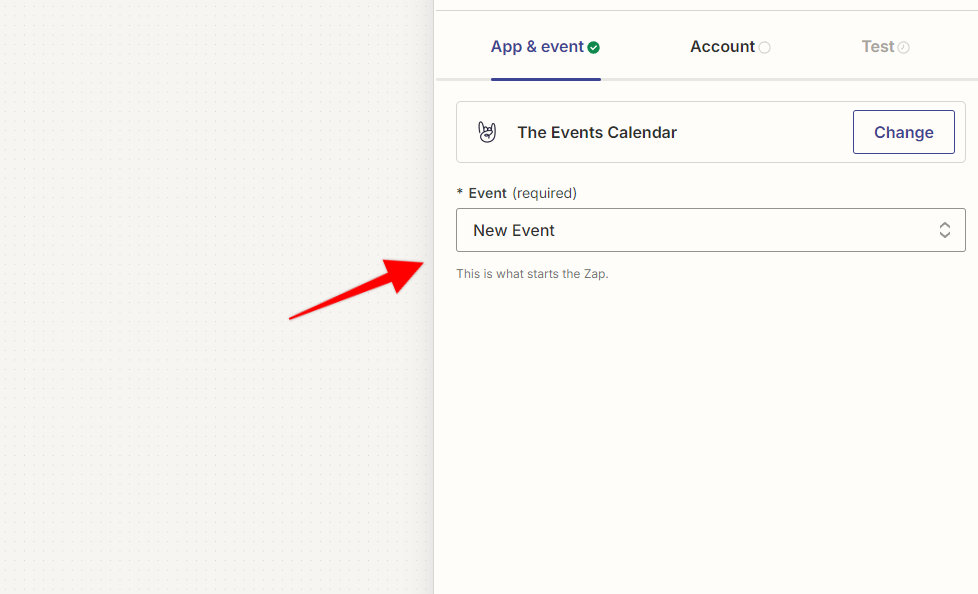
- Choose New Event and click on Continue.
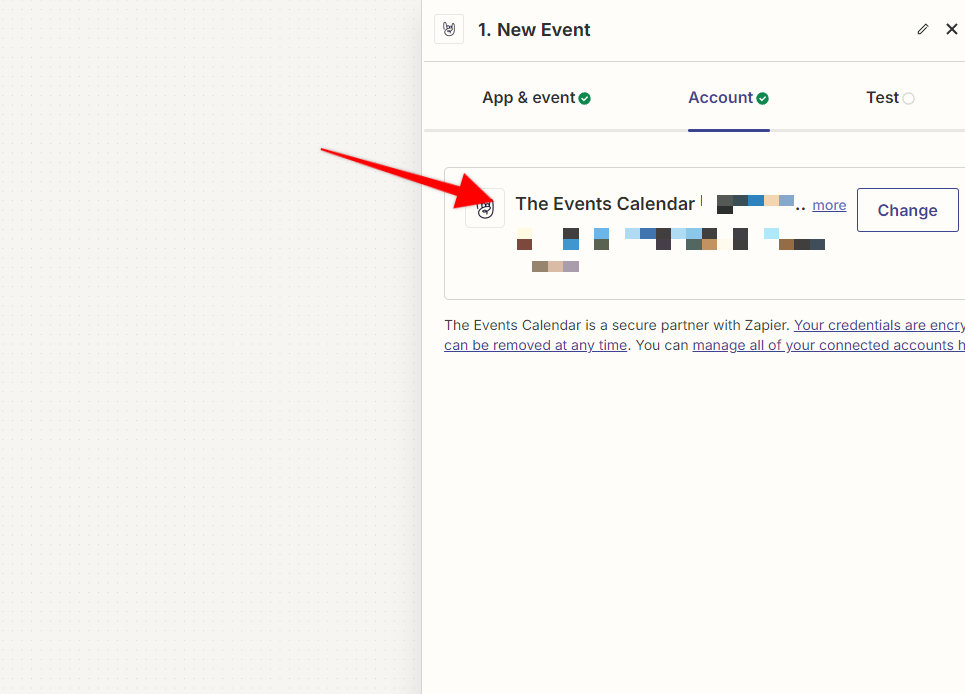
- Choose your account, wait until it loads, and click on Continue.
- You can now begin testing the trigger from Zapier. Once the testing completed, it will show one or more test records.
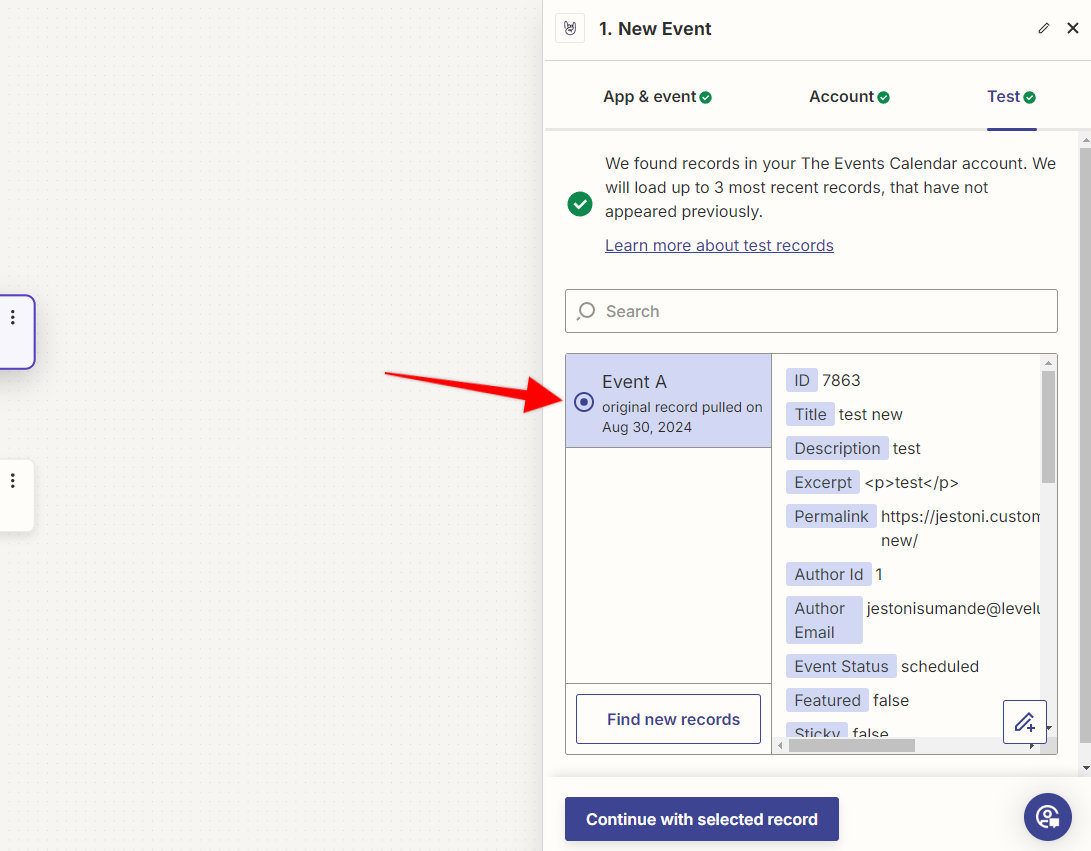
Important: Testing your trigger is a crucial step!
Successfully testing the trigger allows Zapier to “see” all the event fields available on your site.
In other words, if Zapier can’t see the fields on your site, your Zaps will not work.
The event selected to test the trigger should display a list of mappable fields found in your events when selected.
Caution: Don’t be fooled by the fact that Zapier has found an event!
Look carefully at the screen. If you are not seeing a list of fields or if the event id displays as no-new-events, that event cannot be used to test the trigger.
To fix that, you can:
- Select another event (if any)
- Create a new event on your site
- Refresh the page where you are testing the trigger on zapier.com
- The freshly created event should appear
- Select it and look for those mappable event fields
Summary
Selecting an event that lets you see all the mappable fields is necessary for Zapier to “know” what it’s working with. Real event data acts as an available data template for Zapier.
Pro tip: the same concept applies to Event Tickets triggers (attendees, tickets, ticket orders). You need to feed Zapier real data so that it connects the dots.
- Select the action you’d like to create (in this case, it’s Google Sheets).
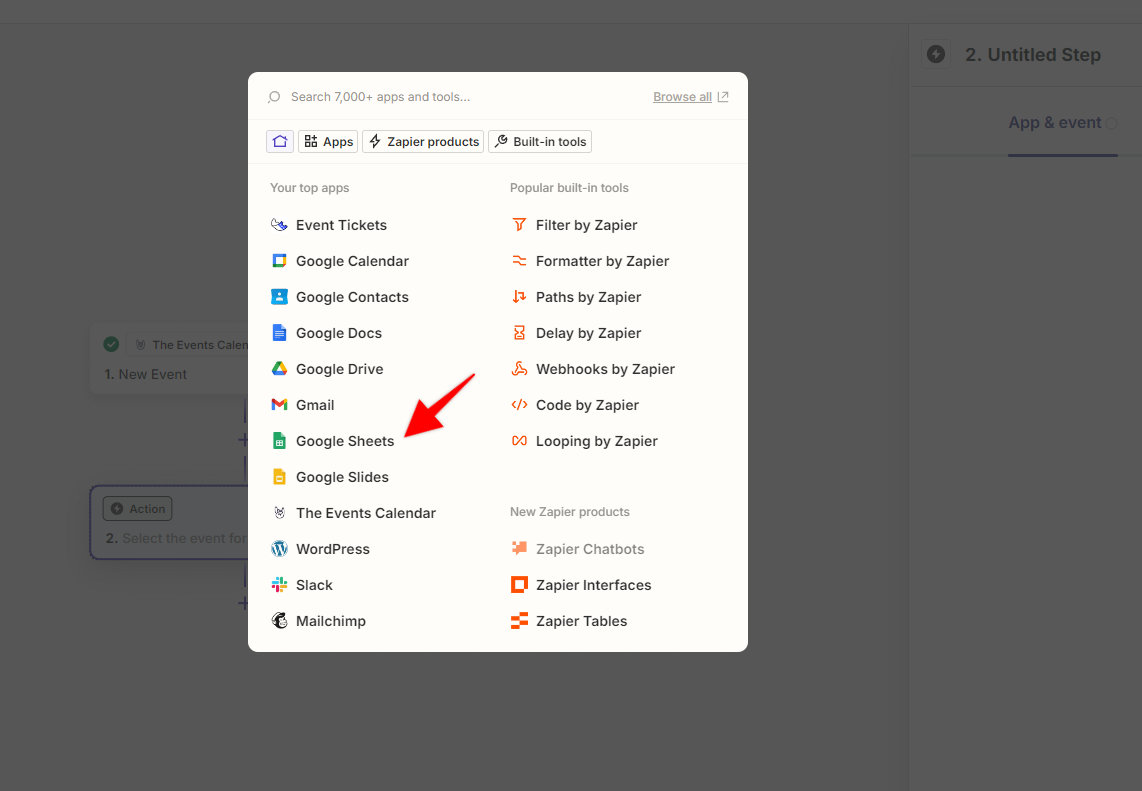
- Choose Create Spreadsheet Row as an event.
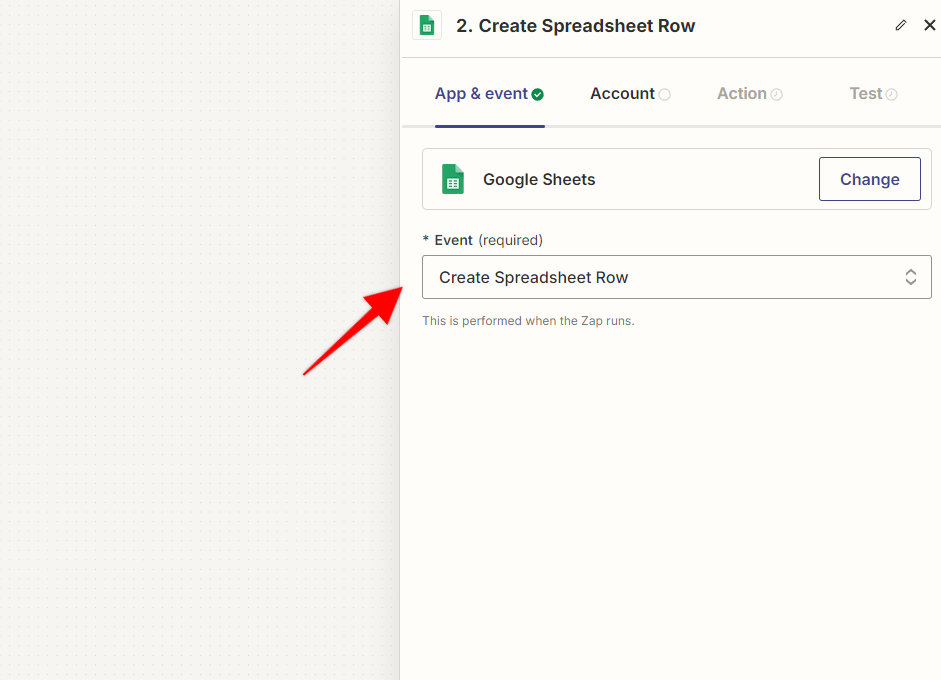
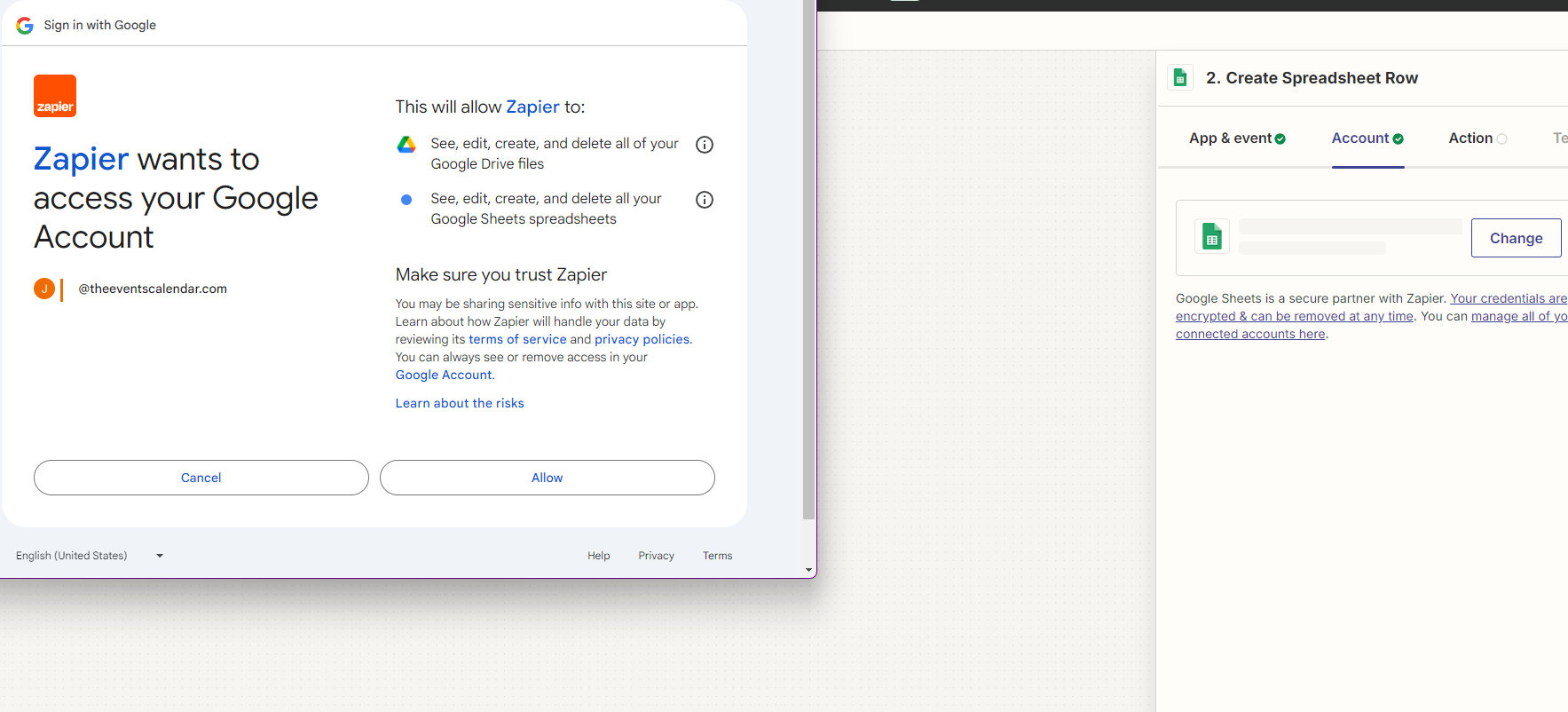
- Select your Google Sheets account or Sign in and allow access if necessary.
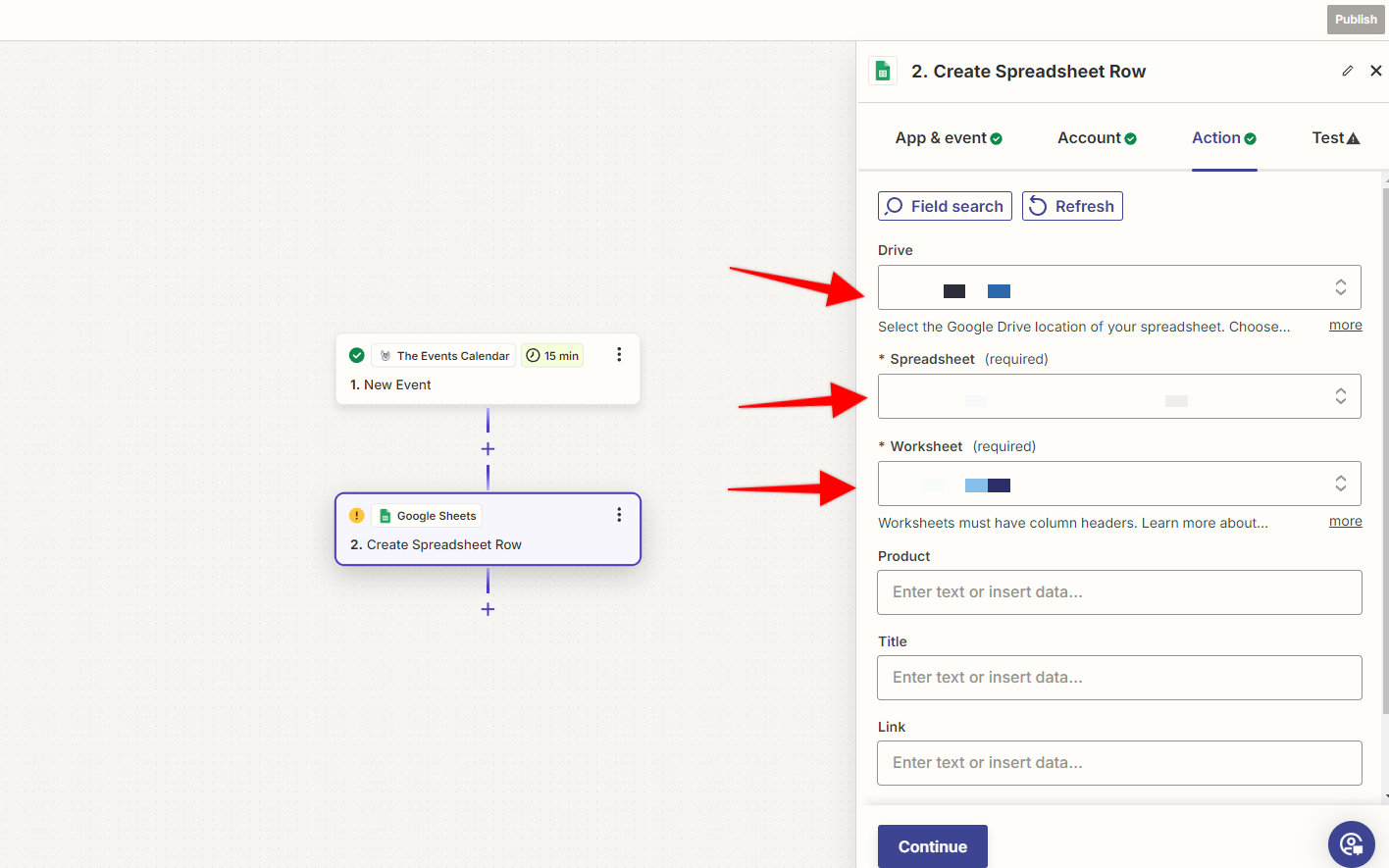
- Set the desired Drive, Spreadsheet, and Worksheet, and click on Continue.
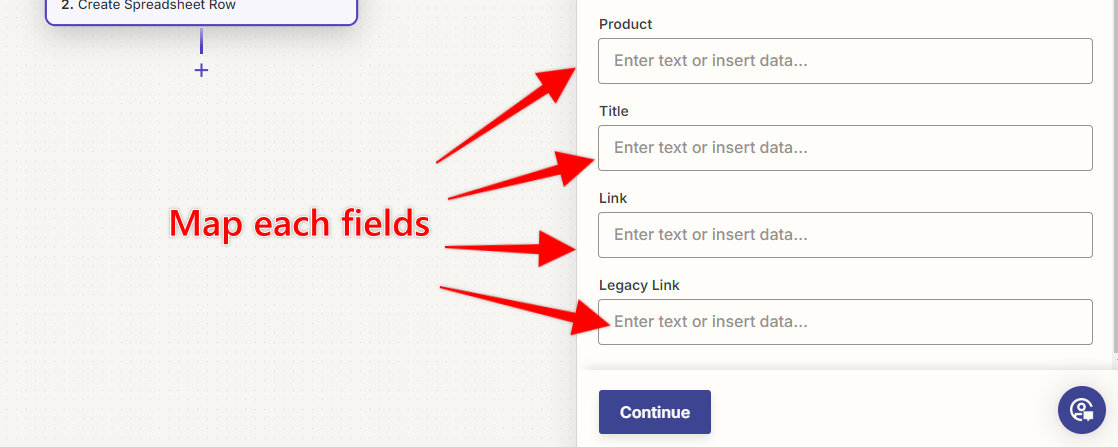
- Map each desired field to its destination column in the spreadsheet.
Important:
- Make sure you have created headers for each of the desired fields in the destination spreadsheet (i.e.: row A should read – ID, Title, Start Date, etc.)
- Make sure you previously selected a valid event while testing the trigger in step 6 to be able to map fields.
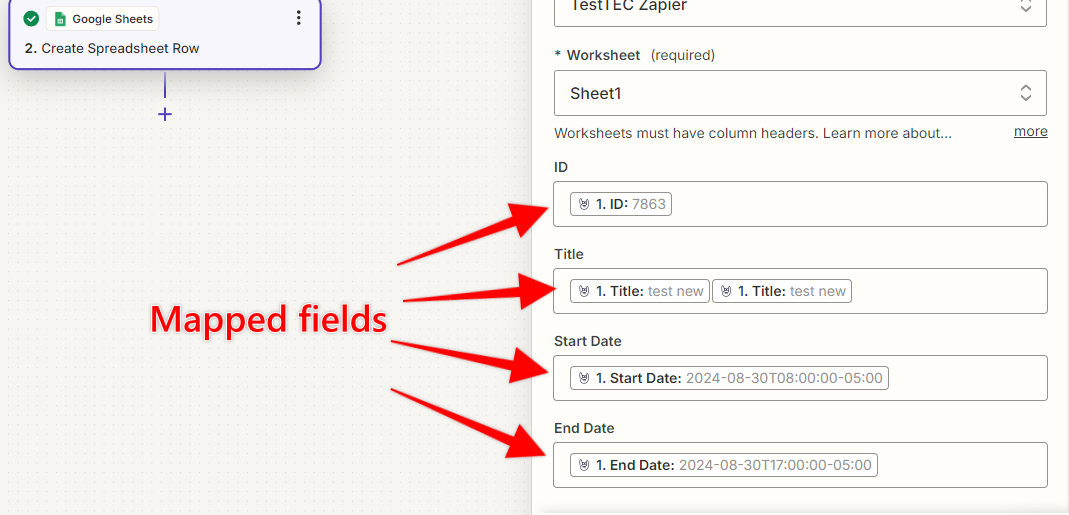
- Click on Continue.
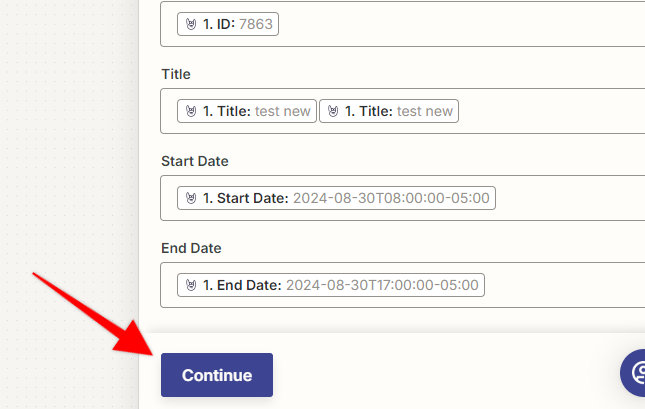
- Next, you’ll want to test your Zap.
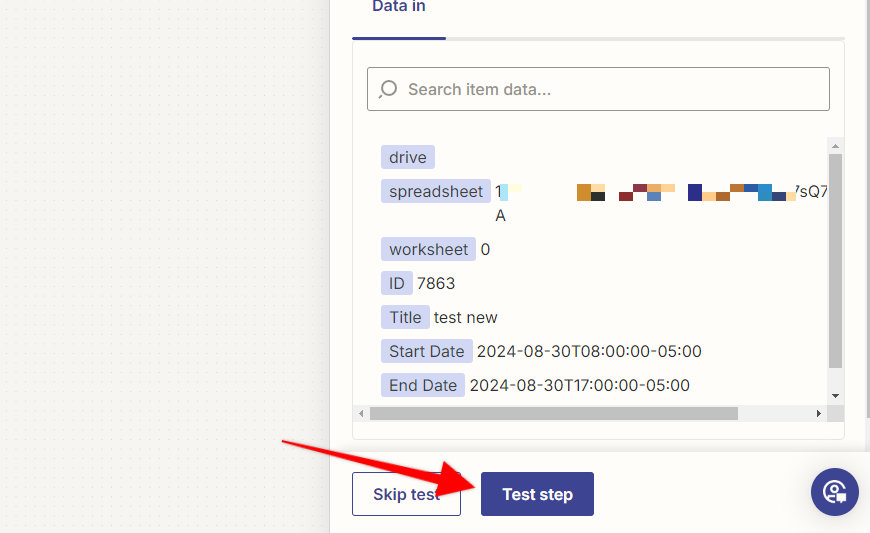
If it was successfully created, your screen should look like this:
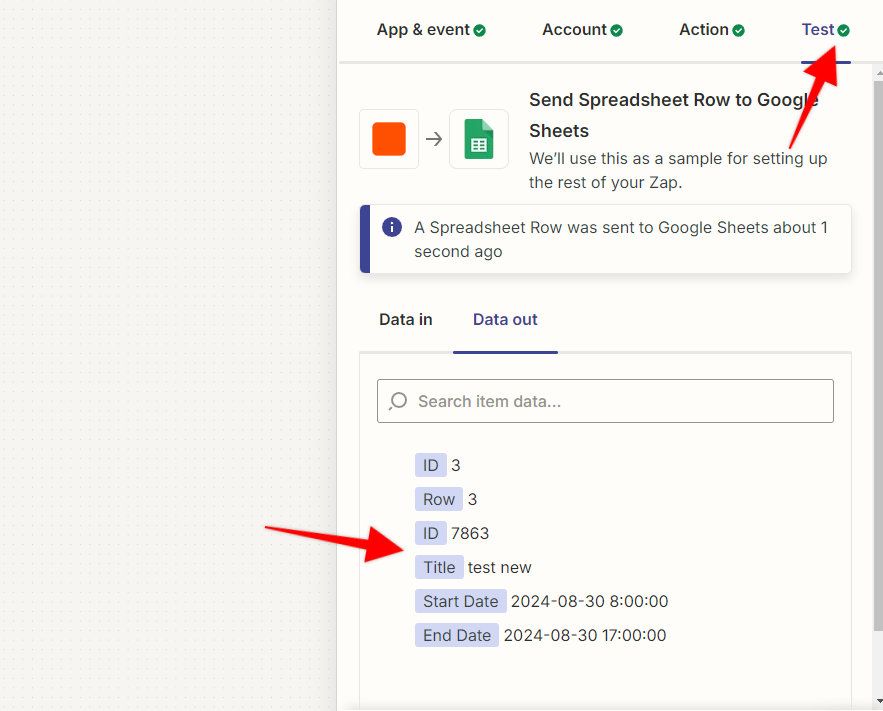
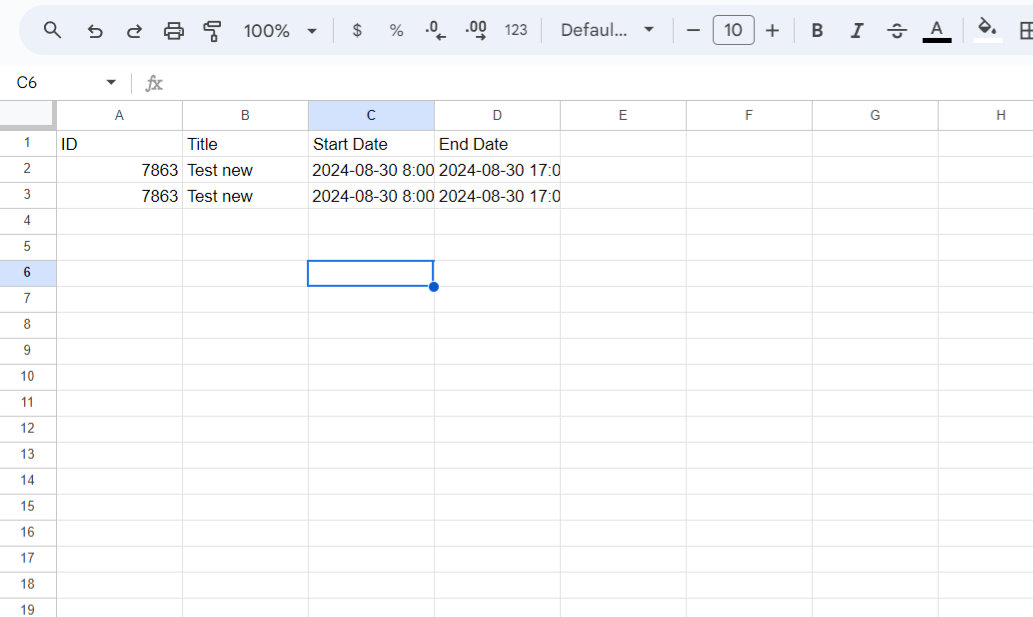
Now you’re ready to publish your Zap.
Test your Zap
Now you’re ready to test out your Zap. To do this:
- Go to your WordPress admin area and create a new event.
- Wait at least 15 minutes (if you have a free account).
- Check the selected Google Sheets spreadsheet and worksheet.
- Refresh the page.
A new row containing the data of the new event should appear.
The Events Calendar as an Action: Create an Event From Google Sheets
In this example, we’ll show you how to create a Zap that creates a new event in The Events Calendar on your WordPress site when a new Google Sheets row is created.
- In Zapier, click on the + Create Zap button
- Select Google Sheets as a trigger

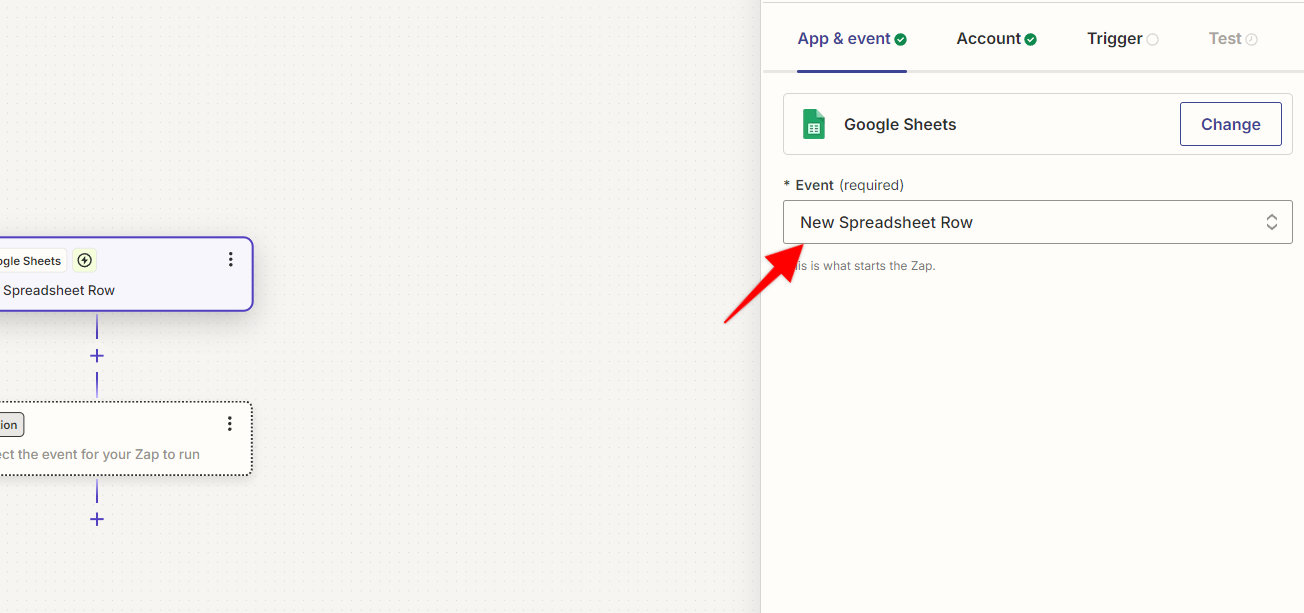
- Choose New Spreadsheet Row as an event, and click on Continue
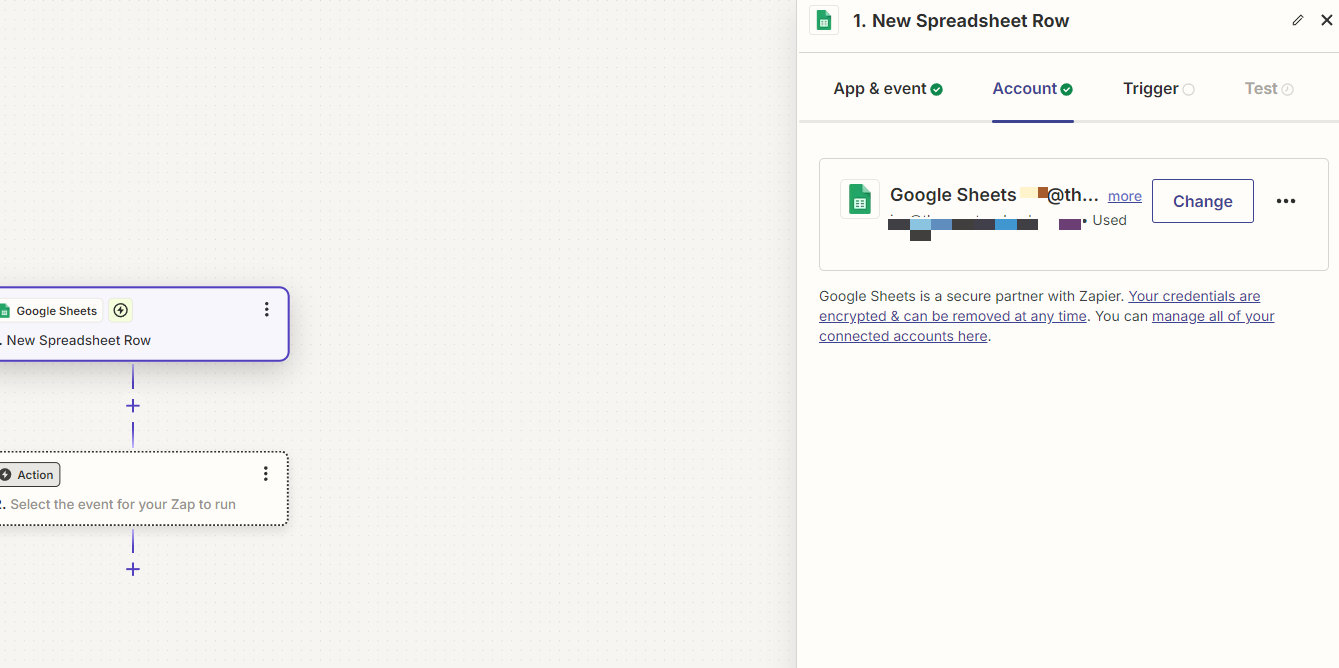
- Set the desired Drive, Spreadsheet, and Worksheet, and click on Continue.
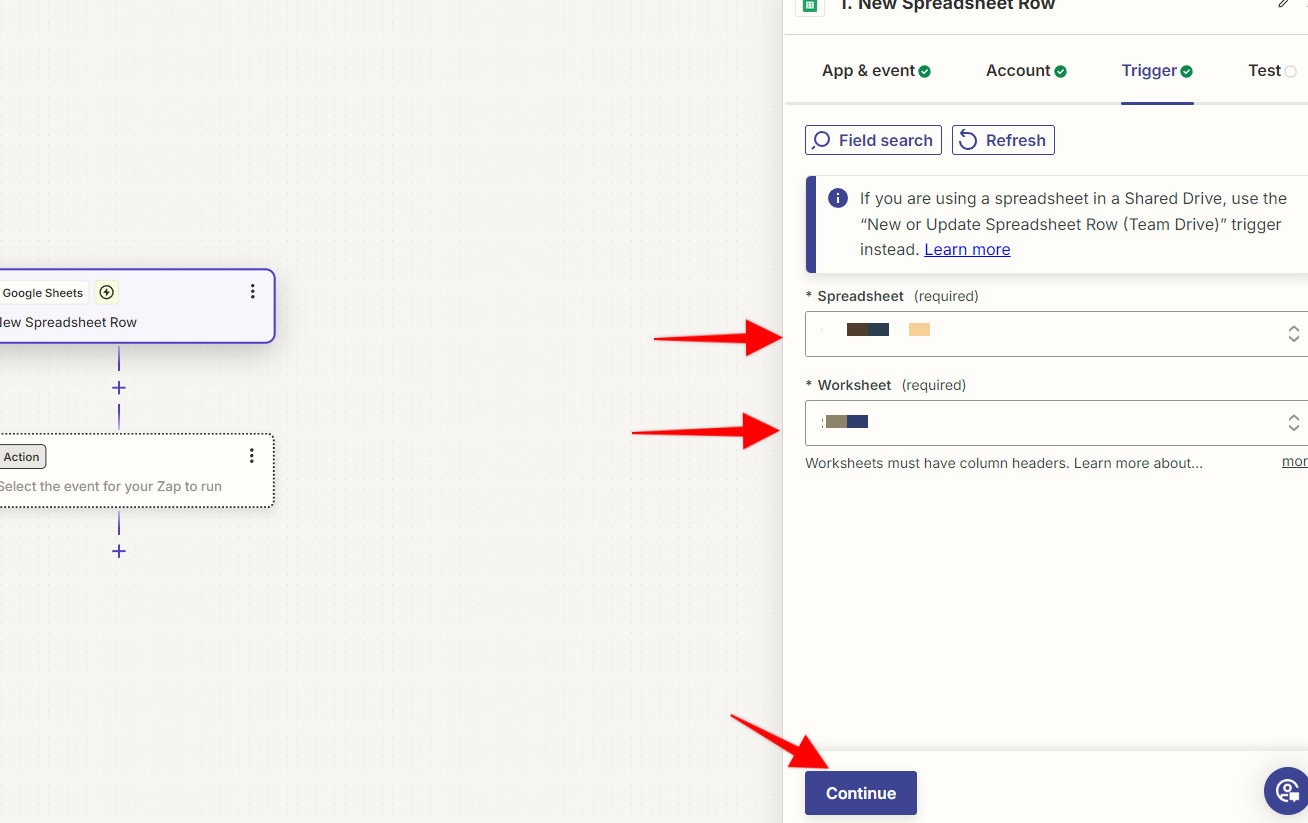
Important: the selected spreadsheet must have column headers for this to work.
Column headers are labels placed in the first row of your spreadsheet that describe the data contained in each column.
Event Tickets as a Trigger: Add Ticket Orders to Google Sheets
In this example, we’ll show you how to create a Zap that creates a new Google Sheets row when a new ticket order is added to your WordPress site.
- In Zapier, click on the Zaps on the left side panel, then the + Create button.
- Select Event Tickets as the trigger.
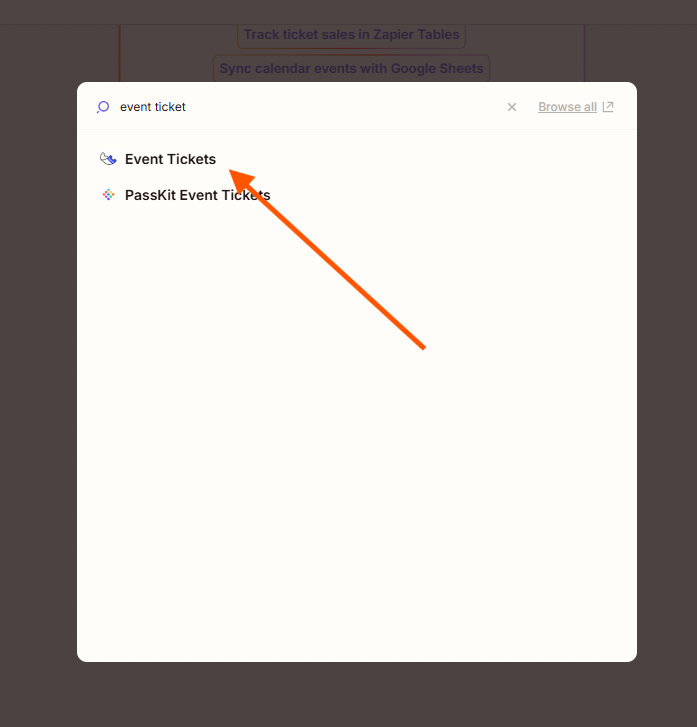
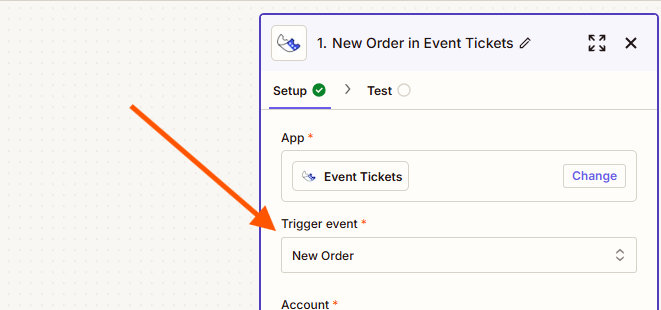
- Choose New Order as the Trigger event.
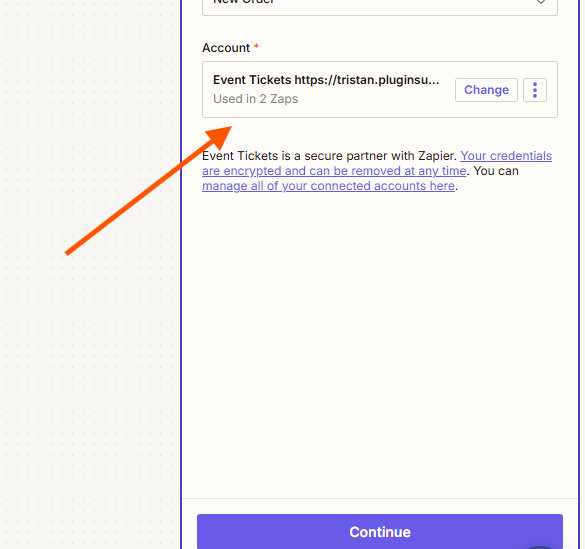
- Choose your account, wait until it loads, and click on Continue.
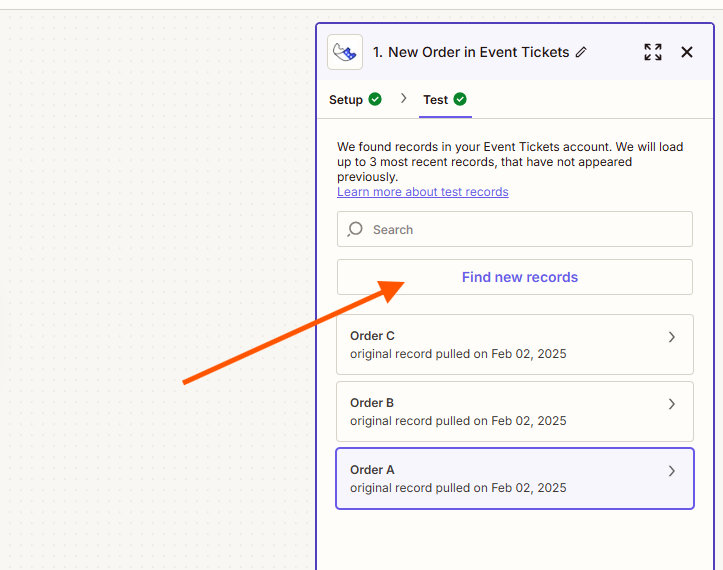
- You can now begin testing the trigger from Zapier. Once the testing completed, it will show one or more test records. — Make sure you’re working on the most recent record.
Important: Testing your trigger is a crucial step!
Successfully testing the trigger allows Zapier to “see” all the order fields available on your site.
In other words, if Zapier can’t see the fields on your site, your Zaps will not work.
The order record selected from the trigger test should display a list of fields that can be mapped along with their values.
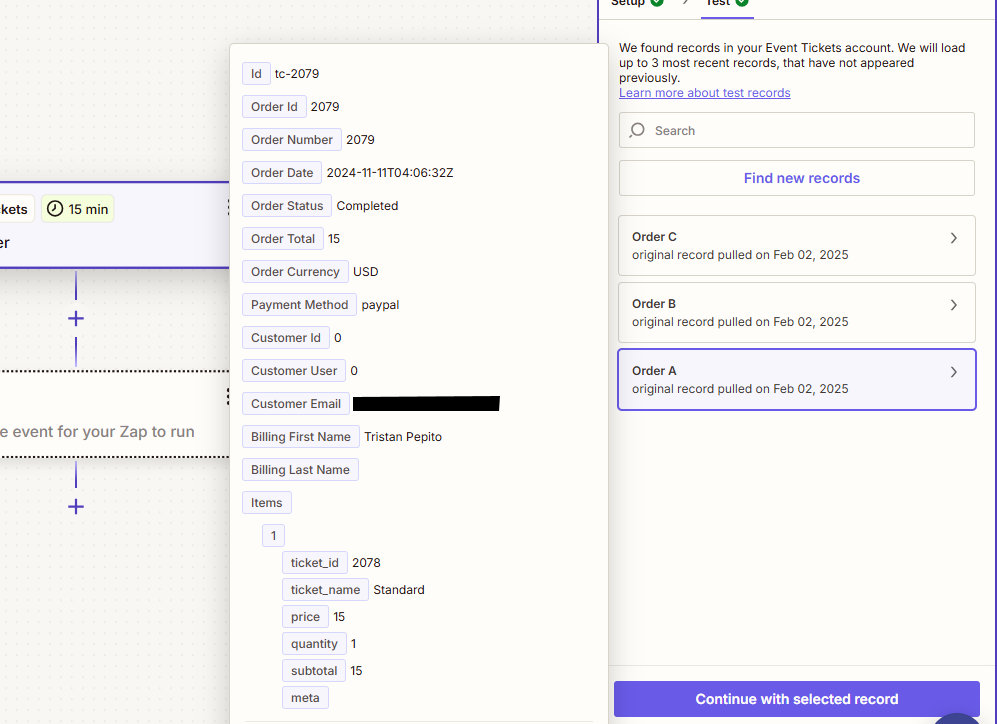
Caution: Don’t be fooled by the fact that Zapier has found an order!
Look carefully at the screen. If you are not seeing a list of fields or if the fields do not contain values, that record cannot be used to test the trigger.
To fix that, you can:
- Select another order record (if any)
- Do another ticket order on your site
- Click again on the Find new records button where you are testing the trigger on Zapier
- The freshly created order should appear
- Select it and the fields and values are present
- Prepare your Google Spreadsheet with the fields being the column headers in the spreadsheet.
You can check out Zapier’s How To Parse Keys and Values From Line-Item Arrays Into Zapier Mappable Values if you need the Items field mapped into their own columns in the resulting Google Sheet row.
- Select the action you’d like to create (in this case, it’s Google Sheets).
- Choose Create Spreadsheet Row as an event.
- Select your Google Sheets account or Sign in and allow access if necessary.
- Set the desired Drive, Spreadsheet, and Worksheet, and click on Continue.
- Map each desired field to its destination column in the spreadsheet then click Continue.
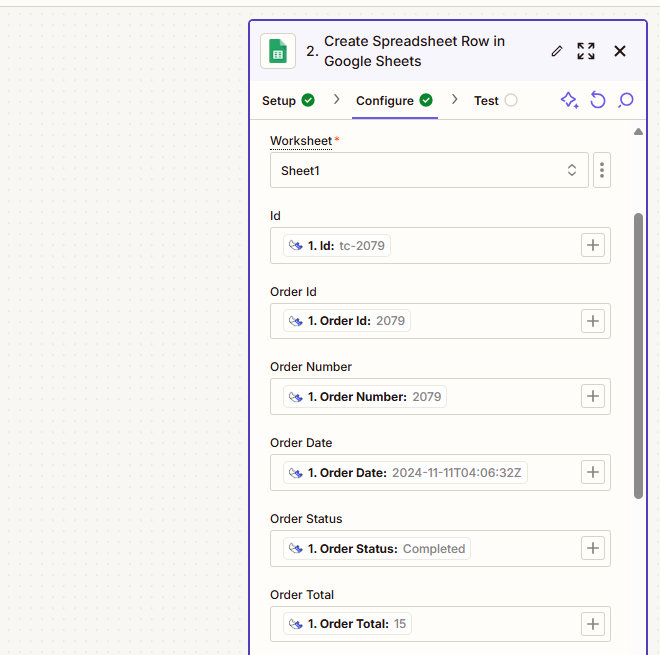
11. Test and Publish your Zap
Event Tickets as a Trigger: Add Attendees to Active Campaign
In this example, we’ll show you how to create a Zap that creates a new contact in Active Campaign when a new event attendee is created through a ticket purchase.
- In Zapier, click on the Zaps on the left side panel, then the + Create button.
- Select Event Tickets as the trigger.
- Choose Attendees as the Trigger event.
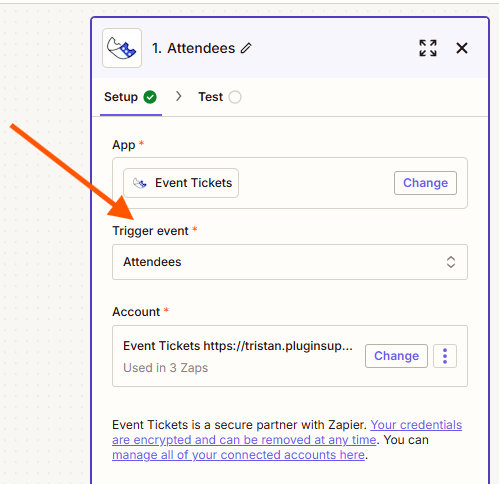
- Choose your account, wait until it loads, and click on Continue.
- You can now begin testing the trigger from Zapier. Once the testing completed, it will show one or more test records. — Make sure you’re working on the most recent record.
Important: Testing your trigger is a crucial step!
Successfully testing the trigger allows Zapier to “see” all the order fields available on your site.
In other words, if Zapier can’t see the fields on your site, your Zaps will not work.
The order record selected from the trigger test should display a list of fields that can be mapped along with their values.
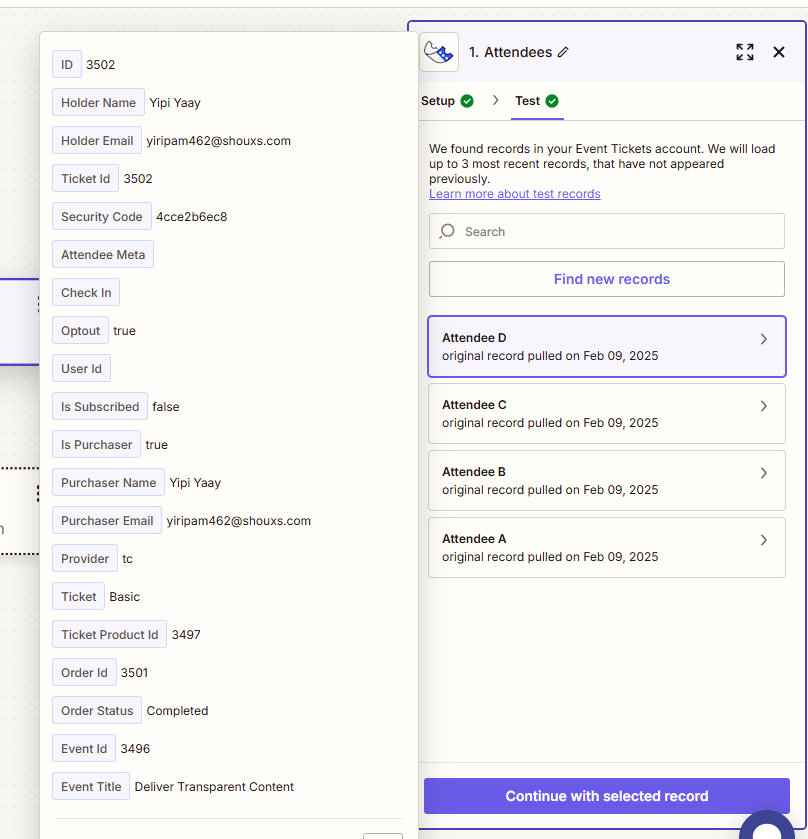
Caution: Don’t be fooled by the fact that Zapier has found an order!
Look carefully at the screen. If you are not seeing a list of fields or if the fields do not contain values, that record cannot be used to test the trigger.
To fix that, you can:
- Select another order record (if any)
- Do another ticket order on your site
- Click again on the Find new records button where you are testing the trigger on Zapier
- The freshly created order should appear
- Select it and the fields and values are present
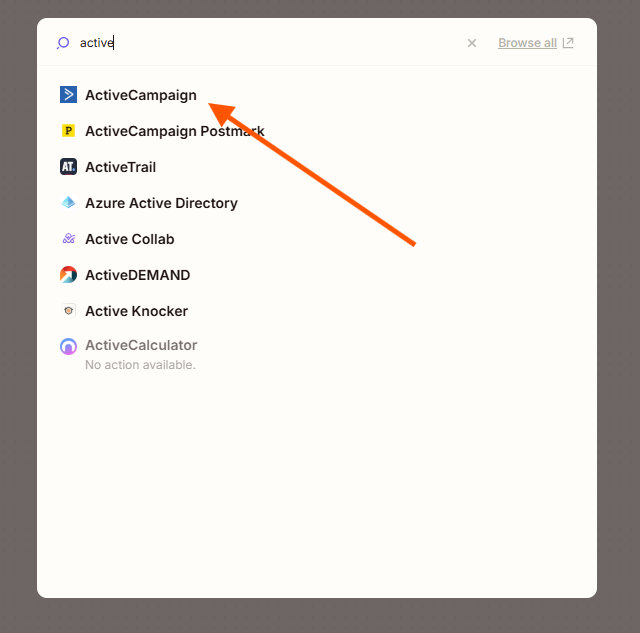
- Select the action you’d like to create (in this case, it’s ActiveCampaign).
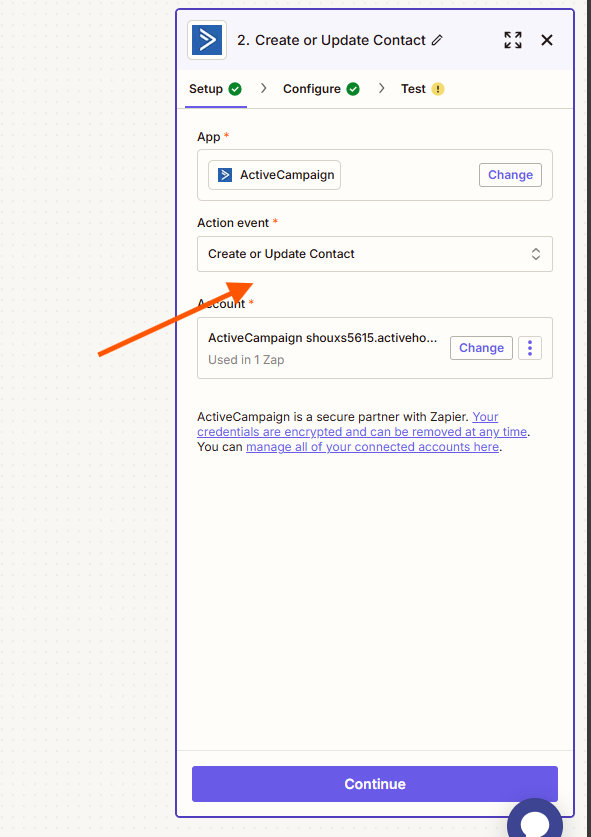
- Choose Create or Update Contact as the action event.
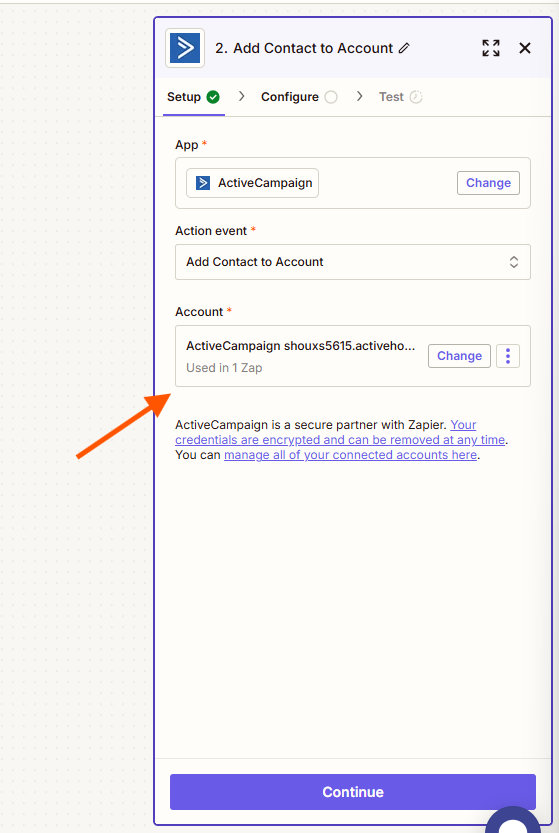
- Select your ActiveCampaign Account or connect your account if necessary.
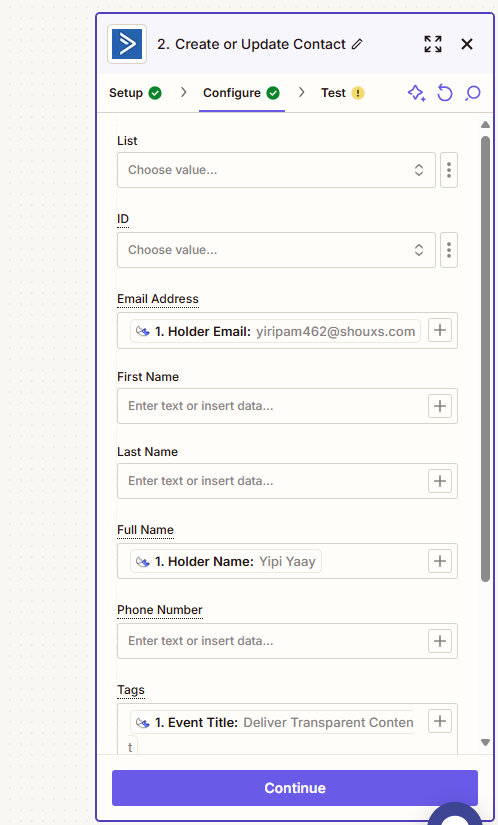
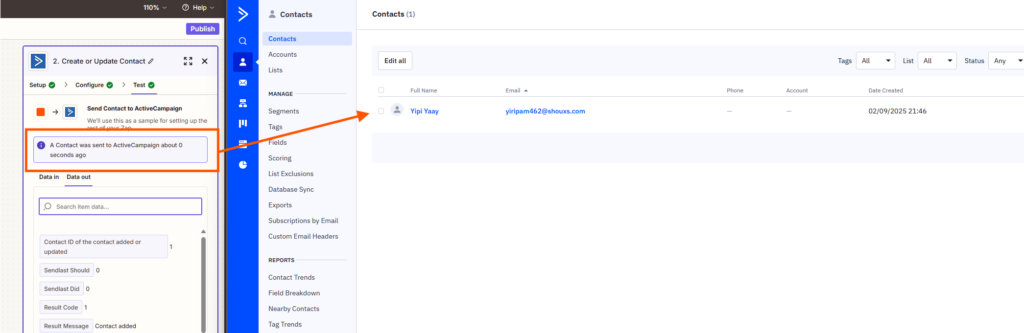
- Map the fields accordingly. In this case I’ve only mapped the Email Address, Full Name, and Tags, then click on Continue.
11. Test and Publish your Zap
How to Get WhatsApp Notifications for New Event Attendee Registrations
Beyond standard spreadsheet or CRM integrations, you can use Event Automator to receive real-time mobile alerts via WhatsApp whenever a new participant registers.
To set this up, select Event Tickets as your trigger and Attendees as the trigger event. For the action step, search for the WhatsApp Notifications app and select Send Message as the action event. When connecting your account, you will be prompted to enter the specific phone number where notifications should be sent.
Follow the standard steps to create a Zap, selecting Event Tickets as your trigger and Attendees as the trigger event. Once you have successfully tested your trigger and Zapier can “see” your attendee fields, proceed with the following specific steps:
- Select the Action: Search for and select WhatsApp Notifications as your action app.
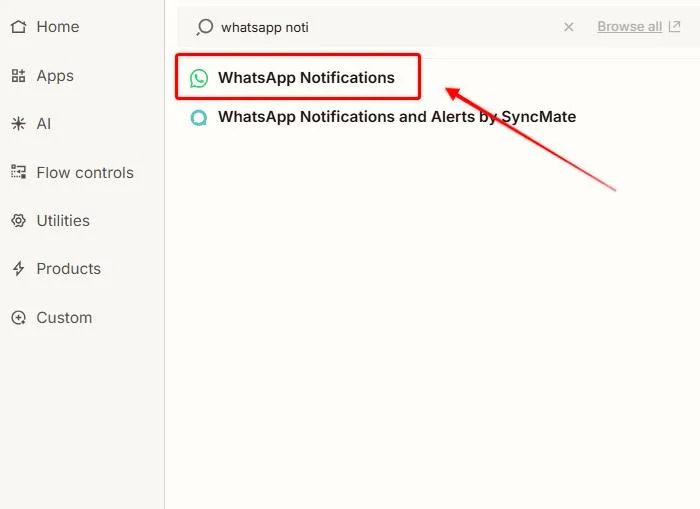
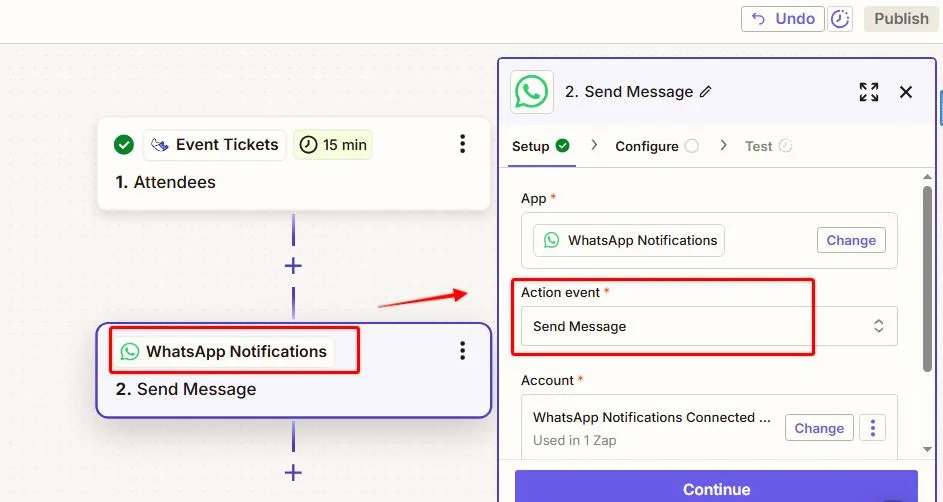
2. Choose Event: Select Send Message as the action event.
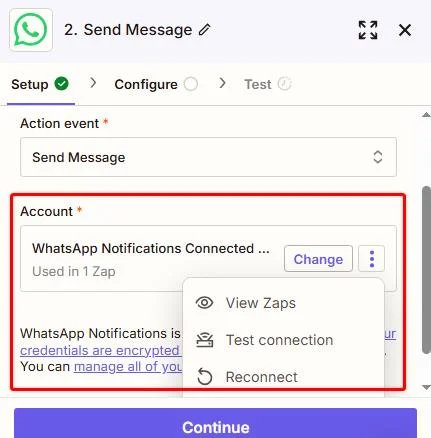
3. Connect Account: You will be prompted to input the WhatsApp number where you wish to receive notifications. Once you do this, click Continue.
4. Template Selection: Select the message template you want to use.
- Note for Free Accounts: You must map all available fields in the template, even those you don’t think you need.
- Note for Premium Accounts: If you have a Zapier Premium account, you have the flexibility to edit templates and create fully customized notification messages.
5. Map Fields: Align the attendee data (Name, Email, Ticket Type, etc.) from Event Tickets to the corresponding fields in your WhatsApp template.
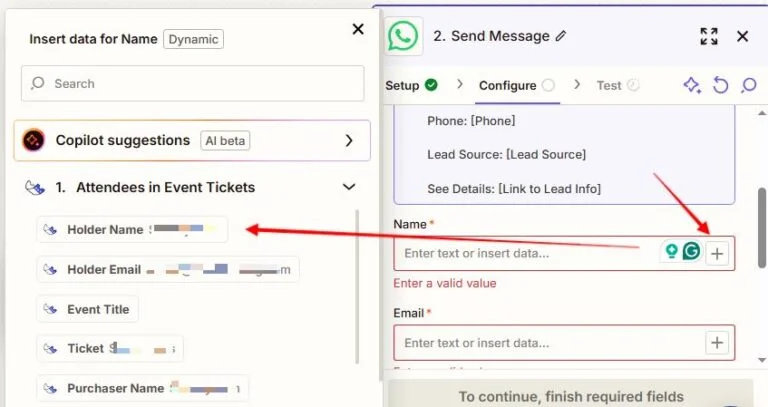
After mapping the fields, send a test notification to your WhatsApp number. Once confirmed, publish the Zap. You will now receive a real-time WhatsApp message every time a new participant registers for your events.