
Calendar Page Shows the Event Title
If the page title has taken on the title of the first event, there are a few things you can do to fix it. Please note that the solutions below assume you have a high level of experience tinkering with WordPress code.
First, try modifying the constant TRIBE_MODIFY_GLOBAL_TITLE as outlined in this guide.
If that first step did not work, find out what you are using for your Events Template in Events > Settings > Template. Make note of the setting here. If you’ve got the “Default Events Template” option selected, then add the following code to your themes functions.php file and modify as needed to set the titles you want:
add_filter('tribe_get_events_title', 'my_get_events_title');
function my_get_events_title($title) {
if( tribe_is_month() && !is_tax() ) { // The Main Calendar Page
  return 'Events Calendar';
} elseif( tribe_is_month() && is_tax() ) { // Calendar Category Pages
  return 'Events Calendar' . ' » ' . single_term_title('', false);
} elseif( tribe_is_event() && !tribe_is_day() && !is_single() ) { // The Main Events List
  return 'Events List';
} elseif( tribe_is_event() && is_single() ) { // Single Events
  return get_the_title();
} elseif( tribe_is_day() ) { // Single Event Days
  return 'Events on: ' . date('F j, Y', strtotime($wp_query->query_vars['eventDate']));
} elseif( tribe_is_venue() ) { // Single Venues
  return $title;
} else {
  return $title;
}
}
If you’ve got the Default Page Template selected, then first try opening up your theme’s page.php file and look for where the_title() is executed. If you don’t see the_title() in page.php, try looking in header.php. It helps to do a find in the file instead of scanning it but I’ll leave that up to you.
If you don’t find the_title() in either of those files then it’s either in another template or added dynamically some other way in your theme and you’ll need to track it down. Try looking in your theme’s documentation and look up where the_title() is executed. You may need to contact the theme author.
As an example, in your theme you might find:
<?php the_title(); ?>
or:
<?php echo get_the_title(); ?>
Once you’ve found where the_title() is executed, you’ll want to use these conditional wrappers to help you conditionally set the title for any of the event-related pages. You’ll need to hard code the title for the Month View page similar to the following:
if( tribe_is_month() && !is_tax() ) { // The Main Calendar Page
  echo 'Events Calendar';
} elseif( tribe_is_month() && is_tax() ) { // Calendar Category Pages
  echo 'Events Calendar' . ' » ' . single_term_title('', false);
} elseif( tribe_is_event() && !tribe_is_day() && !is_single() ) { // The Main Events List
  echo 'Events List';
} elseif( tribe_is_event() && is_single() ) { // Single Events
  echo get_the_title();
} elseif( tribe_is_day() ) { // Single Event Days
  echo 'Events on: ' . date('F j, Y', strtotime($wp_query->query_vars['eventDate']));
} elseif( tribe_is_venue() ) { // Single Venues
  echo get_the_title();
} else {
  echo get_the_title();
}
Pay attention to any specific code your theme may be using for the title too because you may want to wrap items in HTML and the like. Here is another example from a specific theme where the_title() would be wrapped in HTML markup:
<div id="pageHead">
  <?php if( tribe_is_month() && !is_tax() ) { // The Main Calendar Page ?>
    <h1 class="home">The Main Calendar</h1>
  <?php } elseif( tribe_is_month() && is_tax() ) { // Calendar Category Pages ?>
    <h1 class="home">Calendar Category: <?php echo tribe_meta_event_category_name(); ?></h1>
  <?php } elseif( tribe_is_event() && !tribe_is_day() && !is_single() && !is_tax() ) { // The Main Events List ?>
    <h1 class="home">Events List</h1>
  <?php } elseif( tribe_is_event() && !tribe_is_day() && !is_single() && is_tax() ) { // Category Events List ?>
    <h1 class="home">Events List: <?php echo tribe_meta_event_category_name(); ?></h1>
  <?php } elseif( tribe_is_event() && is_single() ) { // Single Events ?>
    <h1><?php the_title(); ?></h1>
  <?php } elseif( tribe_is_day() ) { // Single Event Days ?>
    <h1><?php $title = 'Events on: ' . date('F j, Y', strtotime(get_query_var( 'eventDate' ))); ?></h1>
  <?php } elseif( tribe_is_venue() ) { // Single Venues ?>
    <h1><?php the_title(); ?></h1>
  <?php } else { ?>
    <h1><?php the_title(); ?></h1>
  <?php } ?>

  <?php $page_description = get_post_meta($post->ID, "_ttrust_page_description_value", true); ?>
    <?php if ($page_description) : ?>
      <p><?php echo $page_description; ?></p>
    <?php endif; ?>
</div><!--end pageHead -->
If you have any questions about this, please open up a topic at our Help Desk.
The Mini Calendar Displays Instead of the Full Month View
Under certain circumstances, when viewing your events pages in the default Month View on standard-sized displays, you may notice that your calendar is rendered at a smaller size, with dots replacing the usual event titles on dates that contain events.
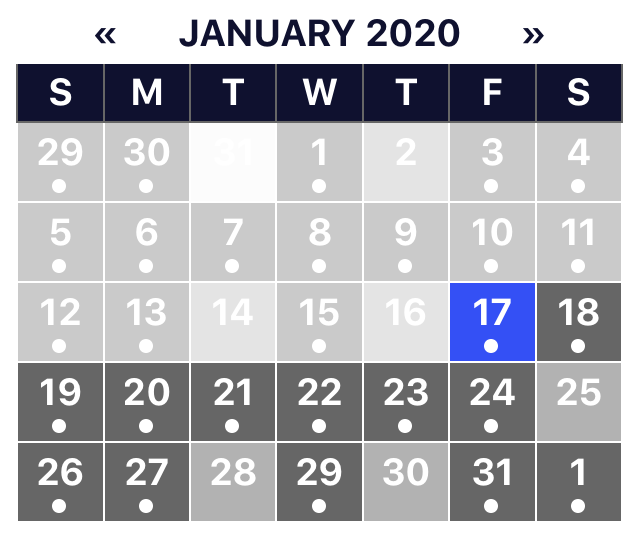
To better understanding why this problem occurs and how to prevent it, it’s helpful to understand how the visual styling for The Events Calendar is constructed in code. Let’s take a closer look.
Responsive Design
The Events Calendar is built from the ground up with responsive design in mind, which means that its visual styling adapts to different screen sizes. On large screens, the calendar’s Month View is a full grid that displays the event titles that we’d expect to see on a large calendar. When viewed on smaller screens, the calendar will automatically respond by switching to a smaller, more compact version. Instead of displaying all events, the calendar displays dots indicating days that contain events.
The calendar automatically switches from the large screen layout to the small screen layout if the space allotted for the calendar is less than 768 pixels wide. We call this the calendar’s responsive breakpoint.
However, space allotted for calendars refers not to the size of your device or browser window but to the container holding the calendar. If the calendar is sitting in a container that is less than 768 pixels in width, the calendar will respond to the appropriate breakpoint.
Where we see this most often is when a sidebar is included on the same page as the calendar. The space the sidebar takes up subtracts from the calendar’s 768 pixels of available space before the breakpoint strikes. The result is that the small screen version of the calendar is displayed where the large screen version might be expected.
Thankfully, there is a handy way around this problem. We can use the following snippet in our theme’s functions.php file to change the width at which the responsive breakpoint is activated.
function customize_tribe_events_breakpoint() {
  return 600;
}
add_filter( 'tribe_events_mobile_breakpoint', 'customize_tribe_events_breakpoint' );
In this example, we’re telling the calendar to hold off from changing to small screen mode until the container is less than 600 pixels in width. That’s 168 more pixels of space to play with than we had before. If you’d prefer to use a different breakpoint, simply change the “600” in code to another value of your choice.
But let’s say that we want to kill the small screen mode completely. We can do that using this snippet instead:
add_filter( 'tribe_events_kill_responsive', '__return_true');
Other methods for allotting more space to your calendars might include removing sidebars or adjusting their behavior to move above or below your calendar views on smaller displays. It’s worth exploring different options to see which one works best for you and your users.
Still encountering mobile styling on your calendars that isn’t resolved by the above suggestions? Read on!
Concatenation Issues
Problems with mobile styling being applied incorrectly may also be caused by a behavior known as concatenation, which is automatically performed by some WordPress caching and optimization plugins. Plugins that perform concatenation will often combine all CSS files requested by your WordPress theme and active plugins into a single file in an effort to improve page load times. The Events Calendar uses a separate CSS file for its mobile styling which is triggered only at specific display sizes, but concatenation plugins are able to bypass this logic, causing the more specific mobile styling to override your default calendar styling at all screen sizes.
If you’re experiencing this issue on your calendar or events pages, you can determine whether your caching plugin is at fault by temporarily deactivating the plugin from your WordPress site’s backend. Log in to your WordPress site, then click Plugins in the sidebar to bring up the list of installed plugins for your site. Click the Deactivate link below your caching plugin’s title to deactivate the plugin and disable its behaviors.

After clearing your browser’s cache, try reloading your main calendar page to see if the problem persists. If your calendar displays with its standard styling in place once your caching plugin is disabled, you’ll know that concatenation (or a similar compression method) is to blame.
The good news is that you can still make use of many of the optimization features of these caching plugins without negatively impacting your calendars or events–it’s just a matter of applying these features selectively where possible. Our plugins are already developed with speed and efficiency in mind and employ a number of performance-oriented considerations, such as code minification, straight out of the box. (You can read more about performance as it relates to our plugins over on our minification article.) If your caching plugin allows for the enabling and disabling of features individually, simply disabling concatenation and minification should allow you to benefit from the speed improvements that caching offers without compromising the functionality of your plugins. This article provided by Tangerine Moons offers some further suggestions specifically related to the use of W3 Total Cache with The Events Calendar.
With these tips in mind, you should be well-equipped to continue working with our plugins alongside your preferred caching solution without affecting the look, feel, or functionality of your calendars. If you should continue to experience any issues with your calendar or if you should have any other questions, please don’t hesitate to reach out to us over at our support Help Desk for further assistance!
Issues with the View Switcher or Navigation
When using The Events Calendar plugins, you may encounter an issue where the calendar view doesn’t change or you can’t paginate past the current month.
If you do see one of these issues occur, there may be a simple fix.
Testing for Conflicts
The simple answer is that there may be a conflict occurring with another plugin that is causing this issue. Often, this happens with security plugins, like Wordfence, or with a firewall like Modsec Firewall.
The reason why this may occur is that security plugins tend to block the REST API. To see if this is what is causing the issue, go ahead and disable all security plugins and firewalls. You may need help from your hosting provider when it comes to any firewalls installed.
Read more about testing for conflicts in our Knowledgebase article.
Google Chrome Developer Tools
Another first step you can take when resolving this error is to utilize Google Chrome Developer Tools. You can usually find some good clues to help you see what is causing the issue there. To learn more about using Google Chrome Developer Tools, check out this Knowledgebase article.
The same applies to other browsers, like Firefox and Safari, where you can look for errors in the console using their inspection tools.