
When a visitor comes to your site they are generally seeking one thing: information!
One of the goals of web applications like WordPress (and those systems that run on top of it, such as our own plugins) is to deliver this information as quickly as possible.
Often, though, interaction with the sources of this information – be that the site’s own database or even a third-party service that is accessed over the web – just isn’t fast enough, particularly if a site is fielding lots of traffic or answering a request for which many individual pieces of content need to be retrieved (think Month View: it isn’t uncommon for this to contain upwards of 100 different events!).
Caching is one way we can work around and alleviate such bottlenecks. In this article, we will look at just a few forms of caching, how and when we use them, and what you need to be aware of.
Introduction to Caching
Object Caching
When it takes a long time to retrieve a piece of information – or even if it is fast, but taxes the server more than normal – a common solution in the WordPress environment is to make use of the object cache.
For instance, when the database is queried to create the main upcoming events list, all those events are then immediately stored in the object cache (right in the server’s memory) so that they can quickly be retrieved in the future: pulling data like this out of the object cache is far, far faster than querying the database afresh.
Suppose that in the sidebar for List View you have a widget that highlights one of the listed events (and provides more in-depth information – the complete description, perhaps, rather than just the excerpt). Since the event is already stored in the object cache it can be retrieved speedily and with very little overhead.
Persistence
The problem with what we just described is that as soon as the web page has been put together and delivered to the visitor, the object cache is cleared.
The next time someone visits, it all begins again. That may make it seem like a waste of effort, yet it isn’t entirely a waste – just think of the previous example involving a sidebar widget: caching saves time and effort even if it is cleared after each request.
However, it would often be preferable if it wasn’t cleared at all. In the context of caching, this is what we mean when we talk of persistence and there are several plugins you can install to help with this.
Indeed, some web hosts, particularly those specializing in WordPress hosting, actually set this up for you – so you don’t need to install and configure anything at all (however, if you are in doubt it is always best to ask if this is something they facilitate).
Once persistent caching is in place there is generally a tremendous improvement in relation to the site’s performance.
Thinking back to our List View example – the range of events shown here is identical to what we show in photo view, only the presentation changes. With persistent caching, both views benefit because they can both use the stored list of event objects without hitting the database. As a result, your users will see a faster load time as they click around your calendar.
Page Caching
So far we’ve covered caching of the raw data we need to build up views and pages. Though this can offer a huge speed boost, the work of taking that data and transforming it into nice, presentable web pages still needs to be done for each individual request.
Page caching is a process where we take the generated web page and store it in a cache, eliminating even the final step of generating HTML. There are many different ways of implementing this and there are plenty of plugins that can add this capability to your site.
As a point of note, The Events Calendar comes equipped with some highly specific caching facilities not unlike page caching but that apply only to month view. To learn more about this specifically, please read this article which covers month view caching in more depth.
However, this can have some drawbacks – which takes us neatly on to the last aspect of caching we’re going to explore here.
Invalidation
How long should we cache data for?
Clearly, it shouldn’t be forever. Event details may be changed and updated, for example, and we want visitors to see that new information, not the outdated stuff! So we need a process for clearing and refreshing the cache – and this is what we mean when we talk of invalidation.
In practice, this is less of a problem with object caching. Many tried and tested systems baked right into the heart of WordPress do an admirable job of dealing with this and, wherever our own plugins interact with the object cache, we’ve also worked hard to ensure the cached data is invalidated and refreshed at appropriate points.
When page caching is used, though, it is often implemented by a third-party plugin with no knowledge of events or how they work. This can result in some unusual side effects that you may notice when you use such a solution:
- If you update an event’s description or start time, you may find the change is not immediately reflected on the front end
- Normally events that have expired are no longer listed in the upcoming events list – but with page caching, it’s possible they will linger longer than you might desire
- When you visit month view you typically expect to see the current month first of all – again, here, it’s not impossible that you will see the last cached month instead
These problems are far from insurmountable – most caching plugins will let you clear the cache with the click of a button and can usually be configured so that cached pages are automatically refreshed after a short interval – but they can trip people up even so which is why we wanted to highlight it.
For best results, set /events* to expire in 12 hours.
Summary
Our plugins make use of caching right now, without you having to do anything. To truly take this to the next level though and reap even more benefits it is at least worth adding a persistent object caching layer.
Whether you use an existing plugin for this or lean on your web host (as above, some provide their own caching systems as part of the service) is up to you – but it can make a significant difference to the performance of your site.
Page caching is definitely also worth consideration, just beware of some of the common gotchas!
Enabling Caching in Calendar Views
We have a setting in The Events Calendar that helps speed up the calendar month view by caching the events on the calendar, so they load faster on the next page refresh.
You’ll find the “Enable the Month View Cache setting at Events → Settings → General → Viewing. Selecting that option will save the HTML for your Month View in a transient. That way, the events don’t have to be pulled from the database of everything the site is visited. Instead, the calendar displays the saved HTML fragment and loads faster as a result.
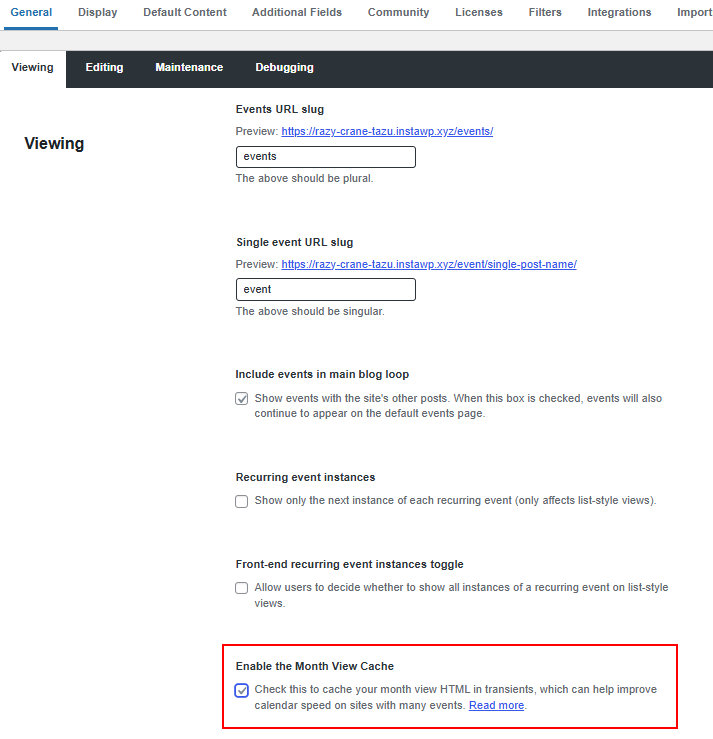
If you are customizing the month view template, you’ll probably want to disable this setting because there’s a chance that the plugin’s template file will load instead of your custom version. By disabling this setting, your changes to the template will always load. That said, you can keep the setting enabled and toggle it to refresh the cache and display your changes.
Filters
For more advanced needs, The Events Calendar includes a way to filter when something is cached as well as fully deactivate cache from loading altogether.
The tribe_events_views_v2_should_cache_html filter accepts three parameters, one of which allows more control over when to cache.
For example, disabling cache can be done with a filter in your functions.php file:
<?php
add_filter( 'tribe_events_views_v2_should_cache_html', '__return_false' );
This snippet is capable of lots of other things. But please note that caching is not something to be modified unless you are very aware of possible security consequences.
Normal expiration is a full day in seconds, but you can modify that using a filter as well:
<?php
add_filter( 'tribe_events_views_v2_cache_html_expiration', function() {
    return 2 * DAY_IN_SECONDS;
} );
It’s worth noting that the calendar’s week and month only cache two months’ worth of past events and up to one year of upcoming events.
Using Caching Plugins
See also: Integrating SEO, Caching, and Performance Plugins with The Events Calendar
Our plugins make use of caching, without any action taken on your part. However, if you do choose to use an external caching service or plugin, performance might be affected because they can cache or minify code, which can cause issues with your calendar.
Some hosting providers offer background caching to for faster hosting. This option may need adjustments. In this case, we’d recommend excluding our plugin files.
For best results:
- Set
/events*to expire every 12 hours. Longer delays will cause issues. - Make sure our CSS and Javascript files are ignored by your caching plugin.
Simply add the following plugin directory paths as exclusions from cache.
| Plugin Name | Assets Folder |
|---|---|
| The Events Calendar | /wp-content/plugins/the-events-calendar/(.*).css/wp-content/plugins/the-events-calendar/(.*).js |
| Events Calendar Pro | /wp-content/plugins/events-calendar-pro/(.*).css/wp-content/plugins/events-calendar-pro/(.*).js |
| Events Tickets | /wp-content/plugins/event-tickets/(.*).css/wp-content/plugins/event-tickets/(.*).js |
| Events Tickets Plus | /wp-content/plugins/event-tickets-plus/(.*).css/wp-content/plugins/event-tickets-plus/(.*).js |
| Filter Bar | /wp-content/plugins/the-events-calendar-filterbar/(.*).css/wp-content/plugins/the-events-calendar-filterbar/(.*).js |
| Community Events | /wp-content/plugins/the-events-calendar-community-events/(.*).css/wp-content/plugins/the-events-calendar-community-events/(.*).js |
| Eventbrite Tickets | /wp-content/plugins/the-events-calendar-eventbrite-tickets/(.*).css/wp-content/plugins/the-events-calendar-eventbrite-tickets/(.*).js |