
The Waitlist feature allows you to manage events with limited space or high-demand situations with ease. It lets you keep a list of interested attendees when an event is sold out or during pre-sales. You can effortlessly create a waitlist for both free and paid events by adding it to your tickets and RSVPs.
👋 Note: This feature is available with our premium plugin Event Tickets Plus since version 6.2.0.
Configuring the Waitlist
In order for the Waitlist section to be available you need to create at least one Ticket or RSVP and publish your event. In the Classic Editor, the Waitlist section appears when editing an event. In the Block Editor, click on your tickets/RSVPs, and you’ll find the option to enable the Waitlist on the right.
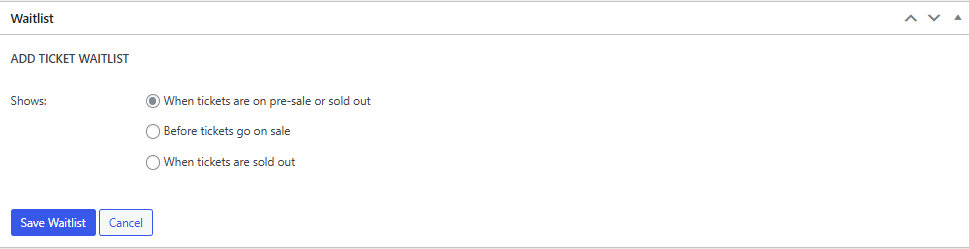

You can display the Waitlist to users in any of the three situations below. The options will differ depending on whether it’s a ticket or an RSVP.
Waitlist for Tickets
- When tickets are on pre-sale or sold out – shows before tickets go on sale and when all tickets are sold out
- Before tickets go on sale – shows until ticket sale start date
- When tickets are sold out – shows when ticket capacity runs out for all tickets on an event/page
Waitlist for RSVPs
- When RSVP is on pre-sale or at maximum capacity – Shows before the RSVP start date and after RSVP reaches maximum capacity
- Before RSVP starts – Shows until the RSVP start date
- When RSVP reaches maximum capacity – Shows when RSVP capacity runs out
👋 Note: The waitlist will only show up after an event or page is completely full. If your event has more than one type of ticket or RSVP, all of them must reach their maximum capacity before the waitlist becomes available.
Example: If your event has both VIP tickets and General Admission tickets, the waitlist won’t appear until both ticket types are sold out.
Once you’ve added the Waitlist here is what users will be able to see on your site:
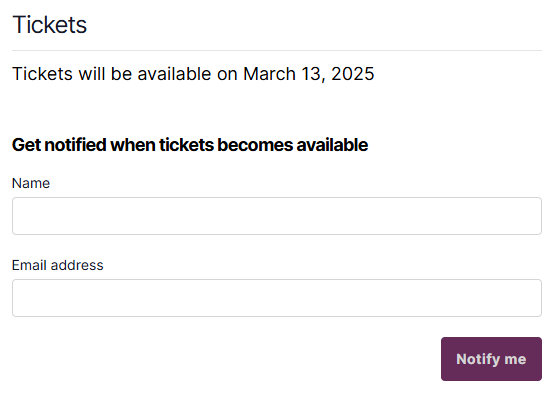
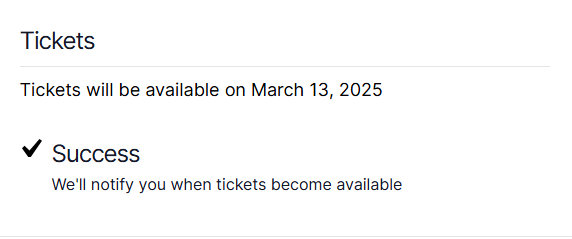
After submitting their details, a success notice will appear, letting them know when to expect a follow-up.
👋 Note: Besides events, you can use the Waitlist feature on tickets added to posts and pages as well.
Waitlist Emails
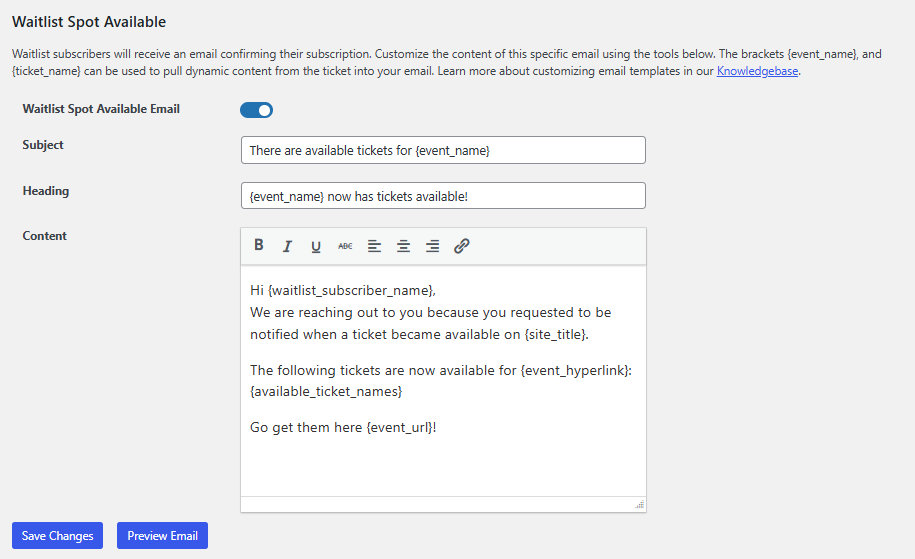
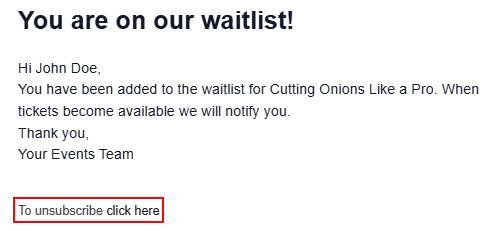
Among the existing Ticket Emails, you’ll find those specifically used to follow up with waitlisted users. Users will first get a confirmation notifying them that they are on the waitlist for a specific event. Once the ticket becomes available they will get another email with the link to where they can purchase the ticket.

Here is how emails look out of the box. There are placeholders included, but there’s also some generic text that you may want to customize to better fit your event. You can learn more about customizing ticket emails here.
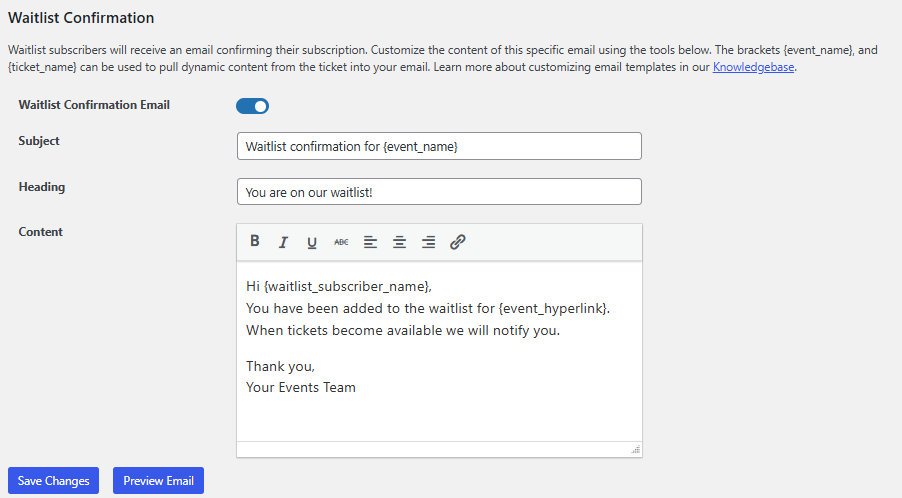
Users can remove themselves from the Waitlist by clicking the unsubscribe link in the email.
Waitlist Subscribers
To see the list of all your subscribers head to WP Dashboard > Tickets > Waitlist Subscribers. You will be able to view the subscribers, their email addresses, and the name of the event, page, or post they signed up for on the waitlist.

How to Send Admin Notifications for Waitlist Signups
By default, Event Tickets Plus sends automated confirmation emails to users when they join a waitlist. However, there is currently no built-in setting to notify the site administrator when these signups occur. You can bridge this gap by implementing a custom PHP code snippet that hooks into the waitlist creation process.
This snippet automatically sends an email notification to the site’s Administration Email Address (found under Settings > General) whenever a new user successfully subscribes to an event’s Waitlist.
You can add this snippet to your child theme functions.php file. However, we recommend using a dedicated code snippets plugin to avoid issues with theme updates. For more information, please see our guide on the best practices for implementing custom code snippets.
Note: If you need to send the notification to a different email address, you can replace the variable $admin_email on the line wp_mail( $admin_email, $subject, $message ); with a specific email address string (e.g., '[email protected]').
/**
 * Send a notification to the site admin when a new user signs up for a waitlist.
 *
 */
function my_waitlist_admin_notification( $subscriber ) {
    // Ensure this is a valid Subscriber object.
    if ( ! $subscriber instanceof \TEC\Tickets_Plus\Waitlist\Subscriber ) {
        return;
    }

    // Get the site administrator's email address.
    $admin_email = get_option( 'admin_email' );
    if ( ! is_email( $admin_email ) ) {
        return;
    }

    $event_id    = $subscriber->get_post_id();
    $event_title = get_the_title( $event_id );

    $subscriber_name  = $subscriber->get_fullname();
    $subscriber_email = $subscriber->get_email();

    $subject = sprintf(
        /* translators: %s: Event title. */
        esc_html__( 'New Waitlist Signup for: %s', 'my-text-domain' ),
        $event_title
    );

    $message_lines = [
        sprintf(
            esc_html__( 'A new user has signed up for the waitlist for the event "%s".', 'my-text-domain' ),
            $event_title
        ),
        '',
        esc_html__( 'Subscriber Details:', 'my-text-domain' ),
        /* translators: %s: Subscriber's full name. */
        sprintf( esc_html__( 'Name: %s', 'my-text-domain' ), $subscriber_name ),
        /* translators: %s: Subscriber's email address. */
        sprintf( esc_html__( 'Email: %s', 'my-text-domain' ), $subscriber_email ),
    ];

    $message = implode( "\r\n", $message_lines );

    // You can change $admin_email to a different email address if you prefer.
    wp_mail( $admin_email, $subject, $message );
}
add_action( 'tec_tickets_plus_waitlist_after_create_subscriber', 'my_waitlist_admin_notification', 10, 1 );