
Using The Events Calendar plugin in WordPress is usually straightforward. You create events, they show up in calendar views or list views. But sometimes, you’ll find that events appear in the admin side (in the Dashboard) but don’t display on the frontend calendar. Or sometimes only some of them show. This can be frustrating.
Common Causes for Events Not Showing
Below are typical reasons why events may not appear on your calendar, even though they are created and published:
- Caching / CDN / Cache Invalidation Issues
If your site or CDN caches calendar pages or event queries, stale caches may prevent newly added events from appearing. Sometimes the cache doesn’t clear properly, or the caching layer doesn’t respect dynamic content changes. - Permalink / Rewrite Rules Not Flushed
If rewrite rules are out of sync (especially after a migration or plugin/theme change), the event URLs or calendar archives may not resolve correctly. - Theme / Template Overrides / Compatibility Conflicts
Some themes override TEC templates or use custom layout logic that prevents events from rendering properly. - Event Status / Visibility / Publish State
The event may still be in a “Draft” or “Pending” status rather than “Published.”
The event might be set to “private” or have restricted visibility. - TEC Settings & Display Template Configuration
You might have selected a custom template or nondefault calendar layout that isn’t compatible with the theme or block setup. To test this by changing the Events template to “Default Events Template” under Events → Settings → Display. - Event Options
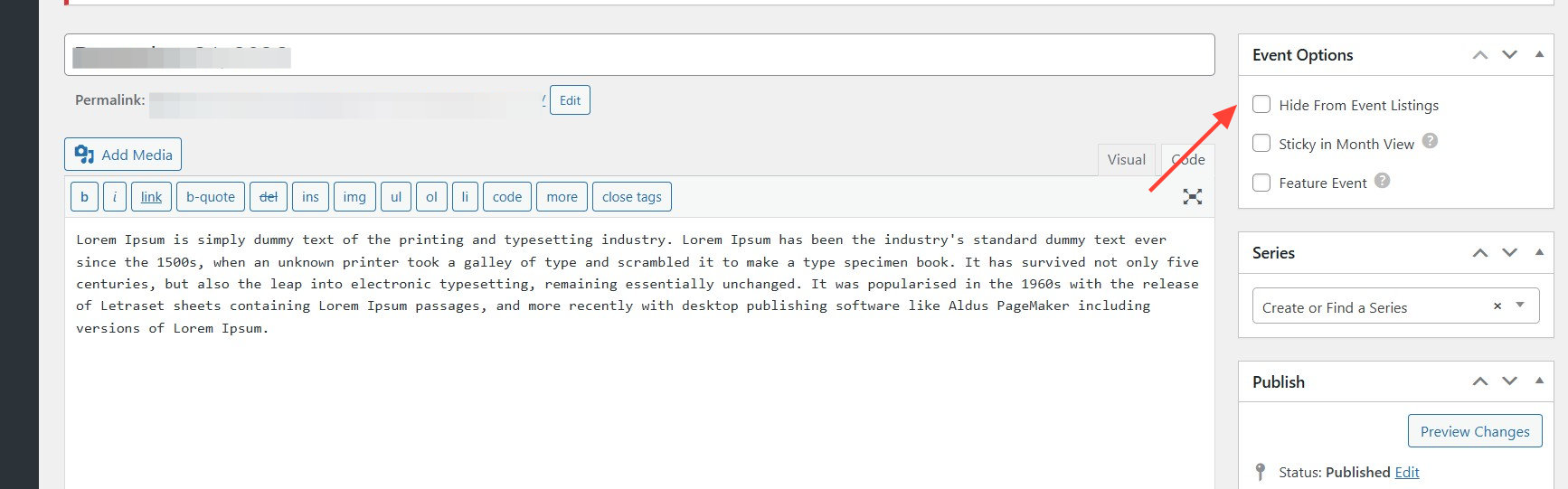
Enabling ‘Hide From Event Listings’ from the ‘Events Options’ section under the individual event will hide the event from the list.
How to Diagnose the Missing Events
Here’s a step-by-step approach to finding out what’s preventing your events from showing:
- Disable Caching / Clear Cache / Purge CDN
Clear caches in your caching plugin (e.g. WP Super Cache, W3 Total Cache, etc.).
Purge your CDN (Cloudflare, etc.).
Temporarily disable caching plugins to see if events return.
If events appear when caching is disabled, the issue is cache invalidation or stale cache. - Flush Permalinks / Rewrite Rules
Go to Settings → Permalinks in WP and click “Save Changes” (without changing anything).
This forces WP to regenerate rewrite rules.
Then check your calendar URL (e.g./events/) again.
This simple step is often the fix when events “disappear” especially after migrations. - Switch to a Default Theme / Disable Plugins
Temporarily switch to a default WP theme (Twenty Twenty-Three, etc.)
Deactivate all nonessential plugins.
Test whether events appear under that minimal setup.
If they do, gradually re-enable plugins / theme until the conflict reappears. - Check the Admin / Backend
Confirm the event is published and visible.
Review start and end dates, recurrence settings. - Check TEC Settings
Go to Events → Settings → Display
Switch template settings to default (if customized). - Check Event Options
Ensure to disable the ‘Hide From Event Listings’ from the ‘Events Options’ section.