
Show Only Weekend Events in List View Shortcode
Sometimes you may want your events calendar to focus only on the weekend. For example, maybe you run classes or workshops every Saturday and Sunday, and you want a dedicated page that shows only those events.
With Events Calendar Pro, this can be done by modifying the query that powers the List View shortcode. In this guide, we’ll show you how to use the tribe_events_views_v2_view_repository_args filter so a specific List View shortcode only returns events that start on Saturday or Sunday of the current week.
How It Works
The tribe_events_views_v2_view_repository_args filter lets you change the arguments used to fetch events for any view in The Events Calendar. By checking the shortcode ID, you can apply the customization only to one shortcode and leave the rest of your site unchanged.
The code snippet below calculates the start and end of the current weekend, then restricts the query to only include events that start between Saturday 00:00:00 and Sunday 23:59:59. You can add this snippet in your child theme’s functions.php or via Code Snippets plugin.
/**
 * Show only weekend events (Saturday & Sunday) in a specific List View shortcode.
 */
add_filter( 'tribe_events_views_v2_view_repository_args', 'my_weekend_repo_args', 10, 2 );
function my_weekend_repo_args( $rep_args, $context ) {
	$shortcode_id = '24f53d40'; // Replace with your shortcode ID

	// Only run for the correct shortcode
	if ( empty( $context->get( 'shortcode' ) ) || $context->get( 'shortcode' ) !== $shortcode_id ) {
		return $rep_args;
	}

	// Use site timezone
	$tz = wp_timezone();

	// Calculate weekend range (Saturday 00:00:00 to Sunday 23:59:59 this week)
	$weekend_start = new DateTime( 'saturday this week 00:00:00', $tz );
	$weekend_end   = new DateTime( 'sunday this week 23:59:59', $tz );

	// Apply weekend range to repository arguments
	$rep_args['start_date'] = $weekend_start->format( 'Y-m-d H:i:s' );
	$rep_args['end_date']   = $weekend_end->format( 'Y-m-d H:i:s' );

	// Keep ordering predictable
	$rep_args['orderby'] = 'event_date';
	$rep_args['order']   = 'ASC';

	// Optional: set posts per page if not already defined
	if ( empty( $rep_args['posts_per_page'] ) ) {
		$rep_args['posts_per_page'] = tribe_get_option( 'postsPerPage', 10 );
	}

	return $rep_args;
}
Finding Your Shortcode ID
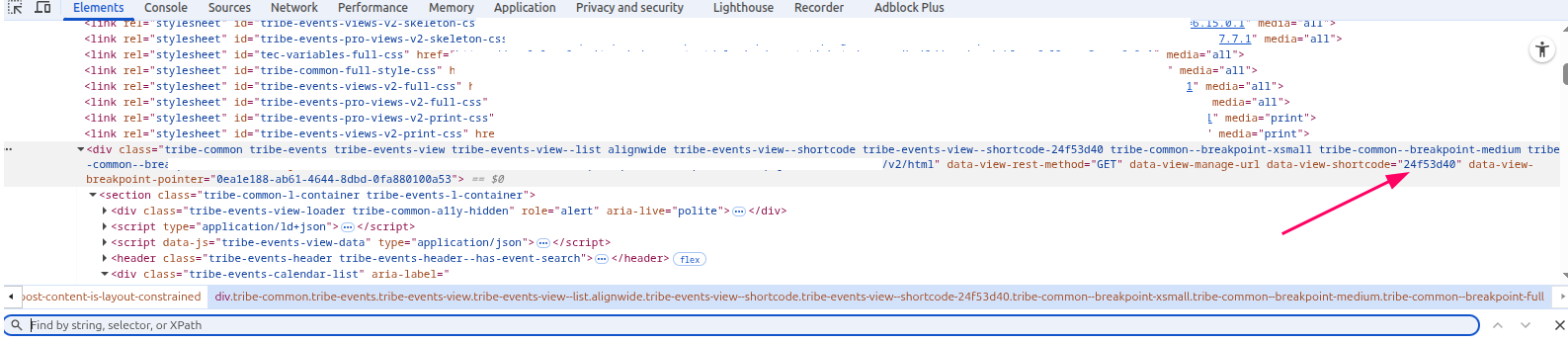
Each List View shortcode in The Events Calendar has a unique ID. To find it:
- Add a List View shortcode to a post or page.
- Inspect the page source in your browser.
- Look for the
data-view-shortcodeattribute inside the List View wrapper. - Copy that ID and replace
24f53d40in the code above on line 6 with your shortcode’s ID.
Example Use Case
- You create a page called Weekend Events.
- Add a
[tribe_events view="list"]shortcode to the page. - Copy the shortcode’s unique ID and add it to the code snippet.
- Now, that page will only display events that start on Saturday or Sunday of the current week.
This creates a clean, dedicated weekend schedule while leaving your main calendar and other shortcodes unaffected.
Optional Enhancements
- Future weekends: You can adjust the DateTime strings (
saturday next week,sunday next week) if you want to show events from upcoming weekends. - Multi-day events: If you want to include events that overlap the weekend even if they start earlier, you’ll need a slightly different query that checks both start and end dates.
Conclusion
By customizing repository arguments with tribe_events_views_v2_view_repository_args, you can display only weekend events in a specific List View shortcode. This keeps your customization scoped and avoids changing the behavior of other views or shortcodes on your site.