
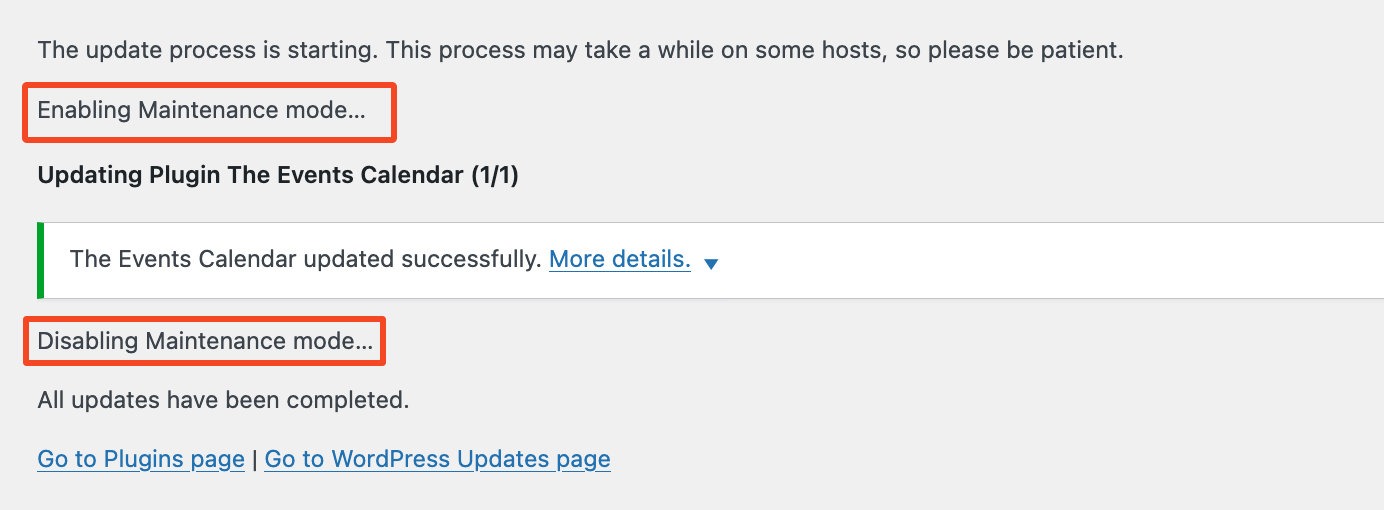
When you update a plugin, WordPress temporarily puts your site into maintenance mode. This mode prevents visitors from seeing incomplete or broken pages during the update process.
Sometimes, if the update process is interrupted or doesn’t finish properly, due to a slow server response, a plugin conflict, or a timeout, WordPress can get “stuck” in maintenance mode. When this happens, your site displays a message like:
“Briefly unavailable for scheduled maintenance. Check back in a minute.”
And the site remains inaccessible to visitors.
Why Does This Happen?
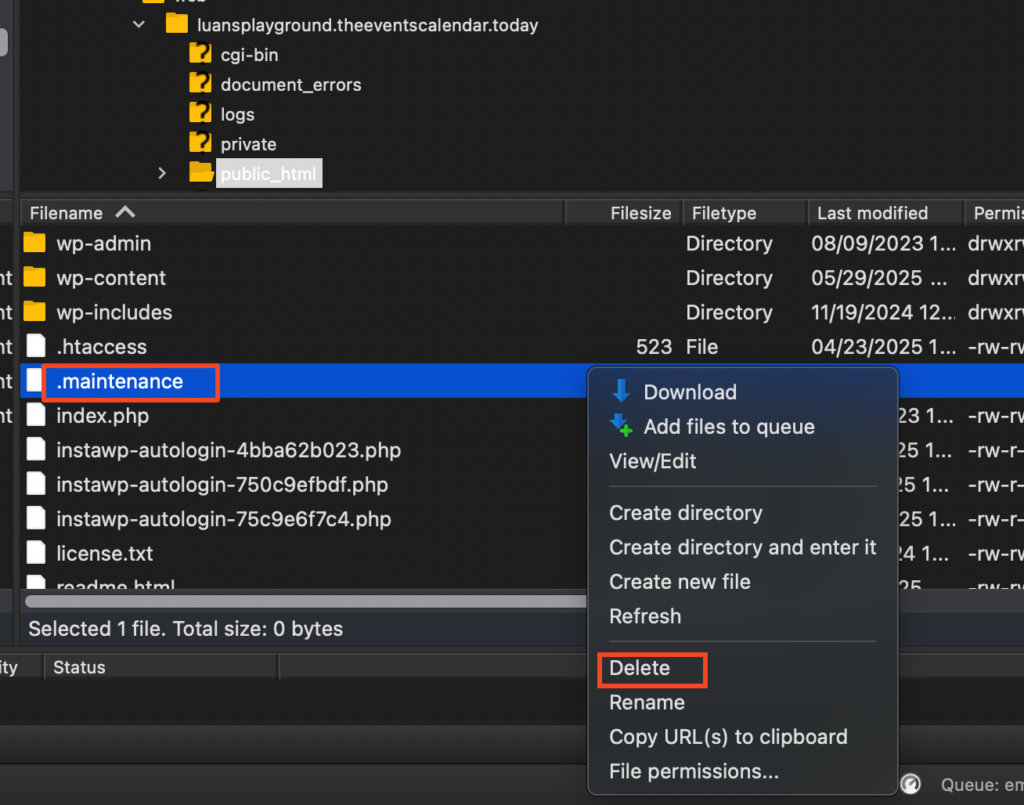
During an update, WordPress creates a temporary file named .maintenance in your site’s root directory. Normally, this file is deleted automatically once the update finishes.
If the file remains (because the process was interrupted), WordPress continues to show the maintenance mode message.
How to Fix It
Fixing this is quick and simple, you just need to delete the .maintenance file.
Steps to Delete the .maintenance File
- Access your site files
Use FTP (via FileZilla, Cyberduck, etc.) or your hosting control panel’s file manager. - Locate the
.maintenancefile
It’s in the root directory of your WordPress installation, the same folder that containswp-config.phpand thewp-contentfolder. - Delete the
.maintenancefile
Simply delete this file. This will immediately take your site out of maintenance mode. - Refresh your website
Visit your site to confirm it’s loading normally again.
Pro Tip: Preventing This in the Future
- Always ensure plugin updates complete fully without interruptions.
- Avoid updating multiple plugins simultaneously on slow or busy servers.
- Consider updating plugins one at a time.
- Do not leave the update page before the Maintenance is deactivated.