
Should you encounter any issues while using Seating add-on, here are some troubleshooting tips that should help you resolve the problem. If you are having trouble with your license key or connecting to the Seating Builder SaaS, please see our guide on connecting to the Seating Builder service.
Missing features & functionality
If you go to Tickets > Seating and do not see your Seating Maps, it’s because of an issue with your license key or the Seating Builder service connection. Go to Tickets > Settings > Licenses > Seating and make sure that your license key is valid and that your site is connected to the Seating Builder.
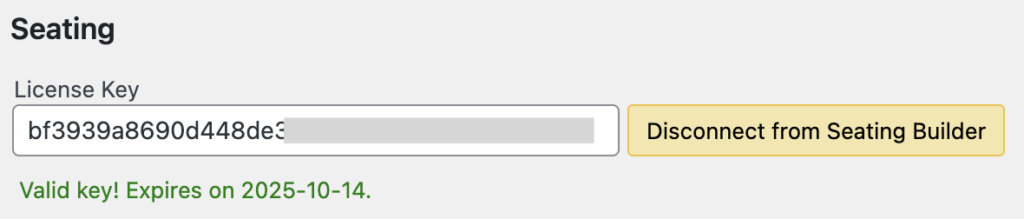
If your license is expired, you can renew it from your account. If your license is valid but you are not connected to Seating Builder, follow the steps in our connecting to the Seating Builder service guide.
Dealing with errors
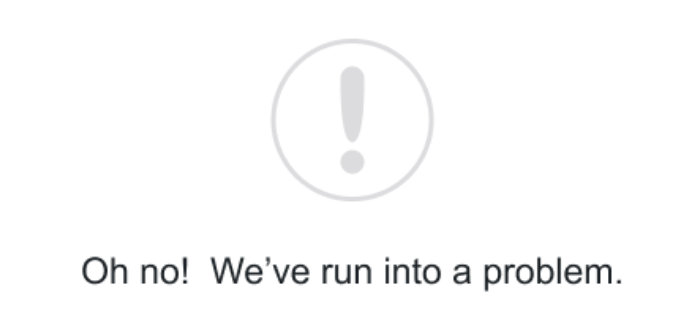
If you see an error screen like this, please follow these steps to troubleshoot the issue:
- Verify that your license key is valid and you are connected to the Seating Builder service under Tickets > Settings > Licenses > Seating
- Make sure you’re running the latest versions of Event Tickets. If you are using any of our other plugins (e.g. The Events Calendar), update them as well.
- If your WordPress Memory is less than 256 MB, consider upgrading it as this is a recommended minimum memory limit for WordPress. Read more about WordPress memory issues in this article.
- Use a plugin such as Transient Cleaner to clear your site’s transients. Clearing site transients in WordPress can help resolve issues related to outdated or stale cached data.
Once you go through the above steps, please try again. If you are still hitting an error, you can reach out to the support here. Please include your license key, site URL, and the error code.
Note: Seating builder is optimized for layouts with fewer than 1,500 seats. If this doesn’t meet your needs, please contact support.
Attendees with no seat assignment
If you go to the Seats tab for an event and see attendees without seat assignments, it is most likely for one of the following reasons:
- The attendee was created manually, but did not get a seat assigned (see above)
- The seat layout for the event was changed, which removes all seat assignments
- The event layout was edited and the attendee’s original seat was changed to blocked
You can assign these attendees to any open seat by clicking the Assign Seat option.
Issues with capacity & availability
As people purchase tickets, the event’s availability will decrease and seats will be reserved. In most situations, the number of unoccupied seats will be equal to the availability of the event. However, there are some situations where the numbers will not match, and you may want to take manual action by removing an attendee’s seat assignment, reviewing attendees without seat assignments, or deleting an attendee.
Read more: Capacity and availability for seated tickets
If you edit a Seat Layout, any events currently using that layout will be impacted. This kind of editing can cause inconsistencies between availability and the number of empty seats. Say you have an event using layout “Theater” which has two Seat Types, Standard and Discount. The event has two tickets: “Regular Admission”, which uses the “Standard” seats, and “Super Saver”, which uses the “Discount” seats. If the Super Saver ticket have sold out, but then you change the layout itself and move 5 seats from Standard to Discount, that will change the capacity of both tickets. If you edit a layout with associated events, you may need to manually adjust attendees or seat assignments on those events.
Read more: Editing layouts with associated events
Maps & Layouts are gone
Your Seating Maps and Seat Layouts are tied to your license key and your site URL. If you change your license key or URL, we will need to manually move your seating data. Please contact support for help.
Site Health metrics
The Seating add-on includes two Site Health metrics for monitoring functionality. The first simply confirms that your Seating license key is valid. If your key is invalid or expired, this alert will show in your site health critical issues list.
The second check is to make sure that your site can connect with the Seating Builder SaaS. Note that this does not mean that your site is connected, but that it can. If your Site Health shows that your site is not able to connect to the SaaS, that could be because it’s blocked by your site host. We recommend getting in touch with your hosting provider.