Before going live with ticket sales, it’s a good idea to run a test purchase to make sure your payment gateway is connected correctly, your checkout and success pages are working, and your attendees will receive their ticket confirmation emails. Tickets Commerce supports test mode for both Stripe and PayPal, which lets you simulate the full purchase flow without processing real payments or charges. This guide walks you through enabling test mode and completing a test transaction for each gateway.
Test Purchases with Stripe
First, you’ll need to have Tickets Commerce enabled and Stripe connected. Go to Tickets > Settings > General, click the Enable Test Mode option.

Scroll down to the bottom of the page and click the Save Changes button.
To test the actual purchase process, first, create an event with tickets. You can create a Private event so that it does not show on your calendar while you are testing. Add a ticket from your event and click Get Tickets to proceed to Checkout. Enter a name in the Person purchasing tickets field and an email in the Email address field.
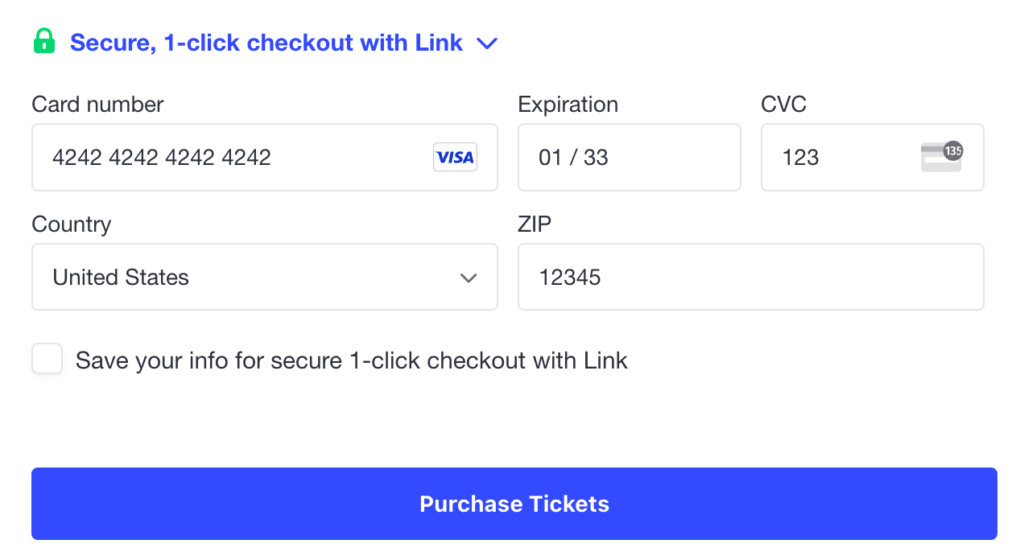
On the checkout page, enter one of Stripe’s Test Cards to simulate payment (test mode will not accept live credit card data), for example:
| Card Number | Expiration | CVC (3 digit code) |
| 4242 4242 4242 4242 | Any future date | Any three (3) digits |
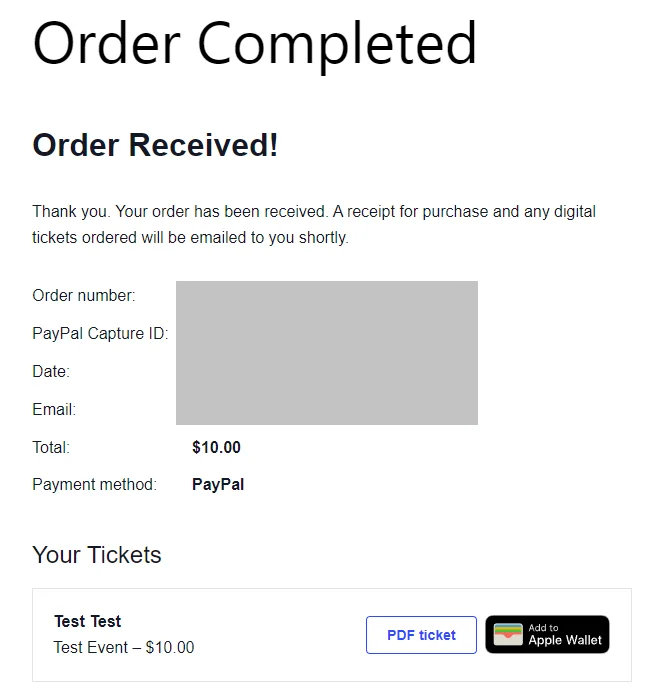
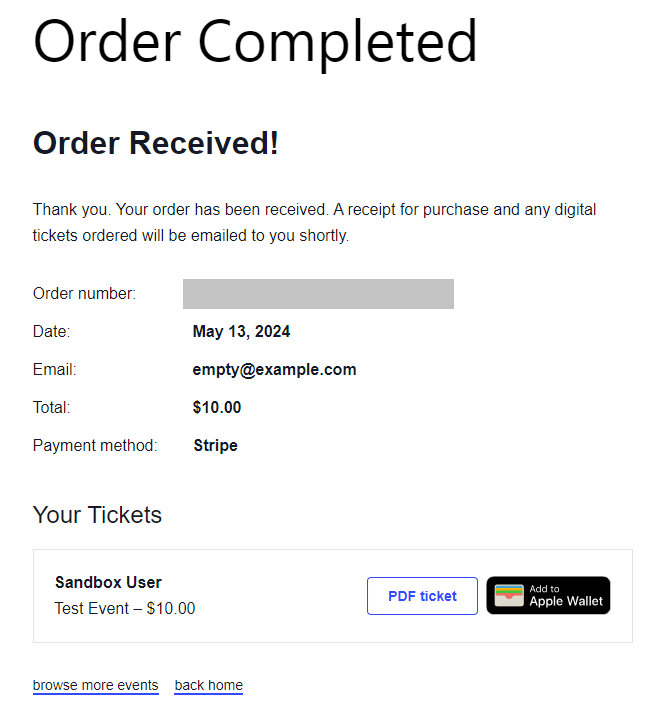
You’ll be redirected to the Order Completed page (set under Tickets > Settings > Payments)
Test Purchases with PayPal
To test purchases with PayPal, you’ll need to connect a PayPal Sandbox account with your site. Once you’re done testing, you’ll then need to reconnect your site with a real PayPal account.
1. Log into the WordPress Admin Dashboard, then go to Tickets > Settings > Payments.
2. Under the General section, click the Enable Test Mode option. Scroll down to the bottom of the page and click the Save Changes button.
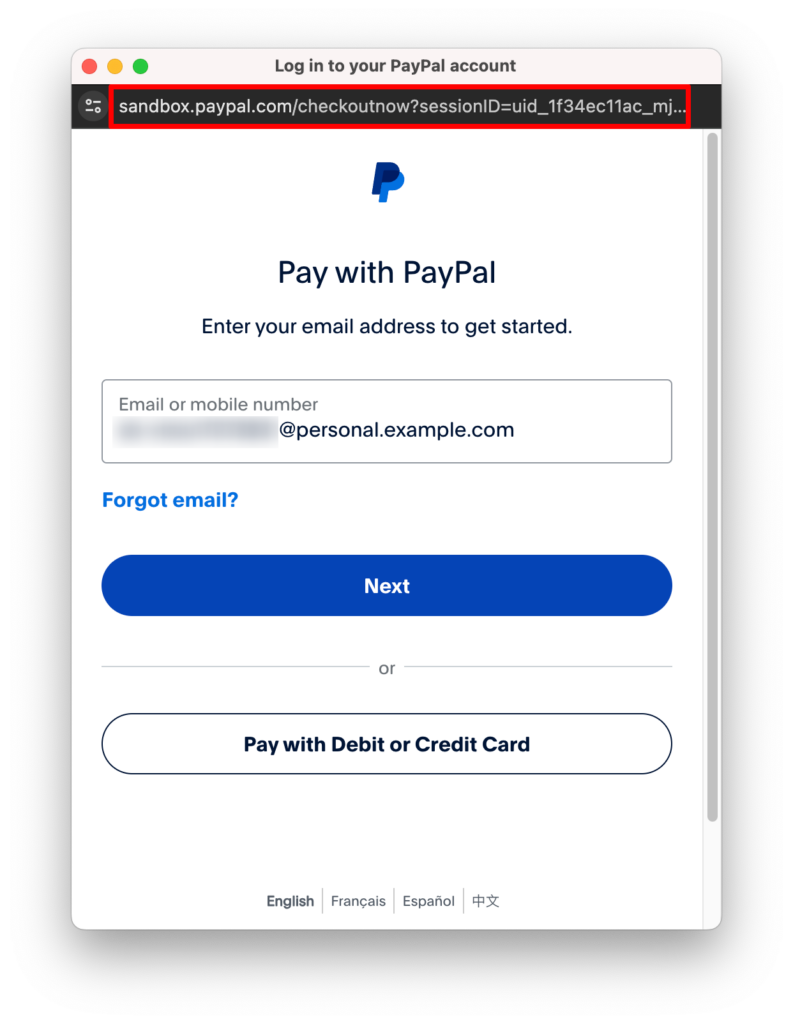
3. Click Connect to PayPal and go through the connection process using your PayPal Sandbox account email. You will see sandbox.paypal.com in the address bar of the pop-up.
Note: Your regular PayPal Business account credentials will not work to log into PayPal Sandbox. Use the PayPal Sandbox account you set up at the beginning of this article.
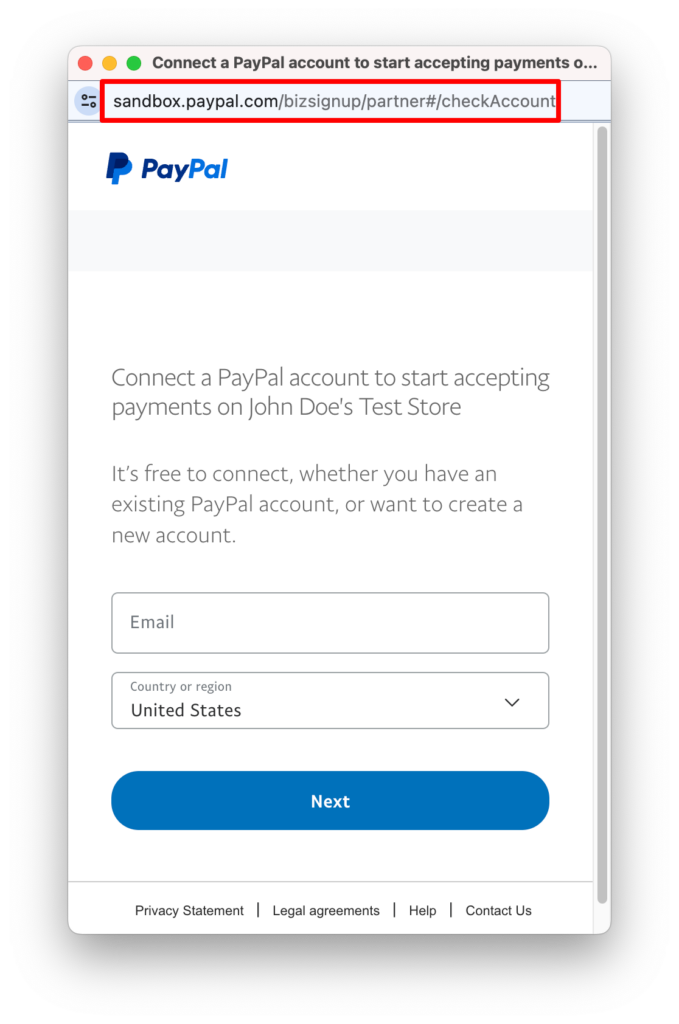
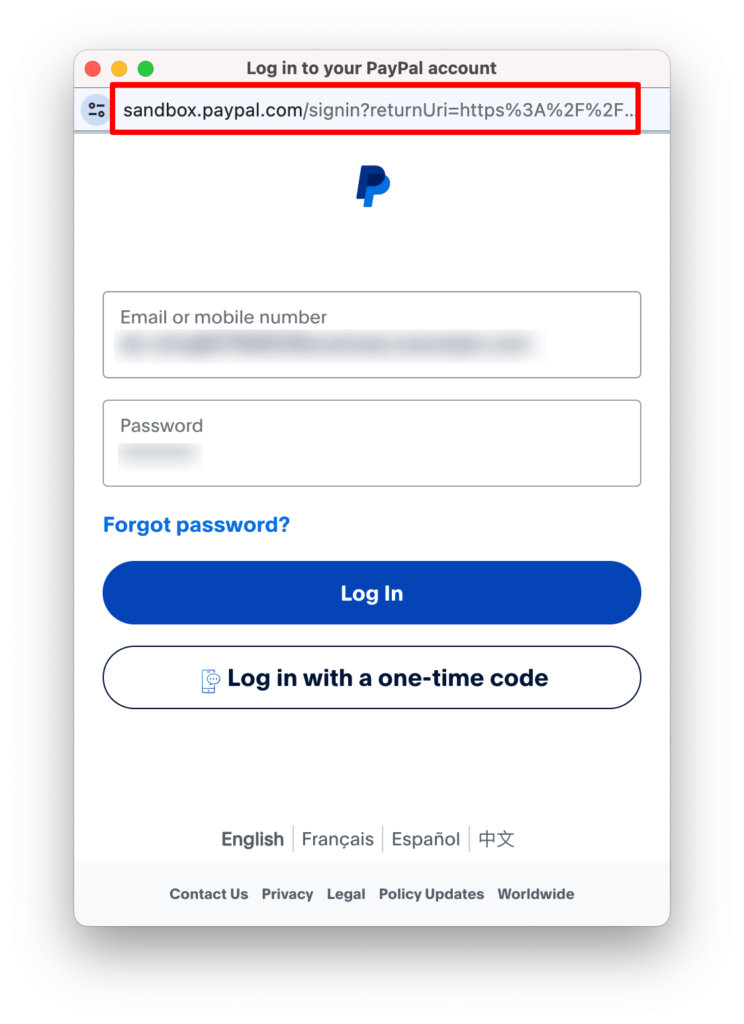
4. Click Return to …’s Test Store, where a confirmation popup will be displayed. Ensure it says You have connected your account for test mode. You will need to connect again once you are in live mode.

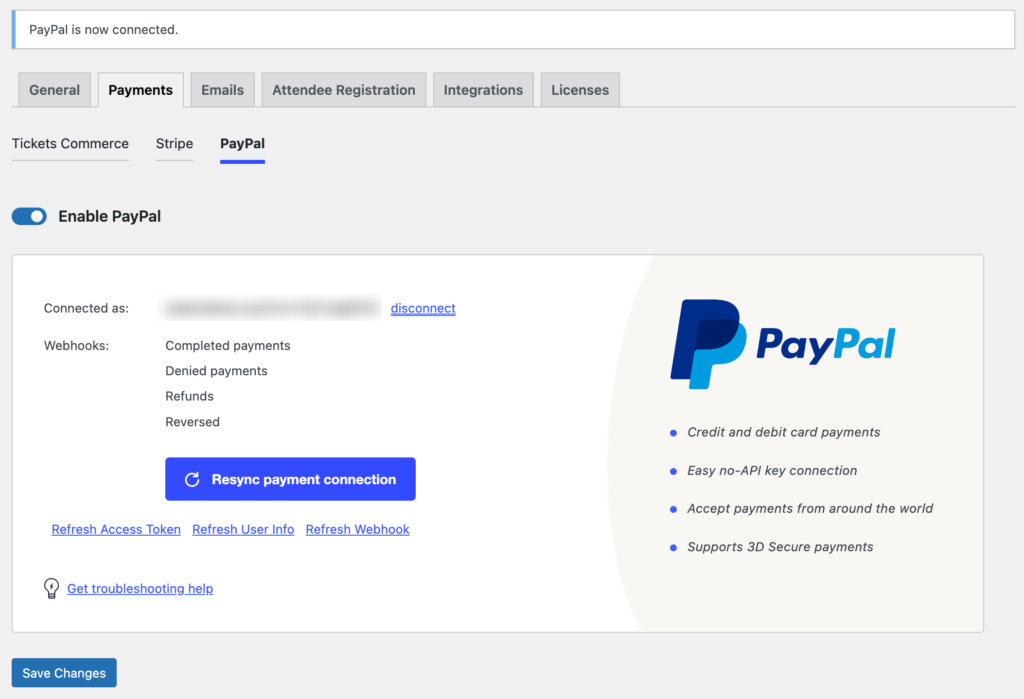
5. The PayPal section under the Tickets Commerce tab should look like this. Make sure to toggle the Enable PayPal option and click the Save Changes button.
To test the actual purchase process, first, create an event with tickets. You can create a Private event so that it does not show on your calendar while you are testing. Add a ticket from your event and click Get Tickets to proceed to Checkout. Enter a name in the Person purchasing tickets field and an email in the Email address field.
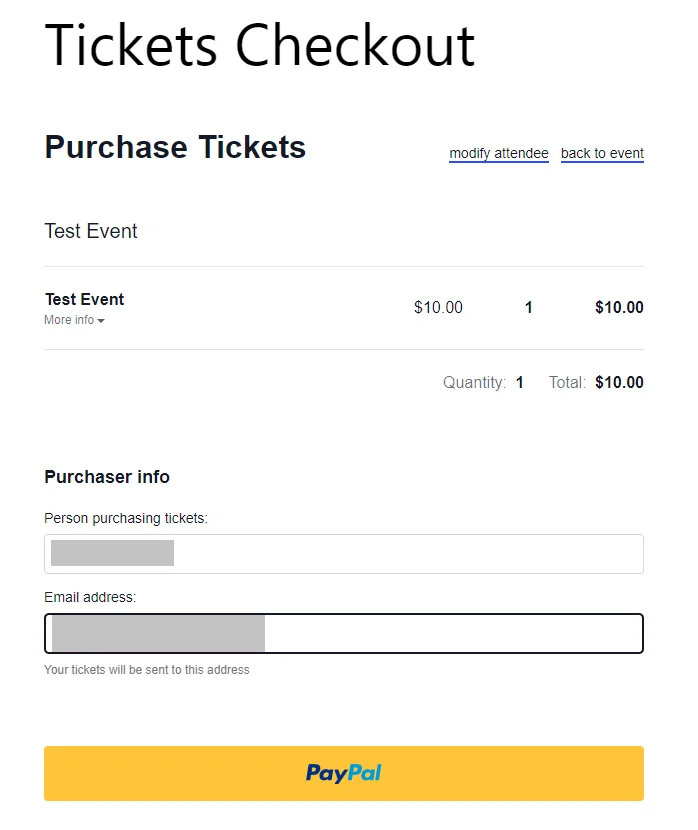
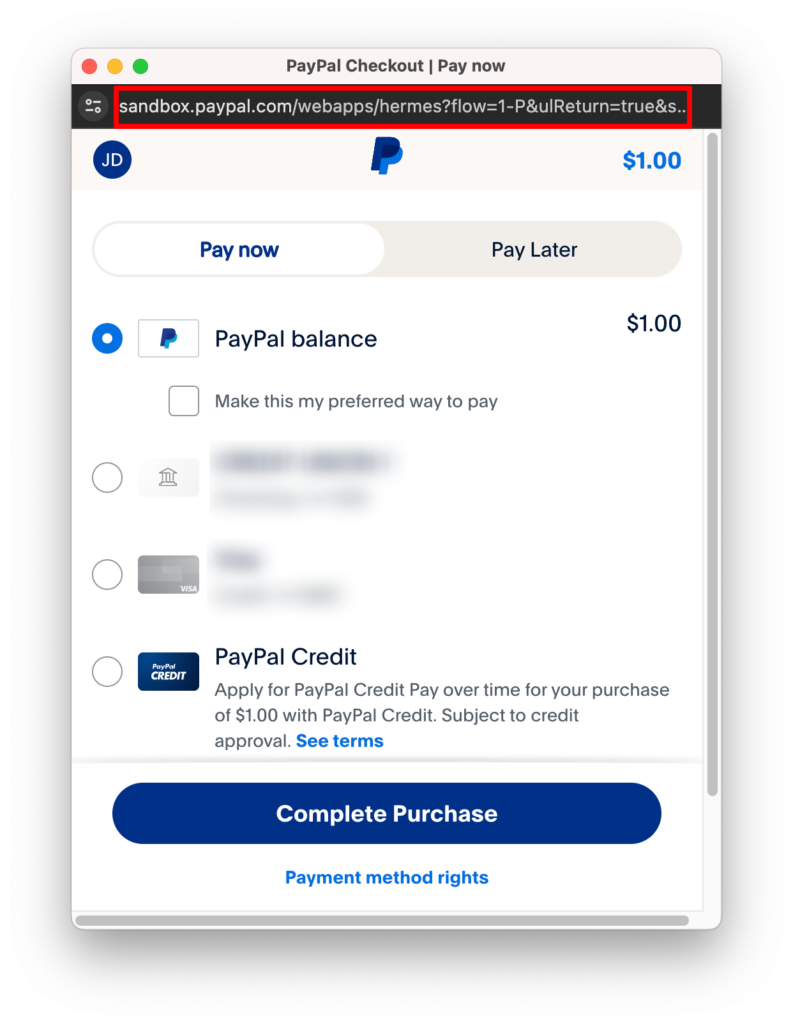
Click the PayPal button. When prompted, enter your PayPal Sandbox account email, and complete the purchase. You will still see sandbox.paypal.com in the address bar of the pop-up.