
Event categories in The Events Calendar work similarly to WordPress post categories: they let you group events by type, generate filtered archive pages for each category, and give visitors a way to browse only the events they care about. This article covers creating and managing categories, how category archive URLs work, filtering by category and tag, and customizations for category archive pages — including displaying descriptions and adding custom header images.
Creating and Managing Event Categories
In the same way that traditional categories organize blog posts, event categories organize your events. For example, a music venue might create categories for different genres; a conference organizer might create categories for different session types.

Event categories are also hierarchical, meaning you can nest subcategories inside parent categories. To continue the music venue example, rather than a flat “Country” category, you could create subcategories like “Classic Country” and “Outlaw Country” nested under a parent “Country” category.
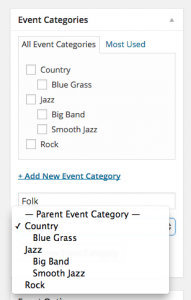
To create or manage event categories, go to Events → Event Categories in your WordPress dashboard. You can also assign categories to individual events directly in the event editor.
Category and Tag Archive Pages
TEC automatically creates a filtered calendar archive page for every event category and event tag. Visiting one of these pages shows only the events assigned to that taxonomy term, displayed with all the standard calendar views.
The URL patterns are:
- Category archive:
https://yoursite.com/events/category/category-slug/ - Tag archive:
https://yoursite.com/events/tag/tag-slug/
To find a category’s archive URL quickly, go to Events → Event Categories, hover over the category name, and click View. You can also use these URLs directly in navigation menus, buttons, or marketing campaigns.
Event tags work alongside categories for more specific labeling. Where a category might be “Workshops,” a tag might be “Free” or “Family-friendly” — tags tend to describe attributes that cut across multiple categories rather than defining the primary type of event.
Adding Category Links to Navigation Menus
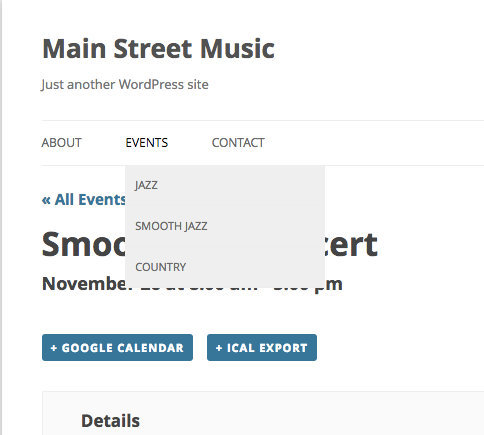
Event category archive pages can be added directly to your site’s navigation menus, giving visitors one-click access to specific event types.
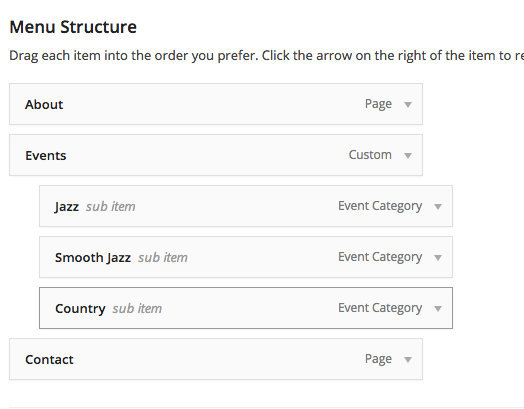
Go to Appearance → Menus and look for the Event Categories panel in the left column. If it isn’t visible, click Screen Options in the upper-right corner and make sure Event Categories is checked. Once added, category links appear in your menu exactly like any other page or post link.
Using Categories and Tags Effectively
Before creating categories and tags wholesale, it’s worth thinking about how each is meant to be used. The two taxonomies serve different purposes, and using them deliberately makes filtering more useful for visitors and your calendar easier to manage.
- Categories are broad groupings that describe what kind of event something is — for example, Workshops, Webinars, Fundraisers, or Concerts. Most events fit naturally into one or two categories.
- Tags are descriptive attributes that cut across categories — for example, Beginner-friendly, Outdoor, Free, or Family-friendly. A single workshop event might be tagged Beginner, Online, and Free all at once.
Best Practices
Plan a clear structure up front. Aim for 5–10 high-level categories that cover your organization’s core event types, and use tags for the secondary attributes visitors might want to filter by — topic, audience level, region, format, and so on. Examples:
- Categories:
Classes,Retreats,Webinars,Concerts - Tags:
Beginner,Advanced,Outdoor,Online,Free,Family-friendly
Keep naming consistent. Pick singular or plural forms and stick with them — “Workshop” not “Workshops” — and watch for near-duplicates like “Outdoor” vs. “Outdoors” that fragment your filter results.
Don’t over-tag. Limit tags to 3–5 per event. More than that adds noise to your filters without helping visitors. And avoid using both a category and a tag for the same concept unless you have a specific reason — for example, don’t have both a Music category and a Music tag.
Make sure every event has at least one category. Uncategorized events disappear from category-filtered views and from any navigation that relies on category archives.
If you allow front-end submissions, provide submitters with a short guide on choosing categories and tags. Consider restricting tag creation to admins (while still allowing submitters to select from existing tags) — this prevents the slow accumulation of duplicates and spelling variants over time.
💡 If you’re using Filter Bar, prioritize the most-used filters in the display order, hide rarely-used ones, and consider customizing the filter labels (e.g., changing “Event Category” to “Type of Event”) to match your visitors’ vocabulary. See the Interactive Filtering with Filter Bar section below for more.
Common Pitfalls to Avoid
| Pitfall | Better Practice |
|---|---|
| Using too many tags per event | Limit to 3–5 relevant, meaningful tags |
| Duplicating terms across both taxonomy types | Keep categories broad, tags specific |
| Not explaining filter terms to users | Use intuitive labels and category descriptions |
| Forgetting to assign any category | Every event should belong to at least one category |
Filtering Events by URL Parameters
You can filter events dynamically by appending query parameters to your events URL. These links can be embedded in buttons, menus, or marketing campaigns, and they work without any additional plugins.
| Filter type | Example URL | Result |
|---|---|---|
| By category | /events/?tribe_eventcategory=music | All events in the “Music” category |
| By tag | /events/?tribe_eventtag=free | All events tagged “Free” |
| Multiple categories | /events/?tribe_eventcategory=music,workshops | Events in either category |
| By keyword | /events/?s=summer | Events matching “summer” in title or content |
| Combined | /events/?tribe_eventcategory=music&tribe_eventtag=free,outdoor | Free outdoor music events |
Note that URL parameter filtering cannot be applied to calendars embedded via shortcodes.
Interactive Filtering with Filter Bar
The Filter Bar add-on adds a user-facing filter interface to the calendar, letting visitors filter events interactively without editing URLs. Filters update the calendar in real time via AJAX, and the resulting filtered views generate the same URL parameters described above — so filtered views are linkable and shareable.
Available filter options include category, tag, venue, organizer, price, and custom fields. To configure Filter Bar after installing and activating it, go to Events → Settings → Filters and choose which filters to show and in what order.
SEO Best Practices for Category Archives
- Use descriptive slugs. A slug like
/events/category/jazz-concerts/is more useful to search engines and visitors than/events/category/cat-3/. - Avoid duplicate URLs. Don’t create multiple categories with the same or nearly identical content — this can cause indexing issues.
- Add descriptions to categories. Category descriptions can be displayed on archive pages (see below) and can help search engines understand the content of each archive.
- Keep URL parameters clean. Avoid combining so many filters in a single link that the URL becomes unwieldy.
- Use canonical URLs. If multiple filtered views can produce similar event listings, canonical URL tags help prevent duplicate content warnings.
Displaying the Category Description on Archive Pages
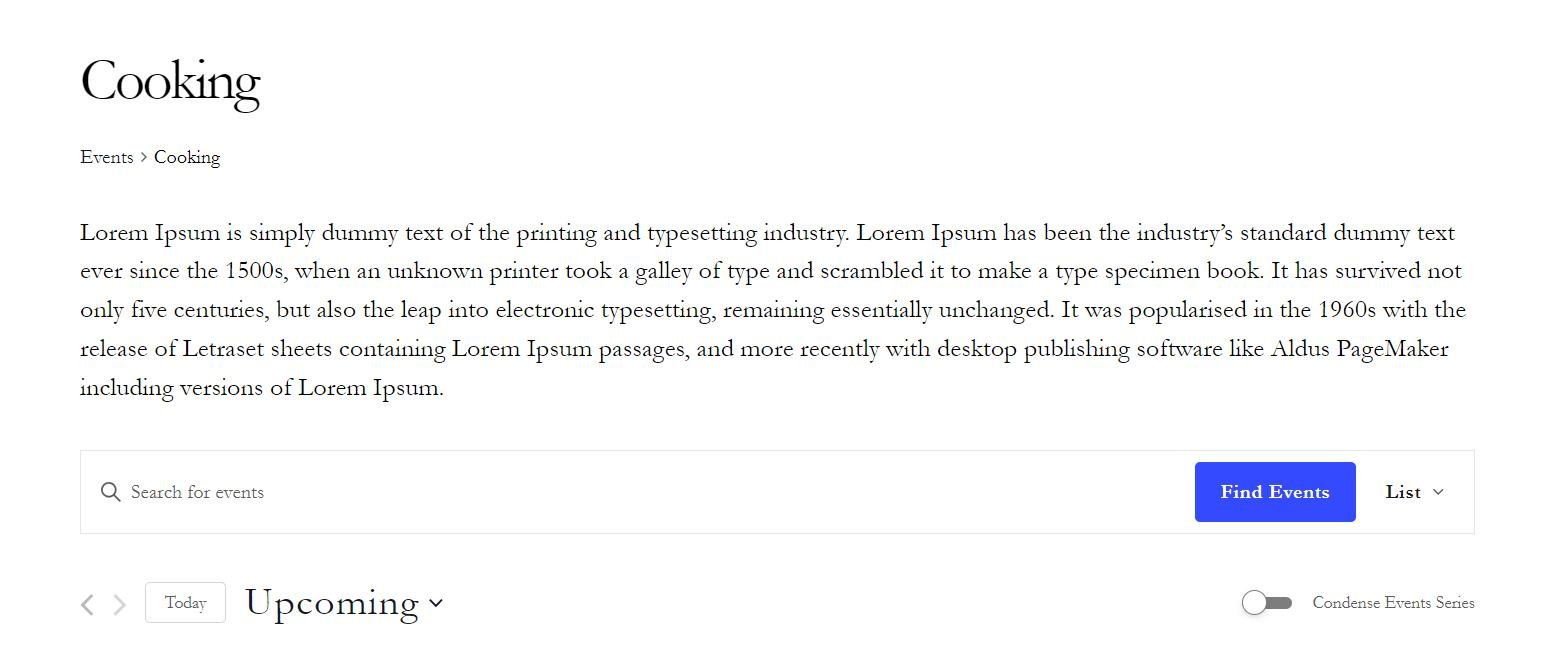
By default, TEC category archive pages do not display the category description field even if you’ve added one. There are two snippet approaches available, which differ in where the description is injected and how they handle Month View.
Before using either snippet, make sure your categories have descriptions. Go to Events → Event Categories, click to edit a category, and enter text in the Description field.
Option 1: Display Before the Events Bar (Most Views)
This snippet injects the description above the events search/filter bar. It works with List, Summary, Map, Photo, Day, and Week views. Due to how Month View’s layout is handled, this snippet does not extend to Month View without further customization.
Add the following to your child theme’s functions.php file or via the Code Snippets plugin:
add_action(
    'tribe_template_before_include:events/v2/components/events-bar',
    function ( $file, $name, $template ) {
        if ( is_tax( 'tribe_events_cat' ) ) {
            echo '' . category_description() . '';
        }
    },
    10,
    3
);
To style the description, add the following to your child theme’s stylesheet or under Appearance → Customize → Additional CSS:
.events-category-des {
    font-family: cursive;
    font-size: 18px;
    margin-bottom: 30px;
}
Option 2: Display Below the Page Title (All Views Including Month)
This snippet injects the description below the archive page’s H1 title, just above the calendar content. It works with all views including Month View, and uses more precise conditional checks to ensure it only fires on category archive pages.
Add the following to your child theme’s functions.php file or via the Code Snippets plugin:
add_action( 'tribe_template_after_include:events/v2/components/header-title', function() {
    if ( is_tax( 'tribe_events_cat' ) ) {
        $term = get_queried_object();
        if ( $term && ! is_wp_error( $term ) ) {
            $description = term_description( $term, 'tribe_events_cat' );
            if ( $description ) {
                echo '' . wp_kses_post( $description ) . '';
            }
        }
    }
} );
To add spacing below the description so it sits comfortably above the calendar, add the following CSS:
.custom-event-category-description {
    padding-bottom: var(--tec-spacer-4) !important;
}
With either snippet in place, visitors browsing a category archive such as /events/category/music/ will see the category description displayed on the page.
Adding a Custom Header Image to Category Archive Pages
TEC does not have a built-in field for adding a header image to category archive pages, but this can be achieved in two ways.
Option 1: Advanced Custom Fields Plugin
Advanced Custom Fields (ACF) is one of the most widely used WordPress plugins for adding custom fields to any post type or taxonomy. You can use it to add an image field to the event category taxonomy, then display that image on the category archive page via a template override.
For detailed instructions on assigning ACF fields to taxonomy terms and retrieving them in templates, see the ACF documentation on taxonomy fields.
Option 2: Template Override
You can add category-specific header images directly via a template override of the header-title.php component, with no additional plugins required.
Step 1: Create the Template Override
Copy the file:
/wp-content/plugins/the-events-calendar/src/views/v2/components/header-title.php
to your child theme at:
[your-theme]/tribe/events/v2/components/header-title.php
Step 2: Add the Image Code
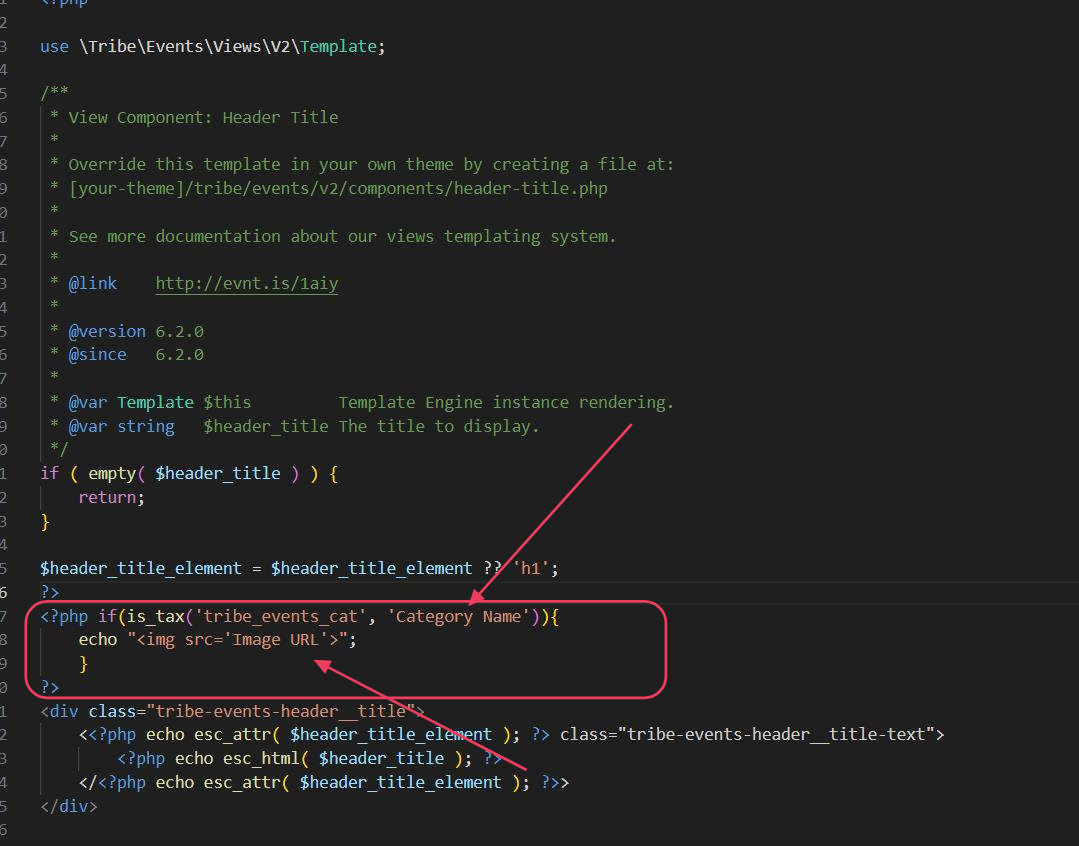
Open the copied file and locate this line near the top:
<?php $header_title_element = $header_title_element ?? 'h1'; ?>
Immediately after that line, add the following, replacing 'Category Name' with your category’s name and 'IMAGE URL HERE' with the URL of your image:
<?php if ( is_tax( 'tribe_events_cat', 'Category Name' ) ) {
    echo "<img src='IMAGE URL HERE'>";
} ?>
To assign different images to multiple categories, extend the code with elseif blocks:
<?php
if ( is_tax( 'tribe_events_cat', 'Category One' ) ) {
    echo "<img src='Image URL 1'>";
} elseif ( is_tax( 'tribe_events_cat', 'Category Two' ) ) {
    echo "<img src='Image URL 2'>";
}
?>
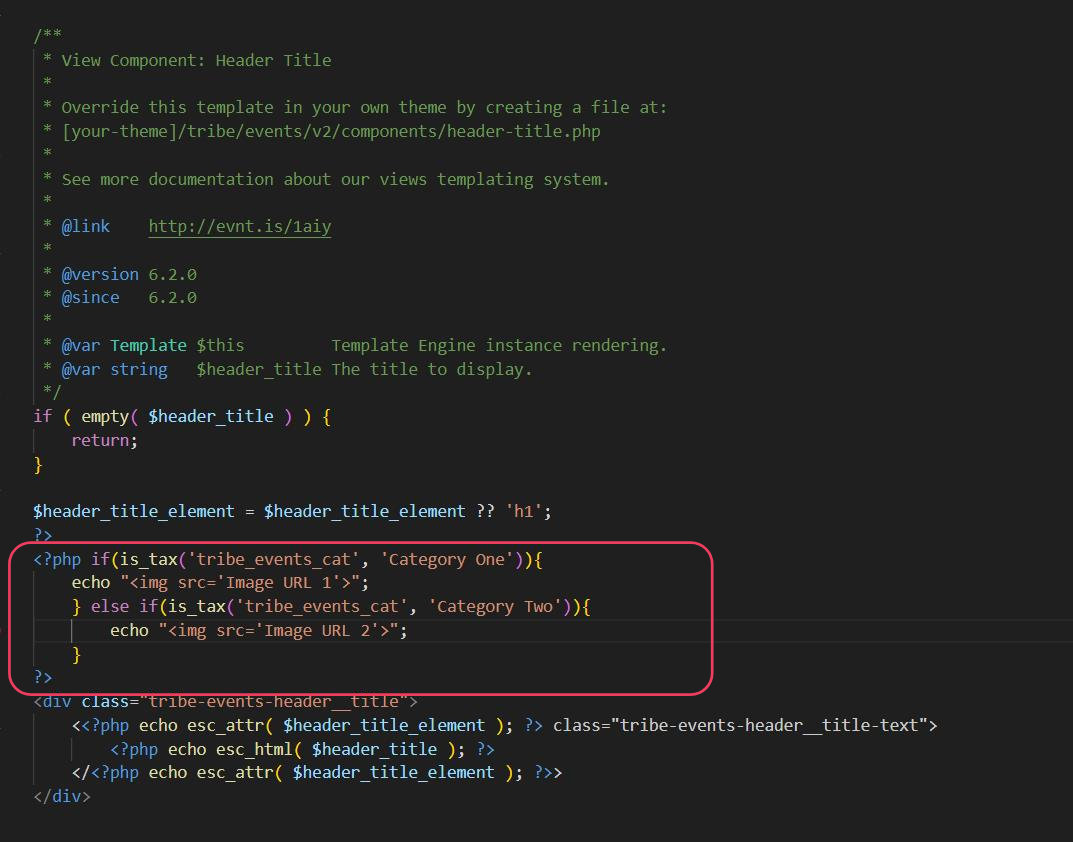
This approach places the image at the very top of the header area, above the category title. You can adjust its position within the template file to suit your layout.