
Home › Forums › Calendar Products › Events Calendar PRO › Woo Commerce Shortcodes don't work in – Display Settings
- This topic has 7 replies, 3 voices, and was last updated 11 years ago by
Support Droid.
-
AuthorPosts
-
September 11, 2015 at 6:51 pm #1004475
laughmasters
ParticipantTrying to add WooCommerce shortcode below event cal content and they don’t work.
See the 2 screenshots here: http://imgur.com/rSU4WIA,cCA6GyvSeptember 11, 2015 at 7:05 pm #1004479ParticipantI tested this using older product ids that were not generated using TEC Pro and they work, so something about product ids that TEC Pro generates is off…
September 13, 2015 at 4:09 pm #1004702Participant(bump)
This is making it hard to showcase classes that just went on sale…September 13, 2015 at 8:11 pm #1004718ParticipantJust did another test using an old product ID (pre-TEC Pro) and that one shows up fine, so it’s def something to do with the product ids generated by TEC as far as I can tell. You can see the sold out event here – at the bottom – http://laugh-masters.com.au/events/
The short code Im using has 4 product IDs – the first three are TEC events, the 4th is the older sold out one: [products ids=”2850, 2852, 2853, 2674″]
September 14, 2015 at 6:23 am #1004790George
ParticipantHey @laughmasters,
Sorry you’re having trouble here – much of these problems stem from things that are in our plugin by design, and within WooCommerce by design too.
Our “tickets” aren’t really meant to stand on their own as WooCommerce products, even though they are technically WooCommerce Products. They’re meant to be displayed pretty much only in the context of Events from The Events Calendar, so by default we have their WooCommerce “Catalog Visibility” option set to “Hidden”.
This will prevent them from showing up as a result of that [products] shortcode.
I’m sorry if this wasn’t clear information on our site, and I think writing a tutorial about this or something would be helpful for a number of users.
For now, you can fix this by navigating to the various Product Edit screens for the tickets. You can access these edit screens by going first to the event these tickets are on; then mousing over the ticket in the metabox and looking for the “Edit in WooCommerce” link, as shown in this screenshot:
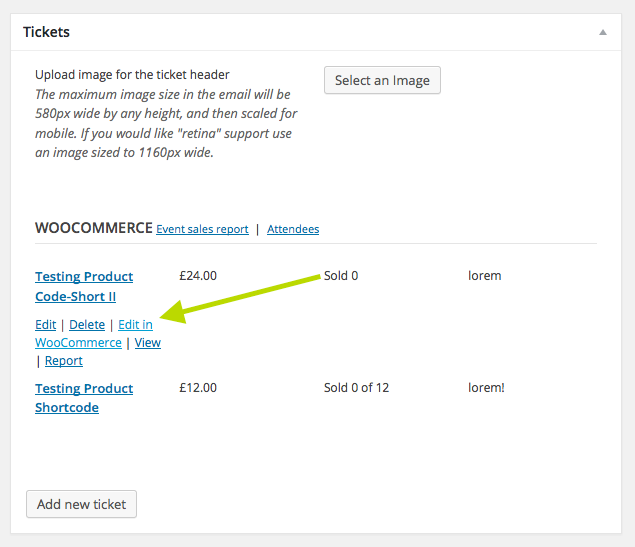
Once you click that, you’ll be brought to the edit screen for the Ticket, i.e. the “Product”, where you’ll see a “Catalog Visibility” option like this one:
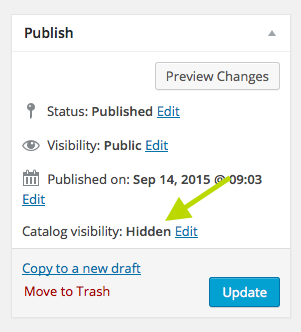
Click the “edit” link next to “Hidden”, which should reveal a set of options like this:
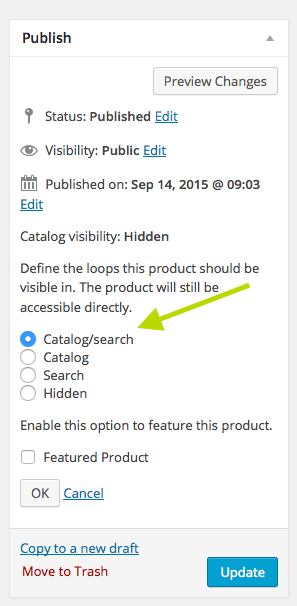
As in the screenshot, choose “catalog/search”, then click “Ok” and update the ticket.
Do this for any ticket you’d like to use in a [products] shortcode, it should hopefully do the trick!
To override our setting for all tickets going forward, so that any ticket you publish from now on will automatically have its visibility set to “visible” so that it shows in the shortcode results, add this code to your theme’s function.php file:
add_action( 'wootickets_after_save_ticket', 'tribe_set_wootickets_to_public_visibility' );function tribe_set_wootickets_to_public_visibility( $ticket_id ) {
update_post_meta( $ticket_id, '_visibility', 'visible' );
}
I hope this all helps – let me know if it does!
George
September 14, 2015 at 4:40 pm #1005059ParticipantYep. That was tedious, but it worked. Thank you.
Maybe that could a be a toggle in future release?Now that its working I notice that the HTML for above and below the event calendar not only shows on the “events” pages, but also on individual events – is there a way to only show it on the main page and not individual events?
– ET
September 15, 2015 at 7:27 am #1005268ParticipantHey @laughmasters,
A filter or, as you suggested, an option/toggle for that visibility option would indeed be quite handy for tickets. I’ll try to slip it into an upcoming update 🙂
As for the HTML above and below views, unfortunately you could only truly remove that by heading into core plugin code for The Events Calendar and removing instances of the functions tribe_events_before_html() and tribe_events_after_html().
But this would be tedious itself and would also require re-application after each plugin update, so a simpler way of doing things might be to let the HTML load everywhere as it does by default, but just CSS to hide it everywhere except the main events page.
That should be possible by adding CSS like the following to the bottom of your theme’s style.css file:
div.tribe-events-before-html,

div.tribe-events-after-html {

    display: none !important;

}
body.post-type-archive-tribe_events div.tribe-events-before-html,
body.post-type-archive-tribe_events div.tribe-events-after-html {
display: inline-block !important;
}
Cheers!
GeorgeSeptember 30, 2015 at 7:05 am #1009978KeymasterThis topic has not been active for quite some time and will now be closed.
If you still need assistance please simply open a new topic (linking to this one if necessary)
and one of the team will be only too happy to help. -
AuthorPosts
- The topic ‘Woo Commerce Shortcodes don't work in – Display Settings’ is closed to new replies.