
What is TrustedLogin?
TrustedLogin is a secure mechanism that allows you to temporarily grant support access to your site without having to share usernames or passwords directly. TrustedLogin automates creating a special user account with limited permissions, generates a time-limited access key, and ensures access is revoked after a certain period. This makes it safer and easier for you and the support team to work together.
Setup & Granting Access
Follow these steps to enable TrustedLogin and provide the access key to support:
|
Step |
What to Do |
|---|---|
|
1. |
Open a support ticket before granting access. Make sure there’s an active ticket or case opened. |
|
2. |
Log in to your WordPress Dashboard as an administrator. |
|
3. |
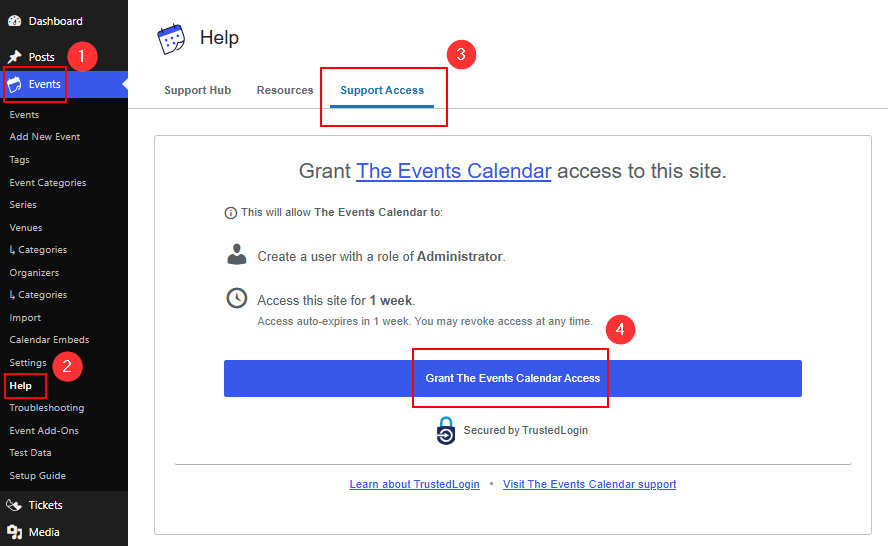
Navigate to Events → Help |
|
4. |
Go to the Support Access tab. |
|
5. |
Click Grant Access. This will: |
|
6. |
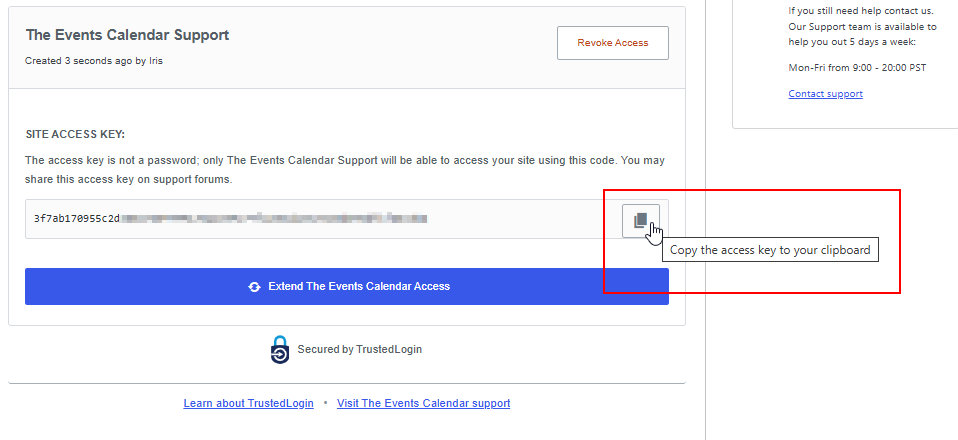
In your support ticket, copy and paste the generated Site Access Key. Let the support team know that TrustedLogin has been set up. That’s it! |
How it Works
- Once you grant TrustedLogin access and share the access key, the support team will use the access key to log into your site with the required permissions.
- The support account is limited in scope: it usually has only the permissions needed to diagnose and fix common issues.
- Access is time-limited. After the period expires (one week), the support account is automatically removed.
Revoking or Extending Access
| Action | Steps |
|---|---|
| Revoke Access Before Expiry | Go to Events → Help → Provide Support Access, then click Revoke Access. This immediately removes the support user account, and support no longer has access. |
| Extend Access | If you need more time beyond the current access period, return to Events → Help → Provide Support Access and click Extend Access. This resets the time window for another full period. Note: if you still have some days left, extending doesn’t add onto the remaining days; it resets to the full duration. |
What to Do with the Site Access Key
- This key is only usable through TrustedLogin. It is not a password; it does not grant you or anyone else extra access outside of TrustedLogin.
- Share the Site Access Key only via your support ticket. It is safe to do so under those conditions.
Best Practices & Security Notes
- Make sure you’re logged in with an administrator account, so the system can create the support account properly.
- Only share the access key in the official support ticket; avoid posting sensitive credentials in public forums or insecure messages.
- After TrustedLogin access expires (or you revoke it), verify that the support account has been removed from your users list under Users → All Users.
- If ever in doubt, ask the support team why they need access, what tasks they will perform, and how long they expect to need it.