
The Events Calendar’s template system provides several PHP entry points for injecting content into, modifying, or completely bypassing the default calendar templates — without editing the template files themselves. This article covers all three layers: before/after hooks, output filters, and the template hierarchy filter.
All of these techniques work with the Tribe__Template class, which handles locating template files, passing context variables, and triggering hooks and filters each time a template is loaded.
Before and After Hooks
Every calendar view template has a before and after hook that lets you insert custom HTML either above or below the template without modifying the file. The hook name follows this pattern:
tribe_template_before_include:events/v2/{template-path}tribe_template_after_include:events/v2/{template-path}
The three arguments passed to the callback are $file (the full template path as a string), $name (the template name as an array of path parts), and $template (the current Tribe__Template instance). You won’t need to work with these in most cases.
Example: Adding Event Author Below the Title
We’ll use tribe_template_before_include to display the event author below the title, above the venue information, in List view.
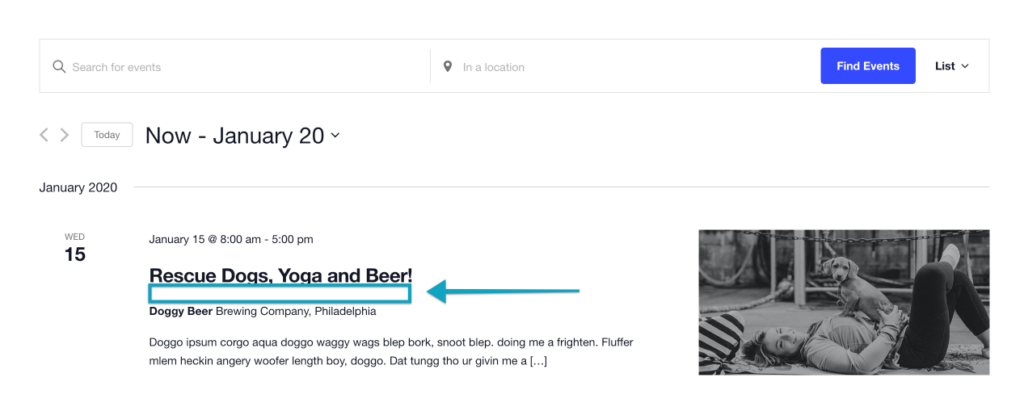
First, create the following file in your theme: tribe/events/v2/list/event-author.php
<div class="tribe-common-b2">
  Author: <?php the_author(); ?>
</div>
Then add the action to your theme’s functions.php:
add_action(
  'tribe_template_before_include:events/v2/list/event/venue',
  function ( $file, $name, $template ) {
    $template->template( 'list/event-author' );
  },
  10,
  3
);
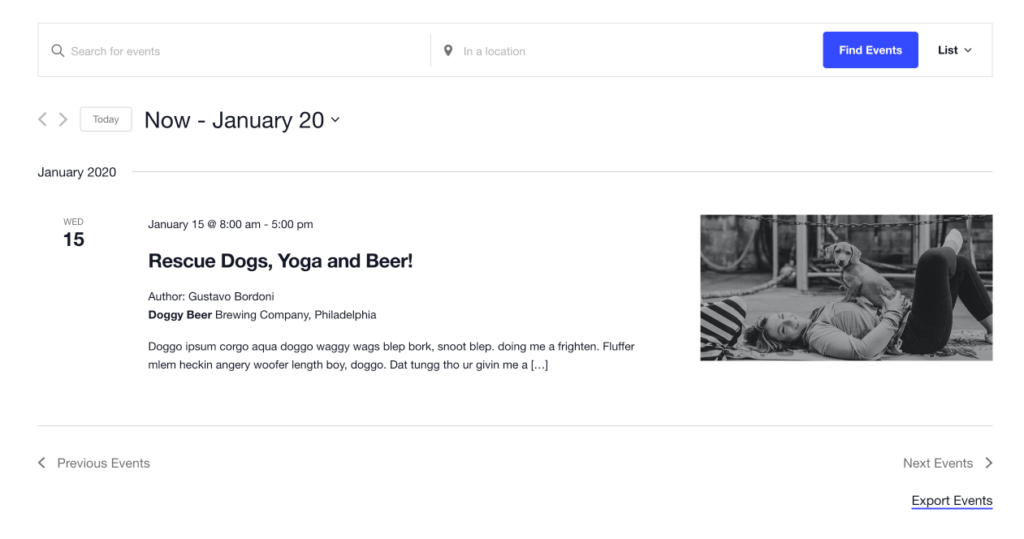
Event templates in TEC are set up to work with standard WordPress post functions, so functions like the_author() work exactly as you’d expect.
Example: Marking Events on Christmas Day
This example uses tribe_template_after_include to display emojis after the date on events that fall on December 24th or 25th.
Create tribe/events/v2/list/christmas-marker.php in your theme:
<?php
$event = tribe_get_event( get_the_ID() );
$christmas_days = [ '12-24', '12-25' ];

if ( ! in_array( $event->dates->start->format( 'm-d' ), $christmas_days, true ) ) {
  return;
}
?>
<span>🎄</span>
Then add the action to functions.php:
add_action(
  'tribe_template_after_include:events/v2/list/event/date/meta',
  function ( $file, $name, $template ) {
    $template->template( 'list/christmas-marker' );
  },
  10,
  3
);
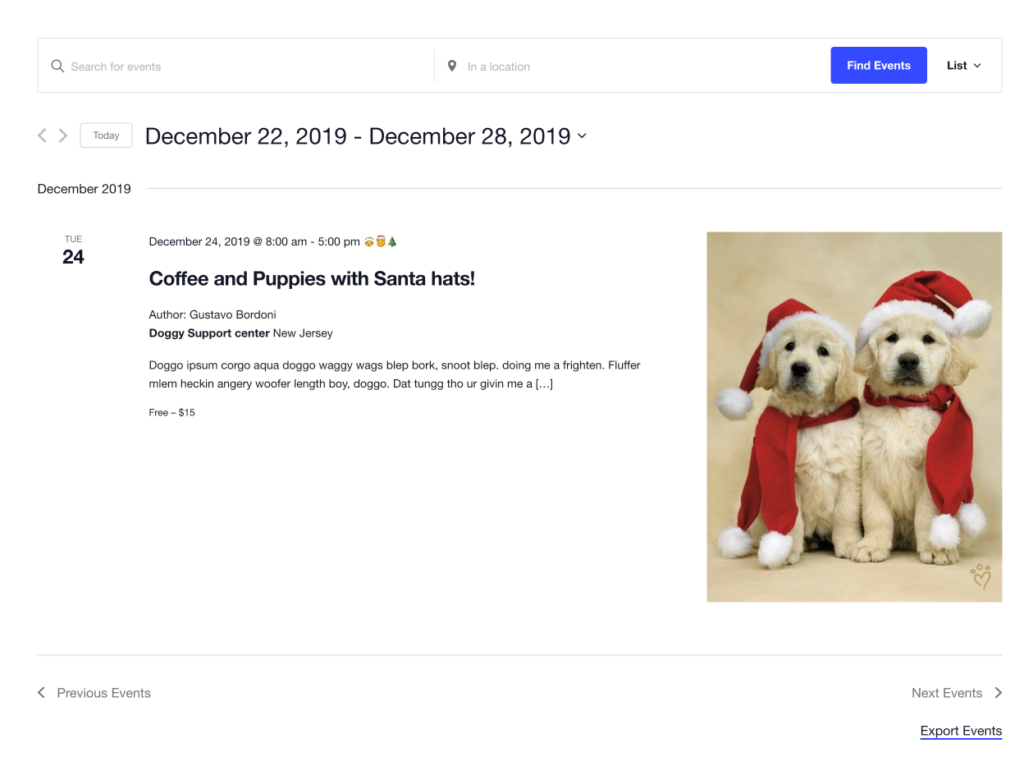
This example uses tribe_get_event(), which returns a WP_Post-like object tailored for events. The $event->dates->start property is a PHP DateTimeImmutable instance, giving you access to all standard date formatting methods. Using format_i18n() instead of format() will translate dates where translations are available.
Output Filters
Suppressing a Template Part
You can short-circuit the rendering of any template entirely using the tribe_template_pre_html:$template filter. This prevents the HTML from being generated at all, which is better for performance than hiding it with CSS.
The following removes the venue from events in Day view only:
add_filter( 'tribe_template_pre_html:events/v2/day/event/venue', '__return_false' );
The __return_false WordPress helper always returns boolean false, which signals the template engine to skip rendering that file. Note that unlike actions, WordPress filters always require a value to be returned.
Full Hook and Filter Reference
All view files in TEC are loaded through the Tribe__Template class, which triggers the following hooks and filters on every template load. The :$template suffix variants allow you to target a specific template file; the unsuffixed variants fire for every template.
Filters:
tribe_template_pre_html— fires before HTML generation for any templatetribe_template_pre_html:$template— fires before HTML generation for a specific templatetribe_template_html— fires after HTML generation for any template, allowing output modificationtribe_template_html:$template— fires after HTML generation for a specific template
Actions:
tribe_template_before_include— fires before any template is includedtribe_template_before_include:$template— fires before a specific template is includedtribe_template_after_include— fires after any template is includedtribe_template_after_include:$template— fires after a specific template is included
The Template Hierarchy Filter (Template Hijack)
The techniques above let you inject content into or suppress parts of TEC’s own templates. The Template Hierarchy filter goes further: it bypasses TEC’s template system entirely and tells WordPress to use its standard template hierarchy for events instead. This lets you display calendar content using your existing theme templates, or build completely custom archive and single templates for events.
tribe_events_views_v2_use_wp_template_hierarchy

Basic Usage
The filter’s primary argument is $hijack — a boolean that switches the calendar to WordPress template hierarchy when set to true. The three additional optional arguments are:
$template— the template located by WordPress (e.g.event-single.php)$context— the immutable global Tribe template context object$query— the global$wp_query
This basic usage applies the hijack to all views except single event pages:
add_filter(
  'tribe_events_views_v2_use_wp_template_hierarchy',
  function( $hijack, $template, $context, $query ) {
    if ( ! is_singular() ) {
      $hijack = true;
    }
    return $hijack;
  },
  10,
  4
);
To apply it to single event pages only:
add_filter(
  'tribe_events_views_v2_use_wp_template_hierarchy',
  function( $hijack, $template, $context, $query ) {
    if ( is_singular() ) {
      $hijack = true;
    }
    return $hijack;
  },
  10,
  4
);
To hijack both archive and single at once:
add_filter( 'tribe_events_views_v2_use_wp_template_hierarchy', '__return_true' );
Building a Custom Event Archive Template
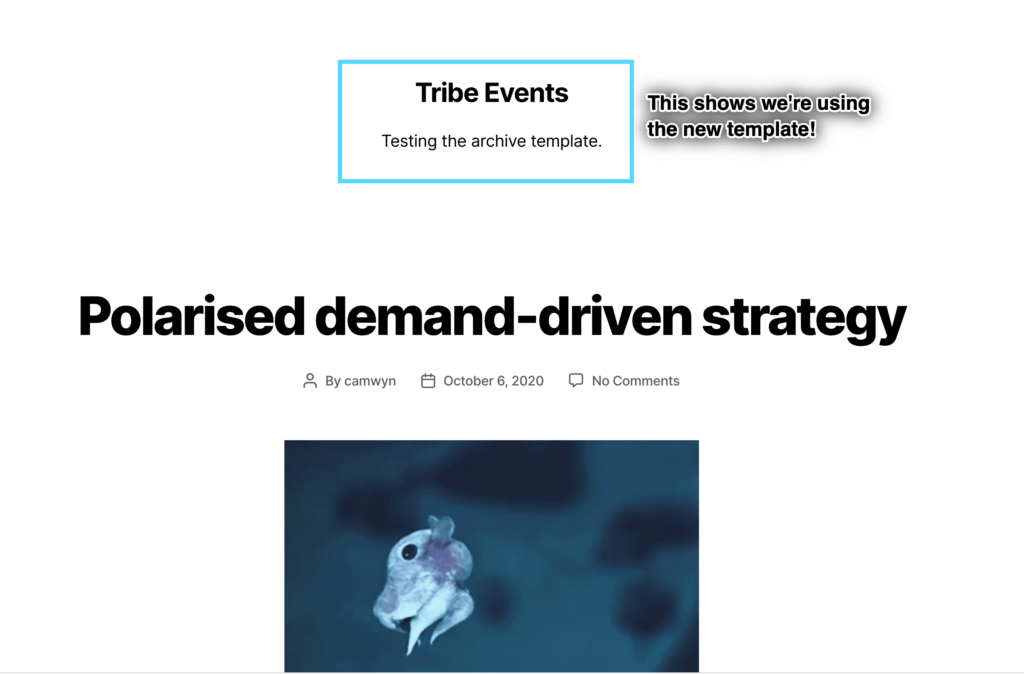
When the hijack filter is active, the events archive behaves like any other custom post type archive. You can create a dedicated template for it by adding archive-tribe_events.php to your theme’s root folder — exactly as you would when creating an archive template for a custom post type.
Building a Custom Single Event Template
Similarly, create single-tribe_events.php in your theme root to build a custom single event template. To access event-specific data (dates, venue, organizer, etc.) that isn’t available in a standard post template, call tribe_get_event() at the top of the file:
$event = tribe_get_event( get_the_ID() );

get_header();
From there, use the $event object to access event properties:
<h2>
  <?php echo esc_html( $event->title ); ?>
</h2>
👋 Download the example files used in this section if you’d like to follow along with a working copy.
With the Template Hierarchy filter you can: use your theme’s existing templates for calendar content, hijack single events, event archives, or both, create dedicated templates for each, and access all event data in those templates. Happy coding!