
With The Events Calendar, you can easily set a cost for events, define the currency symbol, and decide whether the symbol appears before or after the cost. While this setup works well for common symbols like $ or €, issues can arise if you prefer using currency abbreviations, such as “EUR” or “USD” since the cost and abbreviation will display without a space (e.g., 100EUR).
Thankfully, there are easy ways to fix this formatting issue.
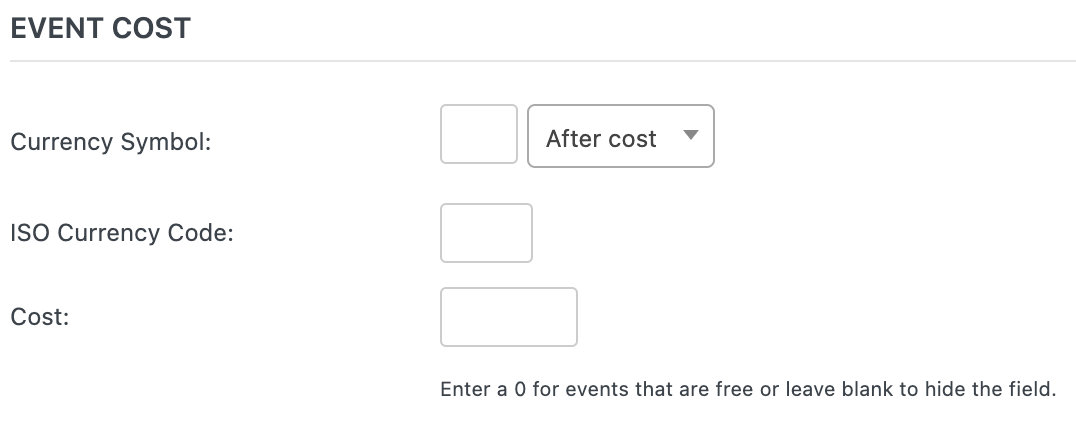
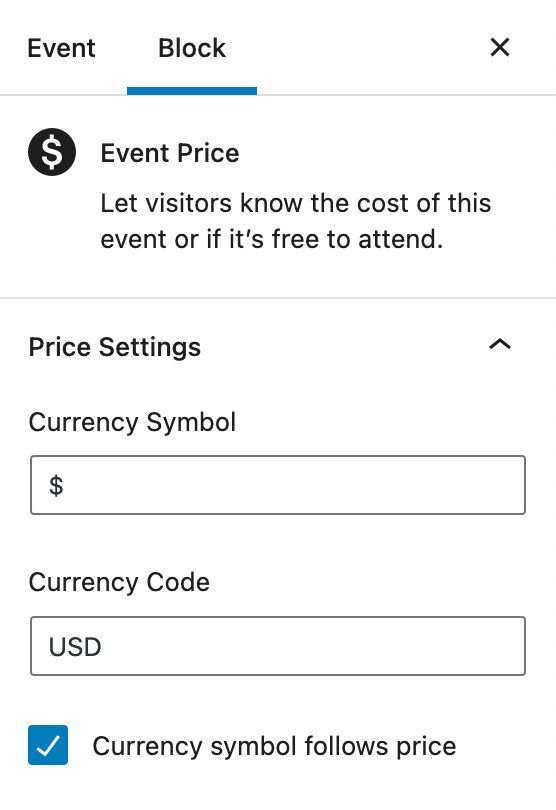
Option 1: Add a Space Manually
To insert a space between the cost and the currency abbreviation:
- Enter the currency abbreviation with a space in the appropriate field.
For example:- Use
_EURorEUR_(underscore added here for clarity; replace it with a space).
- Use
This method ensures that your cost will display as 100 EUR instead of 100EUR.
Option 2: Adjust Settings for Currency Symbols
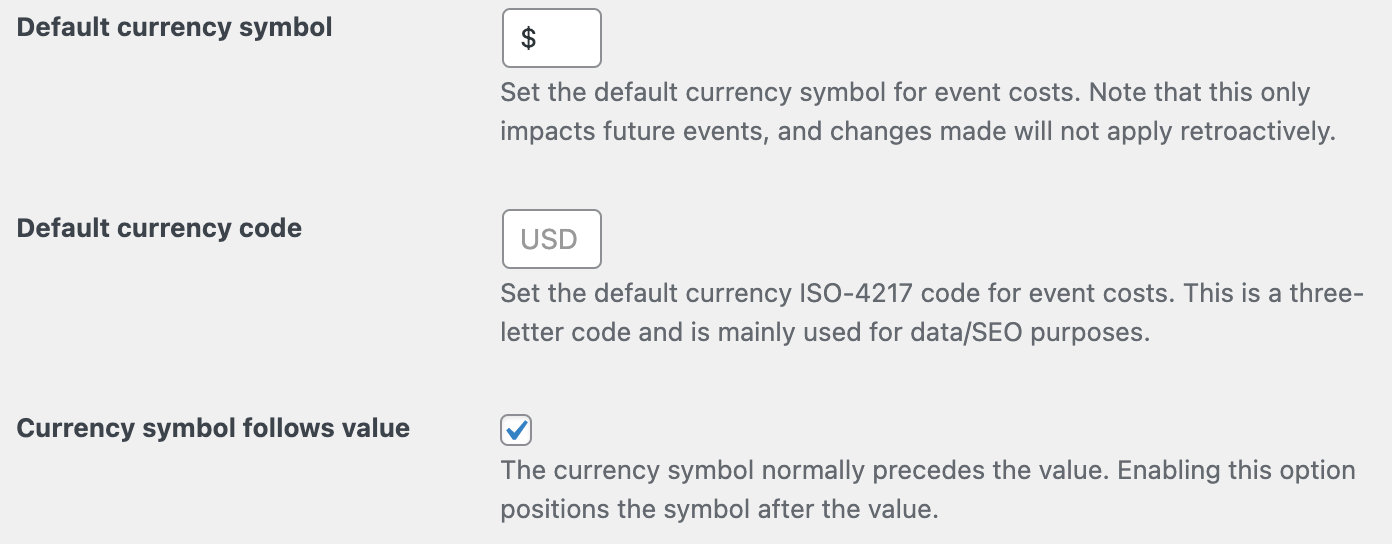
If you want to define a default currency symbol or code, follow these steps:
- Navigate to Events > Settings > Display in your WordPress dashboard.
- Locate the Currency Settings section.
- Add your desired currency symbol or abbreviation here.
You can also define whether the symbol should appear before or after the cost.
Option 3: Use Code Snippets for Greater Control
For more advanced customization, you can use snippets to control the placement and format of the currency symbol or code. Add the appropriate snippet to a custom plugin or your child theme’s functions.php file. For more advanced customization, you can use snippets to control the placement and format of the currency symbol or code. Add the appropriate snippet to a custom plugin or your child theme’s functions.php file.
If the currency symbol (like €) is before the cost:
// Add a space before the Euro symbol
add_filter( 'tribe_get_cost', 'add_space_before_euro' );

function add_space_before_euro( $cost ) {
    if ( is_admin() ) {
        return $cost;
    }
    $cost = str_replace( '€', ' €', $cost );
    $cost = str_replace( '€', ' €', $cost );
    $cost = str_replace( '€', ' €', $cost );

    return $cost;
}
If the currency symbol is after the cost:
add_filter( 'tribe_get_cost', 'add_space_before_dollar' );

function add_space_before_dollar( $cost ) {
    if ( is_admin() ) {
        return $cost;
    }
    $cost = str_replace( '$', ' $', $cost );
    $cost = str_replace( '$', ' $', $cost );

    return $cost;
}
By using one of these methods, you can ensure that your event cost formatting looks clean and professional, whether you’re using symbols or abbreviations. Choose the approach that works best for your setup and design preferences.