Current Status: compatible
LiteSpeed Cache is an all-in-one site acceleration plugin featuring an exclusive server-level cache and a collection of optimization features. It can be used on any web server and is compatible with popular plugins like WooCommerce, bbPress, and Yoast SEO.
In this article, we’ll show you how to use LiteSpeed Cache with The Events Calendar to give your site and your events the best performance possible.
What you need
General Settings
The first thing you’ll want to do is head over to the settings. Please go to wp-admin > LiteSpeed Cache > General > Server IP.
Entering your Server IP in LiteSpeed Cache allows the plugin to communicate directly with your website, without going through DNS or services like Cloudflare. This helps avoid delays or blocks that could happen otherwise.

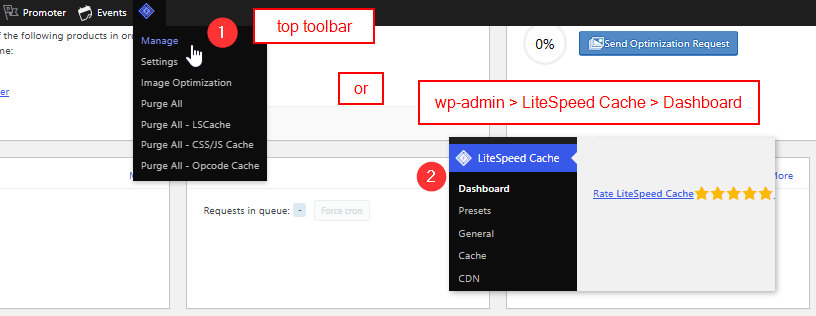
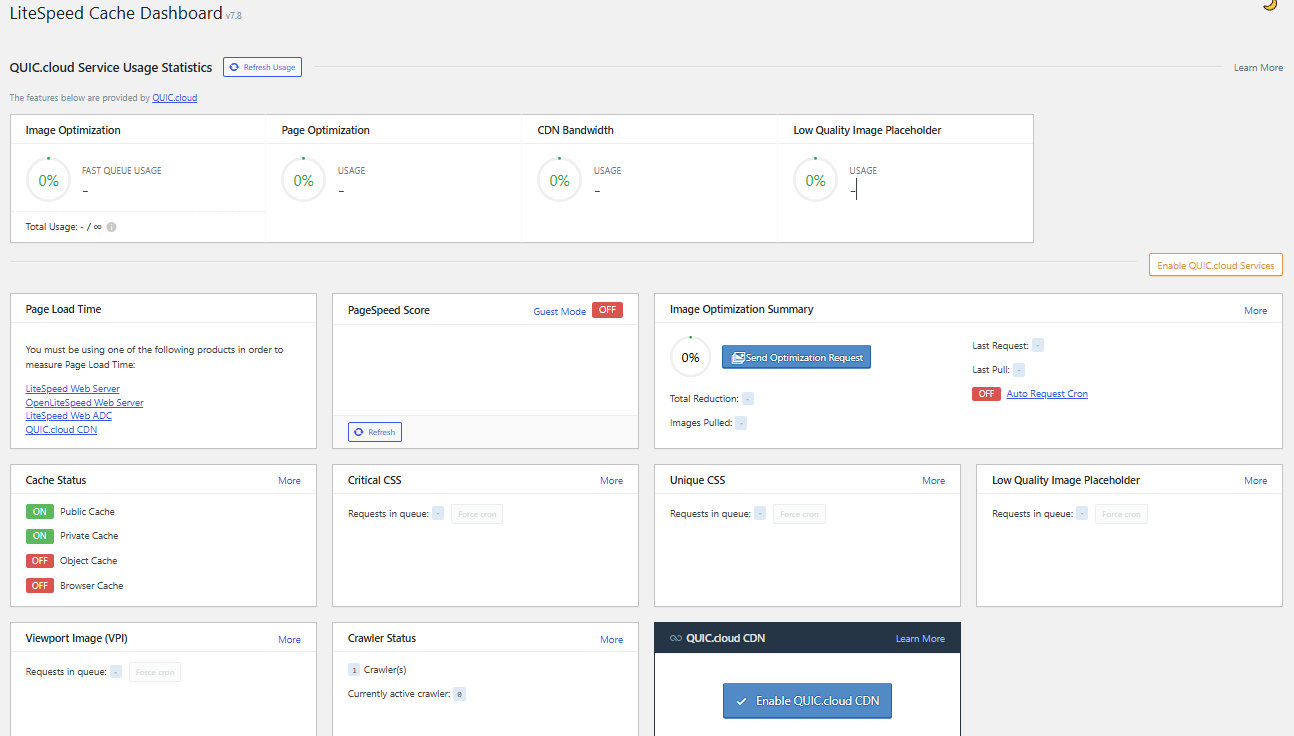
Once you’re done with the general settings, you can head over to Manage, which you can find in the top toolbar under the LiteSpeed Cache logo or by clicking Dashboard on the left sidebar under LiteSpeed Cache. Revisit this area any time you’d like to check on how your site is performing, and then make adjustments accordingly.
Other Cache Settings
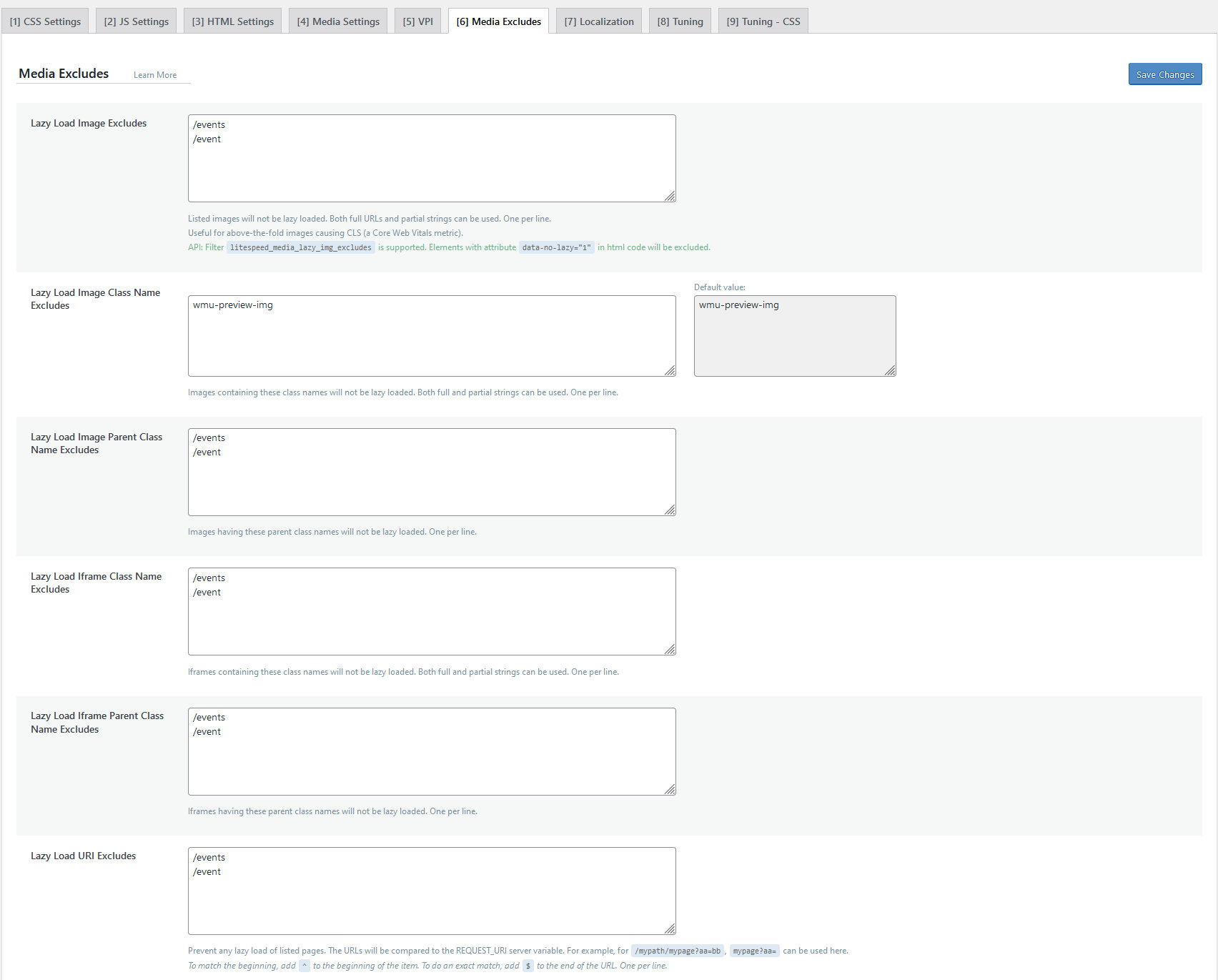
You can then head over to Page Optimization > Media Excludes and add the slugs that you’d like to make sure don’t get minified. Our plugins already minify these pages, so removing this option from LiteSpeed Cache will help them to run more smoothly. You’ll want to add your event slugs here. By default, these are your /events and /event pages.
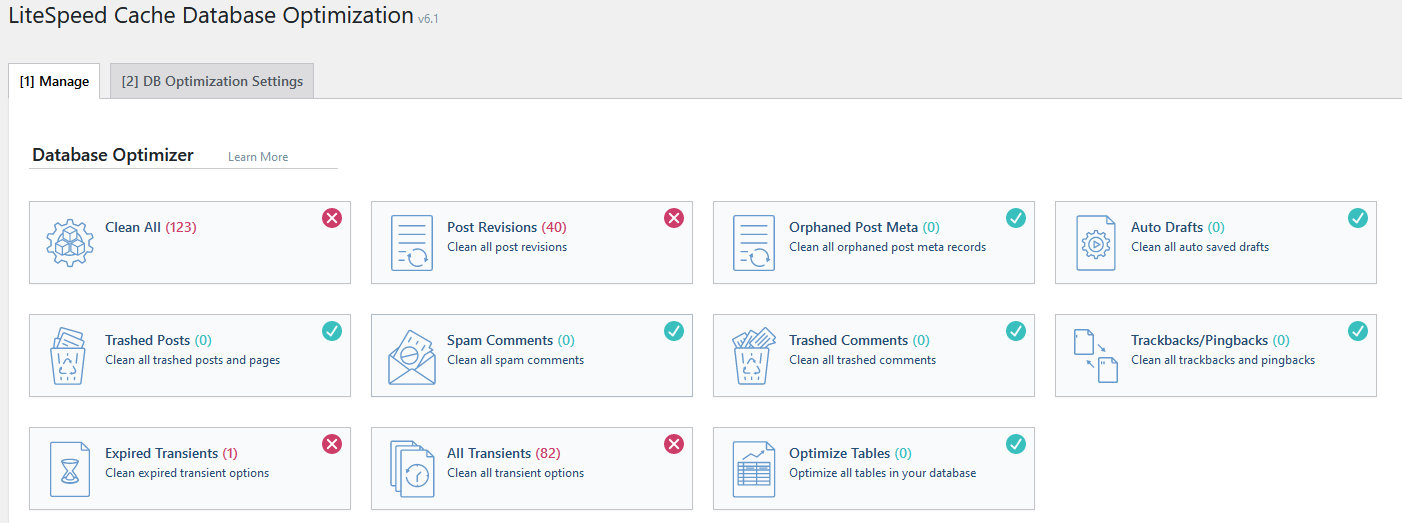
You can optimize the database under Database and manually click on the items that you’d like to clear the cache for.
Excluding Calendar Pages
LiteSpeed also allows you to utilize an external CDN to speed up your asset delivery. This shouldn’t hurt your calendar, but it can generate some differences for logged-in and logged-out users. You can exclude The Events Calendar CSS and JavaScript files to prevent this issue. Please go to CDN > Other Static CDN and scroll down to the Exclude Path field.

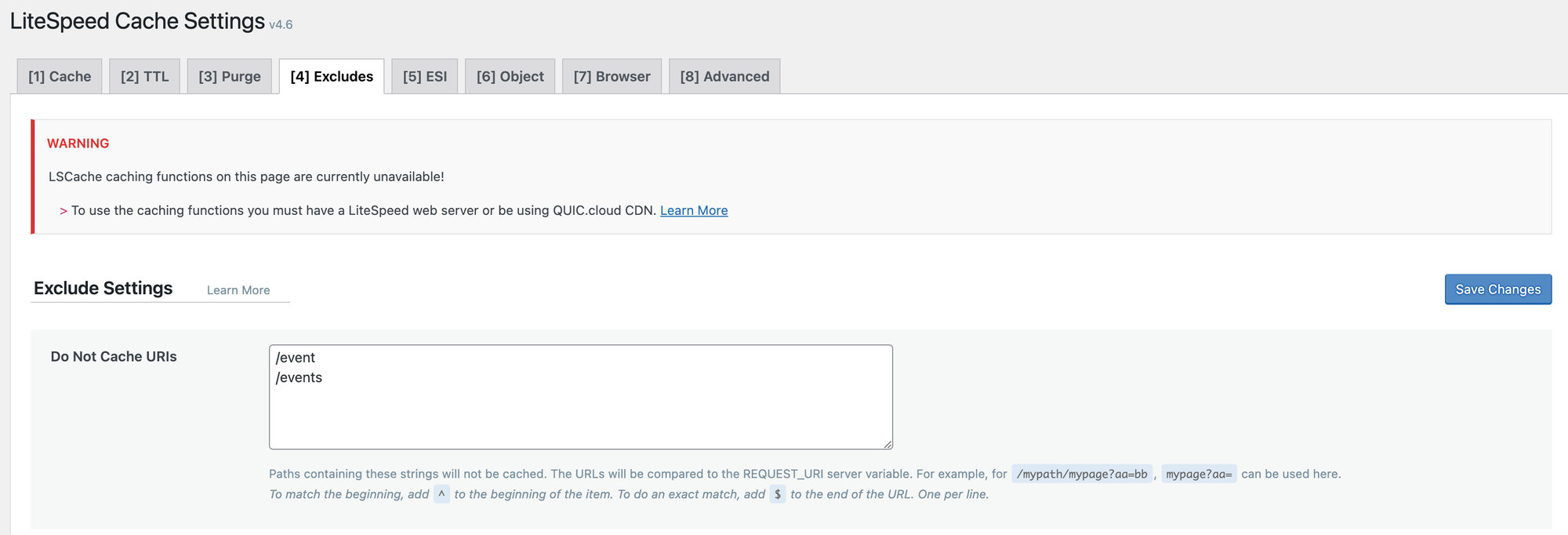
You’ll also want to exclude calendar pages under LiteSpeed > Cache > Excludes.
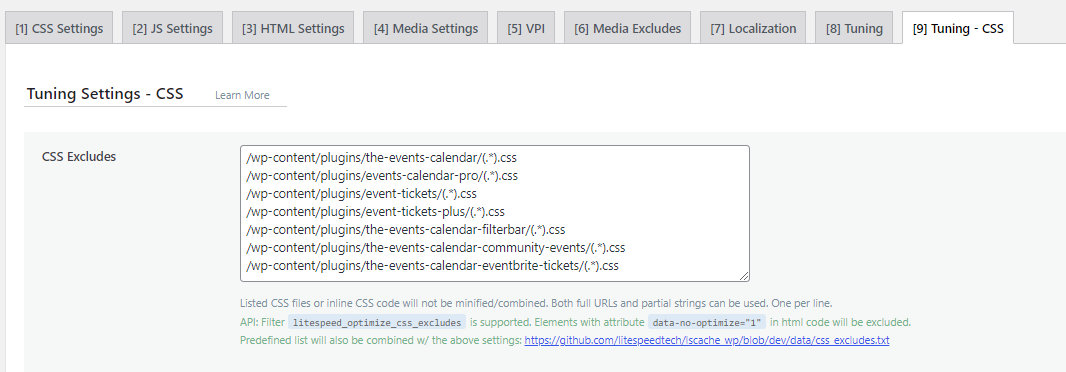
Lastly, you can use the Page Optimization > Tuning / Tuning – CSS to place your CSS and JS excludes from The Events Calendar plugins.

Plugin Folders
Here is a list of the asset folders of each of our plugins that should be ignored.
| Plugin Name | Assets Folder |
|---|---|
| The Events Calendar | /wp-content/plugins/the-events-calendar/(.*).css/wp-content/plugins/the-events-calendar/(.*).js |
| Events Calendar Pro | /wp-content/plugins/events-calendar-pro/(.*).css/wp-content/plugins/events-calendar-pro/(.*).js |
| Events Tickets | /wp-content/plugins/event-tickets/(.*).css/wp-content/plugins/event-tickets/(.*).js |
| Events Tickets Plus | /wp-content/plugins/event-tickets-plus/(.*).css/wp-content/plugins/event-tickets-plus/(.*).js |
| Filter Bar | /wp-content/plugins/the-events-calendar-filterbar/(.*).css/wp-content/plugins/the-events-calendar-filterbar/(.*).js |
| Community Events | /wp-content/plugins/the-events-calendar-community-events/(.*).css/wp-content/plugins/the-events-calendar-community-events/(.*).js |
| Eventbrite Tickets | /wp-content/plugins/the-events-calendar-eventbrite-tickets/(.*).css/wp-content/plugins/the-events-calendar-eventbrite-tickets/(.*).js |
To copy-paste
You can use the below to copy-paste all CSS and JavaScript asset resources easily.
/wp-content/plugins/the-events-calendar/(.*).css
/wp-content/plugins/events-calendar-pro/(.*).css
/wp-content/plugins/event-tickets/(.*).css
/wp-content/plugins/event-tickets-plus/(.*).css
/wp-content/plugins/the-events-calendar-filterbar/(.*).css
/wp-content/plugins/the-events-calendar-community-events/(.*).css
/wp-content/plugins/the-events-calendar-eventbrite-tickets/(.*).css/wp-content/plugins/the-events-calendar/(.*).js
/wp-content/plugins/events-calendar-pro/(.*).js
/wp-content/plugins/event-tickets/(.*).js
/wp-content/plugins/event-tickets-plus/(.*).js
/wp-content/plugins/the-events-calendar-filterbar/(.*).js
/wp-content/plugins/the-events-calendar-community-events/(.*).js
/wp-content/plugins/the-events-calendar-eventbrite-tickets/(.*).js
Excluding ESI nonces
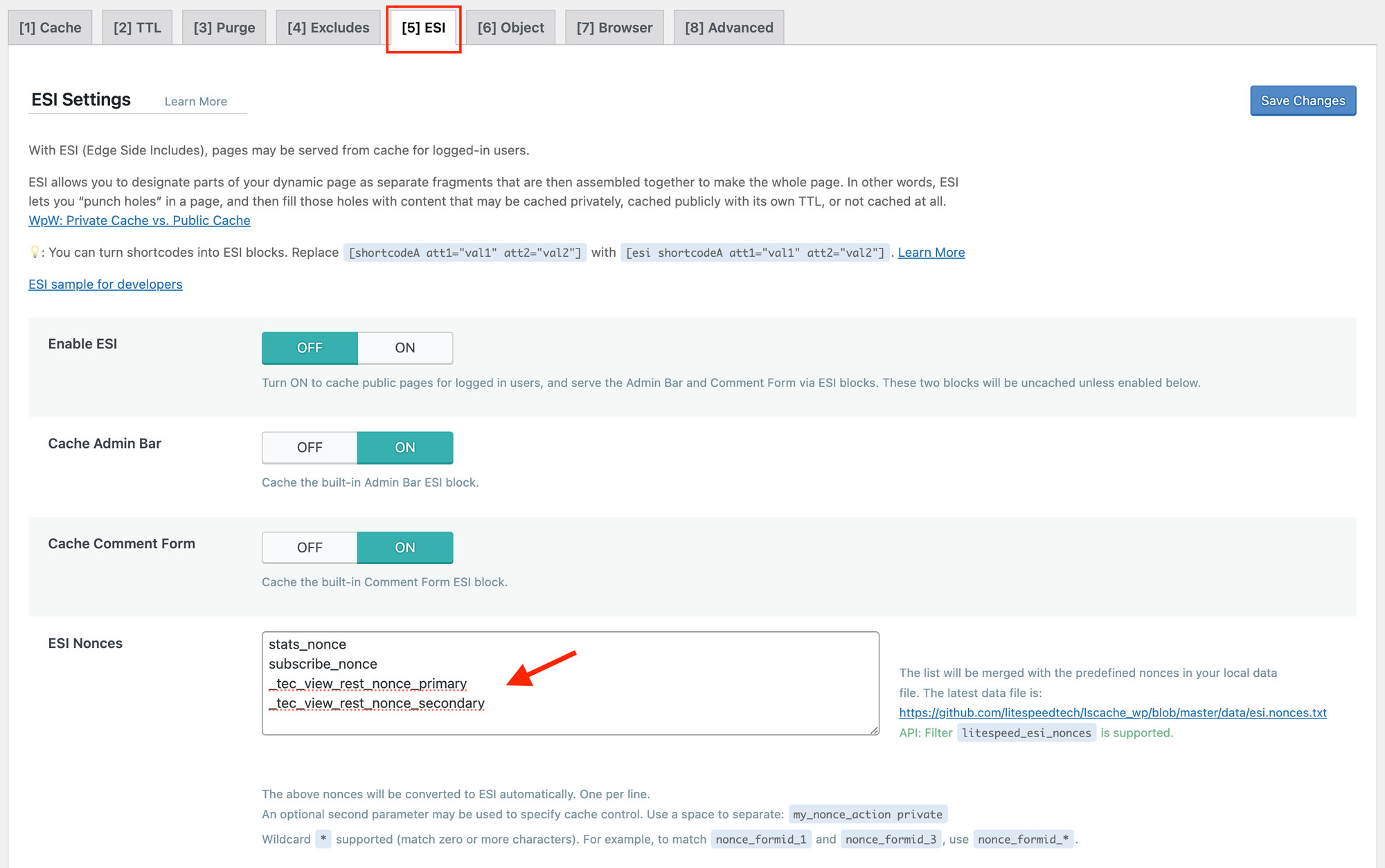
Add _tec_view_rest_nonce_primary and _tec_view_rest_nonce_secondary to the list of ESI Nonces.
(wp-admin > LiteSpeed Cache > Cache > ESI)