
Recurring events are one of the most popular features of Events Calendar Pro. This article covers everything you need: how to create recurring events in both the Classic and Block editors, how to set patterns and exceptions, how to edit a single instance without affecting the rest of the series, how to adjust the recurrence limit, and how to troubleshoot common issues. If you are not yet familiar with creating regular single events, please review our guide on creating an event before continuing.
Recurring events can handle a wide range of scenarios, for example:
- A cooking class that happens every week on Wednesday for 10 weeks
- Summer camp every day from 9 am to 1 pm for a week
- A board meeting that is always on the second Friday of the month
- A holiday celebration that occurs on the same day every year
- School exams that repeat multiple times but without a particular pattern
Note that you can only add one recurrence pattern per event. For more complex patterns, you can group together multiple recurring events in a Series. You can always add any number of single, date-based recurrences alongside a pattern.
👋 Note: Creating tickets for recurring events is not currently supported. Learn more here.
Creating a Recurring Event
Begin with the Time & Date settings for your event. If you are converting an existing single event into a recurring event, you have already set the start and end. If you are creating a recurring event from scratch, the first options set the start and end for the first occurrence. The first occurrence will also dictate what kinds of pattern options are available.
Classic Editor
In the Classic Editor, you will see an option to Schedule multiple events just below the Start/End options for your event.
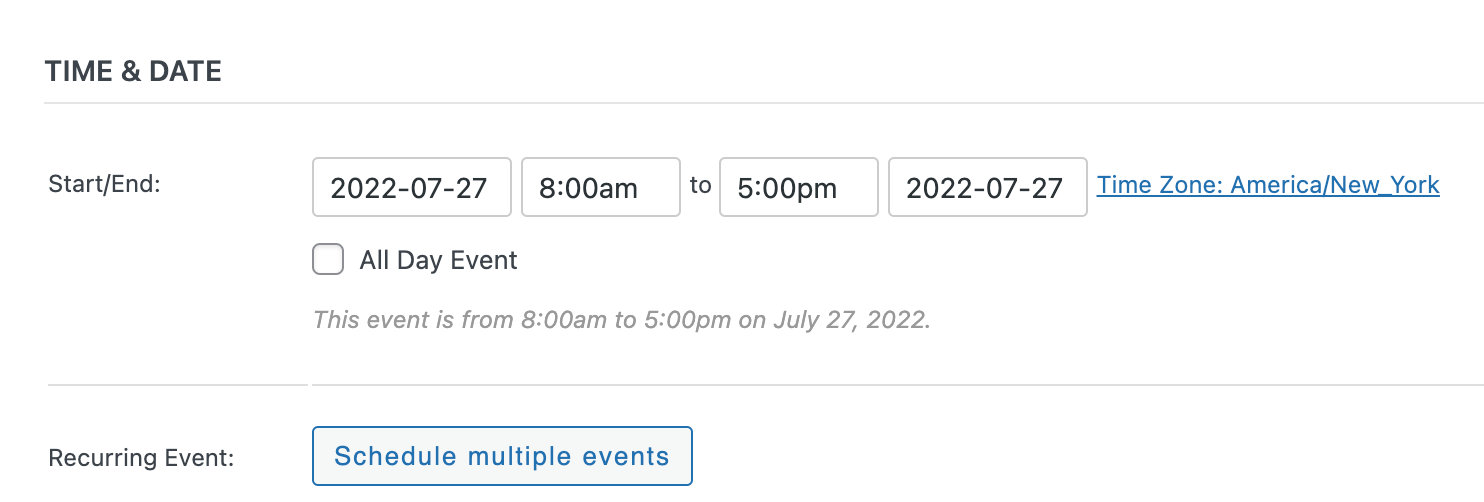
Click Schedule multiple events to display the first set of options. A dropdown will appear with the various recurrence types.
Block Editor
In the Block Editor, click Repeat this Event to open the recurrence options.

For recurring events that conform to a regular pattern, select the option that applies: Daily, Weekly, Monthly, or Yearly. If your event occurs on specific dates without following an established pattern, select the Once option. Both are covered in detail below.
Patterned Recurring Events
When you pick a pattern option from the Happens dropdown, additional fields appear to let you set the exact pattern you need — for example:
- An event that recurs every three days
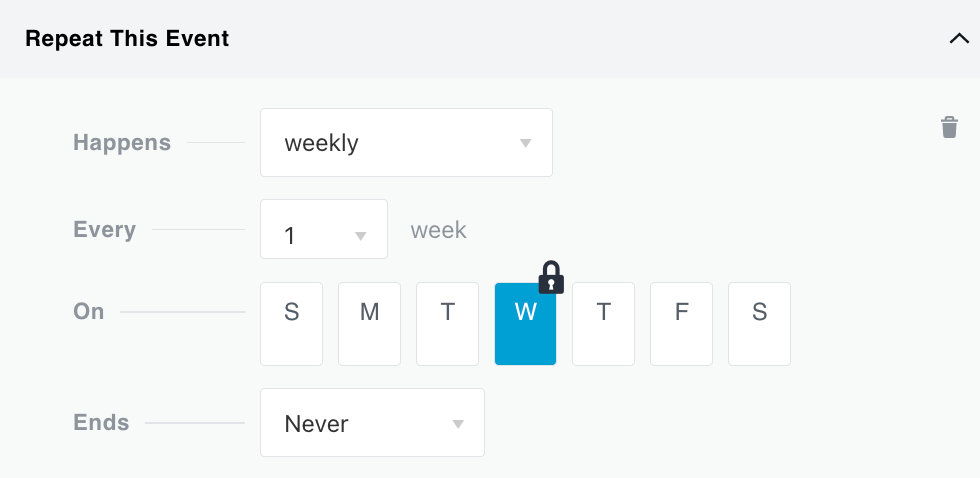
- A weekly event that recurs every week on Tuesdays and Thursdays
- A monthly event that always falls on the first Friday of the month
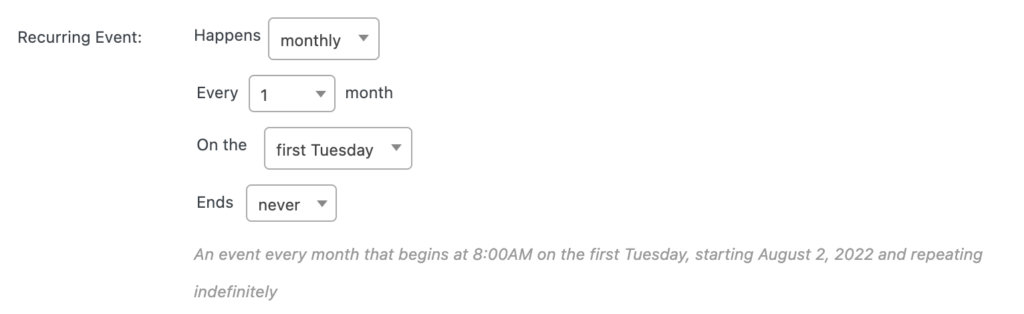
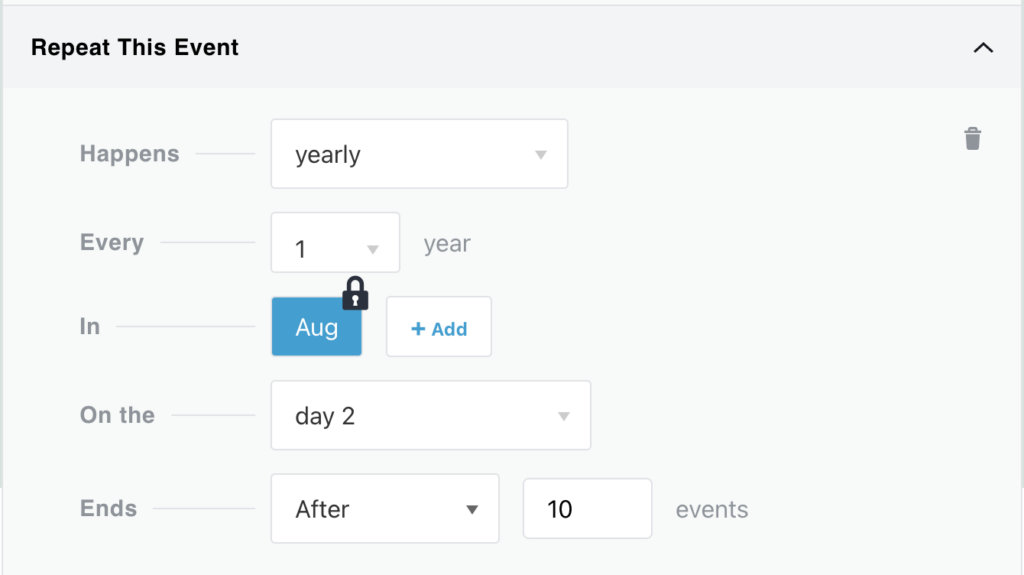
Remember, you can only add one pattern-based rule per event. This follows the iCalendar standard. If you have a more complex event, use the Series feature to group several recurring events together. You can remove any set of recurrence rules at any time by clicking the trash can icon to the right.
Ending a Recurrence Pattern
The Ends option controls when a recurrence pattern stops repeating.
- Never — the event repeats for up to 60 months (5 years) into the future from the initial event’s date (see below to change this limit).
- On a given date — specifies the last possible date an event in the sequence can take place. For example: you create an event starting Wednesday October 4, recurring weekly, ending on Wednesday October 25 — the last instance takes place on October 25. If you had selected Tuesday October 24 instead, the last instance would be the preceding Wednesday (October 18).
- After a specific number of occurrences — for example, an event that happens every month and ends after 12 occurrences will recur each month for a year.
In other words, the On and After options let you distinguish between inclusive and exclusive date ranges.
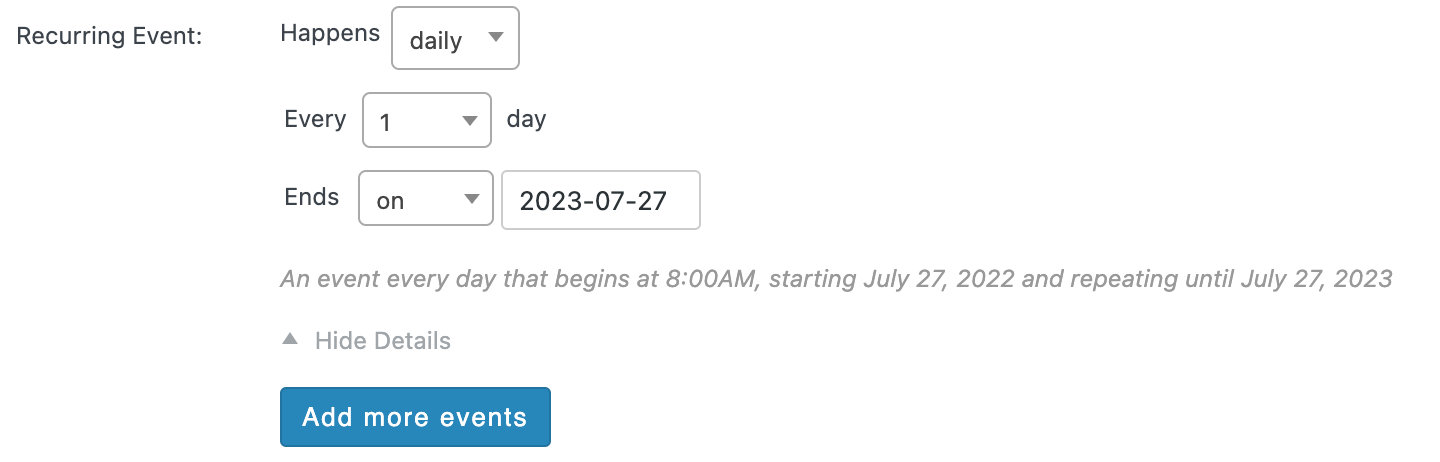
👋 Performance note: Performance issues may arise if recurring events are set to extend far into the future. Avoid having many recurring events with end dates in the far future.
Non-Patterned Recurrence
If your recurring event includes one or more instances that do not occur as part of a greater pattern, add them using the Once recurrence type. You can add as many of these manual recurrences to your event as you want.
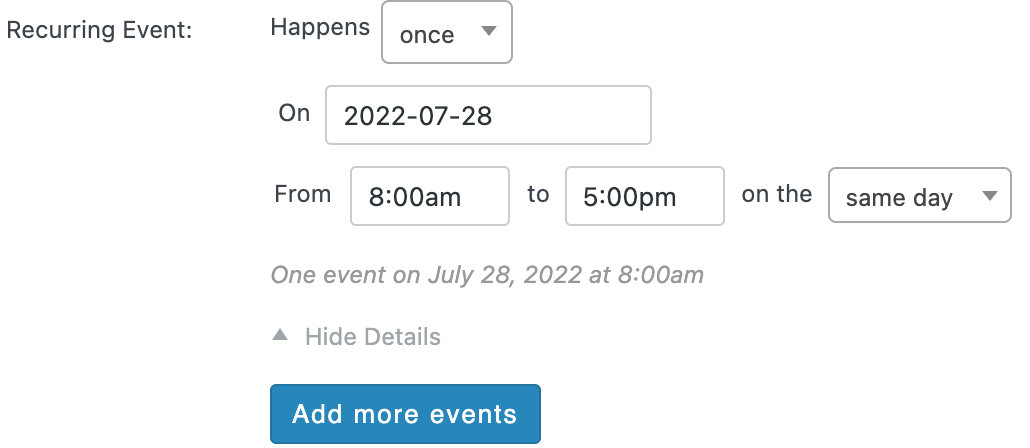
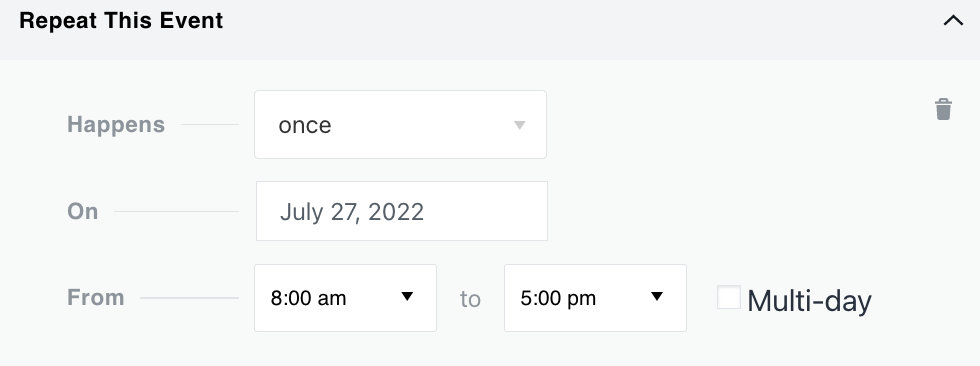
Enter the date for your event into the On field by typing or by using the provided date picker.
Exceptions
You can exclude specific days or dates from a recurring event using an Exception. For example, if you have an event that happens weekly on Fridays, you could choose to exclude the third Friday of every month — the recurring event would not appear on your calendar on that date.
The Add Exception option appears as soon as you add any recurrence rules. You can exclude occurrences based on a pattern, or choose individual dates.
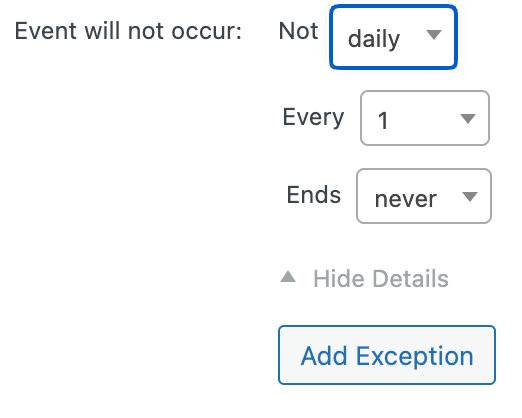
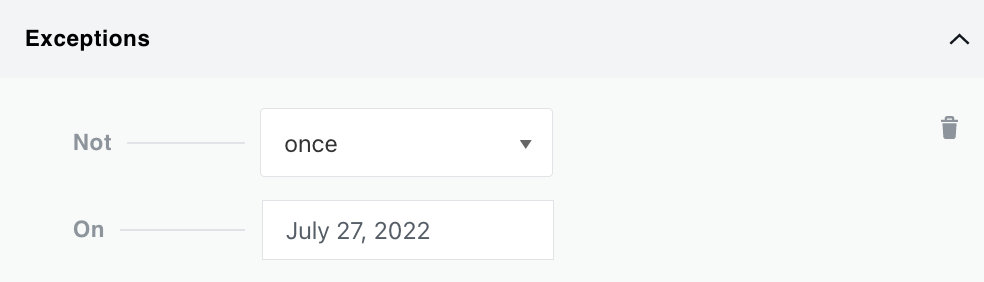
You can only have one pattern-based exception per event, but you can add as many single/once exceptions as you like. Delete exceptions by clicking the trash can icon to the right of any row.
Saving
Once you have set a recurrence pattern and/or added individual occurrences, save the event. The recurring event occurrences will be created at that point. If your event was not already assigned to a Series, a new Series of the same name will also be generated automatically.
After saving, the recurring event appears in Events > All Events showing the Start Date of the first instance and the End Date of the last instance. Individual instances are not listed separately here — see the next section for how to access and edit them.
Settings
Condensing Recurring Events in List Views
If you have many recurring events — for example a class that takes place every weekday evening indefinitely — your calendar can become very busy. In list-style views this can be confusing, since multiple instances of the same event fill the page.
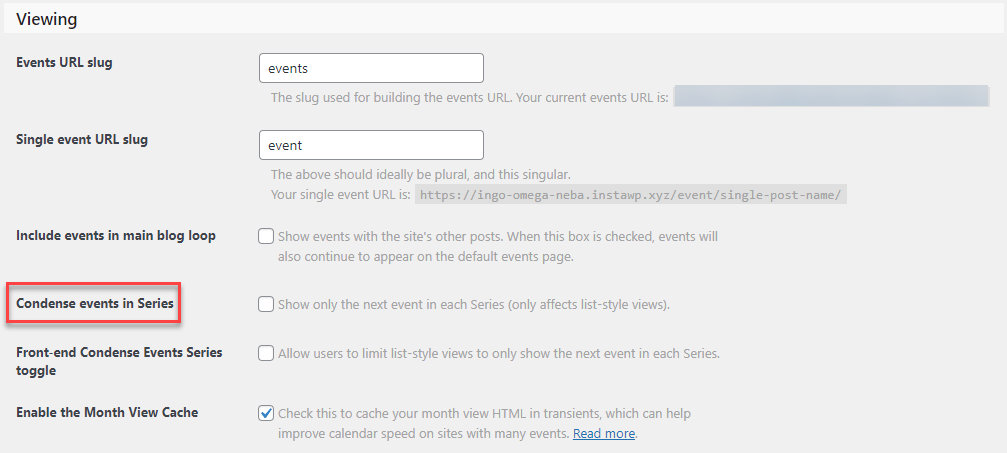
To address this, you can condense events in list-style views so that only the first upcoming instance in a Series is shown. Find this setting under Events > Settings > General.
Changing the Recurrence Limit
By default, selecting Never generates events up to 60 months (five years) from the start date. This limit exists to prevent an excessive number of generated events from overwhelming the database. If you need to adjust this, use the tribe_get_option_recurrenceMaxMonthsAfter filter. Paste the snippet below into your theme’s functions.php file or add it using the Code Snippets plugin. You can learn more about using custom code snippets in our knowledgebase.
// Add the tribe_get_option_recurrenceMaxMonthsAfter filter
function custom_recurrence_max_months( $value ) {
    return 120;
    // Change this number to your desired number of max recurrence months
}
add_filter( 'tribe_get_option_recurrenceMaxMonthsAfter', 'custom_recurrence_max_months' );
Editing a Single Instance
Individual recurring event instances are not editable directly from the Events > All Events list. To edit a single instance — for example, to change its time, date, or description without affecting the rest of the series — you need to access it through the Series.
How to Edit One Instance
- Open the recurring event in the editor. You will see a link to the Series it belongs to.
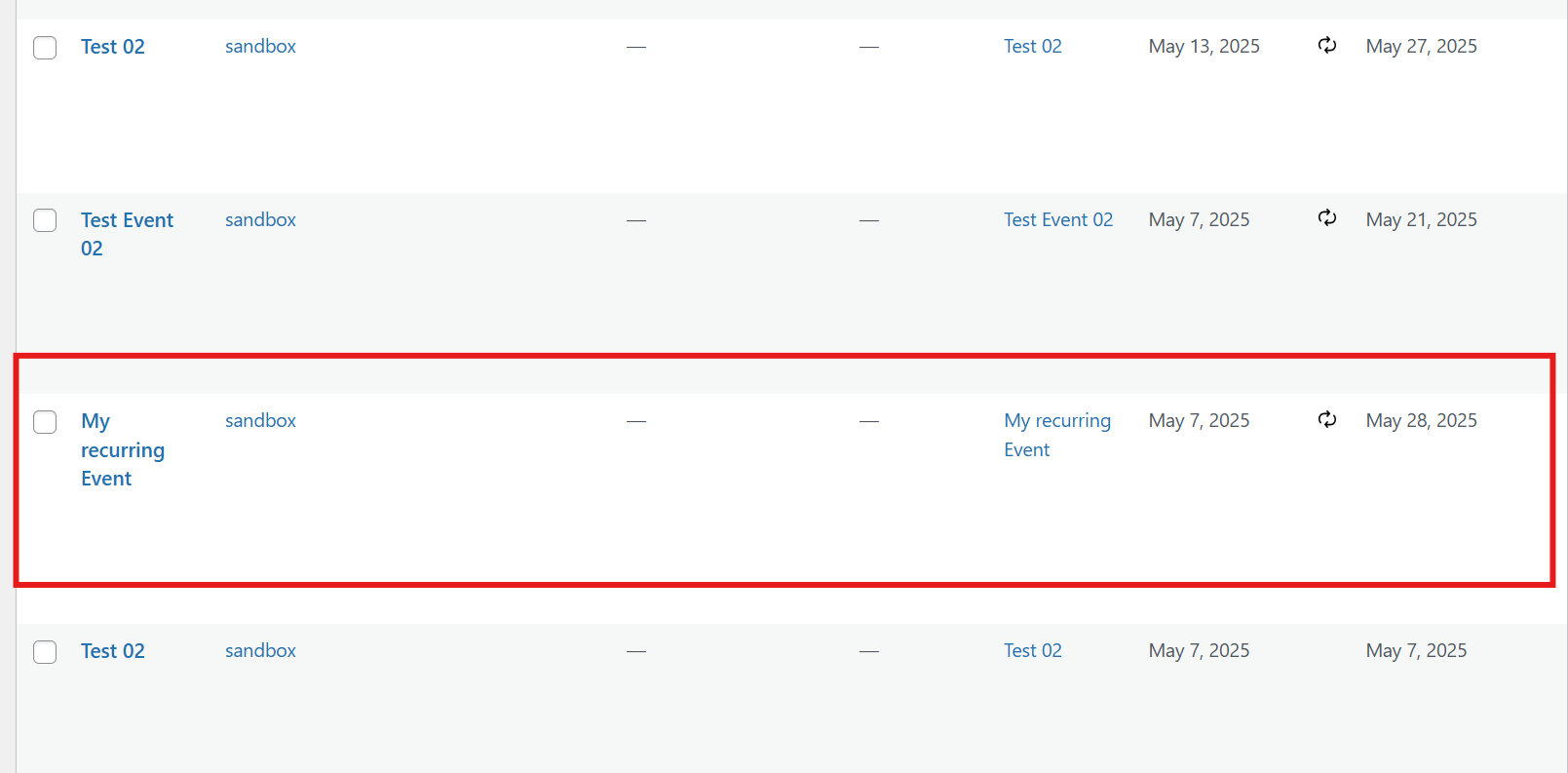
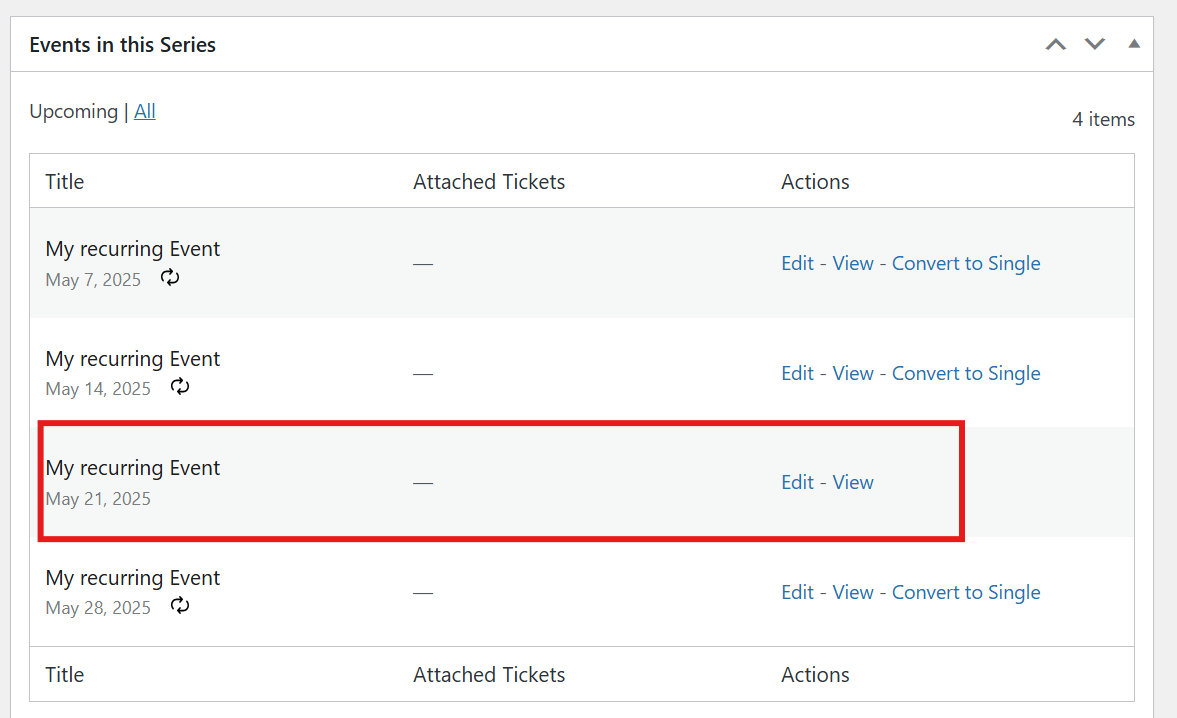
- Click the Series link to open the Series editor. In the Events in this Series section, all instances are listed with their dates.

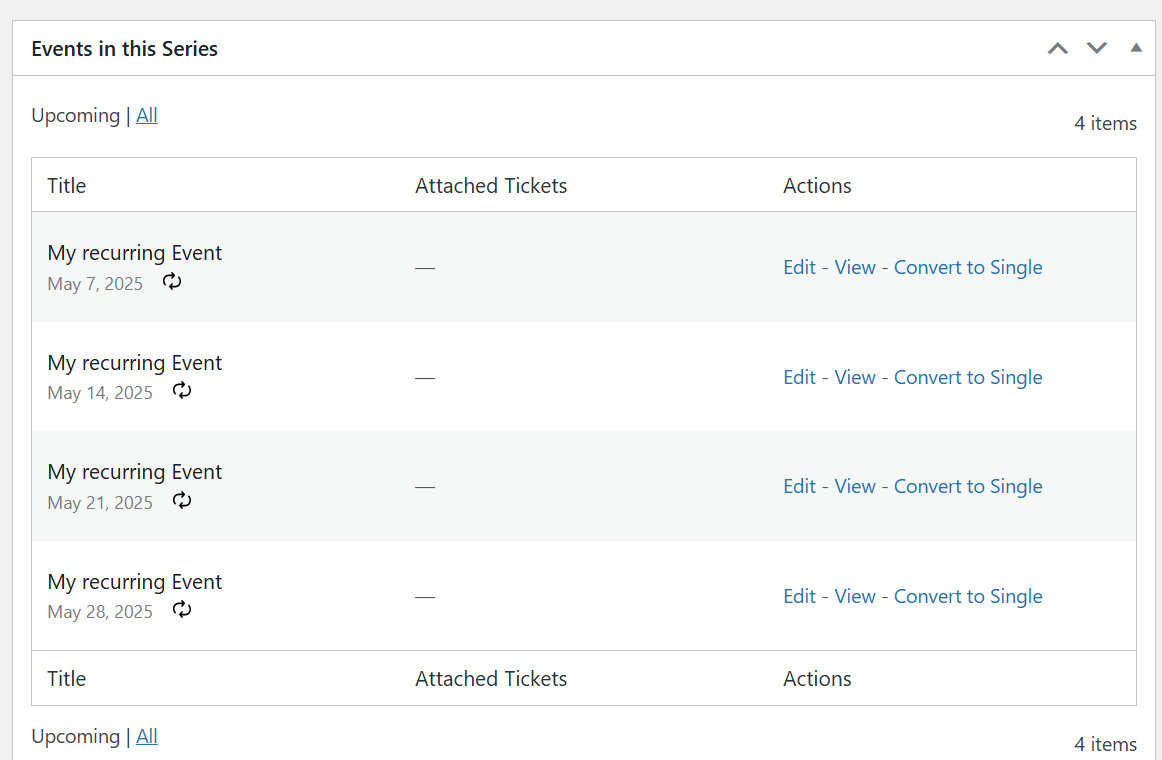
- Find the instance you want to modify and click Edit.
- Make your changes, then click Save. A dialog will appear — select “This event” so that only that instance is modified.
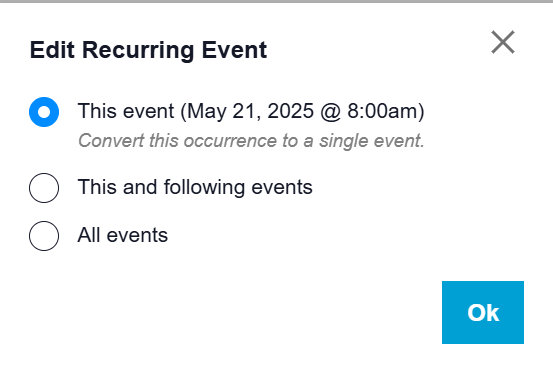
That instance will now differ from the others in the series and will be listed as a single event within the Series.
Using Series with Recurring Events
If you need events that recur with multiple patterns — for example, monthly on both the first Tuesday and the third Wednesday — use a Series. A Series can group and manage any number of single or recurring events.
When you create a recurring event and do not assign it to a Series, a new Series of the same name is created automatically when you first publish the event. If you want to create an event with a different recurrence pattern in the same Series, duplicate the recurring event and then adjust the recurrence rules — both events will be in the same Series and displayed together on the Series landing page.
For full details on creating and managing Series, see the Event Series knowledgebase article.
Recurring Events and Tickets
For now, you cannot add standard tickets (i.e. for a specific date and time) to recurring events. However, with Series Passes, you can add a pass ticket type that gives an attendee access to all events in a Series, including single events and recurring events! For example, if you have a class that happens weekly for six weeks, you can set that up as a recurring event and then add a Series Pass. People can then purchase a pass and attend each of the six class days.
If you need to sell standard tickets to a set of events, you can add single events to a Series and then add a ticket to each event. That allows you to have standard tickets but also associate the events together on the frontend for your customers. This method could be time-consuming, but it’s an option if you’d like to sell tickets to individual dates of a repeated event.
Troubleshooting Recurring Events
Below are steps to try if you run into trouble creating or managing recurring events.
Flush Permalinks
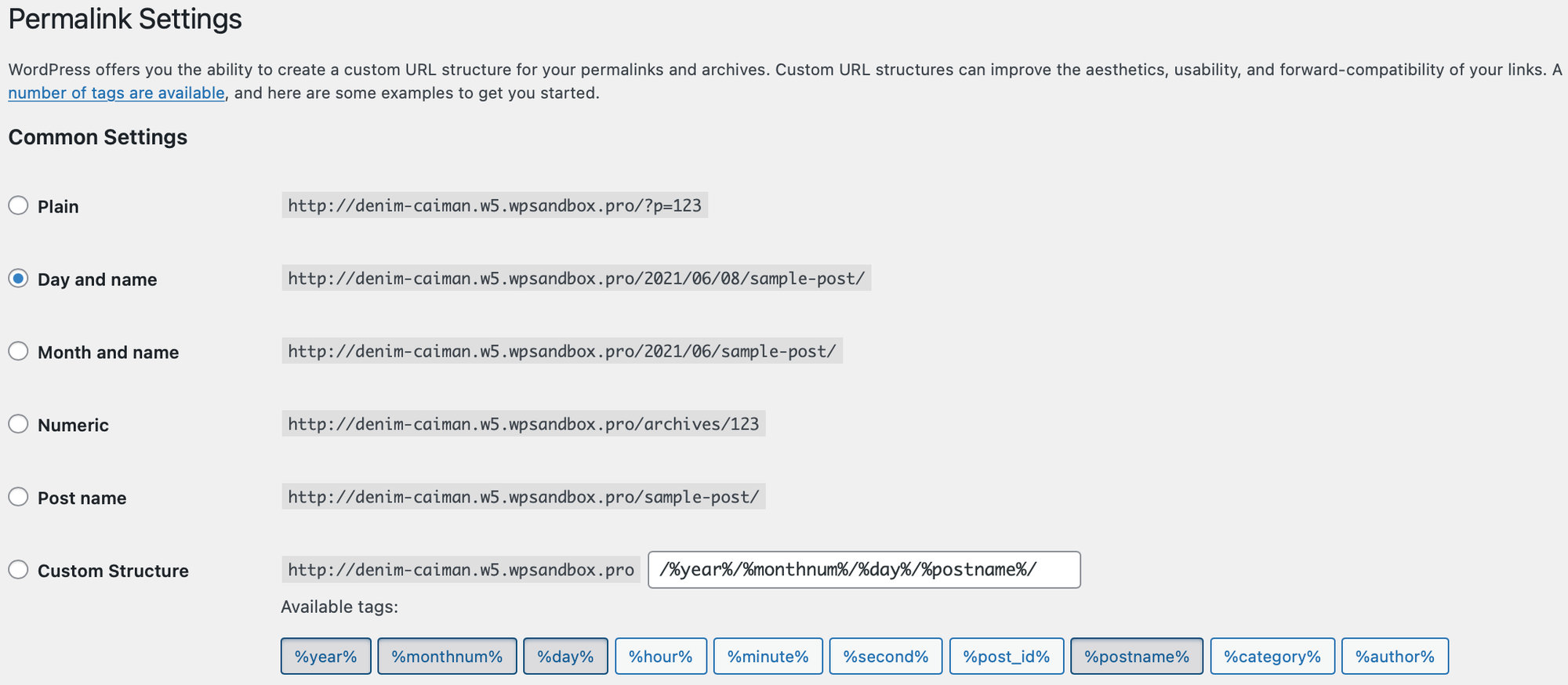
The first thing to try is flushing your permalinks. Go to WordPress Settings > Permalinks and click Save Changes. Make sure you are using one of the “pretty permalinks” options and not “plain”.
Date Format Settings
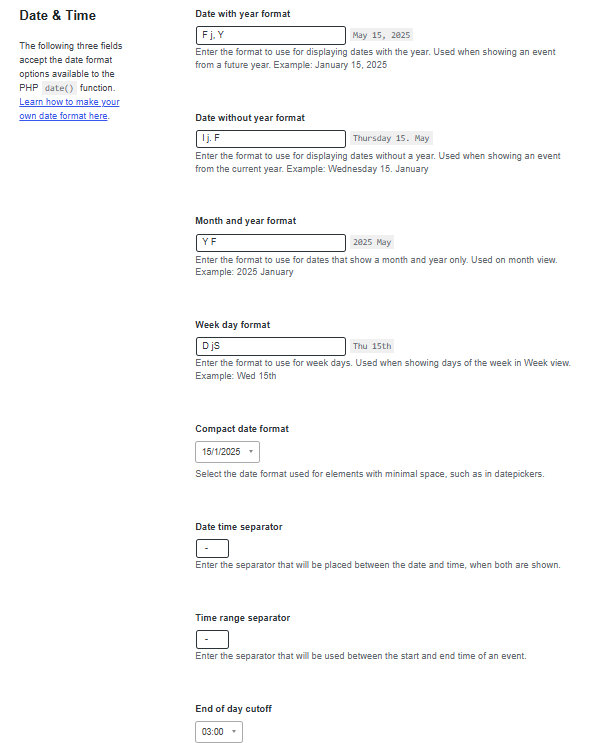
Go to Events > Settings > Display > Date & Time and review your date format settings. If you have recently changed any date or time separators, or the Compact Date Format, try reverting those to the default.
Test for Conflicts
If the steps above do not resolve the issue, test for conflicts to determine whether a plugin or theme is causing the problem.