
The Events Calendar uses Google Maps to display event locations on single event pages and — with Events Calendar Pro — on Map View and venue pages. The default settings work for most sites, but a few small adjustments can help the map fit your layout, match your branding, or handle higher-traffic scenarios. This article collects some of the most common Google Maps customizations.
The customizations in this article are all code snippets. Add them to your child theme’s functions.php file or use the Code Snippets plugin. If code snippets are new to you, start with Using Code Snippets to Customize The Events Calendar for a walkthrough.
Use the Event Address in the Get Directions Link on Event Pages
When using Events Calendar Pro and the latitude and longitude coordinates are set up for a venue, then the “Get Directions” or “+ Google Map” link for the venue will use those coordinates to pinpoint the location on the map. This is a more reliable and precise way to locate a venue.
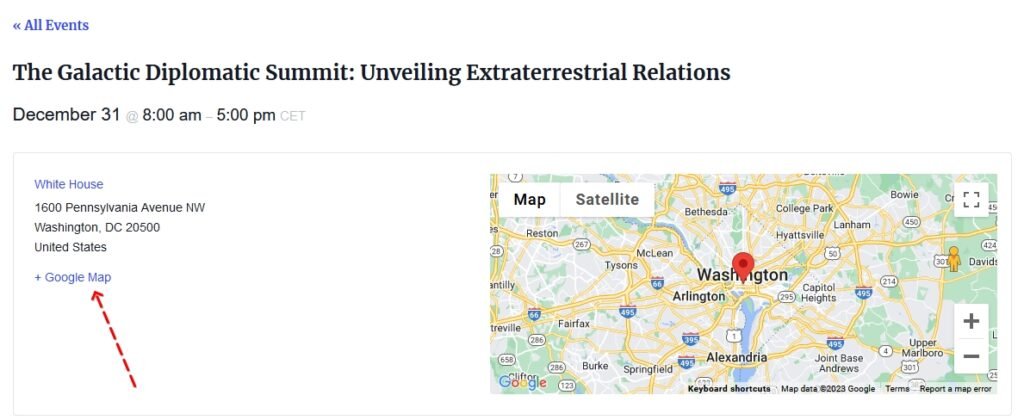
When clicking on that link, the visitor will be taken to the Google Maps website, which will then show the coordinates as the location, and not the name or address, which can offer a subpar user experience.
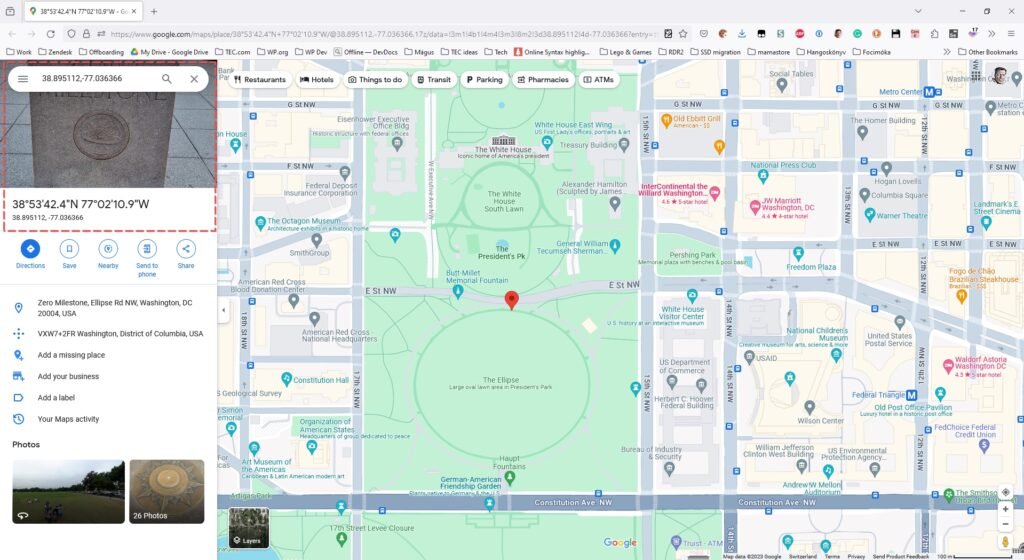
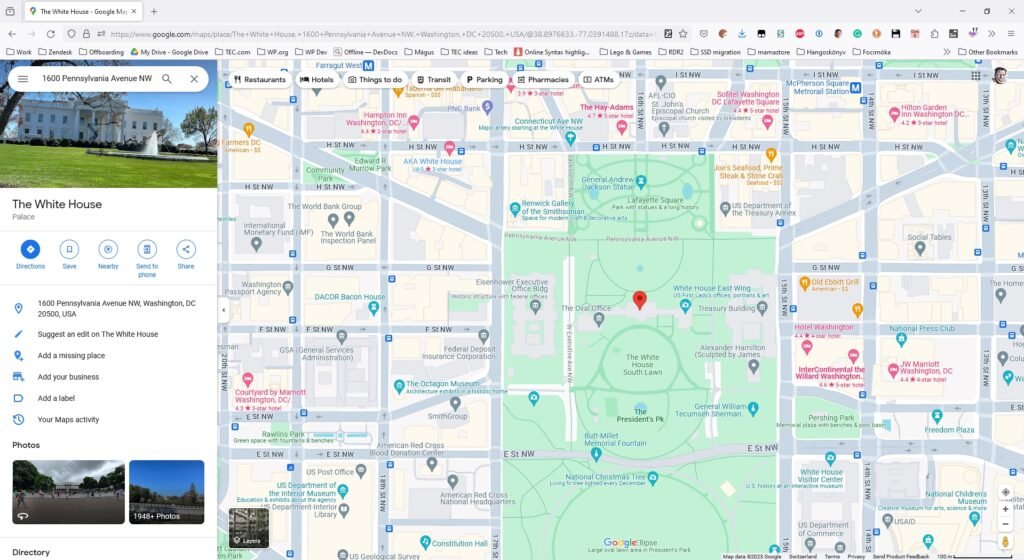
Fortunately, there is an easy way to change that. All it requires is a one-line snippet:
add_filter( 'tribe_events_pro_google_map_link_disable_coordinates', '__return_true' );
With that line in place, when you click on the “+ Google Maps” or “Get Directions” link you will be taken to Google Maps with the address instead of the coordinates as the location.
Change the Height and Width of Google Maps on Event Pages
By default, the map in the single events template is set to 350px in height. Follow the steps below to change this behavior.
To remove the max-height styling of the map, append the following to your theme’s additional CSS section (Appearance -> Customize -> Additional CSS)
.tribe-events-venue-map > iframe, .tribe-events-meta-group-gmap, div[id^="tribe-events-gmap"] {
   max-height: unset !important;
}
To filter the map size add the following snippet to your theme’s functions.php file.
add_filter( 'tribe_events_single_map_default_width', function( $width ) {
	return '600px';
}, 20 );

add_filter( 'tribe_events_single_map_default_height', function ( $height ) {
	return '600px';
}, 20 );
Change the width and height field in that snippet to the desired size for your site. The snippet as written sets the width to 600 pixels and the height to 600 pixels.
Change the Google Maps Localization Option
By default, Google Maps sets the locale to US-based locations. This can lead to confusion if you’d like to use any other country as your default location.
The good news is that you can add a filter to easily resolve this issue. In this article, we’ll show you what filter to use and provide you with a sample snippet that you can modify to set your default country with Google Maps.
The filter that you can use to modify the default location with Google Maps is add_filter( 'tec_google_map_args', 'tec_customize_google_map_args', 10, 1 );
To change the default location to Spain for example, you can add a snippet like the following to your functions.php file:
add_filter( 'tec_google_map_args', 'tec_customize_google_map_args', 10, 1 );
function tec_customize_google_map_args ( $args ) {
	$args['region'] = 'es';

	return $args;
}
You can find a list of all of the available country codes here.
You can also use the same snippet to localize the language the map is displayed in.
To change the language to Spanish you need to add the following line to the above snippet, before the return:
$args['language'] = 'es';
Important note: this will override the user’s browser settings, so use it with care! Google’s documentation on localization can be found here.