You may have noticed that your calendar is not a typical WordPress page or post. As an archive page, it is not something that you are able to see on the front end and edit directly on the page. The good news is that even though it is an archive page, you can still customize the appearance of the page on the front end.
It’s important to note that even though it isn’t a traditional WordPress page, it does have a slug. This slug should only be used for your calendar and no other page on your site. In other words, if your calendar slug is /events, no other WordPress page on your website should have the same URL. This will keep everything working as expected.
Changing the Calendar Location
The calendar is automatically located at your-site.com/events, where events is the slug of the calendar. Slug is the name WordPress uses to describe the part of the URL that comes after the domain name.
There are two ways to change the calendar slug.
Via Settings
The easiest way to change the address is directly in the plugin settings. From the WordPress dashboard, navigate to Events → Settings → General → Viewing, change the “Events URL slug” setting, then click “Save” to save the change.

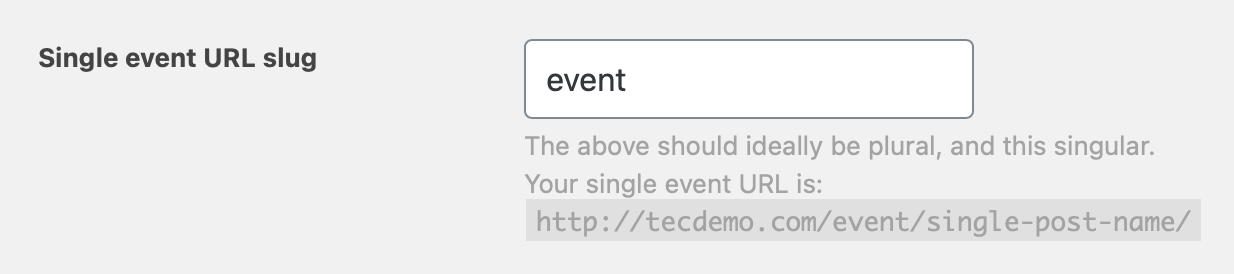
Note that you can change the slug for single events as well in the very next setting. By default, events use /event in the URL. But if you want to change that to, say /workshop, then this is where you would do it.
Embed the calendar on a page
👋 This method requires Events Calendar Pro.
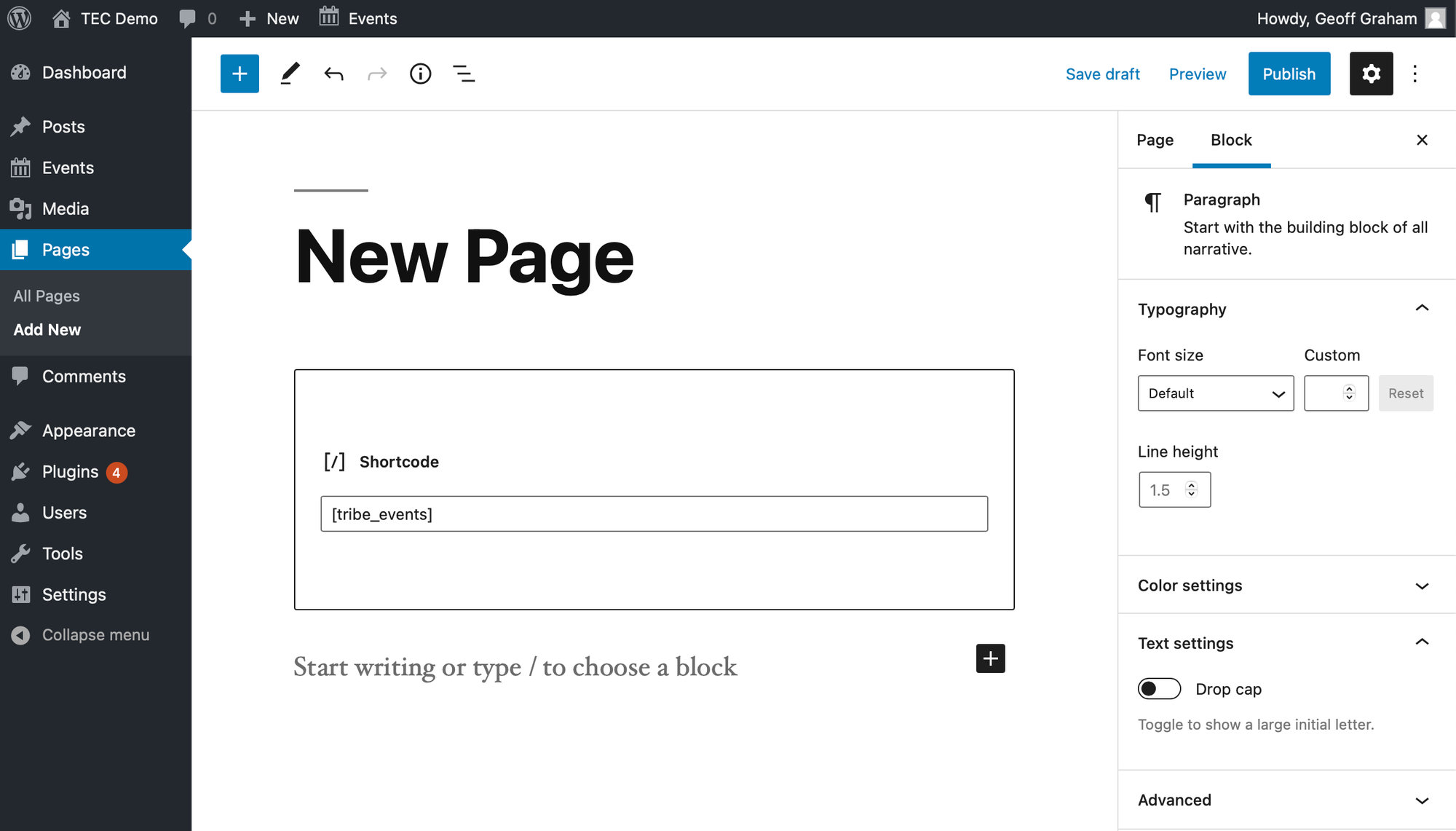
Another option is to embed the calendar on another page and use the URL of that page as your main calendar. If you have Events Calendar Pro installed with The Events Calendar, then the calendar can be embedded on a page using the [tribe_events] shortcode. Add it using the “Shortcode” block and the calendar will be displayed on that page.
Set the Calendar as the Homepage
By default, The Events Calendar places its calendar at a specified URL on your site. The “out-of-the-box”, default URL is /events, so that the events calendar for example.com would be at example.com/events.
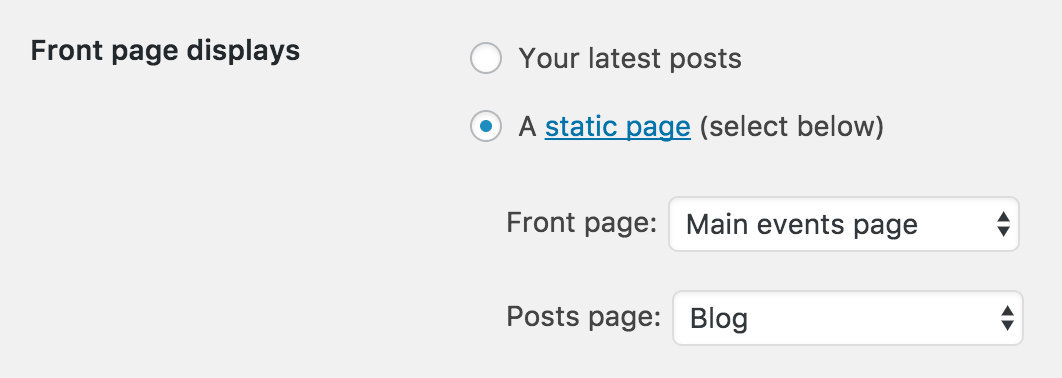
You can also make your calendar your site’s home page! Visit your WordPress Settings → Reading page. Make sure the “Front page displays” setting is set to A static page and select Main Events Page for the “Front page” setting. Check out your home page and you should see your main list of events.