
The Events Calendar comes with a number of template files that determine how the plugin looks and behaves. We call these views. You can customize these files by placing copies of them in your theme.
It’s important that you don’t edit the view files directly in the plugin. Instead, we recommend overriding the files in your theme, which is what we are going to cover in this guide. This ensures that any changes you make to the files will not be lost when new versions of the plugins are released. In fact, we strongly recommend keeping your custom calendar view templates in a child theme, especially if you use a third-party theme that releases new versions. This plugin can be helpful for creating child themes. The Events Calendar will ensure that your modified files, in the correct folder, will override the plugin files.
OK, now that we’ve established some housekeeping rules, let’s dig into the process of customizing template files by overriding them in your theme.

Locating Template Files
Every plugin is located on your server where WordPress is installed in the /wp-content/plugins folder. Here’s where you can find the template files for each plugin.
| Plugin | Template Files |
|---|---|
| The Events Calendar | /the-events-calendar/src/views/v2/ |
| Events Calendar Pro | /events-calendar-pro/src/views/v2/ |
| Event Tickets | /event-tickets/src/views/v2/ |
| Event Tickets Plus | /event-tickets-plus/src/views/v2/ |
| Community | /the-events-calendar-community-events/src/views/ |
Exceptions
There are a few exceptions to this. The single event pages still use the files from the legacy design, and there is both a classic editor and a block editor version. You can find those files here:
| Plugin | Template Files | Override Location |
|---|---|---|
| Classic Editor | Single event, single organizer, single venue pages | This can also be found at the top of each original PHP file. |
| The Events Calendar | /the-events-calendar/src/views/single-event.php | [your-theme]/tribe-events/single-event.php |
| The Events Calendar | /the-events-calendar/src/views/modules/ | [your-theme]/tribe-events/modules |
| Events Calendar Pro | /events-calendar-pro/src/views/pro/modules/ | [your-theme]/tribe-events/pro/modules/ |
| Block Editor | Single event page | |
| The Events Calendar | /the-events-calendar/src/views/single-event-blocks.php | [your-theme]/tribe/events/single-event-blocks.php |
| The Events Calendar | /the-events-calendar/src/views/single-event/ | [your-theme]/tribe/events/single-event/ |
| Events Calendar Pro | /events-calendar-pro/src/views/blocks/ | [your-theme]/tribe/events-pro/blocks/ |
To override these files the copy should be placed in /tribe-events and /tribe-events/pro respectively. For further details please check out the guide to customizing template files for Views 1.
Template Overrides with the Block Editor
When creating template overrides for the Block Editor, the file path will depend on whether you are using the blocks that are specific to the Events Calendar plugin vs the Events Calendar Pro plugin.
When using The Events Calendar blocks, the copy should be placed here: [your-theme]/tribe/events/blocks/
Here are the Events Calendar blocks:
- Classic Event Details Block
- Event Category Block
- Event Datetime Block
- Event Links Block
- Event Organizer Block
- Event Price Block
- Event Tags Block
- Event Venue Block
- Event Website Block
- Featured Image Block
You can find all of The Events Calendar template files here.
When using Events Calendar Pro blocks, the copy should be placed here: [your-theme]/tribe/events-pro/blocks/
Here are the Events Calendar Pro blocks:
- Additional Fields Block
- Recurrence Block
- Related Events Block
You can find all of the Events Calendar Pro template files here.
Adding a New Folder in Your Theme
Once you’ve located the template file you want to customize, make a copy of it and save it somewhere for a moment, like your computer desktop.
Next, let’s head over to your theme folder and create a new folder. Not sure where your theme folder is located? It’s where WordPress is installed in the /wp-content/themes folder. So if you are using the official Twenty Twenty theme, it would be at /wp-content/themes/twentytwenty. Once you find it, create a new folder called tribe.
So far, you should have a new folder in your theme located at: /wp-content/themes/your-theme/tribe/
Now, which plugin or add-on does your copied template file belong to? You’ll need to make another folder that correlates with the plugin you are customizing. That includes the following:
| Plugin | Folder |
|---|---|
| The Events Calendar (legacy views) | /tribe/events/ |
| The Events Calendar (new views) | /tribe/events/v2 |
| Events Calendar Pro | /tribe/events-pro/v2 |
| Event Tickets | /tribe/tickets/ |
| Event Tickets Plus | /tribe/tickets-plus/ |
| Community | /tribe-events/community/ |
With the new views, your folder structure should look like this:
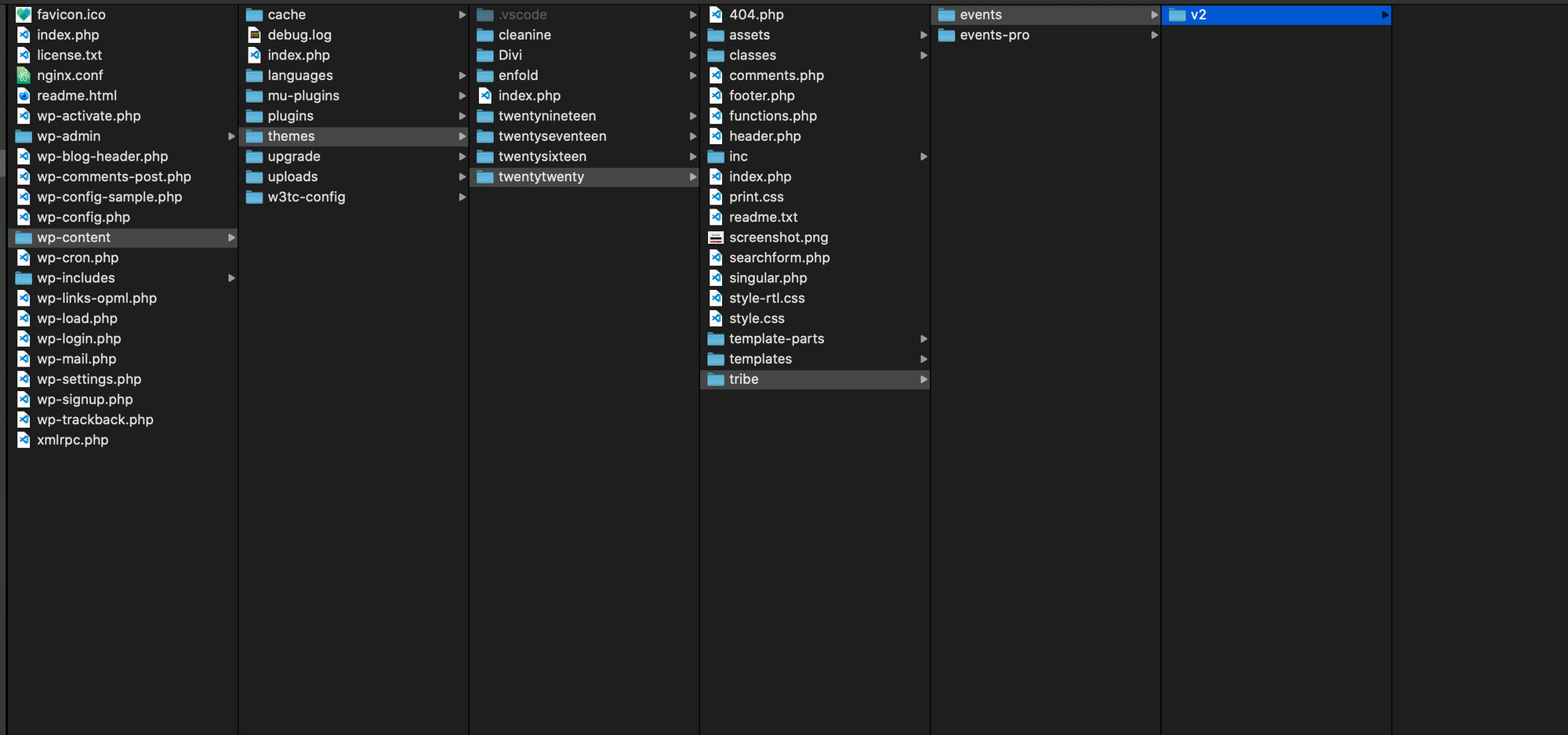
Now that you’ve located the template you want to override make a copy of it, create a new tribe/ folder in your theme, and put the copied template file in its corresponding plugin folder, you can start customizing!
Example: Customizing List View
We’re going to look at an example of a template override. In this case, we’re going to customize the calendar’s list view template.
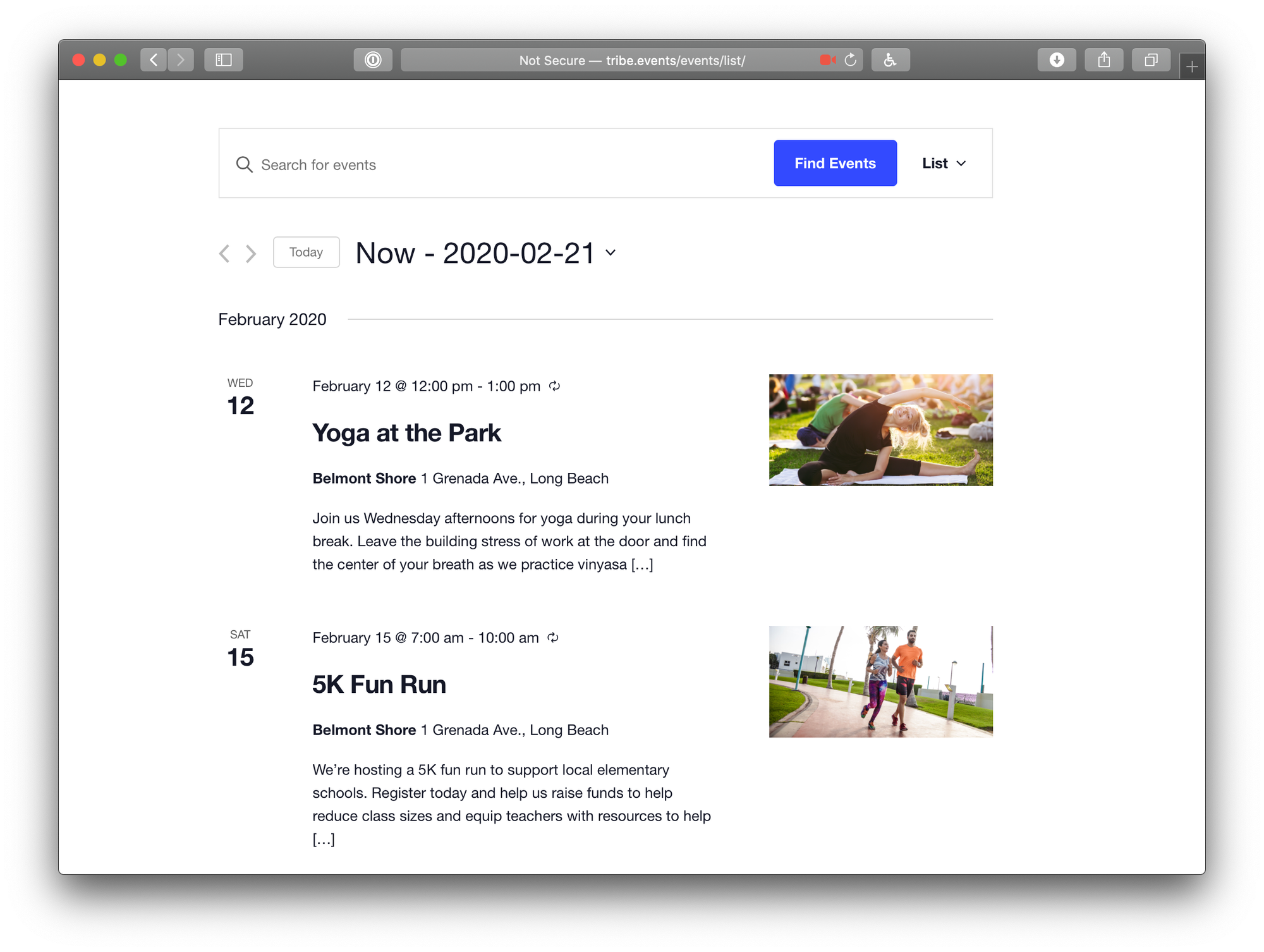
Let’s say we really like the layout in general, but would prefer to get rid of the featured image.
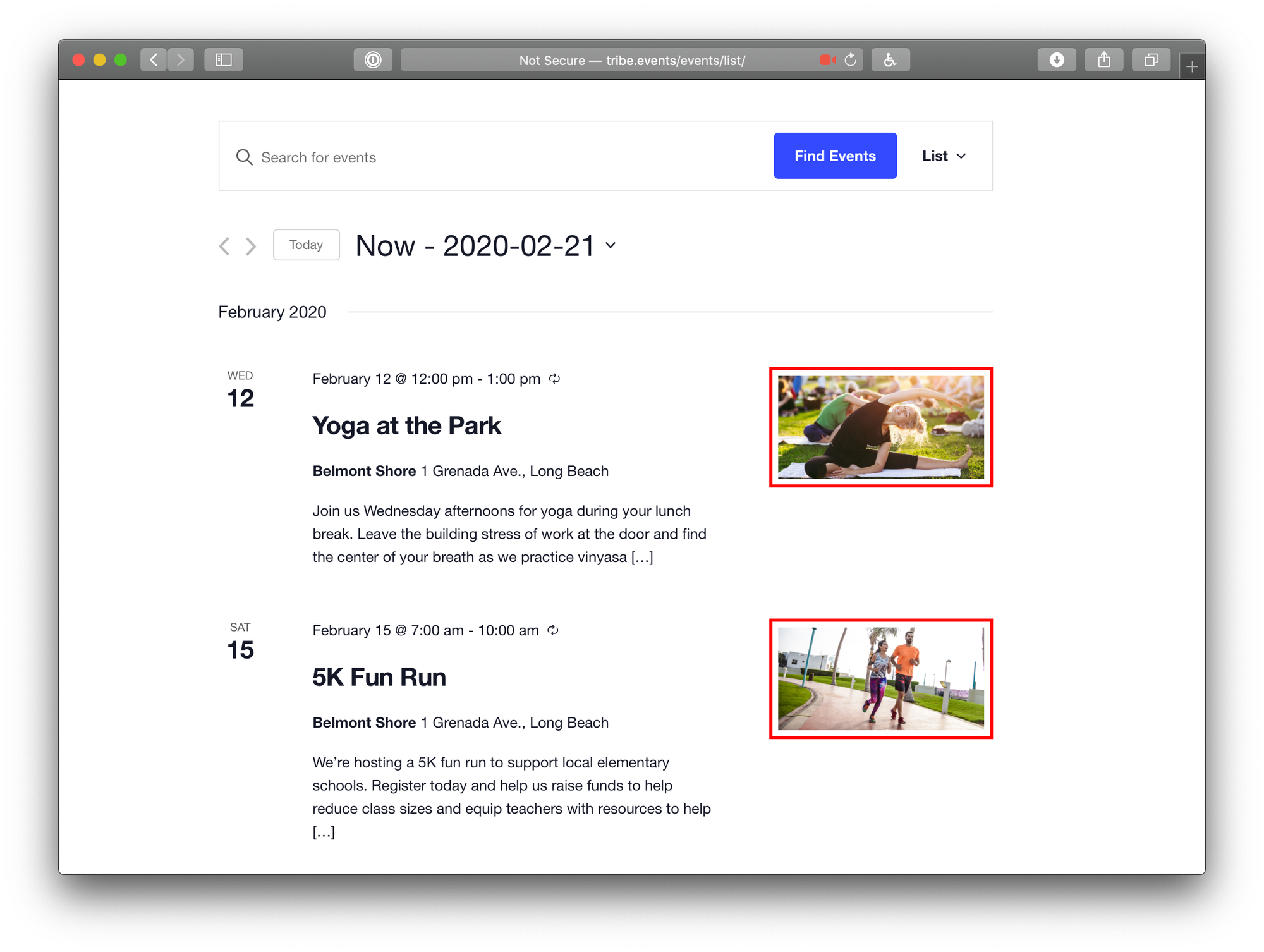
Here’s how we can make that happen.
Locate the Template File
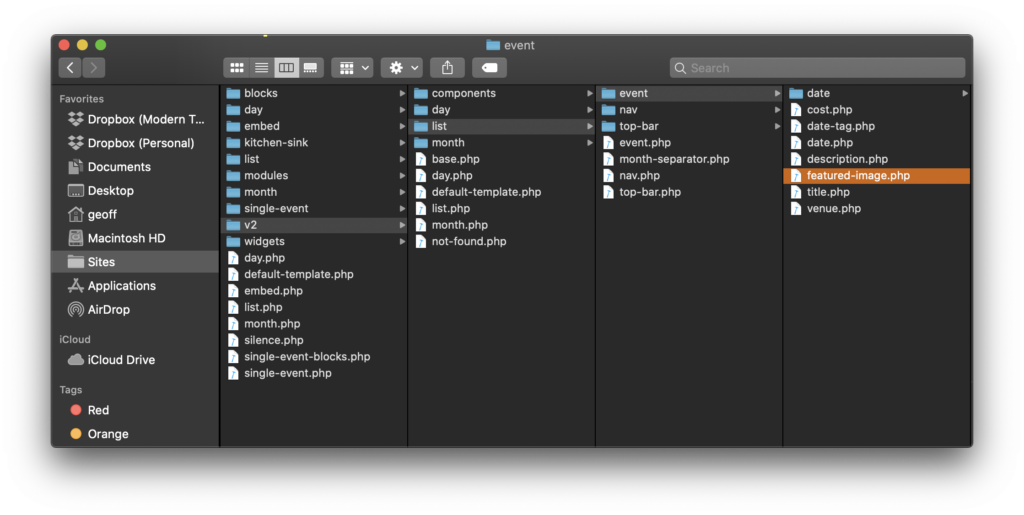
First off, we need to find where the event template file is located in the plugin files. In this case, we’re customizing a template in The Events Calendar. That means we can head over here to start looking: /wp-content/plugins/the-events-calendar/src/views/v2.
Inside that folder is another one that is called list which is perfect because it contains the template files we need to customize the calendar’s list view.
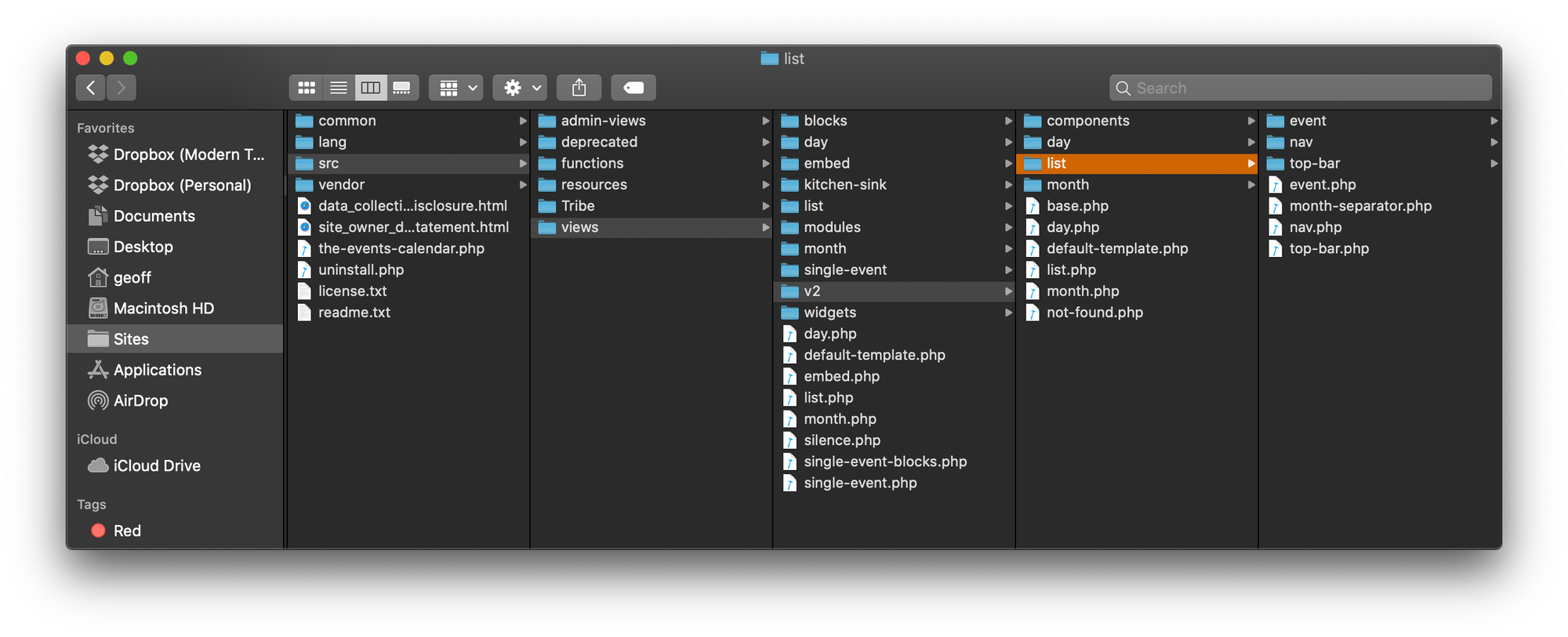
The event folder appears to be the most relevant we’re looking for, so let’s go there. Now, we see there’s a featured-image.php file that looks super promising.
Add the Copied Template to Your Theme
The key part of overriding a template is that we need a place to put our customized template. That’s what we’re going to do next.
Head over to your server and open up your theme folder. That’s located where WordPress is installed in the /wp-content/themes folder. Your theme will be in there, so let’s open it up and add a new folder in it called tribe. We’ll want to nest more folders in there so that the exact same folders that are in the plugin folder are in the theme.
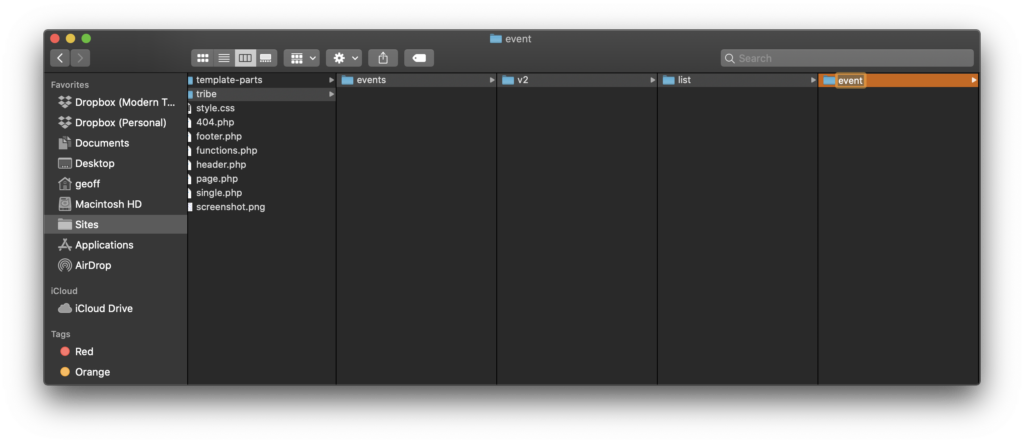
/tribe/events/v2/list/event/.That’s where we can drop in thefeatured-image.php file we copied earlier.
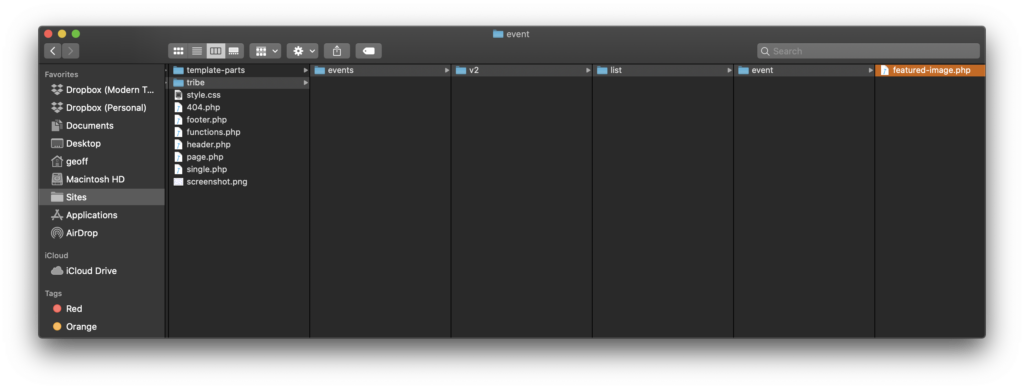
featured-image.php template to the theme located at /tribe/events/v2/list/event/.Not bad so far? Let’s move to the next step.
Customize the Template
Now that the featured-image.php file is safely in our theme, we can modify it to suit our needs. In this case, we want to remove the featured image. That means we can open up the file and literally erase everything in it. Seriously, select everything and delete it until you’re left with a blank file, then save your work.
Here’s what we get when we revisit the event page:
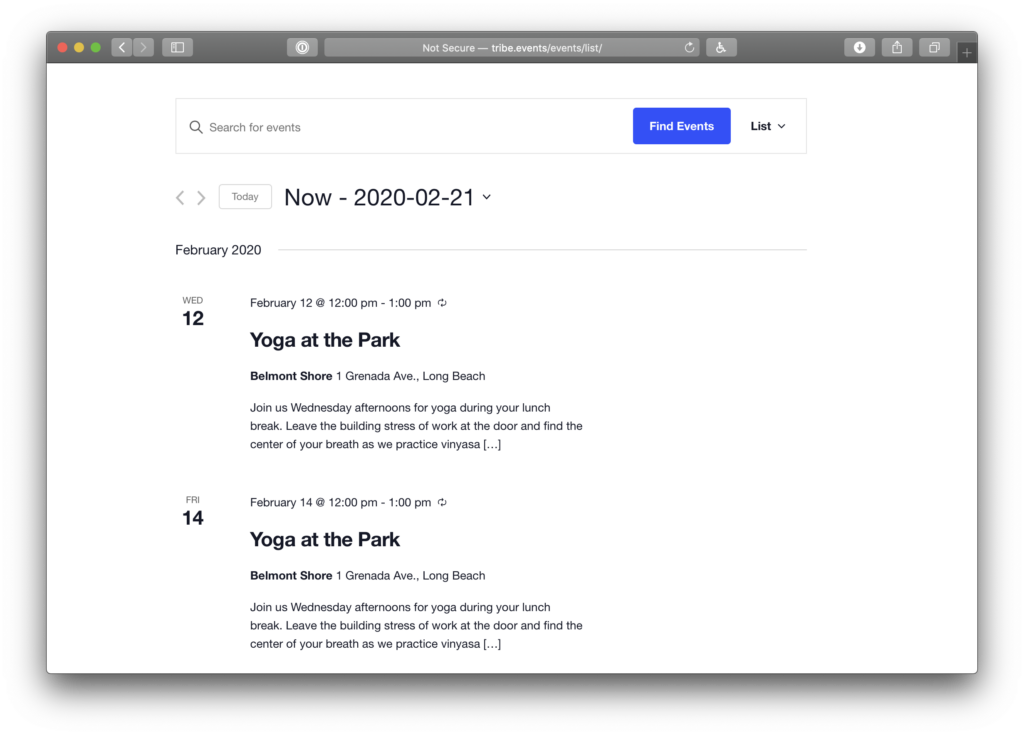
Heck yeah, the featured image has been removed, which is exactly what we want!
Note that the event description is still not using 100% width as the original CSS class reserves some space for the image, but you can change that by adding the following CSS snippet at wp-admin > Appearance > Customizer > Additional CSS section:
.tribe-common--breakpoint-medium.tribe-events .tribe-events-calendar-list__event-details {
    width: 100%;
}
Although this is a fairly simple example of what’s possible with template overrides, the same process applies to every other template file in The Events Calendar.
Custom Template Paths for Plugin Developers
The calendar views in The Events Calendar use a template engine that determines which file gets loaded based on the plugin namespace associated with that template. When you override a template in your theme, the engine matches the theme file to the correct plugin namespace automatically.
This section covers a more advanced use case: registering a custom plugin as an additional template override location. This allows a plugin you’ve built to provide its own versions of TEC template files, which can then themselves be overridden by a child theme. If you’re looking to customize templates for your own site rather than building a plugin, this is not the right approach — use a theme override as described above.
How Plugin Template Paths Work
Each template file in The Events Calendar maps from its plugin source path to a corresponding theme override path. For example:
the-events-calendar/src/views/v2/list/event.php→/tribe/events/v2/list/event.phpin your themeevents-calendar-pro/src/views/v2/photo/event.php→/tribe/events-pro/v2/photo/event.phpin your theme
When you register a custom plugin path, you’re inserting your plugin into that lookup chain at a specific priority. Your plugin’s version of the file takes precedence over the plugin’s default, and a child theme’s version still takes precedence over yours.
For example, with a custom plugin registered:
- Default file:
events-calendar-pro/src/views/v2/photo/event.php - Your plugin’s override:
my-plugin/tribe-customizations/v2/photo/event.php - Theme override of your plugin’s file:
/tribe/my-plugin/v2/photo/event.php
Note that if you set a namespace value in your folder registration (as shown in the snippet below), you change what the theme must use to override your plugin’s version. If you omit the namespace key, the original plugin namespace is preserved and theme overrides work as normal.
Registering a Custom Plugin Template Path
Use the tribe_template_path_list filter to add your plugin as a template override location:
<!-- wp:syntaxhighlighter/code {"language":"php"} -->
<pre class="wp-block-syntaxhighlighter-code">&lt;?php
/**
* Add your own plugin as a template override location for The Events Calendar, Event Tickets, and related plugins.
* This only applies to templates using the new Template Engine, as of version 5.0.1 that include Updated Views and Blocks.
*
* Each custom array's `path` is whatever you want it to be (i.e. customizable) up until the 'v2' part of each
* template's override path.
*
* So if the The Events Calendar location for a view is:
* /wp-content/plugins/the-events-calendar/src/views/v2/list/event/featured-image.php
*
* Then this plugin's override location would be:
* /wp-content/plugins/MY-PLUGIN/tribe-customizations/v2/list/event/featured-image.php
*
* And the theme's override location would be:
* /wp-content/themes/YOUR-CHILD-THEME/tribe/my-plugin/v2/list/event/featured-image.php
*
* FYI: Parent/Child Themes will override this custom plugin's override. Use your own custom code with the
* `tribe_template_theme_path_list` filter instead of this snippet to trump theme overrides if you must, but that is not
* typical best practice, although it may be necessary in order to override a theme that comes with V2 Views overrides
* (e.g. Avada) that you want to override.
*
* @see \Tribe__Template::get_template_path_list()
* @see \Tribe__Template::get_template_folder()
*
* @param array $folders Array of data for loading locations.
* @param \Tribe__Template $template Instance of the template engine we are working with.
*
* @return array
*/
function tribe_v2_additional_plugin_template_locations( $folders, \Tribe__Template $template ) {
// Which file namespace your plugin will use.
$plugin_name = 'my-plugin';
// Which order we should load your plugin files at.
$priority = 5;
// Plugin in which the file was loaded from = 20
// Events Pro = 25
// Tickets = 17
// Which folder in your plugin the customizations will be loaded from.
$custom_folder[] = 'tribe-customizations';
// Builds the correct file path to look for.
$plugin_path = array_merge(
(array) trailingslashit( plugin_dir_path( __FILE__ ) ),
(array) $custom_folder,
array_diff( $template->get_template_folder(), [ 'src', 'views' ] )
);
/**
* Examples:
*
* src/views/v2/list.php -> my-plugin/tribe-customizations/v2/list.php
* src/views/v2/list/event/cost.php -> my-plugin/tribe-customizations/v2/list/event/cost.php
* src/views/v2/photo/event/cost.php -> my-plugin/tribe-customizations/v2/photo/event/cost.php
* src/views/v2/organizer/meta/details/phone.php -> my-plugin/tribe-customizations/v2/organizer/meta/details/phone.php
*/
/*
* Custom loading location for overwriting file loading.
*/
$folders[ $plugin_name ] = [
'id' => $plugin_name,
'namespace' => $plugin_name, // Only set this if you want to overwrite theme namespacing
'priority' => $priority,
'path' => $plugin_path,
];
return $folders;
}
add_filter( 'tribe_template_path_list', 'tribe_v2_additional_plugin_template_locations', 10, 2 );</pre>
<!-- /wp:syntaxhighlighter/code -->
The priority value controls where in the lookup chain your plugin’s files sit. For reference, the default priorities used by TEC plugins are:
- Event Tickets: 17
- The Events Calendar (plugin origin): 20
- Events Calendar Pro: 25
Set your priority based on which plugin’s templates you intend to override.