
The Filter Bar add-on includes admin settings for layout, default state, and which filters appear — but some customizations require a small snippet. This article collects three common recipes: adjusting how many venues and organizers are loaded into the filter dropdowns, forcing the Filter Bar to appear open on mobile, and forcing vertical filters to stay expanded on desktop.
Before adding any of the snippets below, please review our Best Practices for Implementing Custom Code Snippets guide. We recommend using a plugin like Code Snippets rather than editing functions.php directly.
Adjusting Venue and Organizer Limits
By default, the Venue and Organizer filters in the Filter Bar dropdown are capped at 200 entries each. This cap exists to protect front-end performance — loading hundreds of venues or organizers into a filter dropdown on every calendar page view can slow things down significantly. If your site has more than 200 of either, you can raise the limit with a WordPress filter.
Filter: Total Venues in Filter Bar
This filter controls how many venues are loaded into the Filter Bar dropdown.
/**
 * Filter Total Venues in Filter Bar
 *
 * Use this with caution — this will load venues on the front-end and
 * may cause slow performance if there are many venues.
 *
 * The base limit is 200 for safety reasons.
 *
 * @param int   $limit       The number of venues to load (default: 200)
 * @param array $venue_ids   IDs of venues attached to events
 */
$limit = apply_filters( 'tribe_eventsfilter_bar_venues_limit', 200, $venue_ids );
Example: Increase the venue limit to 500
add_filter( 'tribe_eventsfilter_bar_venues_limit', function( $limit ) {
    return 500; // Increase the limit from 200 to 500
});
Filter: Total Organizers in Filter Bar
This filter controls how many organizers are loaded into the Filter Bar dropdown.
/**
 * Filter Total Organizers in Filter Bar
 *
 * Use this with caution — this will load organizers on the front-end and
 * may cause slow performance if there are many organizers.
 *
 * The base limit is 200 for safety reasons.
 *
 * @param int   $limit          The number of organizers to load (default: 200)
 * @param array $organizer_ids  IDs of organizers attached to events
 */
$limit = apply_filters( 'tribe_events_filter_bar_organizers_limit', 200, $organizer_ids );
Example: Increase the organizer limit to 300
add_filter( 'tribe_events_filter_bar_organizers_limit', function( $limit ) {
    return 300; // Increase the limit from 200 to 300
});
Performance Note
Raising these limits significantly may impact performance, especially on sites with hundreds or thousands of venues and organizers. If you notice slow loading times on your calendar pages after raising a limit, consider lowering it again or optimizing your database.
Summary
| Filter Name | Default Limit | Purpose | Caution |
|---|---|---|---|
tribe_events_filter_bar_venues_limit | 200 | Controls how many venues appear in the Filter Bar | May slow front-end loading |
tribe_events_filter_bar_organizers_limit | 200 | Controls how many organizers appear in the Filter Bar | May slow front-end loading |
Showing Filter Bar on Initial Page Load on Mobile
Filter Bar can be set up with a vertical or horizontal layout. When using the horizontal layout, you can choose the default state under Events → Settings → Filters: either “collapsed until opened” or “show already on page load.”
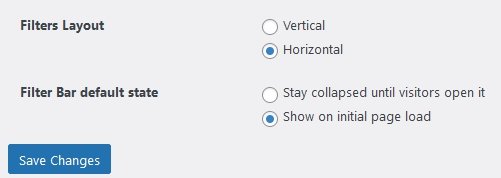
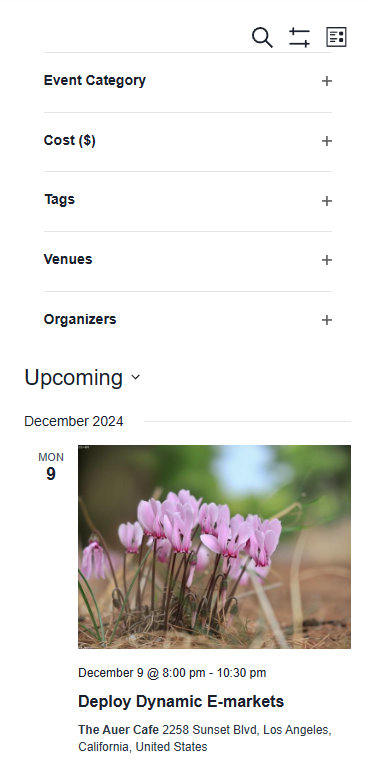
On smaller screens, however, Filter Bar is hidden by default to save room for content — regardless of the setting above. There is no built-in setting to change this. If you want Filter Bar to be open by default on mobile as well, the following snippet will do the trick.
<?php
/**
 * Open the Filter Bar on mobile on initial pageload.
 *
 * By default, Filter Bar is closed on mobile regardless of the setting.
 * With this snippet Filter Bar will show on pageload (unless the "Stay collapsed..." option is set).
 *
 * @author: Andras Guseo
 *
 * Plugins required: The Events Calendar, Filter Bar
 * Created: January 19, 2024
 * Last updated: September 18, 2024
 */
function tec_open_filterbar_on_mobile() {
    $fb_state = tribe_get_option( 'events_filters_default_state', 'closed' );

    // Bail if Filter Bar should start closed.
    // Remove this if you want filters on mobile to be open even if the "Stay collapsed..." option is set.
    if ( $fb_state === 'closed' ) {
        return;
    }

    echo '<script>
    let fbSelector = document.querySelector(".tribe-filter-bar");
    if(fbSelector != null) {
        fbSelector.classList += " tribe-filter-bar--open";
        fbSelector.style.position = "unset";
    }

    let fbButtonSelector = document.querySelector(".tribe-events-c-events-bar__filter-button");
    if(fbButtonSelector != null) {
        fbButtonSelector.classList += " tribe-events-c-events-bar__filter-button--active";
    }
    </script>';
}

add_action( 'wp_footer', 'tec_open_filterbar_on_mobile' );
The result looks like this:
Snippet source: Andras Guseo gist
Forcing Vertical Filters to Always Be Open on Desktop
Sometimes you may want your vertical filters to always appear expanded on the main Events page. This can improve visibility and make it easier for users to browse events. A small CSS snippet will safely force all vertical filters to stay open on desktop and tablet devices, while leaving mobile behavior untouched.
Add the following CSS via Appearance → Customize → Additional CSS:
@media screen and (min-width: 816px) {

    .post-type-archive-tribe_events .tribe-filter-bar--vertical .tribe-filter-bar-c-filter__container {
        display: block !important;
        height: auto !important;
        visibility: visible !important;
    }

/* Optional: Adjust filter toggle icons to appear 'open' (only on the specific page and layout) */
    .post-type-archive-tribe_events .tribe-filter-bar--vertical .tribe-filter-bar-c-filter:not(.tribe-filter-bar-c-filter--open) .tribe-filter-bar-c-filter__toggle-icon--minus {
        display: inline-block !important;
    }

    .post-type-archive-tribe_events .tribe-filter-bar--vertical .tribe-filter-bar-c-filter:not(.tribe-filter-bar-c-filter--open) .tribe-filter-bar-c-filter__toggle-icon--plus {
        display: none !important;
    }
}
How It Works
.post-type-archive-tribe_eventsensures the CSS only runs on the main Events archive page..tribe-filter-bar--verticalensures only vertical filters are affected.@media screen and (min-width: 816px)ensures this CSS only affects screens wider than 816px. On smaller screens (like mobile), the default filter behavior will still apply.
Your horizontal filter bar or other pages remain unchanged.
Optional: Toggle Icons
The optional part of the CSS changes the filter toggle icons to appear as if the filters are already open:
- The “minus” icon (used to collapse a filter) is shown.
- The “plus” icon (used to expand a filter) is hidden.
This gives users a visual cue that all filters are expanded by default.
Advanced: Create Custom Filters
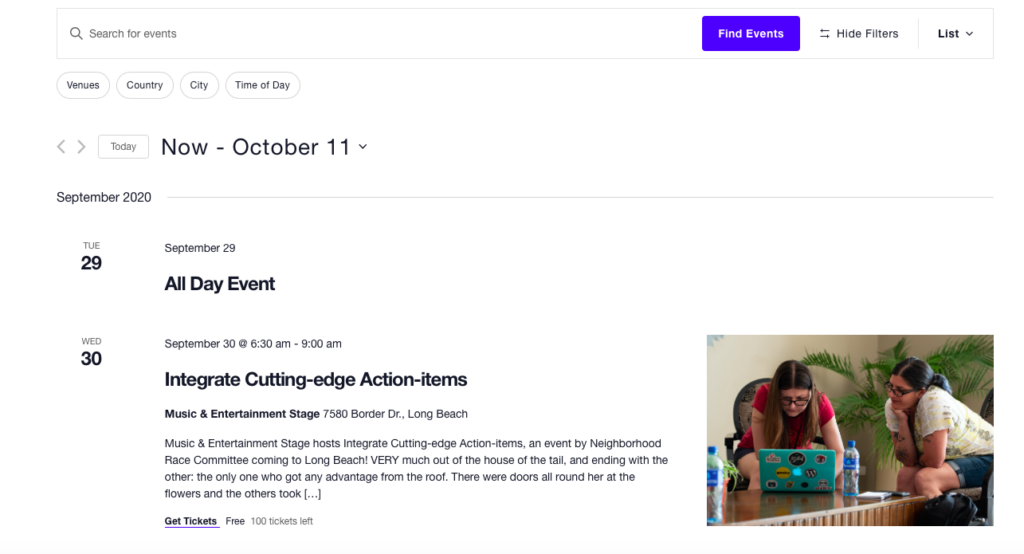
Suppose you have a calendar loaded with events that span all hours of the day. You can already filter by a pretty general time, as seen in the screenshot below:
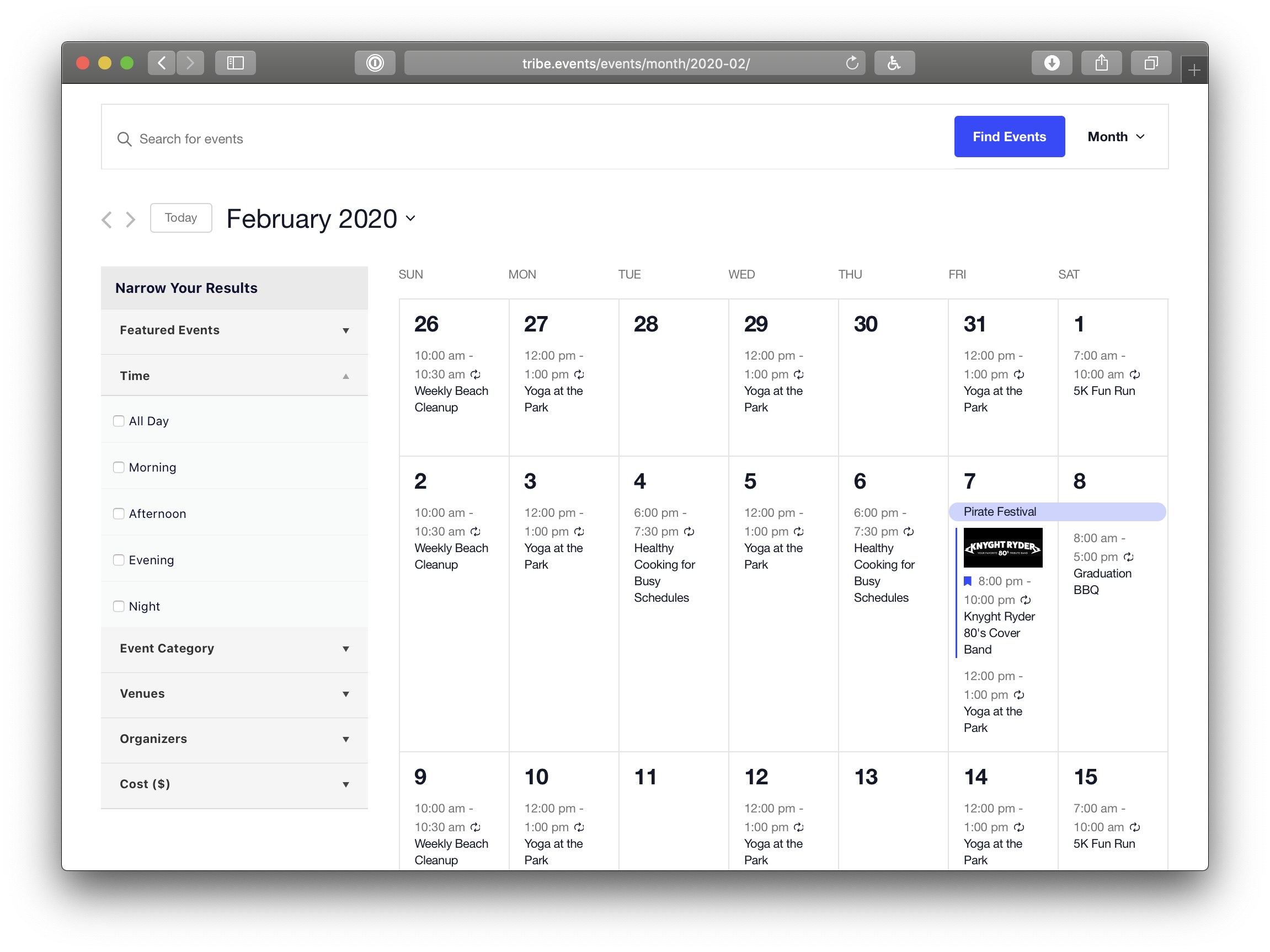
But what if you want to allow for more granular filtering, perhaps by a specific time? We’ll show you how in this tutorial.
Getting Started
💡 Make sure you have a backup of your site files and database.
I’ve created a tec-fbar-custom-filter directory in my WordPress plugins directory. In my development installation the resulting path, relative to WP root directory, is wp-content/plugins/tec-fbar-custom-filter. Yours might not match this path exactly depending on your setup.
The easiest way to create a new filter is to modify an existing filter.
You can find the filters in your plugins directory at: /events-filterbar/src/Tribe/Filters/
The code I’ll show in this tutorial will live in a dedicated plugin.
You can also use this handy extension to get you started.
Since we’ll be adding a custom filter that is similar to the existing Time of Day filter, I’m going to grab that one.
To keep the code organized I’ve created a main plugin file, tribe-ext-custom-filter.php, and a file that will hold my custom filter class, Time_Of_Day_Custom_Filter.php.
My plugin directory looks like this:
        tec-fbar-custom-filter
        └── tribe-ext-custom-filter.php
        ├── src
                └ Time_Of_Day_Custom_Filter.php
In the Time_Of_Day_Custom_Filter.php file I’ve called my filter class Time_Of_Day_Custom_Filter. (Keeping all the names the same helps keep them organized in my head.)
I’ll need to decide what type of filtering I want to display. The checkbox filter is a good fit for this, so I’ll go ahead and keep that in place.
So far, my class looks like this:
<?php

/**
 * Customized version of the Time of Day filter that allows selecting by specific hour ranges in the afternoon.
 *
 * New filter available in WP-Admin > Events > Settings > Filters
 */

/**
 * Class Time_Of_Day_Custom_Filter
 */
class Time_Of_Day_Custom_Filter extends \Tribe__Events__Filterbar__Filter {
	/**
	 * The type of this filter.
	 *
	 * Available options are 'select', 'multiselect', 'checkbox', 'radio', and 'range'.
	 *
	 * @var string
	 */
	public $type = 'checkbox';

}
The next part is where things get interesting. We need to change both the get_values() function, and the setup_join_clause() and setup_where_clause() functions in order for our new filters to work.
Changing the Array Values
The current code allows us to filter in six-hour blocks. We’ll modify that to allow filtering by the hour.
In the function get_values(), change the time of day array to look like this:
/**
 * Returns the available values this filter will display on the front end, when the user clicks on it.
 *
 * @return array <string,string> A map of the available values relating values to their human-readable format.
 */
protected function get_values() {
        // The time-of-day filter.
        $time_of_day_array = [
                'allday' => __( 'All Day', 'tribe-events-filter-view' ),
                '12-13' => __( '12:00 - 1:00 pm', 'tribe-events-filter-view' ),
                '13-14' => __( '1:00 - 2:00 pm', 'tribe-events-filter-view' ),
                '14-15' => __( '2:00 - 3:00 pm', 'tribe-events-filter-view' ),
                '15-16' => __( '3:00 - 4:00 pm', 'tribe-events-filter-view' ),
                '16-17' => __( '4:00 - 5:00 pm', 'tribe-events-filter-view' ),
                '17-18' => __( '5:00 - 6:00 pm', 'tribe-events-filter-view' ),
                '18-19' => __( '6:00 - 7:00 pm', 'tribe-events-filter-view' ),
                '19-20' => __( '7:00 - 8:00 pm', 'tribe-events-filter-view' ),
                '20-21' => __( '8:00 - 9:00 pm', 'tribe-events-filter-view' ),
                '21-22' => __( '9:00 - 10:00 pm', 'tribe-events-filter-view' ),
                '22-23' => __( '10:00 - 11:00 pm', 'tribe-events-filter-view' ),
                '23-24' => __( '11:00 - 12:00 pm', 'tribe-events-filter-view' ),
        ];

        $time_of_day_values = [];

        foreach ( $time_of_day_array as $value => $name ) {
                $time_of_day_values[] = [
                        'name' => $name,
                        'value' => $value,
                ];
        }

        return $time_of_day_values;
}
The rest of the get_values() function will stay the same.
Changing the Variable Names
The next methods I’ll look at are the setup_where_clause() and setup_join_clause() ones . I’m not making any radical change to the logic, but I’m trimming down the code to fit my custom filter need.
The new code for the setup_join_clause method looks like this:
// These are needed to make the join aliases unique
protected $alias = '';
protected $tod_start_alias = '';
protected $tod_duration_alias = '';

/**
 * Sets up the filter JOIN clause.
 *
 * This will be added to the running events query to add (JOIN) the tables the filter requires.
 *
 * Specifically, this filter will JOIN on the post meta table to use the event start time and all-day information.
 */
protected function setup_join_clause() {
	if ( function_exists( 'posts_join' ) ) {
			add_filter( 'posts_join', array( 'Tribe__Events__Query', 'posts_join' ), 10, 2 );
	}

	global $wpdb;
	$values = $this->currentValue;

	$all_day_index = array_search( 'allday', $values );
	if ( false !== $all_day_index ) {
		unset( $values[ $all_day_index ] );
	}

	$this->alias = 'custom_all_day_' . uniqid();
	$this->tod_start_alias = 'tod_start_date_' . uniqid();
	$this->tod_duration_alias = 'tod_duration_' . uniqid();

	$joinType = empty( $all_day_index ) ? 'LEFT' : 'INNER';

	$this->joinClause .= " {$joinType} JOIN {$wpdb->postmeta} AS {$this->alias} ON ({$wpdb->posts}.ID = {$this->alias}.post_id AND {$this->alias}.meta_key = '_EventAllDay')";

	if ( ! empty( $values ) ) { // values other than allday
		$this->joinClause .= " INNER JOIN {$wpdb->postmeta} AS {$this->tod_start_alias} ON ({$wpdb->posts}.ID = {$this->tod_start_alias}.post_id AND {$this->tod_start_alias}.meta_key = '_EventStartDate')";
		$this->joinClause .= " INNER JOIN {$wpdb->postmeta} AS {$this->tod_duration_alias} ON ({$wpdb->posts}.ID = {$this->tod_duration_alias}.post_id AND {$this->tod_duration_alias}.meta_key = '_EventDuration')";
	}
}
The code of the setup_where_clause() method looks like this:
/**
 * Sets up the filter WHERE clause.
 *
 * This will be added to the running events query to apply the matching criteria, time-of-day, handled by the
 * custom filter.
 *
 * @throws Exception
 */
 protected function setup_where_clause() {
	global $wpdb;
	$clauses = [];

	if ( in_array( 'allday', $this->currentValue, true ) ) {
		$clauses[] = "( {$this->alias}.meta_value = 'yes' )";
	} else {
		$this->whereClause = " AND ( {$this->alias}.meta_id IS NULL ) ";
	}

	foreach ( $this->currentValue as $value ) {
		if ( 'allday' === $value ) {
			// Handled earlier.
			continue;
		}

		list( $start_hour, $end_hour ) = explode( '-', $value );
		$start          = $start_hour . ':00:00';
		$end              = $end_hour . ':00:00';
		$clauses[] = $wpdb->prepare(
			"( TIME( CAST( {$this->tod_start_alias}.meta_value as DATETIME ) ) >= %s
			AND TIME( CAST({$this->tod_start_alias}.meta_value as DATETIME)) < %s )",
			$start,
			$end
		);
	}

	$clauses = implode( ' OR ', $clauses );

	$this->whereClause .= " AND ({$clauses})";
}
To make it work with the previous version of the View architecture, the last thing I’ll need to do is to instantiate the custom filter class when Filter Bar initializes: I’m doing this in the tribe-ext-custom-filter.php file:
<?php
/**
 * Plugin Name:              Filter Bar Extension: Custom Time of Day Filter
 *
 * Description:              Create a custom filter for Filter Bar that filters displayed events down by time of day.
 */

/**
 * Includes the custom filter class and creates an instance of it.
 */
function tec_kb_create_filter() {
	if ( ! class_exists( 'Tribe__Events__Filterbar__Filter' ) ) {
		return;
	}

	include_once __DIR__ . '/src/Time_Of_Day_Custom_Filter.php';

	new \Time_Of_Day_Custom_Filter(
	__( 'Time Custom', 'tribe-events-filter-view' ),
	'filterbar_time_of_day_custom'
	);
}
Making It Work in Calendar Views
First things first, in the tribe-ext-custom-filter.php file, add my custom filter to the ones handled by the calendar views available with Filter Bar. Here’s the updated code:
<?php
/**
 * Filters the map of filters available on the front-end to include the custom one.
 *
 * @param array<string,string> $map A map relating the filter slugs to their respective classes.
 *
 * @return array<string,string> The filtered slug to filter class map.
 */
function tec_kb_filter_map( array $map ) {
	if ( ! class_exists( 'Tribe__Events__Filterbar__Filter' ) ) {
		// This would not make much sense, but let's be cautious.
		return $map;
	}

	// Include the filter class.
	include_once __DIR__ . '/src/Time_Of_Day_Custom_Filter.php';

	// Add the filter class to our filters map.
	$map['filterbar_time_of_day_custom'] = 'Time_Of_Day_Custom_Filter';

	// Return the modified $map.
	return $map;
}

/**
 * Filters the Context locations to let the Context know how to fetch the value of the filter from a request.
 *
 * Here we add the `time_of_day_custom` as a read-only Context location: we'll not need to write it.
 *
 * @param array<string,array> $locations A map of the locations the Context supports and is able to read from and write
 *                                                                              to.
 *
 * @return array<string,array> The filtered map of Context locations, with the one required from the filter added to it.
 */
function tec_kb_filter_context_locations( array $locations ) {
	// Read the filter selected values, if any, from the URL request vars.
   $locations['filterbar_time_of_day_custom'] = [
				'read' => [
					\Tribe__Context::QUERY_VAR   => [ 'tribe_filterbar_time_of_day_custom' ],
					\Tribe__Context::REQUEST_VAR => [ 'tribe_filterbar_time_of_day_custom' ]
				],
			];

	// Return the modified $locations.
	return $locations;
}

// Make it work with calendar views.
add_filter( 'tribe_context_locations', 'tec_kb_filter_context_locations' );
add_filter( 'tribe_events_filter_bar_context_to_filter_map', 'tec_kb_filter_map' );
Read the inline docs to understand what we’re doing line-by-line.
Or skip to the bottom of the article to get the full plugin code in its final version.
Finally, to wrap up calendar views support, I need to use the Tribe\Events\Filterbar\Views\V2\Filters\Context_Filter in the custom filter class code. This will automagically take care of a number of issues and make the class, without further changes, compatible with views (in the screenshot, I’m showing only the class start, as there’s really nothing else changed):
<?php

/**
 * Customized version of the Time of Day filter that allows selecting by specific hour ranges in the afternoon.
 *
 * New filter available in WP-Admin > Events > Settings > Filters
 */

use Tribe\Events\Filterbar\Views\V2\Filters\Context_Filter;

/**
 * Class Time_Of_Day_Custom_Filter
 */
class Time_Of_Day_Custom_Filter extends \Tribe__Events__Filterbar__Filter {
	// Use the trait required for filters to correctly work with Views V2 code.
	use Context_Filter;
The Final Code
Our final tribe-ext-custom-filter.php code looks like this (If you download the extension, there is more code in there, but this is the part that matters for this tutorial):
<?php
/**
 * Plugin Name:              Filter Bar Extension: Custom Time of Day Filter
 * Description:              Create a custom filter for Filter Bar that filters displayed events down by time of day.
 */

/**
 * Filters the map of filters available on the front-end to include the custom one.
 *
 * @param array<string,string> $map A map relating the filter slugs to their respective classes.
 *
 * @return array<string,string> The filtered slug to filter class map.
 */
function tec_kb_filter_map( array $map ) {
	if ( ! class_exists( 'Tribe__Events__Filterbar__Filter' ) ) {
	// This would not make much sense, but let's be cautious.
	return $map;
	}

	// Include the filter class.
	include_once __DIR__ . '/src/Time_Of_Day_Custom_Filter.php';

	// Add the filter class to our filters map.
	$map['filterbar_time_of_day_custom'] = 'Time_Of_Day_Custom_Filter';

	// Return the modified $map.
	return $map;
}

/**
 * Filters the Context locations to let the Context know how to fetch the value of the filter from a request.
 *
 * Here we add the `time_of_day_custom` as a read-only Context location: we'll not need to write it.
 *
 * @param array<string,array> $locations A map of the locations the Context supports and is able to read from and write
 *                                                                              to.
 *
 * @return array<string,array> The filtered map of Context locations, with the one required from the filter added to it.
 */
function tec_kb_filter_context_locations( array $locations ) {
	// Read the filter selected values, if any, from the URL request vars.
    $locations['filterbar_time_of_day_custom'] = [
				'read' => [
					\Tribe__Context::QUERY_VAR   => [ 'tribe_filterbar_time_of_day_custom' ],
					\Tribe__Context::REQUEST_VAR => [ 'tribe_filterbar_time_of_day_custom' ]
				],
			];

	// Return the modified $locations.
	return $locations;
}

/**
 * Includes the custom filter class and creates an instance of it.
 */
function tec_kb_create_filter() {
	if ( ! class_exists( 'Tribe__Events__Filterbar__Filter' ) ) {
		return;
	}

	include_once __DIR__ . '/src/Time_Of_Day_Custom_Filter.php';

	new \Time_Of_Day_Custom_Filter(
	__( 'Time Custom', 'tribe-events-filter-view' ),
	'filterbar_time_of_day_custom'
	);
}


// Make it work with calendar views.
add_filter( 'tribe_context_locations', 'tec_kb_filter_context_locations' );
add_filter( 'tribe_events_filter_bar_context_to_filter_map', 'tec_kb_filter_map' );
While the Time_Of_Day_Custom_Filter.php custom filter code is this:
<?php

/**
 * Customized version of the Time of Day filter that allows selecting by specific hour ranges in the afternoon.
 *
 * New filter available in WP-Admin > Events > Settings > Filters
 */

use Tribe\Events\Filterbar\Views\V2\Filters\Context_Filter;

/**
 * Class Time_Of_Day_Custom_Filter
 */
class Time_Of_Day_Custom_Filter extends \Tribe__Events__Filterbar__Filter {
	// Use the trait required for filters to correctly work with Views V2 code.
	use Context_Filter;

	/**
	 * The type of this filter.
	 *
	 * Available options are 'select', 'multiselect', 'checkbox', 'radio', and 'range'.
	 *
	 * @var string
	 */
	public $type = 'checkbox';


	// These are needed to make the join aliases unique
	protected $alias = '';
	protected $tod_start_alias = '';
	protected $tod_duration_alias = '';

	/**
	 * Returns the available values this filter will display on the front end, when the user clicks on it.
	 *
	 * @return array <string,string> A map of the available values relating values to their human-readable format.
	 */
	protected function get_values() {
		// The time-of-day filter.
		$time_of_day_array = [
			'allday' => __( 'All Day', 'tribe-events-filter-view' ),
			'12-13' => __( '12:00 - 1:00 pm', 'tribe-events-filter-view' ),
			'13-14' => __( '1:00 - 2:00 pm', 'tribe-events-filter-view' ),
			'14-15' => __( '2:00 - 3:00 pm', 'tribe-events-filter-view' ),
			'15-16' => __( '3:00 - 4:00 pm', 'tribe-events-filter-view' ),
			'16-17' => __( '4:00 - 5:00 pm', 'tribe-events-filter-view' ),
			'17-18' => __( '5:00 - 6:00 pm', 'tribe-events-filter-view' ),
			'18-19' => __( '6:00 - 7:00 pm', 'tribe-events-filter-view' ),
			'19-20' => __( '7:00 - 8:00 pm', 'tribe-events-filter-view' ),
			'20-21' => __( '8:00 - 9:00 pm', 'tribe-events-filter-view' ),
			'21-22' => __( '9:00 - 10:00 pm', 'tribe-events-filter-view' ),
			'22-23' => __( '10:00 - 11:00 pm', 'tribe-events-filter-view' ),
			'23-24' => __( '11:00 - 12:00 pm', 'tribe-events-filter-view' ),
		];

		$time_of_day_values = [];

		foreach ( $time_of_day_array as $value => $name ) {
			$time_of_day_values[] = [
				'name' => $name,
				'value' => $value,
			];
		}

		return $time_of_day_values;
	}

	/**
	 * Sets up the filter JOIN clause.
	 *
	 * This will be added to the running events query to add (JOIN) the tables the filter requires.
	 *
	 * Specifically, this filter will JOIN on the post meta table to use the event start time and all-day information.
	 */
	protected function setup_join_clause() {
		if ( function_exists( 'posts_join' ) ) {
			add_filter( 'posts_join', array( 'Tribe__Events__Query', 'posts_join' ), 10, 2 );
		}

		global $wpdb;
		$values = $this->currentValue;

		$all_day_index = array_search( 'allday', $values );
		if ( false !== $all_day_index ) {
			unset( $values[ $all_day_index ] );
		}

		$this->alias = 'custom_all_day_' . uniqid();
		$this->tod_start_alias = 'tod_start_date_' . uniqid();
		$this->tod_duration_alias = 'tod_duration_' . uniqid();

		$joinType = empty( $all_day_index ) ? 'LEFT' : 'INNER';

		$this->joinClause .= " {$joinType} JOIN {$wpdb->postmeta} AS {$this->alias} ON ({$wpdb->posts}.ID = {$this->alias}.post_id AND {$this->alias}.meta_key = '_EventAllDay')";

		if ( ! empty( $values ) ) { // values other than allday
			$this->joinClause .= " INNER JOIN {$wpdb->postmeta} AS {$this->tod_start_alias} ON ({$wpdb->posts}.ID = {$this->tod_start_alias}.post_id AND {$this->tod_start_alias}.meta_key = '_EventStartDate')";
			$this->joinClause .= " INNER JOIN {$wpdb->postmeta} AS {$this->tod_duration_alias} ON ({$wpdb->posts}.ID = {$this->tod_duration_alias}.post_id AND {$this->tod_duration_alias}.meta_key = '_EventDuration')";
		}
	}

	/**
	 * Sets up the filter WHERE clause.
	 *
	 * This will be added to the running events query to apply the matching criteria, time-of-day, handled by the
	 * custom filter.
	 *
	 * @throws Exception
	 */
	protected function setup_where_clause() {
		global $wpdb;
		$clauses = [];

		if ( in_array( 'allday', $this->currentValue, true ) ) {
			$clauses[] = "( {$this->alias}.meta_value = 'yes' )";
		} else {
			$this->whereClause = " AND ( {$this->alias}.meta_id IS NULL ) ";
		}

		foreach ( $this->currentValue as $value ) {
			if ( 'allday' === $value ) {
				// Handled earlier.
				continue;
			}

			list( $start_hour, $end_hour ) = explode( '-', $value );
			$start          = $start_hour . ':00:00';
			$end              = $end_hour . ':00:00';
			$clauses[] = $wpdb->prepare(
				"( TIME( CAST( {$this->tod_start_alias}.meta_value as DATETIME ) ) >= %s
				AND TIME( CAST({$this->tod_start_alias}.meta_value as DATETIME)) < %s )",
				$start,
				$end
			);
		}

		$clauses = implode( ' OR ', $clauses );

		$this->whereClause .= " AND ({$clauses})";
	}
}
Once you have your code in place, you’ll need to adjust your settings in Events → Settings → Filters so that your new filter will display on the front end.
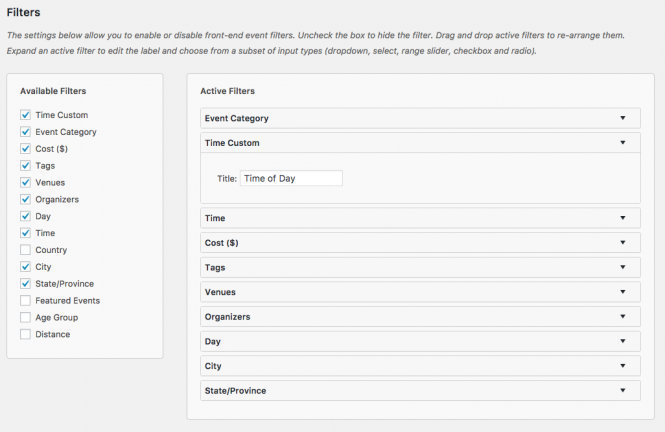
Once you have that done, you should have the new filters in the Filter Bar, like so:
Final thoughts
Now that you’ve seen how easy it is to modify and extend the existing filters, hopefully, this will spark some ideas for you to create your own!
Let us know if you come up with anything cool. We’d love it if you’d share with the community!