
By default, The Events Calendar (TEC) plugin does not display the event author on the front end. However, with a small amount of custom code, you can show the author’s name and a link to their profile on both the Single Event page and the List View of your calendar. This is useful if you have multiple contributors or instructors and want to credit them on the event listings.
Display Author on the Single Event Page
You can show the event author at the bottom of the event description by adding a code snippet to your theme.
- Go to Appearance → Theme File Editor, or use a plugin like Code Snippets.
- Add the following PHP code:
add_action( 'tribe_events_single_event_after_the_content', 'show_event_author_name' );

function show_event_author_name() {
    $author_id = get_the_author_meta( 'ID' );
    $author_name = get_the_author();
    $author_url = get_author_posts_url( $author_id );

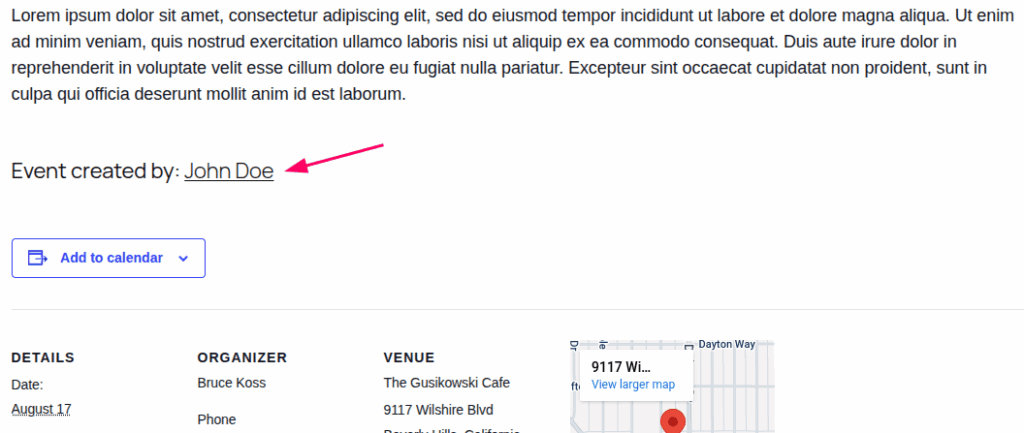
    echo '<p class="event-author"><strong>Event created by:</strong> <a href="' . esc_url( $author_url ) . '">' . esc_html( $author_name ) . '</a></p>';
}
This will display a line like this below:
Display Author in the List View
The List View shows upcoming events in a vertical list. To add the author’s name there, you have two options.
Template Override
- Copy the file
/wp-content/plugins/the-events-calendar/src/views/v2/list/event/title.phpand paste it to/wp-content/themes/your-theme/tribe/events/v2/list/event/title.php - Open the copied file and add this snippet right after the event title code which is after line 31:
<?php
$author_id = get_the_author_meta( 'ID' );
$author_name = get_the_author();
$author_url = get_author_posts_url( $author_id );
?>

<p class="event-author">
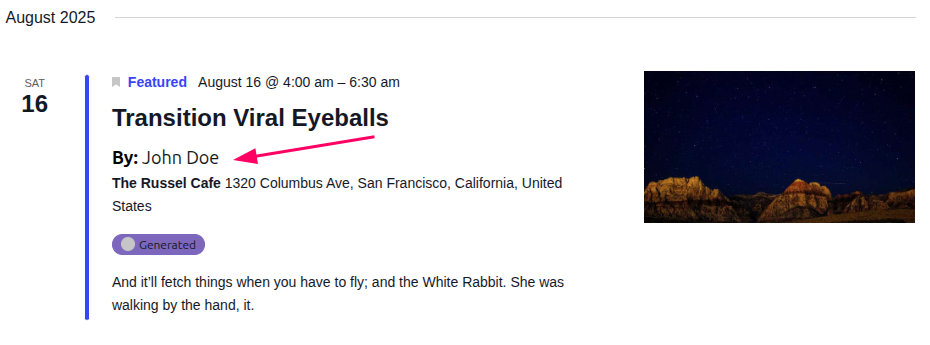
    <strong>By:</strong> <a href="<?php echo esc_url( $author_url ); ?>"><?php echo esc_html( $author_name ); ?></a>
</p>
This will add the author’s name in list view as shown below:
Final Thoughts:
Displaying the event author in The Events Calendar is a simple but effective way to give credit to your event creators, instructors, or organizers. While TEC does not include this feature out of the box, adding it is straightforward with either a quick code snippet or a template override. Once implemented, your events will not only provide essential details but also highlight the people behind them, giving your calendar a more personal and professional touch.