
Limit Users to One RSVP Per Event
By default, users can RSVP to events as many times as they’d like. If you’d prefer to limit users to a single RSVP per person, you can make that happen with some customizations. You can add a snippet to limit the RSVP functionality and then create a template override to customize the appearance of the form once a user has already RSVP’ed.
We’ll walk you through the steps here.
Prerequisites
For this to work, you need to require users to log in before they RSVP. You can find the respective setting under Tickets > Settings > General tab.

The Snippet
The first thing you’ll want to do is add the following snippet to your functions.php file:
add_filter( 'tribe_tickets_get_ticket_max_purchase', function( $stock ) {
	if ( $stock < 1 ) {
		return $stock;
	}
	return 1;
} );
This will limit the RSVP so that users can only submit a single RSVP at once.
Template Override
The next step in the process is to create a template override. If you’re not familiar with template overrides, check out this Knowledgebase article.
Create a file at:
[your-theme]/tribe/tickets/v2/rsvp/actions/rsvp.php
Add the following to that template to include a custom message if a user tries to purchase multiple RSVPs:
<?php
/**
 * Block: RSVP
 * Actions - RSVP
 *
 * This is a template override for the following file:
 * event-tickets/src/views/v2/rsvp/actions/rsvp.php
 *
 * Place this template in your own theme by creating a file at:
 * [your-theme]/tribe/tickets/v2/rsvp/actions/rsvp.php
 *
 * See more documentation about our Blocks Editor templating system.
 *
 * @link https://evnt.is/1amp Help article for RSVP & Ticket template files.
 *
 * @var Tribe__Tickets__Ticket_Object $rsvp The rsvp ticket object.
 *
 * @since 4.12.3
 * @version 4.12.3
 */

$user = wp_get_current_user();
$event_id = get_the_ID();

/** @var Tribe__Tickets__Tickets_View $tickets_view */
$tickets_view = Tribe__Tickets__Tickets_View::instance();

?>
<div class="tribe-tickets__rsvp-actions-rsvp">
	<span class="tribe-common-h2 tribe-common-h6--min-medium">
		<?php esc_html_e( 'RSVP Here', 'event-tickets' ); ?>
	</span>

    <?php if ( ! $tickets_view->has_rsvp_attendees( $event_id, $user->ID ) ) : ?>
        <?php $this->template( 'v2/rsvp/actions/rsvp/going', [ 'rsvp' => $rsvp ] ); ?>

        <?php $this->template( 'v2/rsvp/actions/rsvp/not-going', [ 'rsvp' => $rsvp ] ); ?>
    <?php else : ?>
        <p>Sorry - only one per customer!</p>
    <?php endif; ?>

</div>
The Result
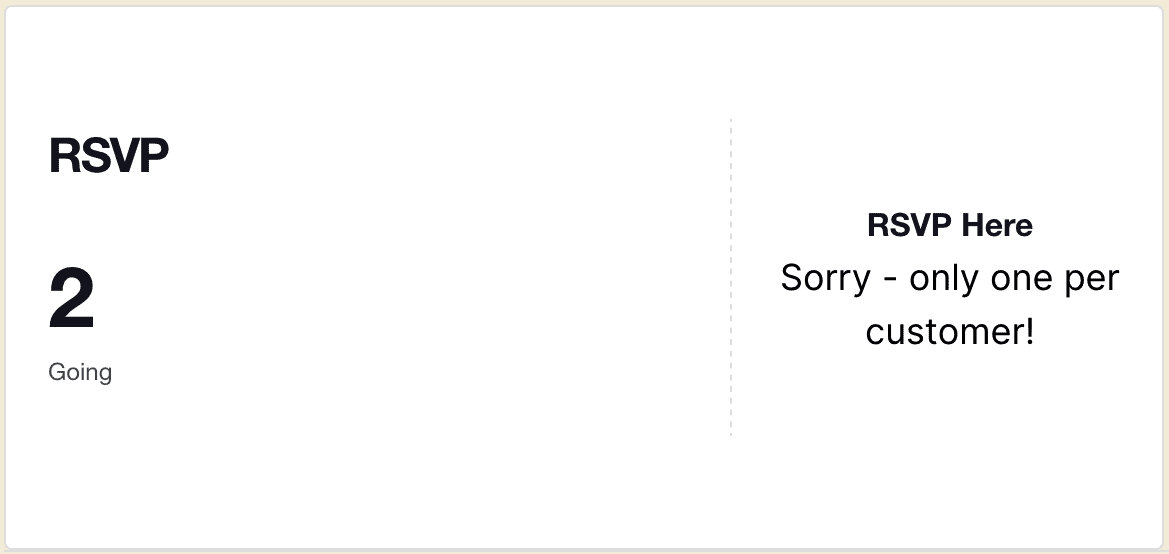
After setting this up, a user who has already RSVP’d to an event should see something like this:
Disable “Going” Button
You can disable the “Going” button entirely with the following snippet:
<?php
/**
 * Block: RSVP
 * Actions - RSVP - Going
 *
 * Override this template in your own theme by creating a file at:
 * [your-theme]/tribe/tickets/v2/rsvp/actions/rsvp/going.php
 *
 * See more documentation about our Blocks Editor templating system.
 *
 * @link https://evnt.is/1amp Help article for RSVP & Ticket template files.
 *
 * @var bool $must_login Whether the user has to login to RSVP or not.
 * @var Tribe__Tickets__Ticket_Object $rsvp The rsvp ticket object.
 *
 * @since 4.12.3
 * @version 4.12.3
 */
$user = get_current_user_id();
$tickets_view = \Tribe__Tickets__Tickets_View::instance();
$rsvp_count   = 0 < $tickets_view->count_rsvp_attendees( get_the_ID(), $user );
$disabled = $must_login || $rsvp_count;
?>

<div class="tribe-tickets__rsvp-actions-rsvp-going">
	<button
		class="tribe-common-c-btn tribe-tickets__rsvp-actions-button-going tribe-common-b1 tribe-common-b2--min-medium"
		type="submit"
		<?php tribe_disabled( $disabled ); ?>
	>
		<?php echo esc_html_x( 'Going', 'Label for the RSVP going button', 'event-tickets' ); ?>
	</button>
</div>
Change Field Labels on the RSVP Form
Sometimes we need to change the default labels for the Name and Email fields on the RSVP form. For example, replacing the “Name” label with “Full Name.”
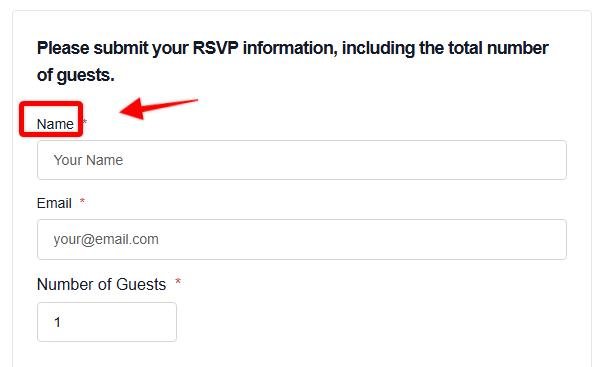
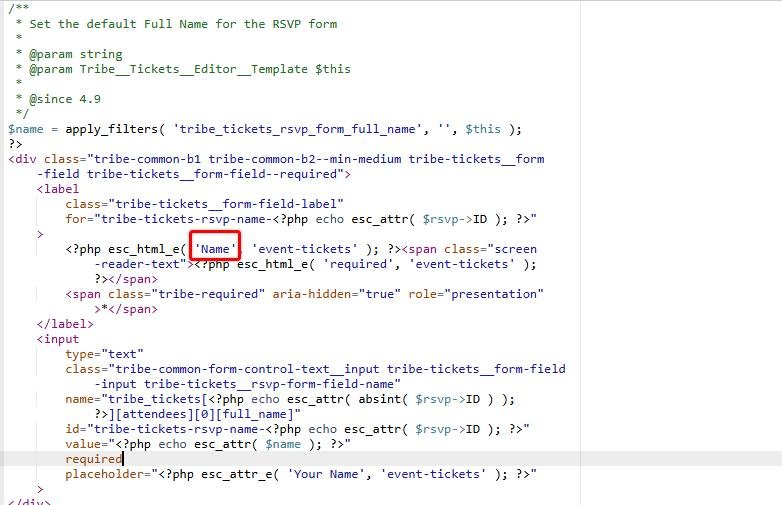
What we can do is edit the corresponding template, in this case, it is:
/wp-content/plugins/event-tickets/src/views/v2/rsvp/form/fields/name.phpChanging the word “Same” to “Full Name” in the code as shown in fthe ollowing image:
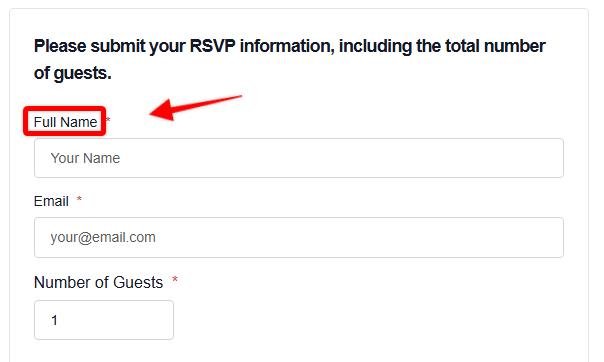
After this, our RSVP will be updated as we expected:
It’s worth mentioning that while it’s true that you can modify the code in the template file, it’s good practice to apply the template override method to avoid losing changes in case there’s a plugin update that replaces the modified file with the original file.
This guide describes the template override method step by step.
Collecting Additional Guest Names
When using the RSVP functionality of Event Tickets, you’ll notice that only the main guest is asked or is required to submit their name and email address on the RSVP form. However, there may be a time when you need the names of the other guests that the main guests is bringing with. For this, we will tap on the Attendee Information feature of Event Tickets Plus and tweak it a bit to conform with our use case.
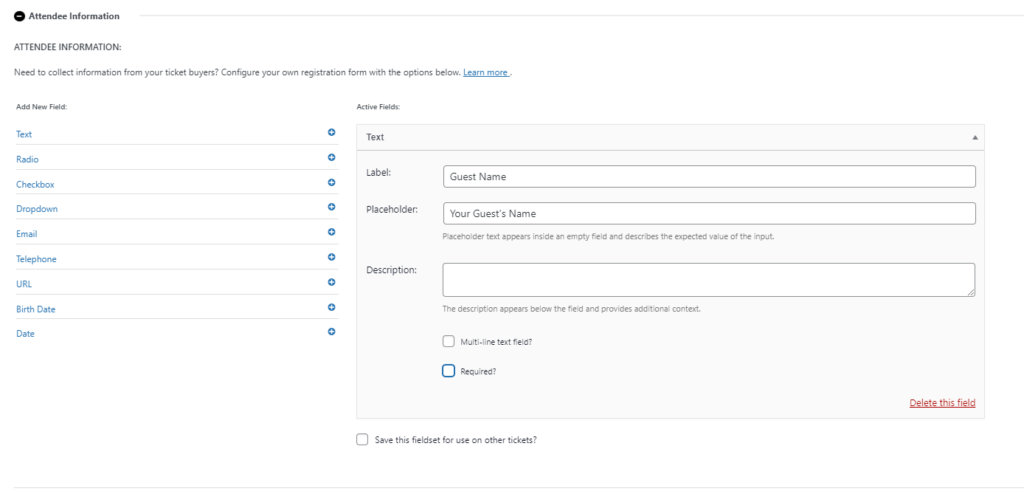
Add a text field called “Guest Name” on the Attendee Information setting of your RSVP.
- Copy the
\wp-content\plugins\event-tickets-plus\src\views\v2\components\meta\text.phpfile to your[theme or child-theme]/tribe/tickets-plus/v2/components/meta/folder to override it.
- Edit the “target” file (the one in your theme or child-theme folder) so it contains the code below, which does the following: It appropriately requires the guest name field for all other attendees and does not show the field to the main guest.
<?php
$multiline = Tribe__Utils__Array::get( $field, [ 'extra', 'multiline' ], null );

if ( $field->slug == 'guest-name' ) {
	if ( $attendee_id === 0 ) {
		$required = false;
	}
}
?>
<div
	<?php tribe_classes( $classes ); ?>
	<?php tribe_attributes( $attributes ); ?>
>
<?php if ( $attendee_id === 0 && $field->slug == 'guest-name' ) { return; } else { ?>
	<label
		class="tribe-tickets__form-field-label"
		for="<?php echo esc_attr( $field_id ); ?>"
	><?php echo wp_kses_post( $field->label ); ?><?php tribe_required_label( $required ); ?></label>
	<div class="tribe-tickets__form-field-input-wrapper">
		<?php if ( $multiline ) : ?>
			<textarea
				id="<?php echo esc_attr( $field_id ); ?>"
				class="tribe-common-form-control-text__input tribe-tickets__form-field-input"
				name="<?php echo esc_attr( $field_name ); ?>"
				placeholder="<?php echo esc_attr( $placeholder ); ?>"
				<?php tribe_required( $required ); ?>
				<?php tribe_disabled( $disabled ); ?>
			><?php echo esc_textarea( $value ); ?></textarea>
		<?php else : ?>
			<input
				type="text"
				id="<?php echo esc_attr( $field_id ); ?>"
				class="tribe-common-form-control-text__input tribe-tickets__form-field-input"
				name="<?php echo esc_attr( $field_name ); ?>"
				value="<?php echo esc_attr( $value ); ?>"
				placeholder="<?php echo esc_attr( $placeholder ); ?>"
				<?php tribe_required( $required ); ?>
				<?php tribe_disabled( $disabled ); ?>
			/>
		<?php endif; ?>
		<?php if ( ! empty( $description ) ) : ?>
			<div class="tribe-common-b3 tribe-tickets__form-field-description">
				<?php echo wp_kses_post( $description ); ?>
			</div>
		<?php endif; ?>
	</div>
<?php } ?>
</div>
That’s it and Enjoy!