
The Events Calendar uses WordPress’s General Settings to determine which day the week starts on, the default timezone, and how dates and times are formatted. You can override any of these at the plugin level if you want your calendar to display differently from the rest of your site.
WordPress General Settings
These settings live at Settings → General in the WordPress dashboard and apply site-wide, including to your calendar views.
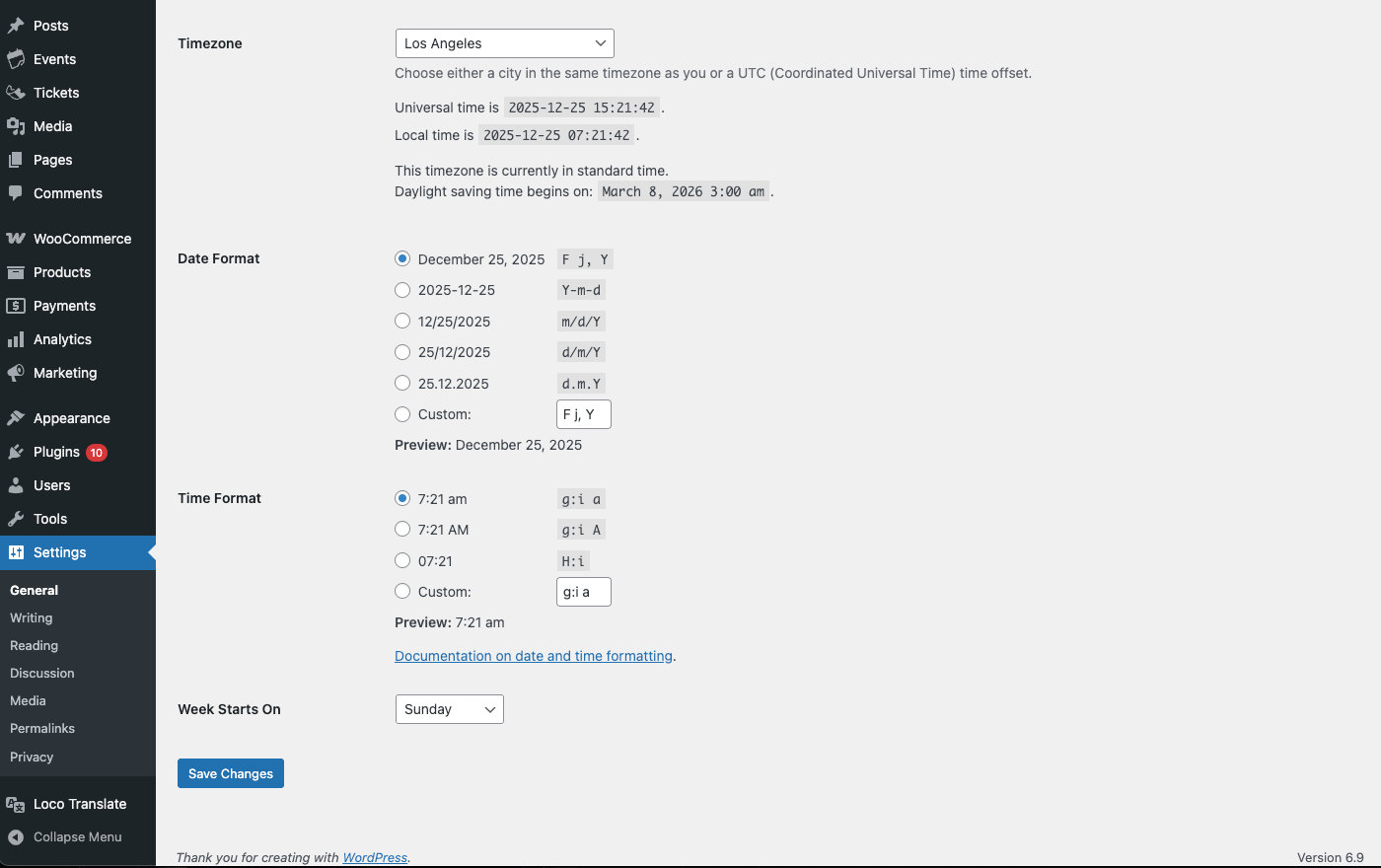
- Timezone — Select your timezone.
- Date format — Select or customize your date format. See the WordPress guide to formatting date and time for the full syntax reference.
- Time format — Choose from the built-in options, or select Custom and enter your own format string. See the WordPress Codex for available format characters.
- Week Starts On — Select the first day of the week. The WordPress default is Monday.
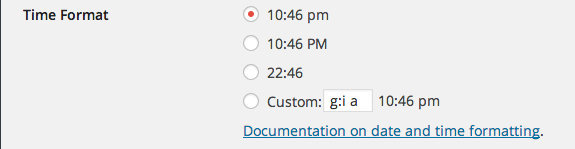
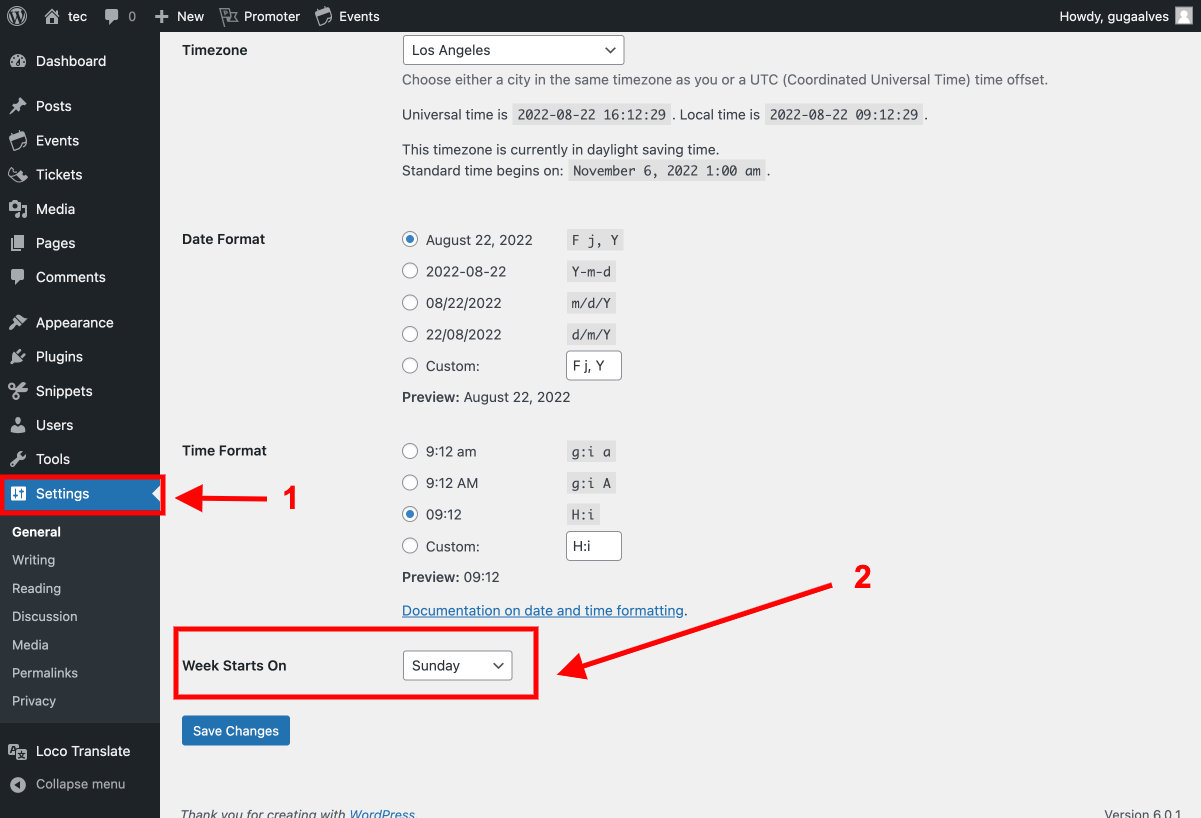
Save your changes, and the selections apply automatically to your calendar views.
The Events Calendar Date and Time Formats
The Events Calendar lets you override WordPress’s settings and configure date and time formats directly in the plugin — so you can have one format site-wide and a different format on your calendar.
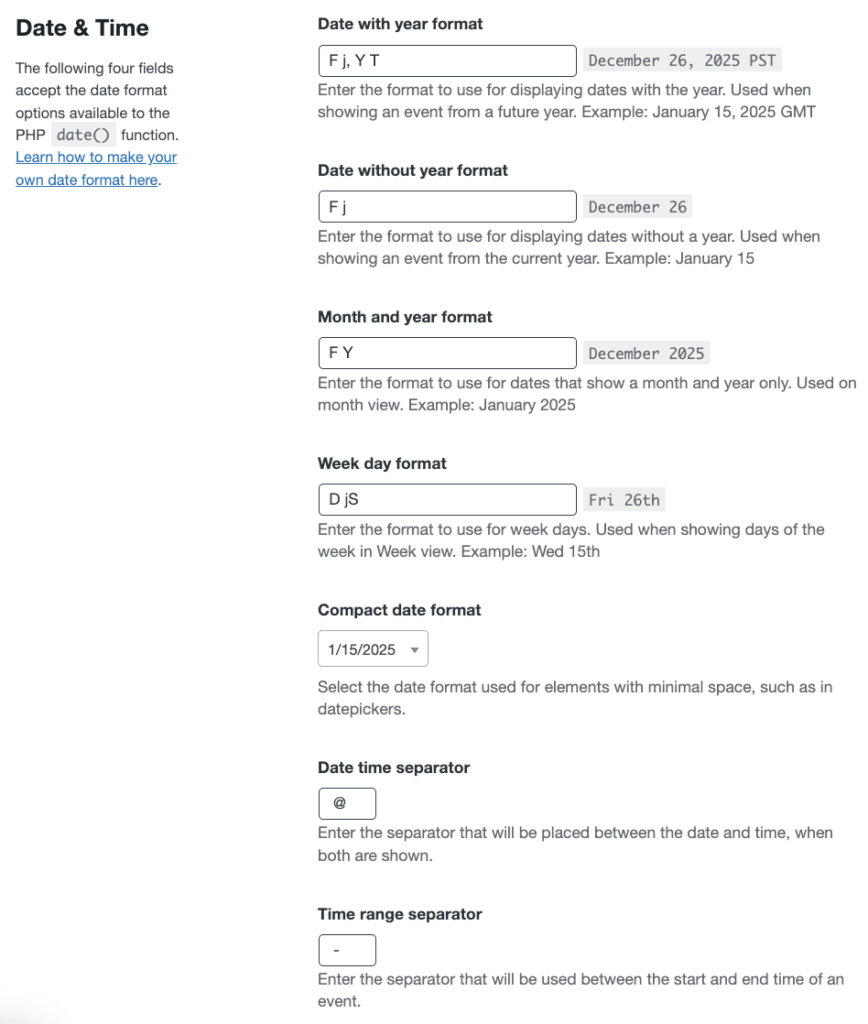
Navigate to Events → Settings → Display → Date & Time to configure these settings:
- Date with year — Format for a date that includes the year (e.g., January 29, 2021).
- Date without year — Format for a date without the year (e.g., January 29). Commonly used for events in the current year.
- Month and year format — Format for month-and-year displays (e.g., January 2021).
- Week day format — Format for the day of the week and date number in Events Calendar Pro’s Week View.
- Compact date format — Format for dates in compact spaces (e.g., 1/21/2021). Used in datepickers, including the one in the event editor. Also affects your mobile date picker.
- Date-time separator — Specifies how to separate the date and time when shown together (e.g., Jan. 21 @ 8:00 p.m.).
- Time range separator — Specifies how to separate start and end times (e.g., Jan. 21 @ 8:00 p.m. – 9:00 p.m.).
The Events Calendar’s “End of Day Cutoff” Setting
Do you regularly have events that are scheduled to end after midnight? If so, you’ve probably noticed that these events will span the course of two different days on the month view of your calendar. This probably isn’t the way you would like for that event to display, is it?
Fortunately, there is a simple way to fix this issue! Go to Events > Settings > Display > Date & Time and you’ll see an option to control the “End of day cutoff.” By moving this setting past midnight to the time when your nightly events end, you can prevent this awkward behavior of the event spanning multiple days on your calendar.
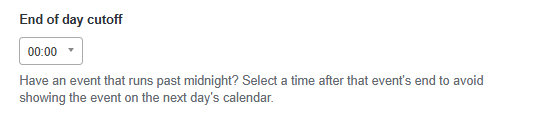
For example, say you have a concert that begins at 9:00 pm on a Friday night and ends at 2:00 am the following Saturday morning. By default, when you add this event to your calendar, you will set the start date for that Friday and the end date will be for Saturday. Technically, this event spans the course of two days and will display as such on your calendar. By changing the “End of day cutoff” setting to “2:00 am” any event that ends at, or before, 2:00 am won’t span the course of the two days and will display only for Friday night on your calendar.