
💡 This article is about how to help translate The Events Calendar. If you just want to change the calendar language, go here.
Core Translation Projects
Translations are handled differently for our free core plugins, The Events Calendar and Event Tickets, than they are for our premium plugins. See below for how to translate premiums features.
Translations for The Events Calendar and Event Tickets are managed on wordpress.org. To help with translation, go to the individual project pages:
The Events Calendar: https://translate.wordpress.org/projects/wp-plugins/the-events-calendar/stable
Event Tickets: https://translate.wordpress.org/projects/wp-plugins/event-tickets/stable
If you need help using the WordPress translation tools, check out the Translator’s Handbook.
Translating Premium Add-ons
We are always looking for new language translations and updates to existing translations (as needed). If you would like to contribute, follow the steps below.
- Check the available translations for the plugin or add-on you’d like to translate. It’s likely that a translation for your language already exists. If a translation exists but is incomplete, out-dated, or inaccurate, we would love to have you update the translation listed there.
If you don’t find your language listed for a plugin on our translations site, reach out to us at our Help Desk – specify the language you want to translate, and we’ll add it to the site promptly. - If you do not have an account on our translation site, you can go here any time to create a free account. You do not need to have purchased a license for any product to do this.
- Once you have an account, simply log in, go to the plugin and language you’d like to translate, and simply click the string you’d like to translate.
- A text box should appear where you can write your translated version of the original string. Enter your translation, and click the “Add Translation” button when you’re done. See a screenshot of this here:
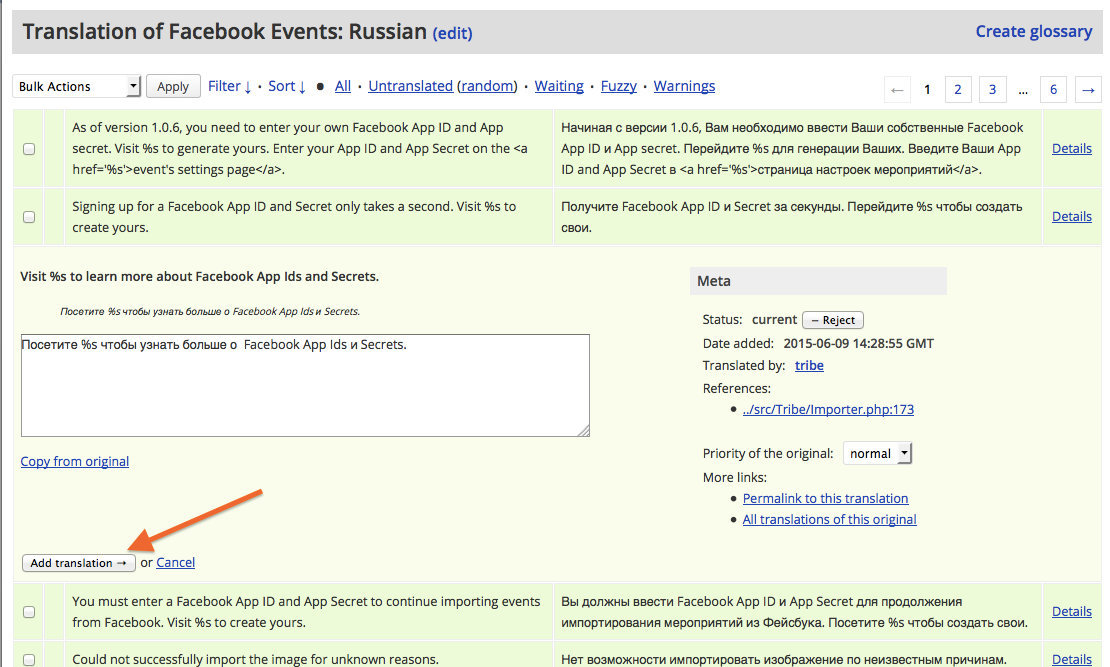
- Translate as much or as little as you’d like. Your edits will be saved, and, if approved by a The Events Calendar administrator, will be included in the official translation for all other users who download the translation.
Using Custom Language Files
The Events Calendar allows you to create custom language files for the plugin in addition to the ones that come packaged with the plugin. This is useful if you want to tweak a language file to change how a term is translated. This needs to be done in a custom language file or your changes will be overwritten when we release new updates.
Custom language files allow you to duplicate any of the plugin’s language files, store them in a safe place on your WordPress installation, and prevent them—and any edits you’ve made to them—from being overridden when we release updates. WordPress will first check for your custom language files before looking for the ones we package with our releases, giving you control of the language translations while avoiding losing those customizations.
Let’s dive into the steps for creating your own custom language files.
Step 1: Make a copy of the language file you need
The first step is to locate the language file you wish to customize and make a copy of it. For your reference, all of our products include a directory for languages:
- The Events Calendar:
/wp-content/plugins/the-events-calendar/lang/ - Events Calendar Pro:
/wp-content/plugins/events-calendar-pro/lang/ - Event Tickets:
/wp-content/plugins/events-tickets/lang/ - Event Tickets Plus:
/wp-content/plugins/events-tickets-plus/lang/ - Community Events:
/wp-content/plugins/the-events-calendar-community-events/lang/ - Community Tickets:
/wp-content/plugins/the-events-calendar-community-events-tickets/lang/ - Filter Bar:
/wp-content/plugins/the-events-calendar-filterbar/lang/ - Eventbrite Tickets:
/wp-content/plugins/the-events-calendar-eventbrite-tickets/lang/
So, for example, if you want to customize the Spanish translation file for The Events Calendar, you would copy the two following files:
/wp-content/plugins/the-events-calendar/lang/the-events-calendar-es_ES.mo/wp-content/plugins/the-events-calendar/lang/the-events-calendar-es_ES.po
Step 2: Find the WordPress languages folder
The second step is to locate the language file for your WordPress installation. Many WordPress installations include this by default at this location: /wp-content/languages.
Inside that folder is another folder called /plugins. That is where we’re going to hang out.
If, for some reason, your WordPress installation does not include /wp-content/languages/plugins, please create these folders.
Step 3: Place the copied language files in the languages folder
Once you’ve located (or created) the wp-content/languages folder and /plugins subfolder inside it, take the language files you duplicated in Step 1 and place them in the wp-content/languages/plugins folder.
Step 4: Edit away!
Now that the language files are in your WordPress installation, you can modify them to suit your needs. In this case, edit the strings in the language files and save your work.
Are you new to editing language files? Many of us on the Events Calendar team use POEdit, a free software application that allows you to edit .po files and convert them into the .mo language file that is read by WordPress.