
Changing the “All Events” Back Link
The “All Events” link at the top of single event pages points by default to the main events archive. If you’ve built a custom events page using a page builder or the [tribe_events] shortcode, you can redirect this link to any URL you choose.
Option 1: Using a Filter (Recommended)
The URL is generated by the tribe_get_events_link() function, which exposes a filter of the same name. Using the filter is the recommended approach because tribe_get_events_link() is also used by other plugin features — a template override only changes the back link, while the filter changes all uses of the function.
Add the following to your child theme’s functions.php or via the Code Snippets plugin:
add_filter( 'tribe_get_events_link', function() {
    return '/your-custom-url-here';
} );
Option 2: Template Override
If you prefer a template override, the file to copy depends on which editor you are using.
Block Editor: Copy:
/wp-content/plugins/the-events-calendar/src/views/single-event/back-link.php
to your theme at:
[your-theme]/tribe/events/single-event/back-link.php
Locate this block:
<p class="tribe-events-back">
<a href="<?php echo esc_url( tribe_get_events_link() ); ?>">
&laquo; <?php printf( $label, $events_label_plural ); ?>
</a>
</p>
Replace tribe_get_events_link() with your custom URL:
<p class="tribe-events-back">
<a href="<?php echo esc_url( '/your-custom-url-here' ); ?>">
&laquo; <?php printf( $label, $events_label_plural ); ?>
</a>
</p>
Classic Editor: Copy:
/wp-content/plugins/the-events-calendar/src/views/single-event.php
to:
[your-theme]/tribe-events/single-event.php
Locate:
<p class="tribe-events-back">
<a href="<?php echo esc_url( tribe_get_events_link() ); ?>"> <?php printf( '&laquo; ' . esc_html_x( 'All %s', '%s Events plural label', 'the-events-calendar' ), $events_label_plural ); ?></a>
</p>
And replace it with:
<p class="tribe-events-back">
<a href="<?php echo esc_url( '/your-custom-url-here' ); ?>"> <?php printf( '&laquo; ' . esc_html_x( 'All %s', '%s Events plural label', 'the-events-calendar' ), $events_label_plural ); ?></a>
</p>
SEO Note
When redirecting the “All Events” link to a custom page, the default /events/ archive will still exist and can be indexed by Google. To avoid duplicate content, set up a redirect from the default events URL to your custom page URL. Plugins like Redirection, Rank Math SEO (free), and Yoast SEO (paid) all provide redirect management.
Making Phone Numbers Callable
By default, venue and organizer phone numbers display as plain text on single event pages. Wrapping them in a tel: link lets visitors tap to call on mobile devices.
This requires a template override of the phone number templates. The files to copy depend on which editor you are using.
Classic Editor — copy both files:
plugins/the-events-calendar/src/views/modules/meta/organizer.php
plugins/the-events-calendar/src/views/modules/meta/venue.php
to your theme at:
[your-theme]/tribe-events/modules/meta/organizer.php
[your-theme]/tribe-events/modules/meta/venue.php
Block Editor — copy both files:
/the-events-calendar/src/views/blocks/parts/venue.php
/the-events-calendar/src/views/blocks/parts/organizer.php
to your theme at:
[your-theme]/tribe/events/blocks/parts/venue.php
[your-theme]/tribe/events/blocks/parts/organizer.php
In both copied templates, find the line that outputs the phone number:
<?php echo esc_html( $phone ) ?>
Replace it with a tel: link:
<a href="tel:<?php echo esc_attr( $phone ) ?>"><?php echo esc_html( $phone ) ?></a>
Keep the link wrapped in its existing dd.tel tags so the final result looks like this:
<dd class="tel">
    <a href="tel:<?php echo esc_attr( $phone ) ?>"><?php echo esc_html( $phone ) ?></a>
</dd>
Making the Organizer Email a Mailto Link
By default, the organizer email address displays as plain text. Adding a mailto: link lets visitors open a new email to the organizer directly from their email client.
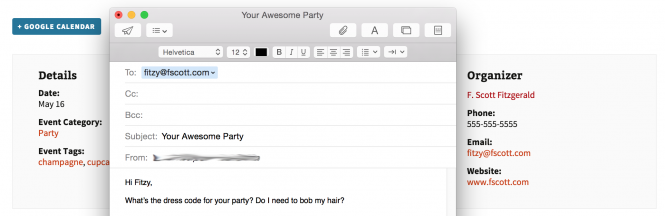
This is a Classic Editor template override only. Copy:
plugins/the-events-calendar/src/views/modules/meta/organizer.php
to:
[your-theme]/tribe-events/modules/meta/organizer.php
Open the copied file and scroll to around line 55. Find:
<?php echo esc_html( $email ); ?>
Replace it with:
<a href="mailto:<?php echo esc_attr( $email ) ?>"><?php echo esc_html( $email ); ?></a>
Customizing the Event Website Link
By default, the event website field displays the raw URL on the single event page when using Classic Editor:
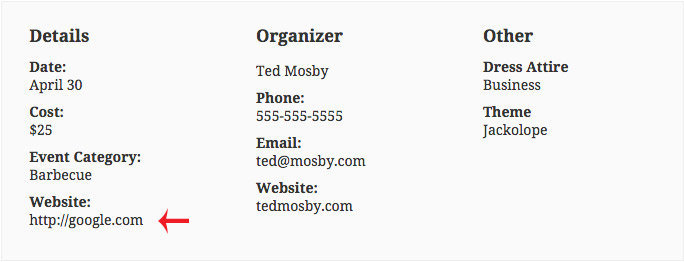
💡 If you are using the Block Editor, custom link labels are already supported natively — you can set the link text directly in the event editor without any code.
The following customizations apply to Classic Editor mode.
Change the URL to a Linked Word
Add the following to your child theme’s functions.php or via the Code Snippets plugin. It replaces the raw URL with a “Visit Website »” label while keeping the link intact:
function tribe_get_event_website_link_label_default( $label, $post_id ) {
    $url = tribe_get_event_website_url( $post_id );
    if ( $label === $url ) {
        $label = 'Visit Website »';
    }
    return $label;
}

add_filter( 'tribe_get_event_website_link_label', 'tribe_get_event_website_link_label_default', 10, 2 );
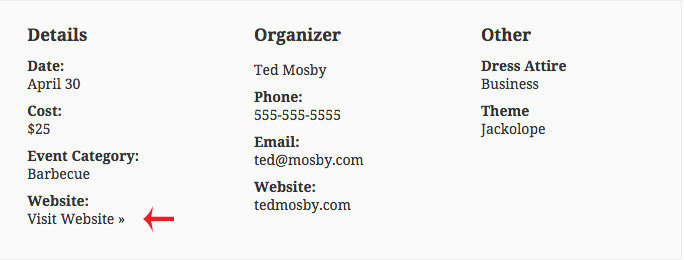
To open the link in a new window, also add:
add_filter( 'tribe_get_event_website_link_target', static function() {
    return '_blank';
} );
Change the URL to a Button
This snippet wraps the link in CSS classes so it can be styled as a button:
function tribe_change_event_website_link_to_button( $html ) {
    $label   = 'Visit Website »';
    $classes = 'button tribe-events-button tribe-common-c-btn tribe-common-c-btn--small';

    if ( false === strpos( $html, 'class="' ) ) {
        $new_html = str_replace( 'href="', 'class="' . $classes . '" href="', $html );
    } else {
        $new_html = str_replace( 'class="', 'class="' . $classes . ' ', $html );
    }

    if ( ! empty( $label ) ) {
        $new_html = preg_replace( '/\"\>.{2,}?(\<\/a>)/', '">' . $label . '</a>', $new_html );
    }

    return $new_html;
}

add_filter( 'tribe_get_event_website_link', 'tribe_change_event_website_link_to_button' );
Customize the CSS classes to match your theme’s existing button styles, or define a new class. For example:
.my-button-class {
    background-color: red;
    padding: 10px;
    color: #fff;
    float: left;
}
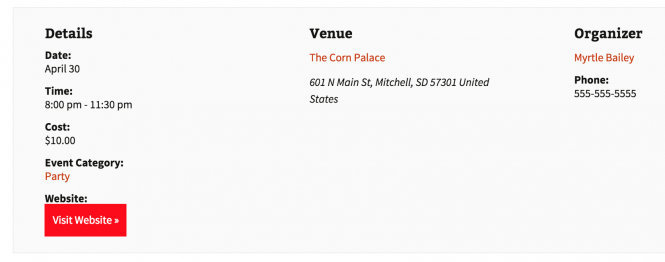
Removing the “Website” Heading
If you’ve changed the URL to a linked word or button, you may want to remove the “Website:” label that appears above it. This requires a template override of details.php.
Copy:
/plugins/the-events-calendar/src/views/modules/meta/details.php
to:
[your-theme]/tribe-events/modules/meta/details.php
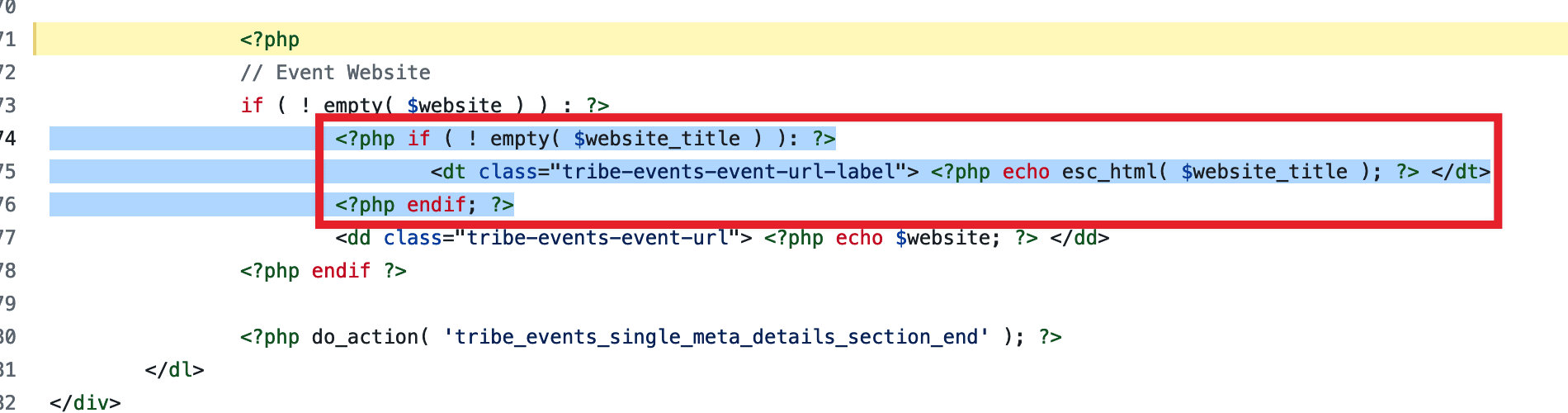
Then remove the following <dt> block from the copied file:
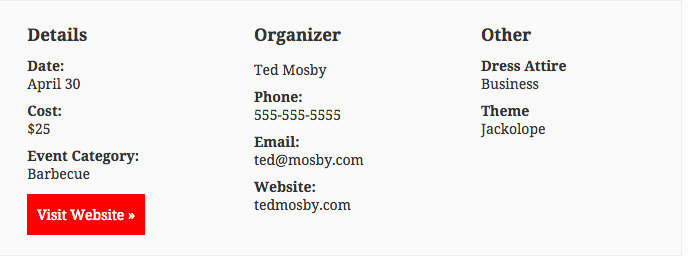
The result is a clean button or link with no heading above it:
Customizing Meta Field Labels
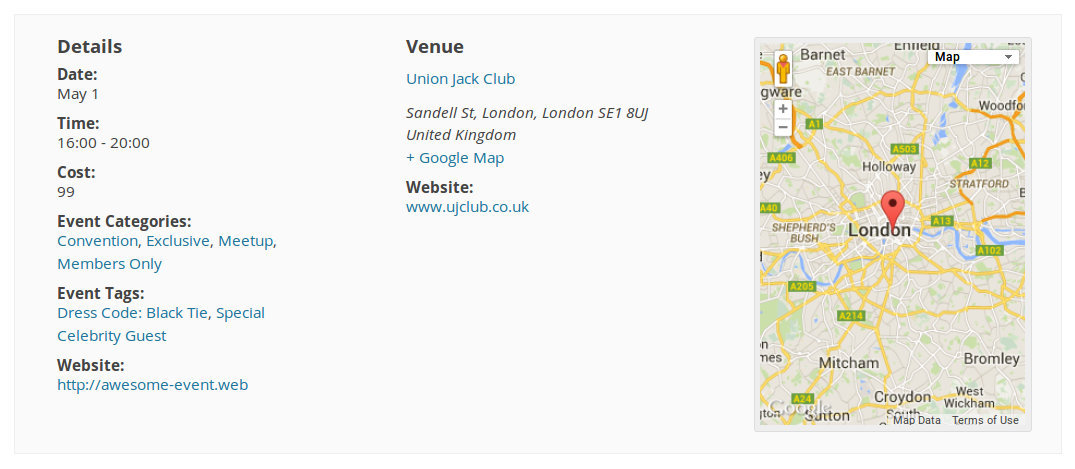
The single event meta area — the section below the event description listing details like website, categories, tags, venue, and organizer — uses a set of default labels that can be changed via a template override of details.php.
If you haven’t already created a details.php override from the Website Heading section above, copy the file now:
/the-events-calendar/src/views/modules/meta/details.php
to:
[your-theme]/tribe-events/modules/meta/details.php
All three label changes below are made in this same file.
Changing the Website Label
Find this line:
$website_title = tribe_events_get_event_website_title();
Replace it with your preferred label:
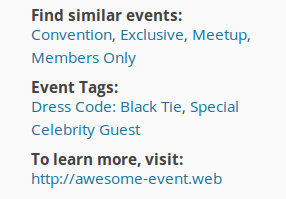
$website_title = "To learn more, visit:";
Changing the Event Categories Label
Find the tribe_get_event_categories() call and locate this line within it:
'label' => null, // An appropriate plural/singular label will be provided
Replace null with your own label string:
'label' => 'Find similar events:',
Keep the trailing comma in place.
Changing the Event Tags Label
Find the tribe_meta_event_archive_tags() call, which contains:
/* Translators: %s: Event (singular) */
sprintf(
    esc_html__( '%s Tags:', 'the-events-calendar' ),
    tribe_get_event_label_singular()
),
Replace that entire argument with your own label string:
'Find events with specific details:',
Keep the trailing comma. The full function call should now read:
<?php
tribe_meta_event_archive_tags(
    'Find events with specific details:',
    ', ',
    true
);
?>
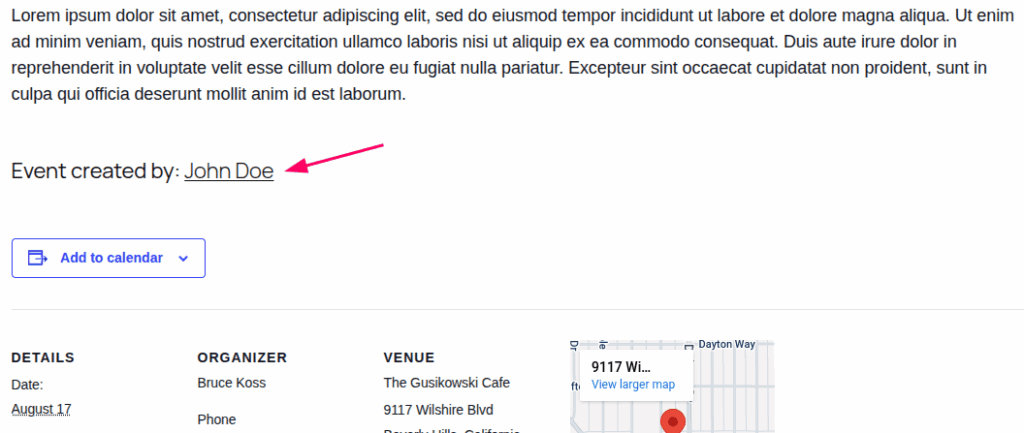
Display the Event Author
You can show the event author at the bottom of the event description by adding a code snippet to your theme.
- Go to Appearance → Theme File Editor, or use a plugin like Code Snippets.
- Add the following PHP code:
add_action( 'tribe_events_single_event_after_the_content', 'show_event_author_name' );

function show_event_author_name() {
    $author_id = get_the_author_meta( 'ID' );
    $author_name = get_the_author();
    $author_url = get_author_posts_url( $author_id );

    echo '<p class="event-author"><strong>Event created by:</strong> <a href="' . esc_url( $author_url ) . '">' . esc_html( $author_name ) . '</a></p>';
}
This will display a line like this below:
Hiding Additional Content on Single Event Pages
The Events Calendar allows you to inject content above and below the calendar. This is handy if you want to display an image above it, or perhaps some additional information below. You’ll find these options under Events > Settings > Display > Additional Content. By default, Additional Content will appear on all event-related pages, including the main events page, event archives, and single event pages.
However, in some cases, you may want this content to appear only on archive or listing pages, and not on individual (single) event pages.
To exclude the content from single event pages, you can use the following conditional snippet:
//HTML before event content
add_filter(
	'tribe_events_before_html',
	function( $before ) {

		if ( is_singular( Tribe__Events__Main::POSTTYPE ) ) {
			return '';
		}

		return $before;
	}
);

//HTML after event content
add_filter(
	'tribe_events_after_html',
	function( $after ) {

		if ( is_singular( Tribe__Events__Main::POSTTYPE ) ) {
			return '';
		}

		return $after;
	}
);
See this article for using custom code snippets.
Adding a Sidebar to Event Pages
By default, the sidebar from your theme may not appear on event pages. Adding one requires a template override of the Default Events Template.
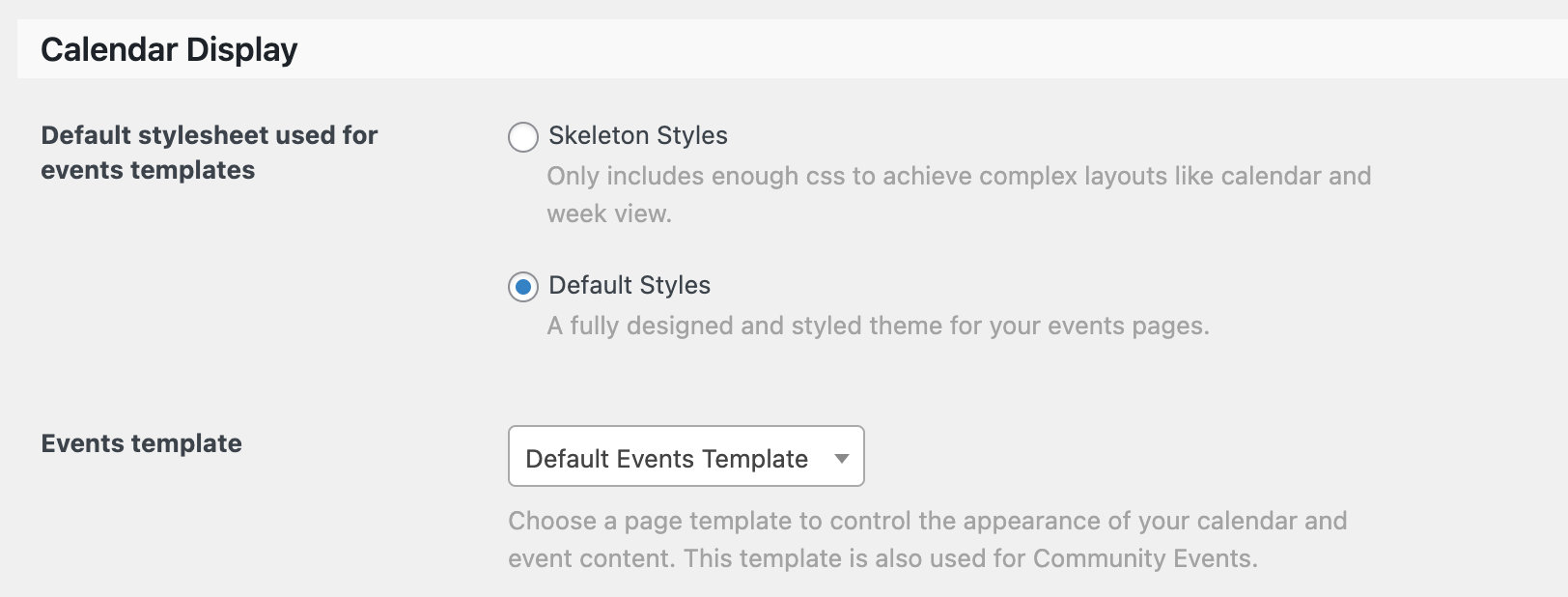
Step 1: Switch to the Default Events Template
Go to Events → Settings → Display and set the Events template dropdown to Default Events Template.
Step 2: Create the Template Override
Copy the default template file:
/wp-content/plugins/the-events-calendar/src/views/v2/default-template.php
to your child theme. For a full walkthrough of the override process, see Template Files for The Events Calendar v2.
Step 3: Add the Sidebar to the Template
With the copied template open, add your sidebar in the appropriate location within the layout. You have two options:
- Use an existing sidebar registered by your theme, using WordPress’s
get_sidebar()function. - Register a new sidebar specifically for event pages using
register_sidebar()in your child theme’sfunctions.php, then call it withget_sidebar()in the template.
Once the sidebar is in place, it will appear in Appearance → Widgets where you can add and arrange widgets as usual.